How to Connect Your RAV4 to the Toyota App
Last updated: May 30, 2026
What’s in This Article
- Before You Begin
- Quick Setup Steps
- Verify Your RAV4’s Compatibility With the Toyota App
- Check Subscriptions, Trials, and Data Privacy
- Download the Toyota App From the Official App Store
- Create or Log Into Your Toyota Account
- Add Your RAV4 to the App With Your VIN
- Tailor Your RAV4 Settings in the Toyota App
- Use Remote Connect Features for Your RAV4
- Receive Maintenance Updates via Service Connect
- Use Safety Connect for Roadside and Emergency Help
- Troubleshoot Common Toyota App Connection Issues
Connecting your RAV4 to the Toyota app can feel confusing if you don’t know which account, VIN, or subscription you need. The setup usually takes 10 to 20 minutes when your phone, vehicle, and Toyota account are ready. This guide shows you how to check compatibility, add your RAV4, activate available services, and fix common connection problems.
Quick Answer
To connect your RAV4 to the Toyota app, install the Toyota app from the Apple App Store or Google Play. Sign in or create a Toyota account, choose Add Vehicle, and enter or scan your 17-character Vehicle Identification Number (VIN). Your available features depend on your RAV4 model year, grade, region, active trials, and paid subscriptions.
Key Takeaways
- Use the official Toyota app from the Apple App Store or Google Play.
- Find your VIN before setup because the app needs it to add your RAV4.
- Check your RAV4’s model year, trim, and connected services before expecting remote features.
- Remote Connect, Service Connect, Safety Connect, Drive Connect, and Wi-Fi Connect may require an active trial or paid plan.
- Update your phone, Toyota app, and vehicle multimedia system if the app fails to connect.
Before You Begin
Estimated time: 10 to 20 minutes for most owners.
Get these items ready before you start:
- Your smartphone with internet access.
- The latest Toyota app from the official app store.
- Your Toyota account login, or an email address to create one.
- Your RAV4’s 17-character VIN.
- Access to your email inbox for account verification.
- Your vehicle nearby if the app asks you to confirm ownership or settings.
Quick Setup Steps
- Install the Toyota app from the Apple App Store or Google Play.
- Open the app and sign in or create your Toyota account.
- Tap the option to add a vehicle.
- Scan or type your RAV4’s VIN.
- Review the vehicle details and confirm that the app found the right RAV4.
- Accept the required terms, connected services prompts, and data consent options you choose.
- Check the app dashboard for available features, alerts, subscriptions, and service tools.
Verify Your RAV4’s Compatibility With the Toyota App
Before you connect your RAV4 to the Toyota app, check whether your vehicle supports the features you want. Toyota app compatibility can include select 2010 or newer Toyota vehicles, but the exact tools vary by model year, grade, region, trial status, and subscription.
Remote features need more than basic app access. Your RAV4 must support the right connected services, such as Remote Connect, Service Connect, Safety Connect, Drive Connect, or Wi-Fi Connect. Toyota says its current Connected Services plans apply to select 2022 and later Toyota vehicles, and Remote Connect comes with those plans.
For the most accurate answer, enter your VIN in the app or check your owner account. You can also review your owner’s manual or Toyota’s official connected services page before you expect remote start, remote lock, vehicle finder, or Wi-Fi hotspot tools.
Check Subscriptions, Trials, and Data Privacy
Many Toyota app features work only when your RAV4 has an active trial or paid subscription. Toyota also says trial periods, pricing, and services can change, so check your app dashboard before you rely on a fixed price or feature list.
Connected Services may use vehicle data such as location, vehicle health, account details, and remote command data. Toyota’s privacy notice says you can review or change your Vehicle Connectivity Consent in the Toyota app through Account and Data Privacy Portal.
Note: If you turn off data transmission, some connected services may stop working even if your vehicle includes them.
Download the Toyota App From the Official App Store
Start with the official Toyota app. Toyota directs owners to download the latest version from the Apple App Store or Google Play.
Open the app store on your phone and search for “Toyota.” Choose the app from Toyota Motor North America or the official Toyota app for your region. Avoid third-party apps that claim to connect to your Toyota account.
App Store Availability
The Toyota app is available through major app stores, but app names and services can vary by country. If you bought your RAV4 outside the United States, use the Toyota app for your sales region.
- Use the Apple App Store for iPhone.
- Use Google Play for Android phones.
- Search for the official Toyota app name in your region.
- Check that your phone has enough storage and current software.
Installation Process Steps
Tap Download or Install after you find the official app. Open the app after the download finishes.
The app will guide you through sign-in or account creation. If you create a new account, enter your details carefully and use the verification code sent to your email.
After sign-in, choose the option to add your vehicle. The app will ask you to scan or enter your RAV4’s Vehicle Identification Number (VIN).
Device Compatibility Check
Check your phone before setup so the app can connect without avoidable errors. Update your phone’s operating system and the Toyota app first.
- Turn on Bluetooth if you also plan to pair your phone with the multimedia system.
- Turn on location services if the app asks for location-based features.
- Use a stable Wi-Fi or mobile data connection during setup.
- Restart the app if the Add Vehicle screen does not load.
Create or Log Into Your Toyota Account
To connect your RAV4 to the Toyota app, create a Toyota account or sign in with an existing account. Toyota says you can sign in with My Toyota, Lexus Drivers, or SmartPath account information where supported.
If you create a new account, use an email address you can access right away. The app may send a verification code before it lets you add your RAV4.
After you sign in, choose Add Vehicle. Follow the prompts and give your RAV4 a simple name, such as “My RAV4,” so you can identify it quickly if you manage more than one Toyota.
Add Your RAV4 to the App With Your VIN
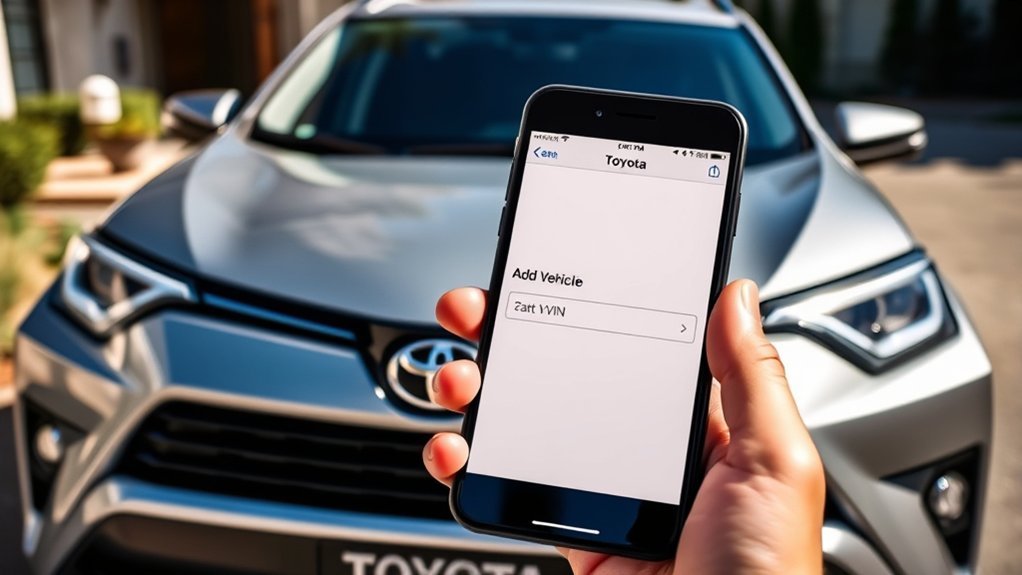
To add your RAV4 to the Toyota app, locate your VIN first. The National Highway Traffic Safety Administration (NHTSA) says a VIN is a 17-character number that identifies a specific vehicle.
You can usually find the VIN on the driver’s side dashboard near the windshield or on the driver-side doorjamb label. You may also find it on your registration, insurance card, or purchase documents.
Locate Your RAV4 VIN
Your RAV4’s Vehicle Identification Number (VIN) must match exactly. One wrong character can stop the app from adding your vehicle.
- Check the driver’s side dashboard near the lower windshield.
- Open the driver’s door and check the doorjamb label.
- Compare the VIN with your registration or insurance card.
- Use the app’s scanner if your camera can read the VIN clearly.
Scan or Enter VIN
After you find your RAV4’s VIN, open the Toyota app and choose the vehicle add option. You can scan the VIN with your phone camera or type it by hand.
If you scan it, align the full VIN inside the app’s scan frame. If you type it, check each character before you submit it.
The app will show your vehicle details after it finds a match. Confirm the details only if they match your RAV4’s year, model, and trim.
Tailor Your RAV4 Settings in the Toyota App
After you add your RAV4, the Toyota app dashboard will show the services your vehicle supports. Your screen may include remote controls, health reports, alerts, subscriptions, service tools, or dealer options.
Use the Toyota app dashboard to check available features, manage your RAV4, and review vehicle alerts from one place.
- Lock or unlock doors remotely if your RAV4 supports Remote Connect.
- Start the engine from your phone if your model, trim, and subscription allow it.
- Set service reminders so you can plan maintenance on time.
- Review available vehicle health information and recall-related alerts.
The My Garage dashboard can help you manage more than one Toyota. Choose the right vehicle before you change settings or send a remote command.
Use Remote Connect Features for Your RAV4
Remote Connect lets supported RAV4 owners control select vehicle functions from a smartphone or smartwatch. Toyota says Remote Connect works through the Toyota app or key fob when you have an active trial or paid subscription.
Depending on your RAV4, you may be able to start the engine, lock or unlock doors, find your vehicle, check status details, or get vehicle alerts. Toyota’s current plan page says Remote Connect comes standard on Connected Services plans for select 2022 and later Toyota vehicles.
Warning: Use remote start only where it is legal and safe, and never start a vehicle in an enclosed space.
Receive Maintenance Updates via Service Connect
Service Connect can send maintenance updates and vehicle health information for supported RAV4 models. Toyota says Service Connect includes Vehicle Health Reports, Vehicle Maintenance Alerts, and Maintenance Reminders.
You can review these alerts in the Toyota app or your My Toyota account. If you opt in, your preferred dealer may also receive maintenance alerts so the dealer can contact you when service may be due.
Maintenance Alert Notifications
Maintenance alerts help you track service needs before small issues become harder to manage. The app may show reminders, warnings, service campaigns, or recall-related information when your RAV4 supports the feature.
- Review maintenance reminders in the Toyota app.
- Check alerts before long trips.
- Confirm service needs with your owner’s manual or dealer.
- Keep your preferred dealer updated if you want dealer follow-up.
Vehicle Health Reports
Vehicle Health Reports can show useful diagnostic and maintenance information in the app or My Toyota dashboard. Toyota says these reports may include recalls, service campaigns, warnings, alerts, and maintenance details.
| Feature | Benefit | When You May See It |
|---|---|---|
| Vehicle Alerts | Helps you spot warnings | When data is available |
| Maintenance Reminders | Helps you plan service | Based on vehicle needs |
| Health Reports | Shows vehicle status details | In the app dashboard |
| Recall and Campaign Details | Flags important service actions | As Toyota provides updates |
| Dealer Alerts | Lets your dealer follow up | If you opt in |
Use Safety Connect for Roadside and Emergency Help
Safety Connect supports roadside and emergency help on equipped Toyota vehicles with an active trial or paid subscription. Toyota says Safety Connect includes an Emergency Assistance Button, Enhanced Roadside Assistance, Automatic Collision Notification, and Stolen Vehicle Locator.
Safety Connect can connect your RAV4 to a response center during certain roadside, emergency, crash, or theft situations.
- Press the in-vehicle SOS button for emergency help when the feature is active.
- Use Enhanced Roadside Assistance for issues such as a flat tire or fuel problem.
- Automatic Collision Notification may contact the response center after airbag deployment or a harsh rear-end collision.
- Stolen Vehicle Locator can help authorities after you file a police report.
For urgent danger, contact local emergency services first. Do not rely on an app feature as your only emergency plan.
Enable Wi-Fi Connect for Mobile Hotspot Functionality
Wi-Fi Connect can turn supported RAV4 models into a mobile hotspot through AT&T in the United States. Toyota currently lists Wi-Fi Connect as a $25 per month optional add-on on its U.S. Connected Services plans page, but pricing can change.
To set it up, open the Toyota app and check whether your RAV4 shows Wi-Fi Connect. Follow the prompts to activate service, manage the hotspot, and connect devices.
Toyota says Wi-Fi Connect can connect up to five devices at 4G LTE speeds on supported vehicles. Use your app dashboard or AT&T connected car account to review data terms before you stream, work, or share the hotspot on a trip.
Troubleshoot Common Toyota App Connection Issues
If your RAV4 does not connect to the Toyota app, start with the easiest fixes first. Most setup problems come from an account issue, wrong VIN, weak connection, app version problem, or unsupported service.
- Confirm that your RAV4 supports the Toyota app feature you want.
- Update the Toyota app from the official app store.
- Check that you entered the correct 17-character VIN.
- Complete email verification for your Toyota account.
- Turn on Bluetooth and location services if the app asks for them.
- Restart your phone and your RAV4’s multimedia system.
- Check your subscription or trial status in the app.
- Install any available multimedia software updates for your vehicle.
If the app still fails, contact Toyota support or your Toyota dealer. Have your VIN, phone model, app version, and screenshots ready so support can check your account faster.
Frequently Asked Questions
How do you connect a Toyota RAV4 to the Toyota app?
Install the Toyota app, sign in or create your Toyota account, and choose Add Vehicle. Enter or scan your RAV4’s VIN, confirm the vehicle details, and follow the prompts to activate available services.
Why can’t you connect your Toyota to the app?
Your Toyota may not connect because of an incorrect VIN, unverified account, outdated app, weak internet connection, or unsupported connected services. Check your account email, update the app, and confirm that your RAV4 supports the feature you want.
How do you pair your phone with your Toyota RAV4?
Pairing your phone for calls and audio uses your RAV4’s multimedia Bluetooth settings, not the same setup as adding your vehicle to the Toyota app. Turn on Bluetooth, open the vehicle’s phone or device settings, choose your phone, and follow the on-screen prompts.
How do you set up Remote Connect in the Toyota app?
Add your RAV4 to the Toyota app first, then check the app dashboard for Remote Connect. If your vehicle supports it, activate the trial or paid subscription and follow the app prompts to enable remote commands.
Does every RAV4 work with remote start in the Toyota app?
No. Remote start depends on your RAV4’s model year, trim, equipment, region, and active Remote Connect status. Some vehicles may support basic app tools but not remote engine start.
Safety Disclaimer: This article is for informational purposes only and does not replace Toyota’s owner manuals, emergency services, or professional vehicle support. Always follow your owner’s manual, local laws, and Toyota’s official guidance before using remote commands, Safety Connect, or roadside assistance features.
Conclusion
The Toyota app works best when you confirm compatibility, enter the right VIN, and understand which connected services your RAV4 supports. Start with the official app, add your vehicle, and review your dashboard before you expect remote start, Wi-Fi, health reports, or Safety Connect tools.
If setup fails, check your VIN, account verification, app version, phone settings, and subscription status. A clean setup gives you easier access to the RAV4 tools Toyota makes available for your vehicle.
References
- Toyota App – Toyota, 2026
- Connected Services – Toyota, 2026
- Connected Services Plans – Toyota, 2026
- 2026 Audio Multimedia and Connected Services Feature Applicability – Toyota, 2025
- VIN Decoder – National Highway Traffic Safety Administration, 2026
- Toyota Connected Services Privacy Notice – Toyota, 2026
