How to Add Apps to Your Toyota RAV4
What’s in This Article
- How to Check App Compatibility With Your Toyota RAV4
- Connecting Your iPhone to the RAV4 for App Access
- Accessing Apple CarPlay: The First Step to Adding Apps
- Top Apps to Enhance Your Toyota RAV4 Experience
- Customizing Your CarPlay Experience: Adding and Removing Apps
- How to Fix Common App Connectivity Issues
- Updating Your RAV4’s Software for Better App Performance
- Third-Party Solutions for Your Toyota RAV4
- How to Keep Your Apps Running Smoothly
- Frequently Asked Questions
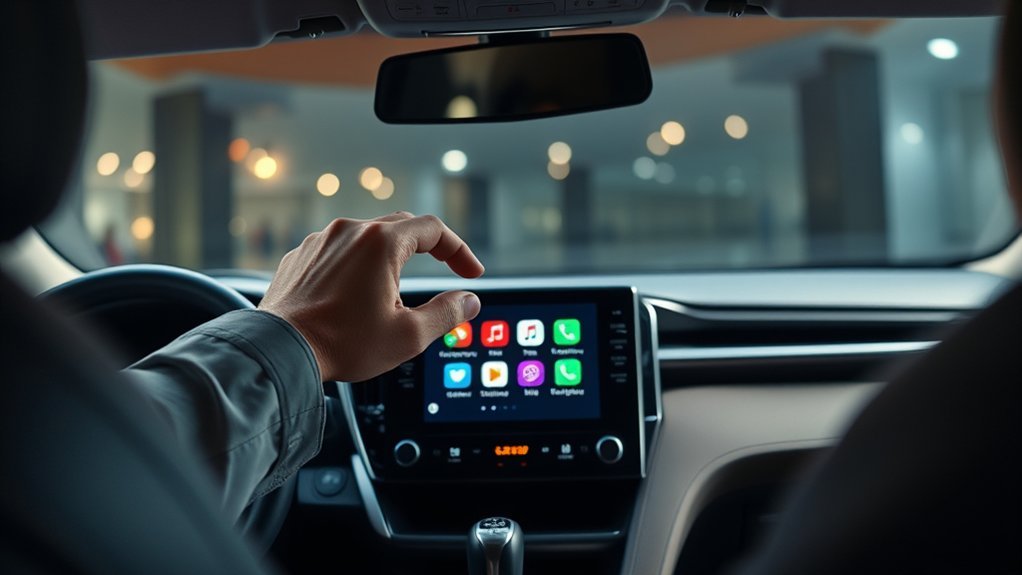
Adding apps to your Toyota RAV4 can feel confusing because you usually do not install apps directly on the vehicle. Instead, you use Apple CarPlay, Android Auto, or the Toyota app to show supported apps on the multimedia screen. This guide explains how to check compatibility, connect your phone, manage app icons, and fix common connection problems.
Quick Answer
You add apps to a Toyota RAV4 by installing compatible apps on your phone, then connecting the phone through Apple CarPlay or Android Auto. The RAV4 only shows apps that support your phone’s in-car system. You can manage CarPlay apps on your iPhone and Android Auto apps on your Android phone.
Key Takeaways
- You usually add apps through your phone, not by installing them directly on the RAV4.
- Only Apple CarPlay or Android Auto compatible apps can appear on the multimedia screen.
- A good USB cable can solve many wired connection issues.
- Software updates on your phone and vehicle can improve app performance.
- Third-party wireless adapters may help, but you must check model-year compatibility first.
How to Check App Compatibility With Your Toyota RAV4
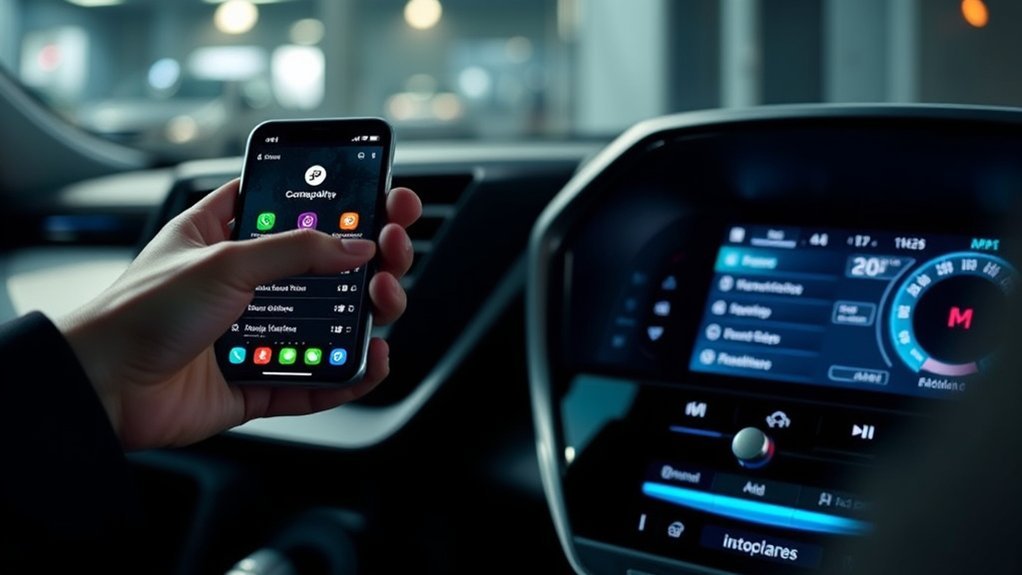
Start by checking whether your favorite apps support Apple CarPlay or Android Auto. Your RAV4’s multimedia screen will not show every app installed on your phone. It only shows apps that support safe use while driving.
On an iPhone, open Settings > General > CarPlay, then choose your Toyota RAV4. You can review, move, add, or remove supported CarPlay apps from that menu. On Android, open Android Auto settings and check the app launcher options.
You can also check the app page in the App Store or Google Play. Look for Apple CarPlay or Android Auto support in the app details. If an app does not appear on your RAV4 screen, confirm that you installed it, updated it, and allowed the right phone permissions.
Connecting Your iPhone to the RAV4 for App Access
Before you add apps through Apple CarPlay, connect your iPhone to your RAV4. Park the vehicle first, then unlock your phone. Use the USB port marked for data, or use wireless CarPlay if your RAV4 model and trim support it.
Note: Bluetooth can support calls and audio, but full app display usually needs Apple CarPlay or Android Auto.
Bluetooth Connection Setup
Bluetooth helps with hands-free calling and audio playback. It does not give the same app screen as Apple CarPlay. Use these steps to pair your iPhone with the RAV4:
| Step | Action |
|---|---|
| 1. Enable Bluetooth | Turn on Bluetooth on your iPhone and RAV4. |
| 2. Access Settings | Open the RAV4 Bluetooth menu and select “Add New Device.” |
| 3. Pair Your Devices | On your iPhone, go to Settings > Bluetooth and choose your RAV4. |
After pairing, test phone calls and audio playback. If you want navigation, messages, and app icons on the vehicle screen, use Apple CarPlay instead.
Apple CarPlay Compatibility
Apple CarPlay lets you use supported iPhone apps on your Toyota RAV4’s multimedia screen. Use a high-quality USB cable and connect your iPhone to the correct USB port. If your RAV4 supports wireless CarPlay, follow the screen prompts after pairing your phone.
After connection, the CarPlay interface should appear on the RAV4 screen. You can use compatible navigation, music, podcast, messaging, and calling apps. Keep your most-used apps near the front of the CarPlay menu, so you can reach them with fewer taps.
Accessing Apple CarPlay: The First Step to Adding Apps
Accessing Apple CarPlay gives your RAV4 app support through your iPhone. This process does not install apps on the vehicle itself. It mirrors supported apps from your phone in a driver-friendly layout.
Connecting Your iPhone
- Park your RAV4 and keep your iPhone unlocked.
- Connect your iPhone with a high-quality USB cable, or start wireless pairing if supported.
- Open Settings > General > CarPlay on your iPhone.
- Select your Toyota RAV4 from the vehicle list.
- Follow the prompts on the phone and multimedia screen.
- Open the CarPlay screen and confirm that your compatible apps appear.
You can also install the Toyota app on your phone if you want supported Toyota account features. The Toyota app may help with vehicle information, connected services, and maintenance reminders. It does not replace Apple CarPlay for third-party app access.
Checking App Compatibility
Before you expect an app to show on your RAV4 screen, confirm that the app supports Apple CarPlay. Apps built only for phone use will stay on your phone. CarPlay limits app types to help reduce driver distraction.
- Install the app on your iPhone first.
- Check CarPlay settings for supported app icons.
- Update your iPhone and the app before testing again.
- Restart the CarPlay connection after changing app settings.
These steps help you avoid wasted time when an app does not appear. If the app still does not show, it may not support CarPlay.
Top Apps to Enhance Your Toyota RAV4 Experience
The best RAV4 apps depend on how you drive. Most owners use apps for maps, music, calls, messages, audiobooks, weather, and vehicle support. Choose apps that reduce screen taps and keep your focus on the road.
- Navigation apps: Use supported map apps for routes, traffic, and voice guidance.
- Music and audio apps: Use streaming, podcast, and audiobook apps that support CarPlay or Android Auto.
- Messaging apps: Use voice-based messaging features instead of typing while driving.
- Toyota app: Use Toyota account features, vehicle alerts, and maintenance reminders when available.
- Weather apps: Use compatible weather apps if they support your in-car app system.
Some Toyota connected services may require an active subscription after any trial period ends. Check your Toyota account or vehicle settings for service status before relying on those features.
Customizing Your CarPlay Experience: Adding and Removing Apps
You can change which CarPlay apps appear on your Toyota RAV4 screen from your iPhone. Open Settings > General > CarPlay, choose your RAV4, then tap Customize. From there, you can add, remove, or reorder supported apps.
Keep navigation, phone, music, and message apps near the top. Move rarely used apps lower, or remove them from the CarPlay display. This keeps the screen cleaner and easier to use while driving.
- Move your most-used apps to the first page.
- Remove apps that you do not use in the vehicle.
- Keep navigation and audio apps easy to reach.
- Reconnect CarPlay if changes do not appear right away.
Pro tip: Use voice controls for maps, calls, and messages when possible to reduce screen time.
How to Fix Common App Connectivity Issues
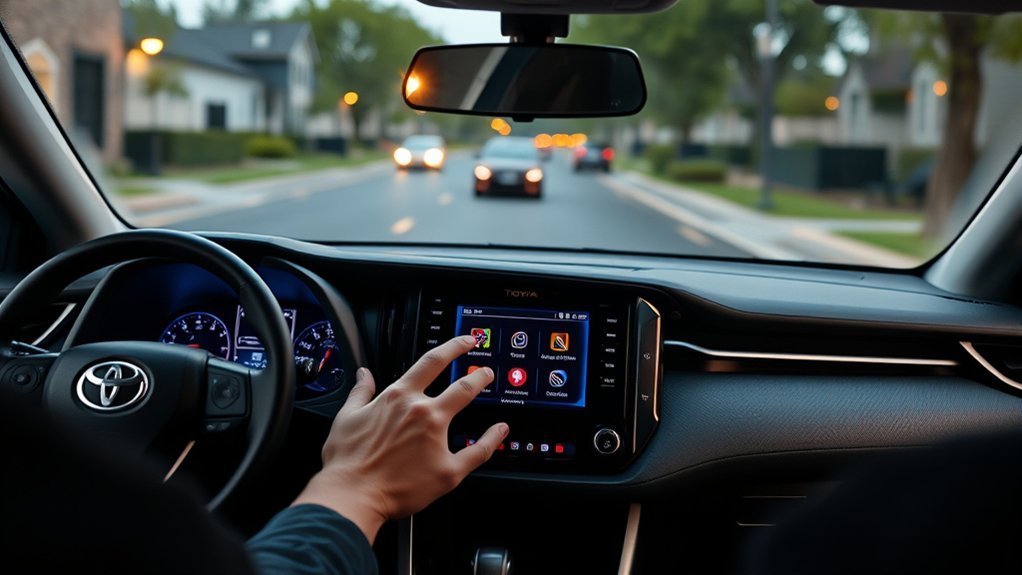
App connection problems often come from a weak cable, outdated software, blocked permissions, or the wrong USB port. Start with the easiest fix first. Then move to phone settings and vehicle settings if the issue continues.
- Use a different high-quality USB cable that supports data transfer.
- Connect to the RAV4 USB port that supports phone projection.
- Restart your phone and the RAV4 multimedia system.
- Update your phone, apps, and infotainment software if updates are available.
- Check phone permissions for CarPlay, Android Auto, Bluetooth, location, and notifications.
- Forget the vehicle on your phone, then pair it again.
If one app fails but others work, the app may need an update. If no apps work, the issue may involve the cable, phone settings, or multimedia system.
Updating Your RAV4’s Software for Better App Performance
Your RAV4’s software can affect app connection quality and phone compatibility. Check the multimedia system settings for update options. You can also ask a Toyota dealer to check whether your vehicle has available infotainment updates.
- Update your iPhone or Android phone to a supported operating system.
- Update Apple CarPlay, Android Auto, and your main driving apps.
- Check your RAV4 multimedia settings for software update options.
- Contact a Toyota dealer if the system keeps dropping the connection.
Older RAV4 models may not support every newer app feature. Your phone may still connect, but some features can vary by model year, trim, region, and multimedia system.
Third-Party Solutions for Your Toyota RAV4
Third-party adapters can add wireless convenience to some RAV4 setups. These devices often plug into the USB port and create a wireless bridge for Apple CarPlay or Android Auto. They do not unlock every app, and they still depend on phone and vehicle compatibility.
Before buying an adapter, check your RAV4 model year, multimedia system, and current wired CarPlay or Android Auto support. Read the adapter’s fitment details carefully. A device built for one system may not work well with another.
Warning: Avoid watching videos, typing, or using distracting apps while driving, even if an adapter allows them.
How to Keep Your Apps Running Smoothly
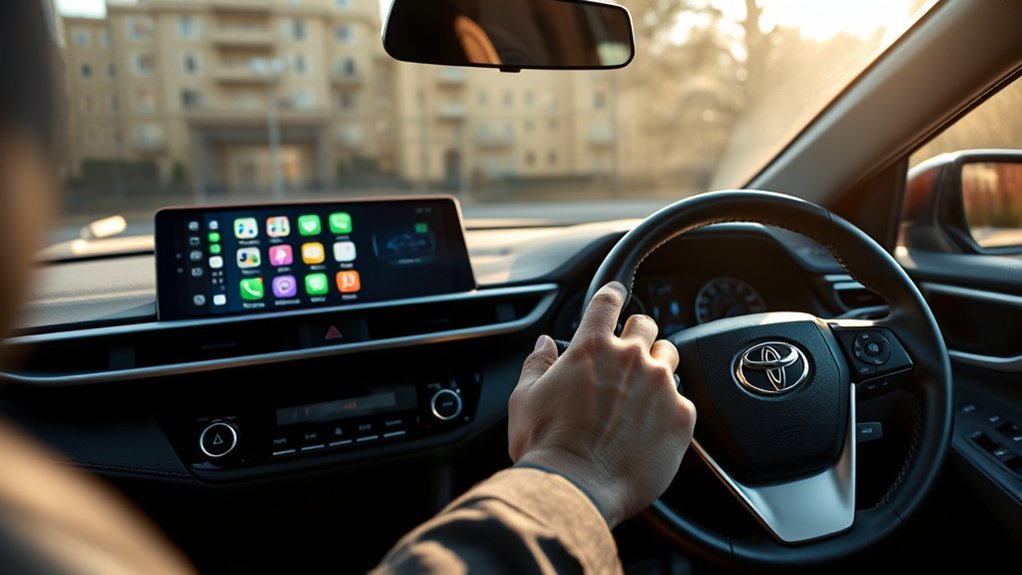
Good app performance depends on your phone, connection, and RAV4 multimedia system. Keep your setup simple and updated. Too many background apps can slow your phone and make app switching less reliable.
- Keep your phone operating system updated.
- Update your navigation, music, and messaging apps often.
- Use a stable USB or wireless connection.
- Close unused apps before long drives.
- Restart your phone and multimedia system when glitches appear.
Clean app menus also help. Remove apps you do not use in the vehicle, then keep the most useful driving apps easy to reach.
Frequently Asked Questions
How Do I Download Apps to My Toyota?
You usually do not download third-party apps directly to your Toyota RAV4. Install compatible apps on your phone, then connect through Apple CarPlay or Android Auto. The RAV4 screen will show supported apps from your phone.
How Do I Add Apps to My Car?
Add apps to your car by installing supported apps on your smartphone first. Then connect the phone to your car through Apple CarPlay or Android Auto. Use your phone’s in-car app settings to choose which apps appear.
How to Install Navigation App on Toyota RAV4 2020?
Install a navigation app on your smartphone, then connect the phone through Apple CarPlay or Android Auto. The app must support your phone’s in-car system before it can appear on the RAV4 screen. Keep the app updated for better map and route performance.
What Apps Do I Need to Connect to My Toyota Car?
You need apps that support Apple CarPlay or Android Auto, depending on your phone. Common choices include maps, music, calls, messages, podcasts, and the Toyota app. App support can vary by phone, app version, vehicle model year, and region.
Can I Use Android Auto Instead of Apple CarPlay?
Yes, you can use Android Auto if your Toyota RAV4 model supports it and you have a compatible Android phone. Install or update Android Auto on your phone, then connect by USB or wireless if supported. Use Android Auto settings to manage which apps appear.
Why Are Some Apps Missing From My RAV4 Screen?
Some apps are missing because they do not support Apple CarPlay or Android Auto. Others may need updates, permissions, or a fresh connection. If the app works on your phone but not on the vehicle screen, check its in-car compatibility first.
Conclusion
The main point is simple: your Toyota RAV4 shows compatible phone apps through Apple CarPlay or Android Auto. Start by updating your phone, installing supported apps, and connecting with a reliable cable or wireless setup. Then customize your app menu so the tools you use most stay easy to reach. A clean, updated setup can make every drive safer, smoother, and less frustrating.
