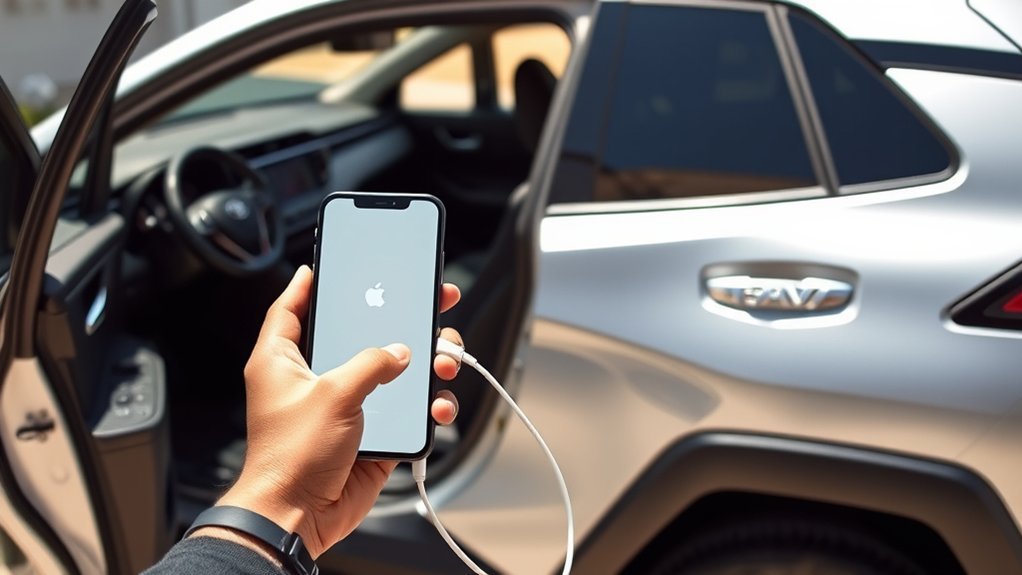
To connect your iPhone 15 to your Toyota RAV4, make sure your vehicle is in Park mode. For a wired connection, use an Apple-certified USB-C cable and follow the prompts on your multimedia system. For wireless, enable Bluetooth, select your RAV4 on your iPhone, and confirm the pairing. Once connected, you can enjoy navigation, music, and hands-free calls. If you run into issues, there are simple troubleshooting steps below to get things working. More details are just ahead!
Quick Answer
- Wired: Plug your iPhone 15 into the RAV4 using an Apple-certified USB-C cable, then confirm CarPlay on both screens.
- Wireless: Enable Bluetooth on your iPhone, go to the RAV4’s multimedia system, add a new device, and confirm pairing on both screens.
- Bluetooth only: Use the RAV4’s Entune™ system to add a new Bluetooth device and pair your phone for hands-free calls and audio.
- Keep both devices updated for the best experience and fewest connection issues.
Why Connect Your iPhone 15 to Your Toyota RAV4?
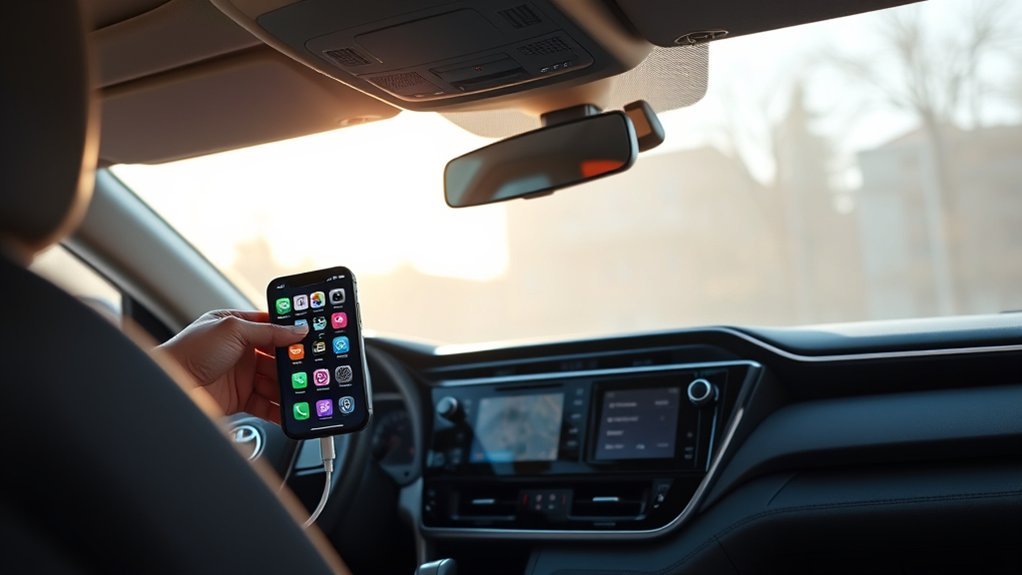
Connecting your iPhone 15 to your Toyota RAV4 makes driving safer and more enjoyable. Once connected, you get access to real-time navigation apps so finding your way is effortless.
Apple CarPlay lets you control music and podcasts right from the RAV4’s multimedia system. With hands-free communication via Siri, you can make calls and send messages without taking your hands off the wheel. You can also manage compatible apps easily, keeping the ride connected and focused. Bluetooth keeps the connection stable for audio streaming and app use, which cuts down on distractions while driving.
Preparing Your iPhone for CarPlay Connection
Before you hit the road, take a few minutes to set up your iPhone 15 for a smooth CarPlay connection with your Toyota RAV4. Start by making sure your device has the latest iOS version installed. Then, activate Siri by going to Settings > Siri & Search and turning on voice commands for Apple CarPlay. Confirm CarPlay is enabled by going to Settings > General > CarPlay.
Here’s a quick checklist:
| Step | Action |
|---|---|
| Update iOS | Check for the latest version |
| Activate Siri | Go to Settings > Siri & Search |
| Enable CarPlay | Settings > General > CarPlay |
| Use USB Cable | Connect with an Apple-certified USB-C cable |
Also confirm your vehicle is in Park (P) mode before you start the connection.
Setting up a Wired Connection With Your RAV4
First, make sure your vehicle is in Park (P) mode. Then, use an Apple-certified USB-C cable to connect your iPhone 15 to the RAV4. A prompt will appear on your vehicle’s multimedia system. Select “Yes” to enable CarPlay, then confirm on your iPhone by selecting “Yes” to allow CarPlay to launch automatically.
After that, you can access compatible apps for navigation, communication, and music directly through the RAV4’s multimedia system. If the connection doesn’t work, make sure your iPhone is unlocked and on the Home screen.
Setting up a Wireless Connection With Your RAV4
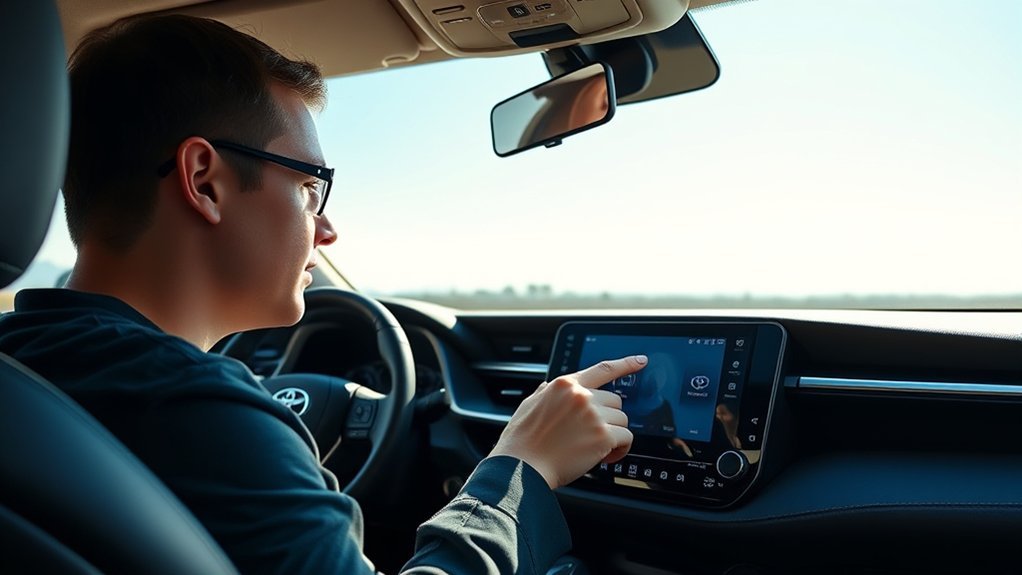
Once you’ve used a wired connection at least once, you can switch to a wireless setup for more convenience. Start by making sure Bluetooth is enabled on your iPhone 15 and that your vehicle is in Park (P) mode.
On your RAV4’s multimedia system, select the Settings (gear icon), then choose ‘Bluetooth & devices’, followed by ‘Add another device’. On your iPhone, go to Settings > Bluetooth and tap your RAV4 from the list of available devices. Confirm the pairing prompts on both screens. Once paired, select “Yes” on the multimedia screen to activate wireless CarPlay. You’ll now have seamless access to navigation, communication, and music apps from your vehicle.
How to Fix iPhone 15 Connection Issues With Your RAV4
Connection problems come up occasionally, but they’re usually easy to fix. Try these steps:
- Force restart your iPhone to refresh the system.
- Make sure Bluetooth is enabled on both your iPhone and the RAV4.
- Remove your iPhone from the RAV4’s Bluetooth list and vice versa, then re-pair them to start fresh.
- Check for software updates on both your iPhone and the RAV4’s multimedia system to avoid compatibility issues.
Connect Your iPhone 15 to Your Toyota RAV4 via Bluetooth
Connecting via Bluetooth gives you hands-free communication and easy access to your music. Start by going to Settings > Bluetooth on your iPhone 15 and toggling it on.
Next, turn on your RAV4’s Entune™ system, navigate to the Apps menu, and tap Setup. Select Bluetooth and choose “Add New Device.” On your iPhone, find your RAV4 in the available devices list and tap it to start pairing. Confirm any prompts on both the phone and the vehicle’s screen. Once connected, your phonebook and recent call history will sync automatically for seamless communication.
Key Features of Apple CarPlay You Should Try
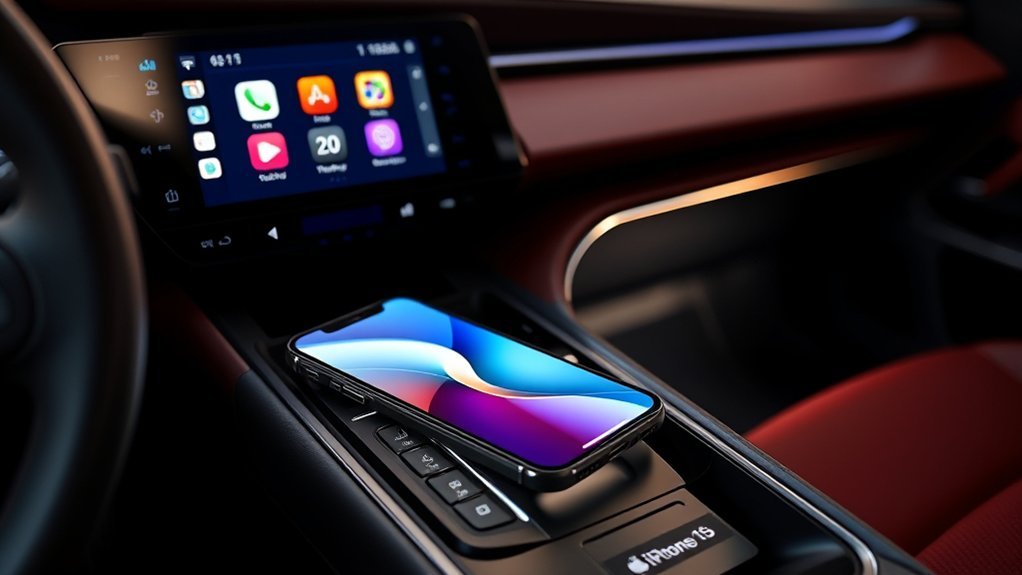
CarPlay has several features that make driving more enjoyable and less distracting. Here are four worth using:
- Siri Voice Control: Dictate messages and make calls hands-free, so your focus stays on the road.
- Third-Party App Support: Access favorite music apps like Spotify and Pandora right from your car’s display.
- Customizable Interface: Rearrange app icons to put your most-used apps front and center.
- Do Not Disturb Mode: Silence notifications to keep distractions to a minimum while driving.
Update Your Software for Best Performance
Keeping your software current is one of the easiest ways to avoid connection headaches. For your iPhone 15, go to Settings > General > Software Update and install anything available. For your RAV4, check the manufacturer’s website or your owner’s manual for multimedia system updates.
Staying up to date helps resolve connectivity issues and improves app compatibility for navigation and music streaming. Update both devices before connecting for the smoothest experience.
Tips for Maintaining a Stable Connection
A few habits go a long way toward keeping the connection reliable:
- Keep both devices updated to minimize compatibility issues.
- Use an Apple-certified USB-C cable for wired connections. Aftermarket cables can cause problems.
- Keep Bluetooth enabled on your iPhone 15 and stay within a reasonable range of the RAV4 for a solid wireless connection.
- Periodically remove old paired devices from both settings to reduce interference.
Resources for Further Assistance With Toyota Connectivity
If you need extra help, there are a few good places to look. Check out official Apple Support resources for troubleshooting tips, and refer to the Toyota Entune™ user manual for vehicle-specific instructions. Online community forums can also connect you with other RAV4 owners who may have already solved the same problem.
Official Apple Support Resources
Apple Support has a range of resources to help you get CarPlay working with your Toyota RAV4:
- Detailed Guides: Step-by-step instructions for setting up Apple CarPlay, both wired and wirelessly.
- Troubleshooting Tips: Solutions for common CarPlay issues like connectivity problems and app malfunctions.
- Software Updates: Guidance on keeping your iPhone and vehicle software current for the best performance.
- Community Forums: Discussions with other Toyota RAV4 owners to share experiences and solutions.
Toyota Entune™ User Manual
The Toyota Entune™ user manual is a useful resource for connecting your iPhone 15 to your vehicle. It covers Bluetooth setup for hands-free communication and audio streaming, and it’s available online for easy reference. The Entune™ system is compatible with Apple CarPlay, which allows smooth integration of navigation and music apps. Regular software updates also improve compatibility with newer iPhone models. For specific problems, consult the manual or contact Toyota’s customer support directly.
Online Community Forums
Online forums can be a practical source of real-world advice for connecting an iPhone 15 to a Toyota RAV4. Here’s how to make the most of them:
- Find Discussions: Look for threads on Bluetooth pairing and CarPlay functionality.
- Troubleshoot Issues: Engage with users who share solutions to common connectivity problems.
- Get Real-World Tips: Discover methods that worked for others, often not covered in official manuals.
- Connect with Enthusiasts: Meet fellow RAV4 owners who’ve faced similar challenges and found practical fixes.
Frequently Asked Questions
How to Connect iPhone 15 to RAV4?
To connect your iPhone 15 to your RAV4, enable Bluetooth for a wireless connection. Go to the multimedia screen in your vehicle, follow the prompts, and you’ll have access to your apps and features.
Why Can’t I Connect My iPhone 15 to My Car?
If your iPhone 15 won’t connect to your car, check your Bluetooth settings, make sure no other devices are connected, and try restarting both the phone and the vehicle’s multimedia system.
Why Isn’t My iPhone Connecting to My RAV4?
Your iPhone might not connect due to a Bluetooth or software issue. Confirm Bluetooth is on for both devices, check for updates, remove and re-pair both devices, or restart your iPhone to clear any glitches.
How Do I Pair My Phone to My Toyota RAV4?
Enable Bluetooth on your phone, access the RAV4’s Entune™ system, and select “Add New Device.” If pairing fails, remove both devices from each other’s Bluetooth lists and try pairing again fresh.
Wrapping Up
Connecting your iPhone 15 to your Toyota RAV4 opens up a more convenient and enjoyable drive. Whether you go wired or wireless, you get easy access to navigation, music, and communication. Keep your software updated, know the basic troubleshooting steps, and you’ll have a reliable connection. Take some time to explore CarPlay’s features and see how much they improve the experience on the road.
