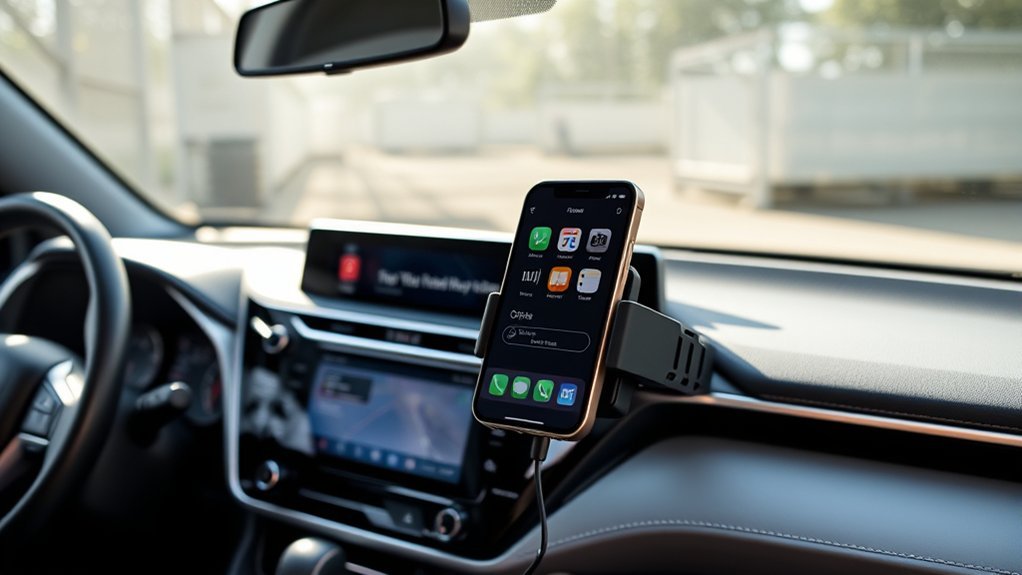
How to Connect iPhone 13 to Toyota RAV4
What’s in This Article
- Before You Begin: Time, Compatibility, and Settings
- Step-by-Step Guide to Pairing iPhone 13 With Toyota RAV4
- Troubleshooting Common Connection Issues With iPhone 13
- How to Set Up Apple CarPlay With Your iPhone 13
- Using Bluetooth on Your iPhone 13 for Hands-Free Calling and Audio Streaming
- Why Use Apple CarPlay With Your Toyota RAV4
- Best Practices for a Stable Bluetooth Connection With Your iPhone 13
- Updating Your Toyota RAV4’s Infotainment System for Compatibility
- Official Resources for iPhone 13 and Toyota RAV4 Connection Help
- Frequently Asked Questions
Connecting your iPhone 13 to your Toyota RAV4 should not feel confusing while you sit in the driveway. The right method depends on your RAV4 model year, multimedia system, and whether it supports wired or wireless Apple CarPlay. This guide shows you how to connect by USB, wireless CarPlay, and Bluetooth, plus how to fix common pairing problems.
Quick Answer
To connect your iPhone 13 to a Toyota RAV4, start the vehicle, place it in Park, turn on Siri, and enable Bluetooth. For wired Apple CarPlay, plug your iPhone into the USB port with an Apple-certified cable and confirm the prompts on both screens. For wireless CarPlay, use the RAV4 multimedia screen to add your iPhone under Bluetooth & devices, if your model supports wireless connection.
Key Takeaways
- Put your RAV4 in Park before you start the first CarPlay setup.
- Turn on Siri, Bluetooth, and Wi-Fi on your iPhone before wireless setup.
- Use an Apple-certified cable for wired Apple CarPlay.
- Check your RAV4 owner’s manual because wireless CarPlay support can vary.
- Update your iPhone and Toyota multimedia system if pairing keeps failing.
Before You Begin: Time, Compatibility, and Settings
Estimated time: 5 to 10 minutes.
Before you connect your iPhone 13, confirm that your RAV4 supports the connection type you want to use. Apple Support explains that CarPlay works through a USB port or wireless capability, but your vehicle must support that feature.
According to Toyota Support, first-time Apple CarPlay setup should happen while the vehicle sits in Park (P). Apple also says Siri must be turned on before you use CarPlay.
Note: Wireless Apple CarPlay may not work on every RAV4 model year, trim, or multimedia system.
For the smoothest setup, have these items ready:
- Your iPhone 13 with the current iOS version installed
- An Apple-certified Lightning cable for wired setup
- Your RAV4 owner’s manual, if you need model-specific menu names
- Bluetooth, Wi-Fi, Siri, and CarPlay enabled on your iPhone
Warning: Set up pairing while parked so you can keep your attention on the road while driving.
Step-by-Step Guide to Pairing iPhone 13 With Toyota RAV4
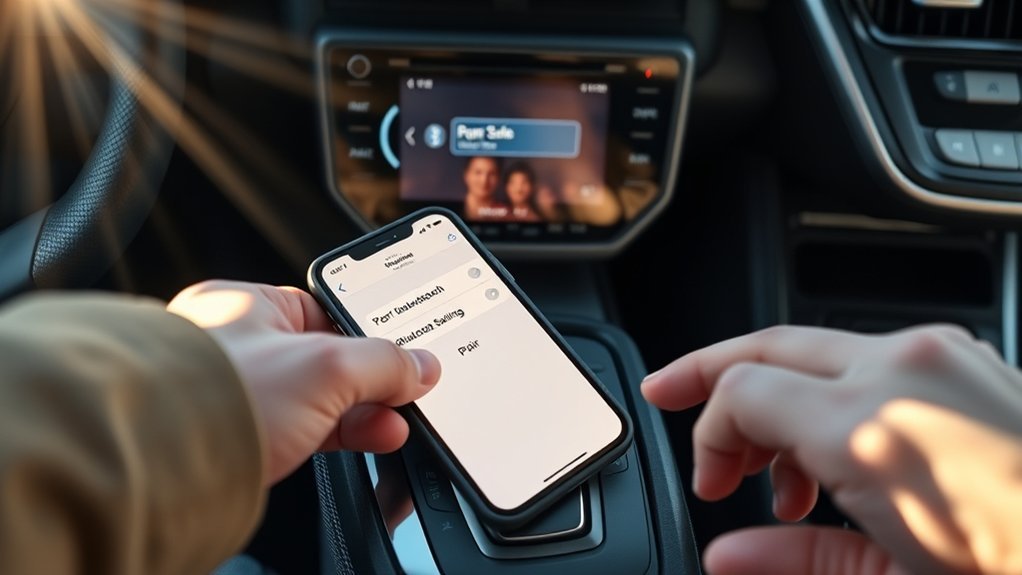
Pairing your iPhone 13 with your Toyota RAV4 gives you easier access to calls, music, maps, and supported apps. Follow these steps for the first setup:
- Park your RAV4 and keep the vehicle turned on.
- Turn on Siri on your iPhone by going to Settings > Siri & Search.
- Enable Bluetooth on your iPhone by going to Settings > Bluetooth.
- Plug in your iPhone with an Apple-certified cable if you want wired Apple CarPlay.
- Open the RAV4 multimedia settings if you want wireless setup.
- Select Bluetooth & devices, then choose the option to add another device.
- Choose your iPhone 13 from the available device list.
- Confirm the pairing codes on both the RAV4 screen and your iPhone.
- Allow CarPlay when your iPhone and the RAV4 screen ask for permission.
After setup, your iPhone should connect faster on future drives. If it does not, remove the old pairing from both devices and start again.
Troubleshooting Common Connection Issues With iPhone 13
If your iPhone 13 will not connect to your Toyota RAV4, start with the easiest fixes first. Most pairing problems come from disabled settings, old saved connections, software issues, or unsupported wireless CarPlay.
Try these fixes in order:
- Check Park mode and make sure the RAV4 stays in Park during first setup.
- Turn on Bluetooth on both your iPhone and your RAV4 multimedia system.
- Turn on Wi-Fi on your iPhone if you want wireless CarPlay.
- Restart both devices to clear short-term connection errors.
- Forget the old pairing on your iPhone and delete the phone from the RAV4 device list.
- Install updates for your iPhone and check Toyota’s update options for your multimedia system.
- Test a cable connection if wireless setup does not work.
- Contact Toyota service if your RAV4 still cannot detect your phone.
If the same iPhone connects in another car, your RAV4 settings or multimedia system may need attention. If your RAV4 connects to another phone, your iPhone settings may need a reset.
How to Set Up Apple CarPlay With Your iPhone 13
Apple CarPlay lets your iPhone 13 show supported apps on your RAV4 screen. You can use Maps, Phone, Messages, Music, Podcasts, and other compatible apps in a car-friendly layout.
Your setup path depends on whether you use a cable or a wireless connection. Apple Support recommends using your vehicle’s USB port for wired CarPlay or the vehicle’s wireless capability when supported.
Wired Connection Process
To connect your iPhone 13 to your Toyota RAV4 with a cable, start with the vehicle in Park (P). Use an Apple-certified USB cable, then plug your iPhone into the USB port that supports phone connection or CarPlay.
When the RAV4 screen asks if you want to use Apple CarPlay, select “Yes.” Then confirm the CarPlay prompt on your iPhone 13.
Here’s a quick overview:
| Step | Action | Note |
|---|---|---|
| 1. Vehicle Mode | Put the RAV4 in Park (P) | Set up safely |
| 2. Connect the iPhone | Use an Apple-certified cable | Avoid weak or damaged cables |
| 3. Enable CarPlay | Confirm prompts on both devices | Allow app access |
Once CarPlay opens, you can use the RAV4 touchscreen, voice control, or steering wheel controls for supported functions.
Wireless Connection Steps
Wireless connection works only if your RAV4 supports wireless Apple CarPlay. If your model supports it, turn on Bluetooth and Wi-Fi on your iPhone 13 before you start.
- Open Settings on the RAV4 multimedia screen.
- Select Bluetooth & devices from the menu.
- Tap Add another device to begin pairing.
- Open Settings > Bluetooth on your iPhone 13.
- Select your Toyota from the device list.
- Match the pairing code on both screens.
- Choose Yes when the RAV4 asks to enable Apple CarPlay.
- Allow CarPlay on your iPhone when the prompt appears.
After you approve the setup, your iPhone should connect to CarPlay without a cable on future drives, if your RAV4 supports that feature.
Troubleshooting Common Issues
Even after setup, Apple CarPlay may fail to open or may disconnect. Use this checklist before you assume the system has a major fault:
- Update your iPhone to the current iOS version.
- Enable Siri under Settings > Siri & Search.
- Check Screen Time settings and make sure CarPlay has not been restricted.
- Use a certified cable and test another cable if wired CarPlay fails.
- Forget and reconnect your RAV4 under your iPhone Bluetooth settings.
- Check vehicle compatibility if wireless CarPlay does not appear.
Apple Support also recommends checking your vehicle compatibility and connection settings when CarPlay does not work as expected.
Using Bluetooth on Your iPhone 13 for Hands-Free Calling and Audio Streaming
Bluetooth gives you hands-free calling and audio streaming even when you do not use Apple CarPlay. This option works well for calls, music, podcasts, and basic audio playback through your RAV4 speakers.
Bluetooth does not show the same app layout as CarPlay. Use CarPlay when you want maps, messages, and supported apps on the RAV4 screen.
Initial Bluetooth Setup Steps
Setting up Bluetooth on your iPhone 13 for hands-free calling and audio streaming in your Toyota RAV4 only takes a few minutes. Follow these steps:
- Enable Bluetooth on your iPhone 13 by going to Settings > Bluetooth and switching it on.
- Open the multimedia system in your Toyota RAV4 and choose the Bluetooth setup menu.
- Select your iPhone 13 from the list of available devices on the RAV4 screen.
- Confirm any pairing codes that appear on both screens.
- Allow contact sharing if you want the RAV4 screen to show your phonebook.
Once paired, your iPhone 13 can send call audio and media audio through your RAV4 sound system.
Hands-Free Calling Features
Hands-free calling helps you manage phone calls while you keep your eyes on the road. After you pair your iPhone 13, the RAV4 multimedia system may show your contacts, recent calls, and call controls.
| Feature | Description | Benefit |
|---|---|---|
| Start Calls | Use the multimedia system to call contacts | Keep your phone down |
| Answer Calls | Use the steering wheel call button | Keep your focus forward |
| Sync Contacts | Allow phonebook access during pairing | Find contacts faster |
Only use touch controls when it is safe. Voice control can reduce distractions during a drive.
Audio Streaming Capabilities
Audio streaming lets your Toyota RAV4 play sound from your iPhone 13 through the vehicle speakers. You can listen to music, podcasts, audiobooks, and navigation audio.
- Enable Bluetooth on both your iPhone 13 and the RAV4 multimedia system.
- Connect your iPhone 13 to the RAV4 from the Bluetooth device list.
- Choose Bluetooth audio as the source on the multimedia screen.
- Use the touchscreen or steering wheel controls to manage playback safely.
- Keep your iPhone and Toyota multimedia system updated for better compatibility.
If audio connects but calls do not, check the Bluetooth permissions on your iPhone. You may need to allow contact sync and call audio again.
Why Use Apple CarPlay With Your Toyota RAV4
Apple CarPlay brings supported iPhone apps to your Toyota RAV4 screen in a simpler driving layout. You can use navigation, calls, music, messages, and voice control without handling your phone as often.
CarPlay also helps you use Siri for common actions. You can ask Siri to call a contact, send a message, play music, or start directions while you keep your hands closer to the wheel.
CarPlay features can change when your iPhone receives iOS updates. Your RAV4 multimedia system may also need available software updates for the best connection experience.
Best Practices for a Stable Bluetooth Connection With Your iPhone 13
Connecting your iPhone 13 to your Toyota RAV4 with Bluetooth can make each drive easier. A few simple habits can reduce failed pairing, dropped audio, and connection delays.
Keep your iPhone close to the RAV4 multimedia system during setup, then remove old pairings if connection problems return.
- Keep Bluetooth enabled on both your iPhone 13 and RAV4.
- Hold your iPhone near the multimedia screen during first setup.
- Delete old or unused paired devices from the RAV4 Bluetooth menu.
- Turn off Bluetooth on nearby devices if they keep trying to connect.
- Restart your iPhone and RAV4 multimedia system after repeated failures.
- Reset your iPhone network settings only after simpler fixes fail.
Network reset removes saved Wi-Fi networks, Bluetooth pairings, and some cellular settings from your iPhone. Use it as a later step, not your first fix.
Updating Your Toyota RAV4’s Infotainment System for Compatibility
To keep your iPhone 13 working well with your Toyota RAV4, check for available multimedia updates. Toyota says its software portal lets owners check for Audio Multimedia System updates by entering vehicle information.
Some Toyota vehicles with the newer Toyota Audio Multimedia System can receive over-the-air updates through the display. Other eligible systems may need a compatible USB drive for the software download and update process.
Start by checking the software version in your RAV4 settings menu. Look for menu labels such as “About,” “System Information,” or “Software Update,” because names can vary by system.
After an update, restart the multimedia system and reconnect your iPhone if needed. If you feel unsure, ask a Toyota dealer to check the system for you.
Official Resources for iPhone 13 and Toyota RAV4 Connection Help
Official support pages can help when your setup screens look different from the steps above. Use your owner’s manual and these trusted resources before you rely on random forum advice:
- Visit the Apple Support website for iPhone, Bluetooth, and CarPlay help.
- Check Toyota’s official Apple CarPlay setup guide for Toyota-specific pairing steps.
- Use Toyota’s official software update portal to check for multimedia updates.
- Read your RAV4 owner’s manual for model-year menu names and supported features.
- Contact a Toyota service center if your RAV4 still cannot detect your iPhone.
Community forums can still help with owner tips, but use official Apple and Toyota pages for setup steps, updates, and compatibility checks.
Frequently Asked Questions
How Do I Sync My iPhone to My Toyota RAV4?
To sync your iPhone to your Toyota RAV4, turn on Bluetooth on your iPhone and open the RAV4 Bluetooth device menu. Select your RAV4 from your iPhone settings, confirm the pairing code, and allow contact sharing if you want hands-free calling.
How Do I Sync My iPhone 13 to My Car?
To sync your iPhone 13 to your car, turn on Bluetooth and keep your car in Park during first setup. Choose your car from the iPhone Bluetooth list, confirm the pairing code, and approve CarPlay if your car supports it.
Why Won’t My Toyota RAV4 Connect to My Phone?
Your Toyota RAV4 may not connect because Bluetooth is off, the old pairing has failed, your iPhone needs an update, or your RAV4 multimedia system needs attention. Delete the old pairing on both devices, restart them, and pair again from the beginning.
Why Won’t My iPhone Connect to My Toyota?
Your iPhone may fail to connect if Siri, Bluetooth, Wi-Fi, or CarPlay permissions are off. Check your iPhone settings first, then confirm that your Toyota supports the connection type you want to use.
Does Every Toyota RAV4 Support Wireless Apple CarPlay?
No. Wireless Apple CarPlay support can vary by model year, trim, country, and multimedia system. Check your owner’s manual or Toyota’s official support resources for your exact RAV4.
Can I Use Bluetooth Without Apple CarPlay?
Yes. Bluetooth can handle calls and audio streaming without opening Apple CarPlay. Use CarPlay when you want compatible apps, maps, and messages on the RAV4 screen.
Conclusion
The easiest way to connect your iPhone 13 to your Toyota RAV4 is to start in Park, turn on Siri and Bluetooth, then choose either USB CarPlay, wireless CarPlay, or basic Bluetooth. Use a certified cable for wired setup and check your RAV4 compatibility before you expect wireless CarPlay to work.
If pairing fails, remove the old connection, restart both devices, and check for iPhone and Toyota multimedia updates. Once the connection works, you can enjoy safer calls, easier maps, and better audio control on each drive.
References
- Use CarPlay with your iPhone — Apple Support, 2025
- If you need help with CarPlay — Apple Support
- Connect iPhone to CarPlay — Apple iPhone User Guide
- How do I setup Apple CarPlay? — Toyota Support
- Toyota Audio Multimedia System Updates — Toyota
- Over-the-Air Audio Multimedia System Updates — Toyota
