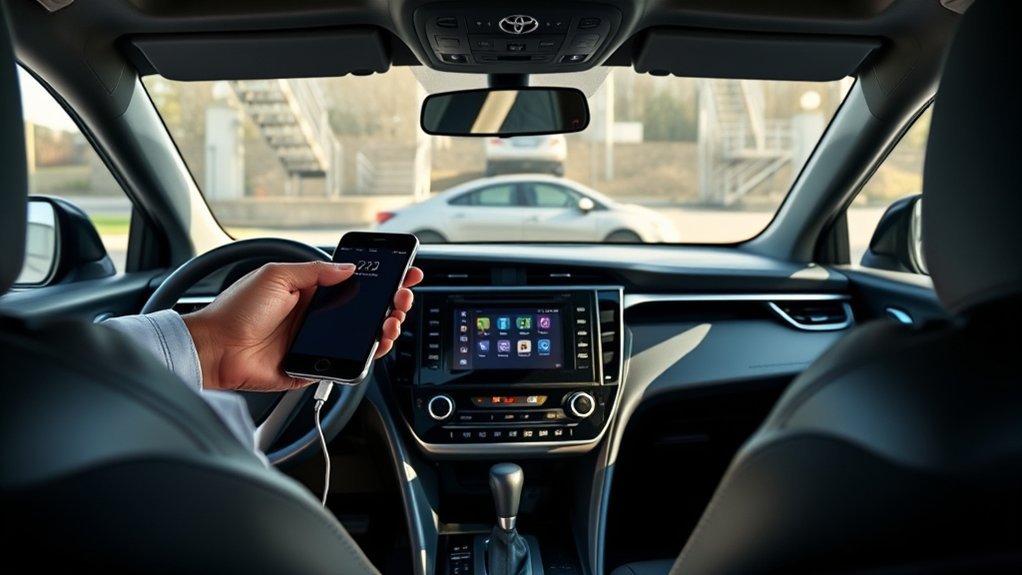
How to Connect Your iPhone to a Toyota RAV4
What’s in This Article
- Before You Begin
- Connect Your iPhone to a Toyota RAV4 via Bluetooth
- Pair Your iPhone With Toyota RAV4 for Apple CarPlay
- Fix iPhone and RAV4 Connection Problems
- Use Music, Radio, and Calls Through Bluetooth
- Disconnect Your iPhone From RAV4 Bluetooth
- Find RAV4 and iPhone Connectivity Help
- Frequently Asked Questions
You can connect your iPhone to a Toyota RAV4 in a few minutes, but the best method depends on your model year and multimedia system. Bluetooth works well for calls and audio streaming, while Apple CarPlay gives you maps, messages, Siri, and supported apps on the RAV4 screen. This guide shows you the main setup steps, quick fixes, and the safest way to disconnect your phone when needed.
Quick Answer
Turn on Bluetooth on your iPhone and RAV4, then use the RAV4 touchscreen to add your phone. Choose your RAV4 from the iPhone Bluetooth list, match the pairing code, and approve any prompts. For Apple CarPlay, use the vehicle’s USB media port or wireless setup if your RAV4 supports it.
Key Takeaways
- Use Bluetooth for calls, basic audio, and quick phone pairing.
- Use Apple CarPlay when you want maps, messages, Siri, and supported iPhone apps on the RAV4 screen.
- Use a good Apple cable for wired CarPlay and plug it into the correct USB media port.
- Restart your iPhone and RAV4 system when pairing fails or CarPlay does not launch.
- Forget the old connection and pair again if your phone keeps dropping the connection.
Before You Begin
Estimated total time: 5 to 10 minutes.
Park your RAV4 before you start. Toyota advises drivers not to pair Bluetooth or set up Apple CarPlay while driving because the screen needs your attention.
Check these items first:
- Your iPhone has Bluetooth on.
- Your iPhone runs the latest available iOS version.
- Your RAV4 multimedia system has power and shows the settings menu.
- You have a good Apple USB cable if you plan to use wired Apple CarPlay.
- Siri works on your iPhone if you plan to use Apple CarPlay voice control.
Apple CarPlay needs a compatible iPhone and a compatible vehicle. Toyota says Apple CarPlay lets you use a compatible iPhone with Toyota’s audio multimedia system for directions, calls, messages, and music.
Connect Your iPhone to a Toyota RAV4 via Bluetooth
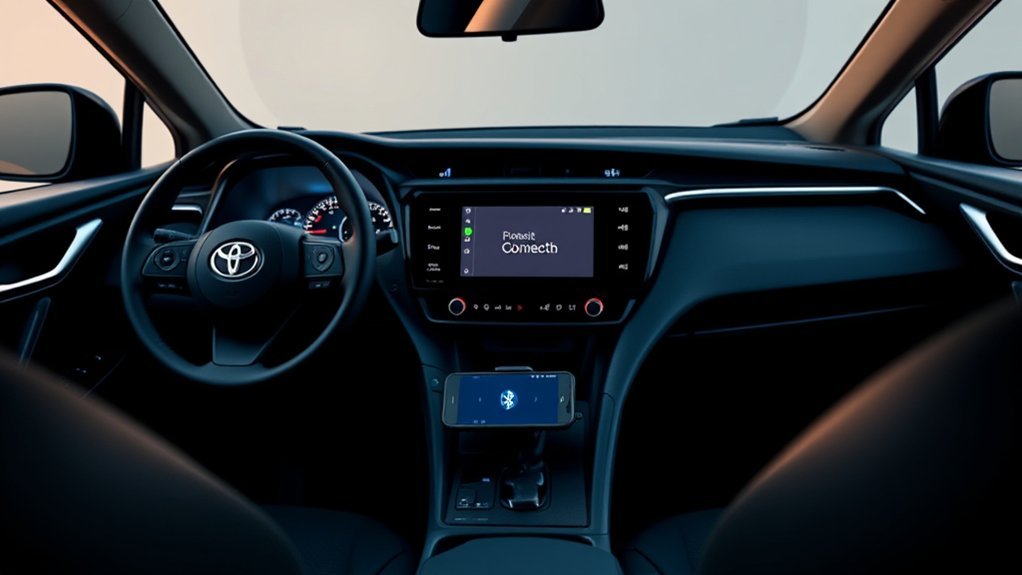
Bluetooth gives you the easiest way to use hands-free calling and audio in your Toyota RAV4. Follow the steps below while your vehicle stays parked.
- Turn on Bluetooth on your iPhone. Open Settings, tap Bluetooth, and switch it on.
- Open the RAV4 settings menu. On the touchscreen, choose Settings, then select Bluetooth & Devices.
- Add a new device. Choose Add Device, Search for Devices, or the closest option your RAV4 screen shows.
- Select your RAV4 on your iPhone. Your Toyota may appear as a Toyota multimedia device or your vehicle name.
- Match the pairing code. Confirm the code on both screens when the same number appears.
- Allow the permissions you want. Approve contacts, favorites, and messages only if you want those features on the RAV4 screen.
If you drive a RAV4 Hybrid, the Bluetooth steps usually match the gas model when both vehicles use the same multimedia system. Menu names can vary by model year, trim, and region, so use your owner’s manual if your screen looks different.
Note: Bluetooth can stream music and handle calls, but Apple CarPlay gives you a fuller iPhone screen experience.
Pair Your iPhone With Toyota RAV4 for Apple CarPlay
Apple CarPlay connects your iPhone to the RAV4 screen for maps, music, calls, messages, and Siri. Apple says you can set up CarPlay through a USB port or through wireless capability when your vehicle supports it.
Use the wired method first if your RAV4 supports wired CarPlay:
- Start your RAV4 and keep it parked.
- Turn on Siri on your iPhone. Go to Settings and check your Siri settings.
- Connect your iPhone to the USB media port. Use an Apple USB cable in good condition.
- Watch the RAV4 screen. Select Yes, Enable, or Apple CarPlay when the prompt appears.
- Use the CarPlay icon. If CarPlay does not open on its own, tap the CarPlay logo on the vehicle display.
Here’s a quick reference table for the process:
| Step | Action |
|---|---|
| 1 | Turn on Bluetooth and Siri on your iPhone |
| 2 | Use the correct USB media port or wireless setup |
| 3 | Accept the Apple CarPlay setup prompt |
| 4 | Use Siri for hands-free navigation and messages |
If your RAV4 supports wireless Apple CarPlay, keep Bluetooth and Wi-Fi on your iPhone. Apple recommends checking Settings > Wi-Fi, selecting the CarPlay network, and keeping Auto-Join on when wireless CarPlay needs help.
Fix iPhone and RAV4 Connection Problems
If your iPhone will not connect to your RAV4, start with the simplest fixes. Most issues come from Bluetooth settings, cable problems, outdated software, or an old saved pairing.
Verify Bluetooth Settings
Check that Bluetooth stays on for both your iPhone and your RAV4. On your iPhone, open Settings > Bluetooth and look for your Toyota in the device list.
Here’s a quick reference table for Bluetooth compatibility checks:
| Device | What to Check |
|---|---|
| iPhone | Bluetooth stays on |
| RAV4 | Bluetooth menu can search for devices |
| Saved Device | Your RAV4 appears on your iPhone |
If your iPhone shows an old RAV4 entry, tap the information icon and choose Forget This Device. Then pair the phone again from the start.
Restart Both Devices
Restart your iPhone and your RAV4 multimedia system when pairing fails. Apple also recommends restarting your iPhone and your car when CarPlay does not work as expected.
After the restart, turn Bluetooth back on and try pairing again. Keep your iPhone unlocked during setup so you can approve prompts fast.
Update Software Versions
Software updates can fix bugs that affect Bluetooth, USB audio, and Apple CarPlay. On your iPhone, go to Settings > General > Software Update.
For your RAV4, check the multimedia settings or your owner’s manual for update options. Apple also tells users to make sure the car stereo uses the latest firmware from the vehicle maker.
Check Your Cable and USB Port
Use a direct Apple USB cable when wired CarPlay fails. Apple says some adapter, cable, and vehicle system combinations can disrupt wired CarPlay, so a direct cable often works better.
Try another USB port if your RAV4 has more than one. Use the USB media port, not a charge-only port, when your vehicle labels the ports separately.
Warning: Set up Bluetooth and CarPlay only while parked so you can keep your focus on the road.
Use Music, Radio, and Calls Through Bluetooth
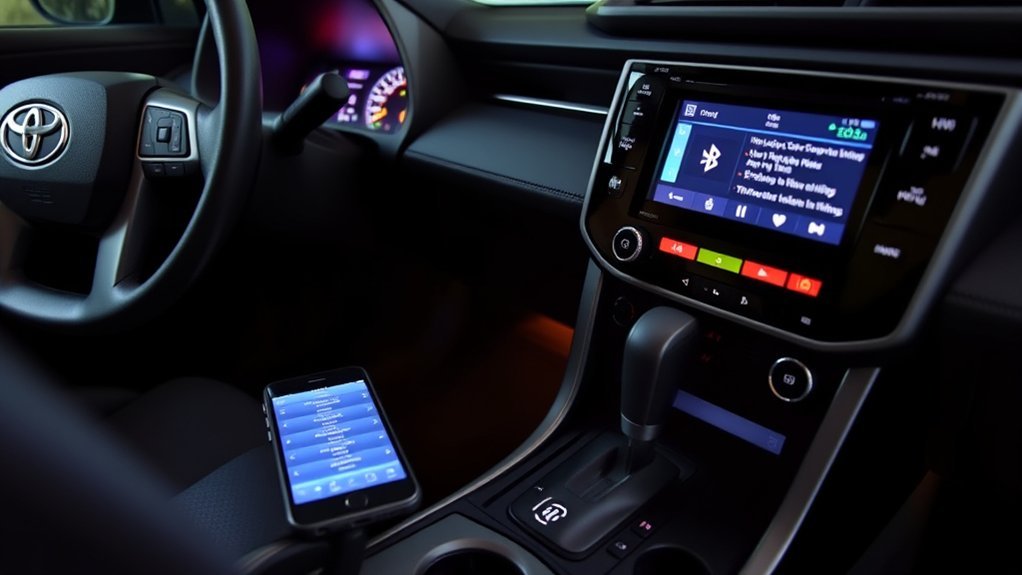
After you pair your iPhone, choose the audio or music source on the RAV4 screen. Select your iPhone as the source when you want to stream music, podcasts, or audio from supported apps.
Use the phone menu for hands-free calls if you allowed contact access during pairing. This helps you make calls from the touchscreen or steering wheel controls without holding your phone.
Bluetooth gives you simple audio and call access, but Apple CarPlay works better for maps, messages, Siri, and supported app controls. If sound does not play, check the volume on both your iPhone and the RAV4 system.
Disconnect Your iPhone From RAV4 Bluetooth
Disconnect your iPhone when you sell the vehicle, borrow someone else’s RAV4, or want to protect your saved contacts. You can disconnect for one trip or remove the pairing completely.
- Open the RAV4 settings menu. Go to Settings on the vehicle display.
- Select Bluetooth devices. Choose Bluetooth & Devices or the closest menu name.
- Choose your iPhone. Find your phone in the saved device list.
- Remove the device. Tap Forget, Remove, or Delete, then confirm.
You can also remove the vehicle from your iPhone. Open Settings > Bluetooth, tap the information icon beside your Toyota, and choose Forget This Device.
For Apple CarPlay, open Settings > General > CarPlay on your iPhone. Select your RAV4 and choose Forget This Car if you want a full reset.
Find RAV4 and iPhone Connectivity Help
Community resources can help when your screen menus differ from the steps above. RAV4 owners often share model-year details, cable tips, and screenshots that make setup easier.
Useful places to check include:
- Owner forums: Search RAV4 forums for your model year, trim, and multimedia system.
- Toyota support pages: Use Toyota’s official connected services and multimedia support pages for setup basics.
- Apple Support: Check Apple’s CarPlay help pages for iPhone settings, restrictions, and cable checks.
When you use forum advice, compare it with your owner’s manual before you change vehicle settings. Different markets can use different software and feature packages.
Frequently Asked Questions
How do you hook up an iPhone to a RAV4?
Turn on Bluetooth on your iPhone, then open the RAV4 Bluetooth settings and add a new device. Choose your Toyota on the iPhone screen, match the pairing code, and approve the permissions you want.
Why can’t you connect your phone to your Toyota RAV4?
Your phone may fail to connect because Bluetooth sits off, the old pairing has a bug, the USB cable has damage, or the software needs an update. Restart both devices, forget the old connection, and pair again.
Why won’t your iPhone connect to your Toyota?
Check iOS updates, Siri, Bluetooth, Wi-Fi, and CarPlay restrictions on your iPhone. For wired CarPlay, try a direct Apple cable and another USB media port if your RAV4 has one.
Does every Toyota RAV4 have wireless Apple CarPlay?
No. Apple CarPlay support and wireless CarPlay support depend on the model year, trim, region, and multimedia system. Check your owner’s manual or Toyota’s feature information for your exact vehicle.
Can you use Bluetooth and Apple CarPlay at the same time?
Your iPhone may use Bluetooth during wireless CarPlay setup, but CarPlay controls the main phone experience after connection. If audio acts strange, choose either Bluetooth audio or CarPlay as your active source.
Conclusion
The easiest way to connect your iPhone to a Toyota RAV4 starts with Bluetooth, while Apple CarPlay gives you the best iPhone features on the vehicle screen. Start with a clean pairing, use a good cable for wired CarPlay, and keep your iPhone software current. If something fails, restart both devices and forget the old connection before pairing again. Once the setup works, you can enjoy safer calls, music, messages, and navigation on every drive.
References
- Connected Services – Toyota Owners, 2026
- How do I setup Apple CarPlay? – Toyota Customer Service, 2026
- If you need help with CarPlay – Apple Support, 2025
- How to connect your iPhone, iPad, or iPod touch to your car – Apple Support, 2026