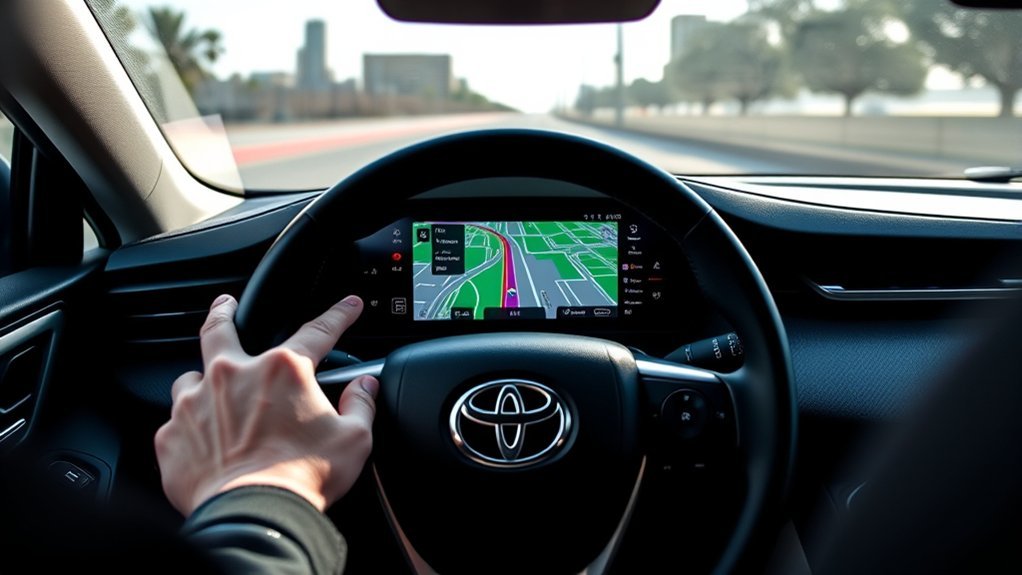
To set up maps on Toyota RAV4 models with connected navigation, activate the navigation plan for your car through the Toyota app or account, then open the navigation screen on the touchscreen and enter a destination by voice or keyboard. The system name, subscription terms and screens differ by model year and market, so check your owner’s manual. If your car has no built-in navigation, use Apple CarPlay or Android Auto on supported models.
How to Set Up Maps on Toyota RAV4: Activate the Navigation Plan
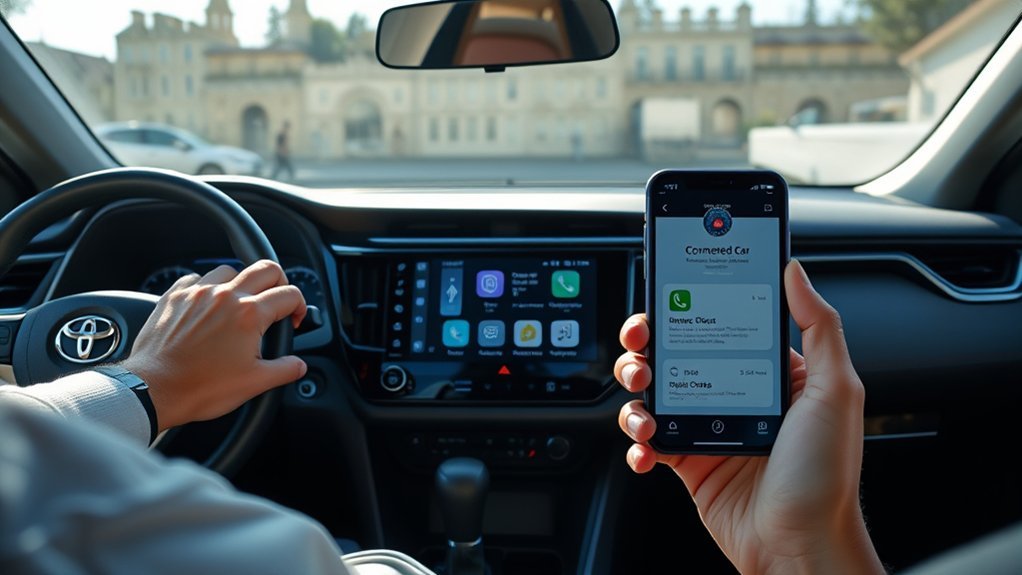
Connected navigation normally needs an active plan or trial. Check in the Toyota app or your account that your car is compatible and registered with its VIN, and follow the activation steps there. Names and terms differ by model year and market.
How to Activate Your Intelligent Assistant for Navigation
On models with a voice assistant, you can start it with the push-to-talk button on the steering wheel or the wake phrase described in your owner’s manual, then speak your destination. Wake phrases and assistants differ by model year.
Finding the Cloud Navigation Icon on Your Screen
Look for the navigation or map icon on the home screen or the menu of the head unit. If you cannot find it, your car may not have built-in navigation.
How to Search for Destinations Using Voice Commands
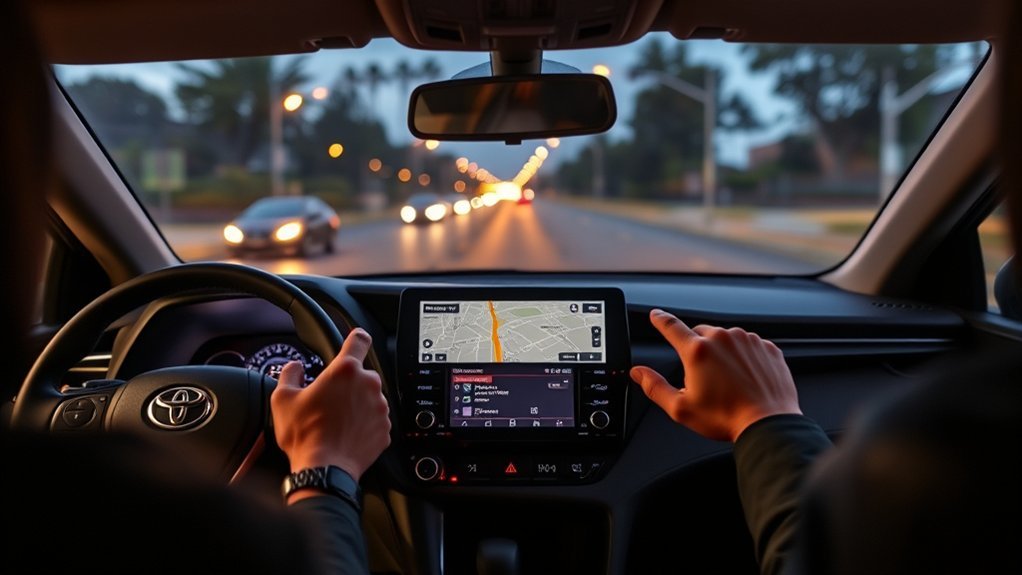
Press the push-to-talk button or use the wake phrase, then say the destination or address clearly. Park safely before changing settings, and keep your attention on the road.
Activating Voice Command Feature
Use the push-to-talk button on the steering wheel, or the wake phrase if your car has one. Check your owner’s manual for how it works on your model.
Sample Voice Commands List
- “Navigate to [address].”
- “Find nearby gas stations.”
- “Take me home.”
Supported commands depend on your model year and system.
Tips for Effective Usage
Speak clearly, reduce background noise and use full addresses. Park safely before making adjustments.
How to Enter Destinations Manually Using the Keyboard Icon
Open the navigation screen, tap the search or keyboard icon, type the address or place name and select it. Do this only when the car is parked.
Saving Locations to Your Favorites List
Most systems let you save places as favorites so you can find them quickly. The icon and menu names depend on the system.
Adding New Favorites
Find the place on the map or in search results, then use the save or favorite option.
Editing Saved Locations
Open your saved places list and edit or delete entries. The number of entries you can save depends on the system, so check your owner’s manual.
Managing Your Favorites List Effectively
Keep the list short and use clear names so places are easy to find. Delete places you no longer use.
Configuring Home and Areas to Avoid in Your Navigation Settings
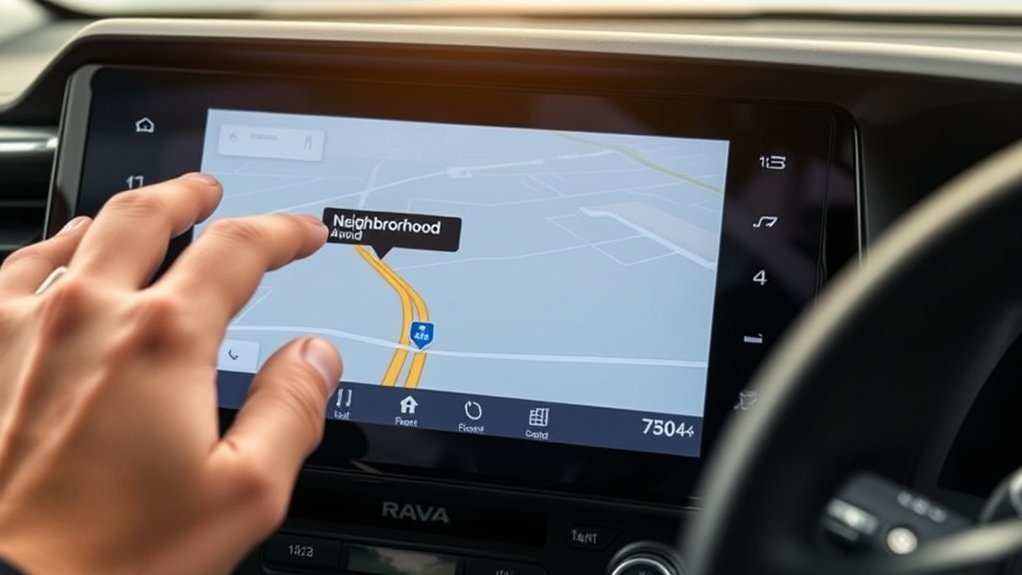
In the navigation settings, you can usually set a home address and choose route preferences. Whether you can mark areas to avoid depends on the system.
Configuring Home Location
Open the navigation settings, choose the home option and enter your address. Menu names differ by model year.
Managing Avoidance Areas
Where the system allows it, open the navigation settings and choose the avoid-area or route-preference options. Check your owner’s manual for what is available.
Best Practices for Touchscreen Maintenance to Enhance Navigation
Clean the screen with a soft microfiber cloth and avoid harsh cleaners. A clean screen is easier to read and use.
Troubleshooting Common Navigation Issues in Toyota RAV4?
- Check that your navigation plan is active.
- Check your mobile signal for cloud navigation.
- Restart the car and head unit.
- Ask a dealer about software updates.
Frequently Asked Questions
How Do I Get Maps on My RAV4?
Use the built-in navigation if your car has it, or use Apple CarPlay or Android Auto on supported models.
How Do I Connect My Phone Maps to My Toyota?
Connect your phone with Apple CarPlay or Android Auto, if your model supports them, and open the maps app on the car’s screen.
How to Download Maps for Toyota Navigation?
Cloud navigation updates over the air when your plan is active. Some models use USB updates instead, so check your owner’s manual.
How Can I Get Google Maps to Display on My Car Screen?
Use Apple CarPlay or Android Auto, where supported, and open Google Maps on your phone.
Conclusion
Now that you’ve mastered setting up maps on your Toyota RAV4, you’re ready to navigate like a seasoned explorer. With your Intelligent Assistant and voice commands, you’ll feel like you have a trusty sidekick guiding you through every journey. Remember, keeping your touchscreen in top shape is key to a smooth ride. So, venture forth with confidence and let your RAV4 take you to new horizons, because every road has a story waiting to be discovered!