You mirror an iPhone to a Toyota RAV4 with Apple CarPlay, which Apple lists for RAV4 model years 2019 through 2026. Plug the iPhone into the car’s USB port, accept the prompts on the phone and the touchscreen, and then open the CarPlay icon on the multimedia screen. Some newer systems also support a wireless connection, but older ones work with a cable only.
What CarPlay does and does not do
CarPlay is not a full copy of your iPhone screen. It shows a car-friendly interface on the RAV4 touchscreen with a limited set of supported apps such as Maps, Phone, Messages, Music and Podcasts, plus compatible third-party navigation, audio and messaging apps. You cannot watch video or use any app that Apple has not enabled for CarPlay. If you search for a way to mirror everything on the iPhone display, be aware that the RAV4’s factory system is built around CarPlay and not around full screen mirroring.
Which RAV4 model years support CarPlay
Apple’s list of CarPlay-compatible vehicles covers the Toyota RAV4 from 2019 to 2026. Earlier RAV4s (2018 and older) do not have CarPlay. The connection hardware and menu layout differ by generation, so use the table below as a guide and confirm the details in your own manual.
| Model years | CarPlay | Connection notes |
|---|---|---|
| 2018 and older | Not supported | Bluetooth calling and audio only, depending on the audio system |
| 2019 to 2022 | Supported | Wired connection through the USB port. Toyota’s 2023 RAV4 Prime manual states that iPod and USB audio cannot be used while CarPlay is connected by USB. |
| 2023 to 2025 | Supported | Wired on all; wireless availability depends on the multimedia system fitted to your vehicle |
| 2026 and later (new generation) | Supported | Toyota’s 2026 multimedia manual describes both USB (Type-C port) and wireless use |
Note: Toyota changed the multimedia system during the current generation. If your screen has a dedicated CarPlay icon on the home menu and a setting for wireless connection, your vehicle supports wireless. If you are not sure, the multimedia section of your owner’s manual for your exact model year settles it.
What you need
- A RAV4 from 2019 or later with the touchscreen multimedia system.
- An iPhone that supports CarPlay, with Siri turned on. Keep iOS current.
- For a wired connection, a good data-capable cable. Use an Apple-certified cable, or the USB-C to Lightning adapter Apple mentions for USB-C iPhones in a Lightning-era car. Older RAV4s use a USB-A port; the 2026 manual refers to a USB Type-C port.
- For a wireless connection, Bluetooth and Wi-Fi turned on in the iPhone.
Connect with a USB cable
- Start the RAV4 and unlock the iPhone.
- Plug the cable into the car’s USB port that is marked for data or media, not one that only charges. Check your manual if the car has more than one port.
- If the iPhone or the screen asks for permission to use CarPlay, accept it. On some systems you need to enable CarPlay for the phone in the Bluetooth device settings on the multimedia screen; the RAV4 manual lists this as “Use for Apple CarPlay”.
- Touch the Apple CarPlay icon on the main menu of the touchscreen. The CarPlay screen appears once a supported device is connected and the function is enabled.
- Use Siri, the touchscreen, or the steering wheel voice button to control apps. The RAV4 manual notes that pinch-to-zoom is not supported in CarPlay and Google Maps on the multimedia screen.
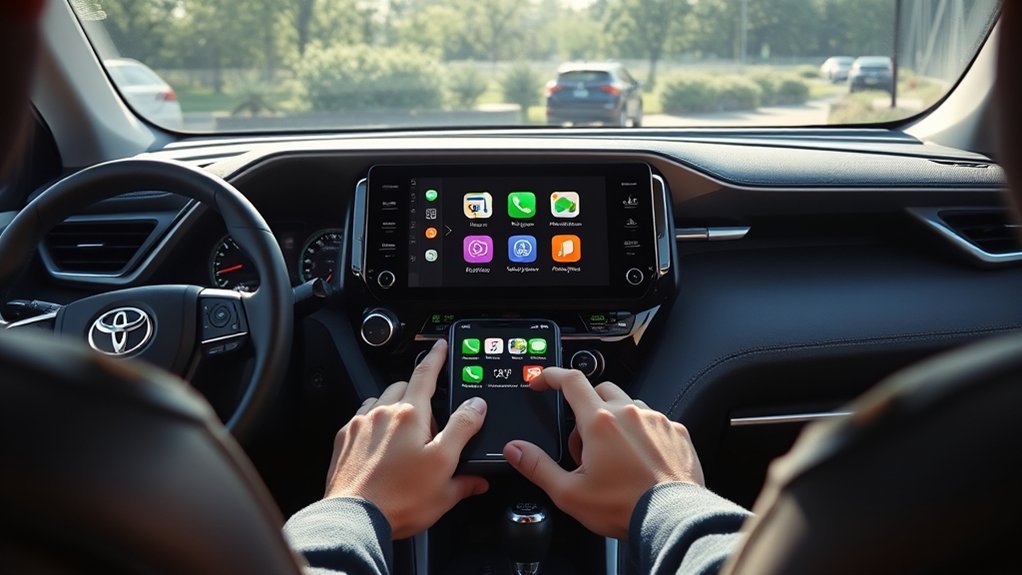
Connect wirelessly
Wireless CarPlay works only when the RAV4’s multimedia system supports it. Apple’s steps for a wireless connection rely on Bluetooth and Wi-Fi, so both must be on.
- With the car on, turn on Bluetooth and Wi-Fi on the iPhone.
- Pair the iPhone with the RAV4 through Bluetooth from the multimedia screen and the iPhone’s Settings, Bluetooth.
- When the screen offers to use Apple CarPlay with this phone, accept. Use the wireless connection option in the multimedia settings if you do not get the prompt.
- Open the CarPlay icon on the main menu.
On the iPhone, open Settings, Wi-Fi, tap the CarPlay network and make sure Auto-Join is on, as Apple advises, so the phone reconnects on its own next time. Toyota’s 2026 manual also says CarPlay cannot be used at the same time as a 5 GHz Wi-Fi hotspot on the vehicle.
Troubleshooting
These steps follow Apple’s CarPlay help page.
- Try a different USB cable and a different USB port. A charge-only or damaged cable is the most common cause of a failed wired connection.
- Confirm Siri is turned on.
- If Screen Time is on, open Settings, Screen Time, Content & Privacy Restrictions, Allowed Apps and make sure CarPlay is allowed.
- Restart the iPhone and restart the vehicle’s multimedia system by turning the car off and on again.
- For wireless, check Settings, Bluetooth and Settings, Wi-Fi, and make sure Auto-Join is on for the CarPlay network.
- Open Settings, General, CarPlay, select the RAV4, tap Forget This Car, and set up the connection again.
- Ask a Toyota dealer whether your multimedia system has a software update available, and check your manual for the steps.
Turning off a VPN is sometimes suggested in user forums, but Apple does not list it as a step, so treat it as a last resort rather than a first fix.
Using CarPlay safely
- Set your destination before you drive, or use Siri.
- Do not scroll, type or read long messages while the car is moving. Follow your local laws on phone use.
- Adjust volume and navigation with the steering wheel controls where available.
- Keep the cable short and secured so it does not get in the way of the shifter or pedals.
Frequently asked questions
Can I mirror my whole iPhone screen to a RAV4?
Not with the factory system. CarPlay shows its own interface and only apps that support it. Third-party devices that promise full mirroring are not part of Toyota’s system, and I could not confirm that they are approved or safe for use on a RAV4, so check the maker’s claims carefully.
Does a 2018 or older RAV4 support CarPlay?
No. Apple’s list starts at the 2019 RAV4. Older models can use Bluetooth for calls and audio streaming only.
Why does the screen only show Bluetooth and not CarPlay?
Usually the cable is charge-only, the wrong port is used, or CarPlay is not enabled for that phone in the Bluetooth device settings. Try another cable, then check that Siri is on and CarPlay is allowed in Screen Time.
Can I use USB audio while CarPlay runs over USB?
No. The RAV4 Prime manual states that the iPod and USB audio functions cannot be used while CarPlay is connected through USB.
Do I need a cable for wireless CarPlay?
No. Once your system supports wireless CarPlay and the phone is set up, it reconnects over Bluetooth and Wi-Fi when you start the car.
Sources opened while checking: Apple’s CarPlay help page and Apple’s list of CarPlay vehicles.
