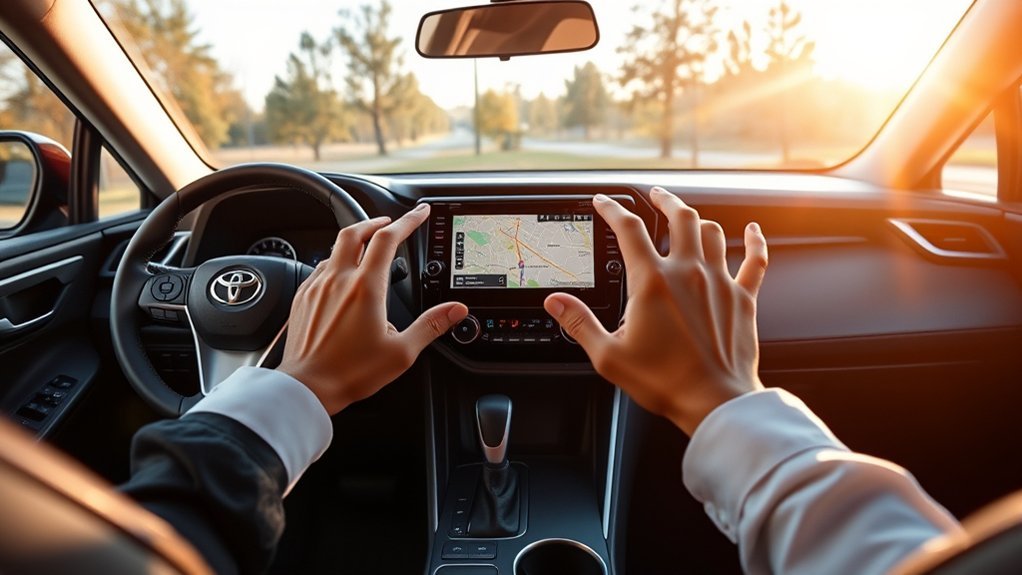
Google Maps does not normally install directly on a Toyota RAV4 factory screen. Instead, the vehicle displays the Google Maps app from a compatible phone through Android Auto or Apple CarPlay. The exact connection method depends on the RAV4 model year, market, multimedia system, and phone.
Quick Answer
To get Google Maps on your Toyota RAV4 screen, connect an Android phone through Android Auto or an iPhone through Apple CarPlay. U.S. 2019 RAV4 models support Apple CarPlay, 2020–2022 models support both systems mainly through USB, and 2023–2026 models have standard wireless phone projection.
Key Takeaways
- Google Maps normally runs on your phone and appears on the RAV4 screen through Android Auto or Apple CarPlay.
- U.S. 2019 RAV4 models have factory Apple CarPlay but not factory Android Auto.
- U.S. 2020–2022 RAV4 models support Android Auto and Apple CarPlay, with a data USB connection normally required.
- U.S. 2023–2026 RAV4 models include standard wireless Apple CarPlay and Android Auto compatibility.
- Bluetooth alone can play spoken directions, but it cannot display the Google Maps interface on the RAV4 screen.
- Many connection failures come from a charging-only cable, the wrong USB port, disabled phone projection, or an old pairing record.
At a Glance
| Time Required | About 5–10 minutes |
| Difficulty | Easy |
| Tools Needed | Compatible phone, updated Google Maps app, and a data-capable USB cable when required |
| Cost | Usually no added cost if your vehicle, phone, and cable are already compatible |
Warning: Park your RAV4 before pairing a phone, approving permissions, entering a destination, rearranging apps, or changing navigation settings. Keep your attention on the road while driving.
What’s in This Article
- Before You Begin
- RAV4 Model-Year Compatibility
- Google Maps vs. Toyota Navigation
- Set Up Android Auto or Apple CarPlay
- Connect Your Smartphone Step by Step
- Launch Google Maps on the RAV4 Display
- Fix Connection Problems
- Use Directions Through Bluetooth
- Compare Navigation Apps
- Optimize Your Navigation Setup
- Frequently Asked Questions
Before You Begin: Compatibility and Setup Checklist
Setup usually takes 5 to 10 minutes when the phone and RAV4 already support Android Auto or Apple CarPlay. Check the following items before connecting:
- A Toyota RAV4 multimedia system that supports Android Auto or Apple CarPlay
- An Android phone running Android 9.0 or newer for wired Android Auto
- A compatible Android phone with Android 11 or newer and 5 GHz Wi-Fi support for the simplest wireless Android Auto compatibility
- An iPhone that supports CarPlay, with Siri enabled
- The latest available version of Google Maps
- A short, high-quality USB cable that supports data transfer if your RAV4 requires a wired connection
- Mobile data, Wi-Fi, or a downloaded offline map that covers the complete driving route
Google states that Android Auto is integrated into compatible Android phones, so it may not appear as a normal app icon. You can usually find its controls by searching for “Android Auto” in the phone’s Settings app.
For an iPhone, turn on Siri before setup. Apple also recommends using current iPhone and vehicle software and connecting through the USB port or wireless method specified by the vehicle manufacturer.
Note: Model-year details below describe U.S.-market RAV4 models. Equipment can differ by country, production date, trim, powertrain, or multimedia software. Check your owner’s manual, Toyota account, VIN information, or dealer when your vehicle does not match the table.
Checking Your RAV4’s Compatibility With Google Maps
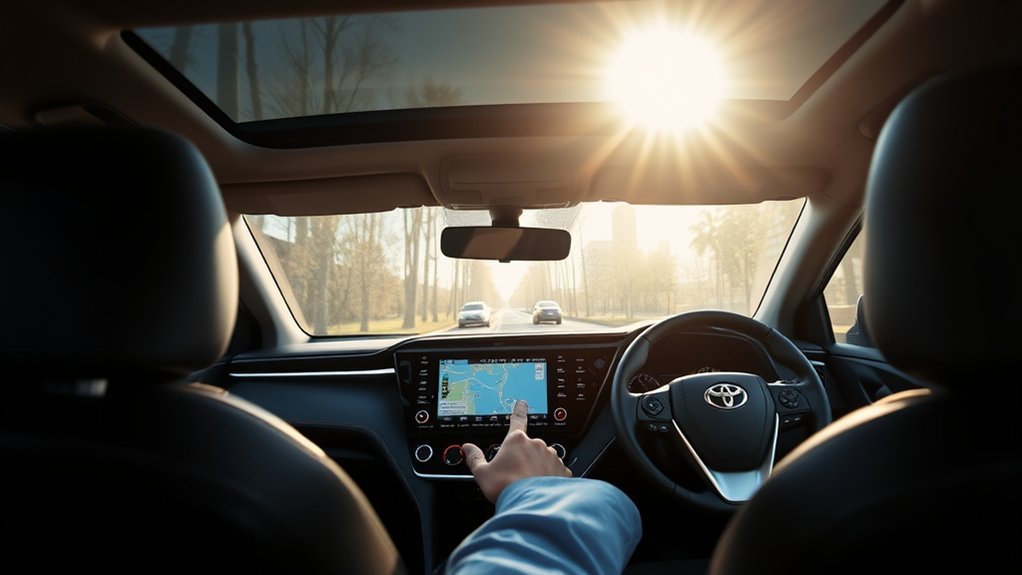
Your RAV4 model year is the fastest way to estimate whether Google Maps can appear through Apple CarPlay, Android Auto, or both.
| U.S. RAV4 Model Year | Factory Phone Projection | How to Use Google Maps |
|---|---|---|
| 2018 and older | No factory Android Auto or Apple CarPlay on the standard RAV4 multimedia systems | Use Google Maps on the phone with a secure mount and Bluetooth voice guidance, or use a compatible professionally installed aftermarket receiver. |
| 2019 | Factory Apple CarPlay; no factory Android Auto | Connect an iPhone to the multimedia USB port and open Google Maps through CarPlay. Android users can use spoken Bluetooth directions, but the factory screen will not show Android Auto. |
| 2020–2022 | Factory Android Auto and Apple CarPlay | Use the multimedia data USB port and a data-capable cable. These factory systems generally require a wired phone-projection connection. |
| 2023–2025 | Standard wireless Android Auto and Apple CarPlay | Pair the phone through the vehicle’s device menu, approve wireless projection, and open Google Maps from Android Auto or CarPlay. |
| 2026 | Standard wireless Android Auto and Apple CarPlay on the U.S. RAV4 | Pair wirelessly and choose Google Maps from the phone-projection app launcher. USB may still be useful for charging or connection troubleshooting. |
Toyota introduced standard Apple CarPlay compatibility throughout the U.S. RAV4 lineup for 2019 and added Android Auto for the 2020 model year. Toyota then made its newer Audio Multimedia system with wireless Apple CarPlay and Android Auto standard across U.S. RAV4 grades for 2023.
How to Confirm Your Exact RAV4 Equipment
Do not rely only on the registration year. A vehicle’s market, production date, replacement radio, or regional specification can change its features.
- Check the multimedia section of the owner’s manual.
- Look for Android Auto or Apple CarPlay in the RAV4’s settings or source menu.
- Connect your phone to the multimedia data USB port and watch for a projection prompt.
- Enter the VIN in your Toyota owner account or ask a Toyota dealer to confirm the installed multimedia system.
Google Maps vs. Toyota’s Built-In Navigation
Google Maps and Toyota native navigation are not the same system. Google Maps normally runs on your phone and is projected through Android Auto or Apple CarPlay. Toyota’s built-in navigation runs through the vehicle’s own multimedia system and may require connected-service features for some functions.
A button labeled “Map,” “Navigation,” or “Drive Connect” does not necessarily open Google Maps. For example, the 2026 RAV4 includes Toyota native turn-by-turn navigation alongside standard wireless Android Auto and Apple CarPlay.
To see the actual Google Maps interface, open Google Maps from the Android Auto or Apple CarPlay app launcher rather than the RAV4’s native navigation menu.
Setting Up Android Auto or Apple CarPlay
Choose the instructions that match your phone and the connection supported by your RAV4. Menu names can vary slightly between multimedia generations.
Set Up Wired Android Auto
- Park the RAV4 and turn on the multimedia system.
- Unlock the Android phone and confirm that Android, Google Maps, and Google Play services are updated.
- Connect the phone to the RAV4’s multimedia data USB port with a short, data-capable cable.
- Approve the Android Auto permissions on the phone and vehicle screen.
- Select Android Auto on the RAV4 display if it does not open automatically.
- Open the app launcher and tap Google Maps.
If the phone charges but Android Auto does not launch, the cable or USB port is the first thing to check. Charging alone does not prove that the cable supports data.
Set Up Wireless Android Auto
- Turn on Bluetooth, Wi-Fi, mobile data, and Location Services on the Android phone.
- Open the RAV4’s Bluetooth or connected-device menu and choose the option to add a phone.
- Select the Toyota system from the phone’s Bluetooth list.
- Confirm that the same pairing code appears on both screens.
- Approve contacts, messages, and Android Auto permissions when prompted.
- Select the option to use Android Auto, then open Google Maps from the app launcher.
Google says wireless Android Auto requires a compatible vehicle, an active data plan, and a phone that supports 5 GHz Wi-Fi. Android 11 or newer provides the broadest standard wireless-phone compatibility.
Set Up Wired Apple CarPlay
- Turn on Siri on the iPhone.
- Park the RAV4 and connect the iPhone to the multimedia USB port.
- Use an Apple cable or another reliable cable that supports both charging and data.
- Select “Allow” on the iPhone and approve CarPlay on the RAV4 screen.
- Open CarPlay and tap the Google Maps icon.
- Choose a destination and begin navigation before driving.
Set Up Wireless Apple CarPlay
- Turn on Siri, Bluetooth, and Wi-Fi on the iPhone.
- Put the RAV4 multimedia system into wireless pairing mode.
- Press and hold the steering-wheel voice button if the vehicle instructions direct you to do so.
- On the iPhone, open Settings > General > CarPlay.
- Select the RAV4 and approve the pairing prompts.
- Open Google Maps from the CarPlay screen.
Apple’s CarPlay instructions confirm that supported vehicles can connect through USB or wirelessly, depending on the vehicle system.
Connect Your Smartphone: A Step-by-Step Guide
The following sequence works as a general checklist for both Android Auto and Apple CarPlay:
- Park safely. Put the RAV4 in Park before entering destinations or approving phone permissions.
- Update your phone. Install stable phone-system and Google Maps updates.
- Choose the correct connection. Use the multimedia data USB port for a wired system or the connected-device menu for a wireless system.
- Approve the connection. Accept the prompts on both the phone and RAV4 display.
- Open phone projection. Select Android Auto or Apple CarPlay on the RAV4 screen.
- Open Google Maps. Choose Google Maps from the app launcher.
- Start the route. Enter the destination and tap Start or Go before moving the vehicle.
Verify Phone Compatibility First
For wired Android Auto, Google currently requires an Android phone running Android 9.0 or newer, an active data plan, a compatible vehicle, and a high-quality USB cable. Wireless Android Auto has additional phone, vehicle, and Wi-Fi requirements.
For Google Maps on CarPlay, Google lists an iPhone 5 or newer, iOS 12 or newer, an updated Google Maps app, and a CarPlay-compatible vehicle. A newer supported iPhone and current iOS version will generally provide better app support.
Use the Correct USB Port
Some RAV4 USB ports are intended mainly for charging. Only the multimedia data port can start wired Android Auto or CarPlay.
- Look for a smartphone, CarPlay, media, or USB symbol near the port.
- Try the front multimedia USB port before the rear charging ports.
- Use a cable that supports data transfer.
- Remove adapters, splitters, and extension cables while troubleshooting.
- Check the owner’s manual if more than one front USB port is present.
Enable Bluetooth Connectivity Options
Bluetooth supports calls, audio, initial wireless pairing, and navigation prompts. Wireless Android Auto and CarPlay also use Wi-Fi for their higher-bandwidth display connection.
Confirm the same pairing code on both screens and approve the requested permissions. On a wired system, keep the USB cable connected after Bluetooth pairing because Bluetooth by itself cannot place the Google Maps interface on the screen.
Launching Google Maps on Your RAV4 Display
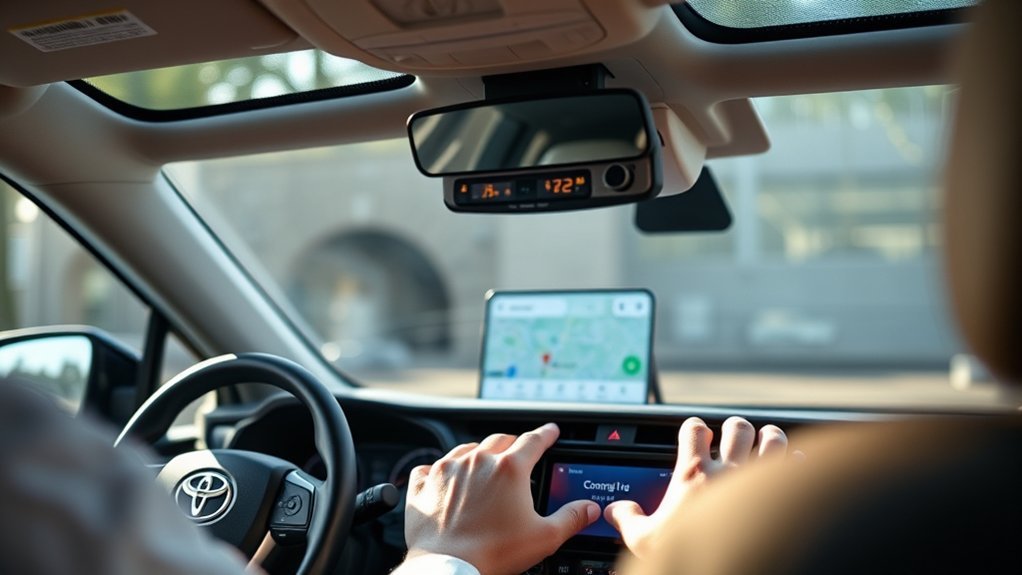
After phone projection connects, Google Maps should appear in the Android Auto or CarPlay app launcher.
- Connect the phone by USB or wireless phone projection.
- Select Android Auto or Apple CarPlay on the RAV4 screen.
- Open the app launcher.
- Tap Google Maps.
- Enter a destination while parked.
- Review the route and tap Start or Go.
On CarPlay, Google Maps supports destination searches, stops, route selection, and voice search. On Android Auto, you can use the microphone icon, a supported wake phrase, or the steering-wheel voice button when available.
Pro Tip: If the RAV4 screen remains blank after connection, unlock the phone once and check both screens for an unfinished permission request.
If Google Maps Is Missing From CarPlay
- Confirm that Google Maps is installed and updated on the iPhone.
- While parked, open Settings > General > CarPlay on the iPhone.
- Select your RAV4.
- Tap Customize.
- Add Google Maps if it appears under More Apps, or move it higher in the app list.
- Reconnect the iPhone and check the CarPlay screen again.
If Google Maps Is Missing From Android Auto
- Open Google Maps directly on the phone to make sure the app is active.
- Update Google Maps and Android system components.
- Search the phone’s Settings app for Android Auto and review its launcher settings.
- Check whether the phone has placed Google Maps into a sleeping, deep-sleep, or disabled-app list.
- Allow Google Maps to run and reconnect Android Auto.
Google notes that some Android phones temporarily disable apps that have not been used recently. Opening the app again or removing it from the phone’s sleeping-app settings can restore it to the Android Auto launcher.
Fixing Google Maps Connection Problems
Start with the symptom you see rather than changing every setting at once.
| Symptom | Likely Cause | What to Try |
|---|---|---|
| The phone charges, but projection does not start | Charging-only cable or charging-only USB port | Use the multimedia data port and a different short data cable. |
| Android Auto or CarPlay is not listed | Unsupported model year, disabled projection, or incomplete permission request | Check the compatibility table, enable phone projection in vehicle settings, and approve prompts on both devices. |
| Google Maps is missing from the launcher | App not installed, app hidden, or Android app placed to sleep | Update and open Google Maps, customize CarPlay apps, or remove Google Maps from sleeping-app settings. |
| Wireless projection disconnects | Wi-Fi or Bluetooth disabled, old pairing data, or another saved phone taking priority | Turn on Bluetooth and Wi-Fi, remove old pairings, temporarily disconnect other phones, and pair again. |
| The map freezes or the display goes black | Phone, app, cable, or infotainment software problem | Unlock and restart the phone, replace the cable, reconnect, and check for stable software updates. |
| The map works, but directions are silent | Muted guidance, low navigation volume, or incorrect audio source | Raise guidance volume during a spoken prompt and check the RAV4’s Bluetooth or phone-projection audio source. |
| An Android phone will not project on a U.S. 2019 RAV4 | The factory system does not include Android Auto | Use Bluetooth voice guidance and a secure phone mount, switch to an iPhone with CarPlay, or consider a compatible aftermarket receiver. |
Verify the USB Connection Type
- Use the multimedia data USB port. A rear-seat or console charging port may not support projection.
- Replace the cable. A damaged or charging-only cable can still power the phone.
- Remove adapters. Connect the phone directly while testing.
- Enable phone projection. Confirm that Android Auto or Apple CarPlay is permitted in the RAV4 settings.
Restart the Phone and Multimedia System
Restart the phone if Google Maps freezes, disappears, or stops responding. Disconnect the cable or wireless session before restarting.
If the problem remains, turn the vehicle off safely, open and close the driver’s door if required for system shutdown, wait for the multimedia system to power down, and restart the vehicle. Use only a reset method permitted by the owner’s manual.
You can also remove the RAV4 from the phone’s saved vehicles and delete the phone from the RAV4. Pair the devices again after both have restarted.
Update Software Regularly
- Update Google Maps through Google Play or the Apple App Store.
- Install a stable Android or iOS update supported by the phone.
- Check the RAV4 multimedia settings for an available software update.
- Ask a Toyota dealer to inspect the multimedia software if the vehicle does not provide a user-accessible update option.
Remove Multiple-Phone Conflicts
A nearby phone that was previously paired may connect before the phone you want to use. Temporarily turn off Bluetooth on the other phone or change the preferred-device setting in the RAV4.
If wireless projection remains unreliable, delete unused phones from the RAV4, remove the Toyota pairing from the intended phone, restart both systems, and complete a fresh pairing while the other phones remain disconnected.
Playing Google Maps Directions Through Bluetooth
Bluetooth can play Google Maps voice directions through the RAV4 speakers even when the vehicle cannot display Google Maps. This is useful for pre-2019 RAV4 models and for Android users with a U.S. 2019 RAV4.
- Pair the phone with the RAV4 through Bluetooth.
- Set the vehicle audio source to Bluetooth Audio.
- Open Google Maps on the phone.
- Enter the destination while parked and start navigation.
- Raise the phone’s media volume and the vehicle volume.
On Android, open Google Maps and go to Profile picture > Settings > Navigation. Turn on Play voice over Bluetooth to send prompts to the vehicle speakers.
Google Maps for iPhone also provides a Play Voice over Bluetooth option in its navigation settings. If prompts still do not play, confirm that the RAV4 audio source is Bluetooth and raise the guidance volume while a direction is being spoken.
Note: Bluetooth audio carries spoken directions but does not create an Android Auto or CarPlay map display. Keep the phone in a legal, secure mount if you need to view its screen.
Best GPS Apps to Use With Your RAV4
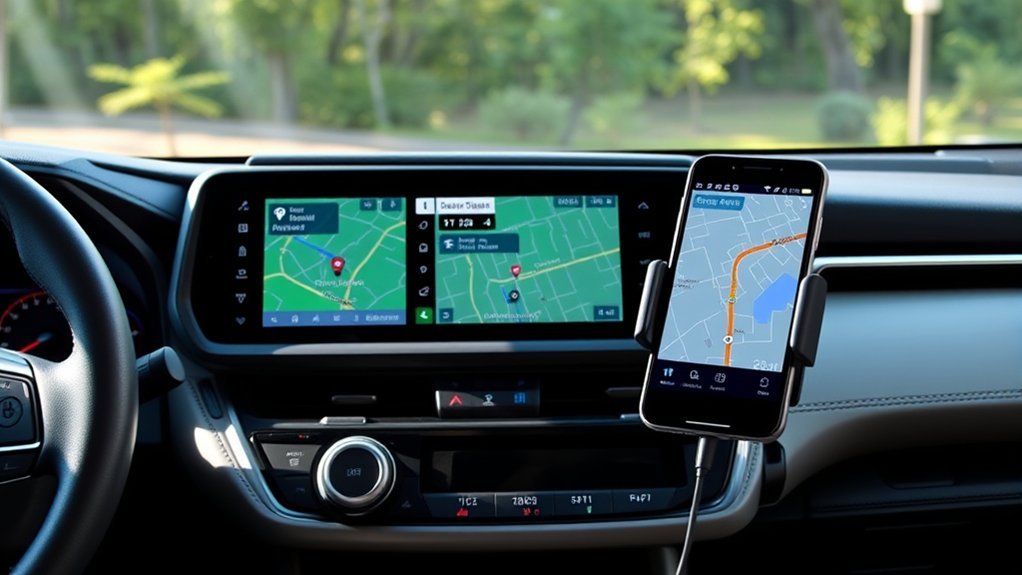
Google Maps is a strong general-purpose choice, but Android Auto and Apple CarPlay support other navigation apps.
- Google Maps: A good choice for everyday driving, place searches, business information, traffic conditions, saved locations, and offline map downloads.
- Waze: Useful for community-reported road conditions, hazards, closures, and traffic-based rerouting.
- Apple Maps: A convenient choice for iPhone users who want close integration with Siri, contacts, and the CarPlay dashboard.
Features vary by app, phone, country, and software version. Test the app while parked before depending on it during a long trip.
Tips for Optimizing Your Navigation Experience
| Tip | Action | Benefit |
|---|---|---|
| Update apps | Keep Google Maps and the phone operating system current. | Improves stability and compatibility. |
| Use voice controls | Use the microphone or steering-wheel voice button when supported. | Reduces screen interaction while driving. |
| Save offline maps | Download the entire route area before entering weak-signal regions. | Allows driving navigation when mobile service drops. |
| Check the audio source | Select Bluetooth Audio, Android Auto, or CarPlay as appropriate. | Keeps voice prompts audible. |
| Carry a data cable | Keep a tested cable in the vehicle even when using wireless projection. | Provides charging and a useful troubleshooting backup. |
Using Google Maps Offline
Download offline maps before camping, towing, or traveling through remote areas. The complete route must remain inside the downloaded area for offline guidance to work reliably.
When offline, Google Maps does not provide live traffic, alternative driving routes, transit directions, cycling directions, or walking directions. Offline map downloads may also be restricted in some countries or regions.
To download an area, open Google Maps on the phone, tap the profile picture, choose Offline maps, select your own map area, and download it while connected to the internet.
Frequently Asked Questions
How do you connect Google Maps to a Toyota RAV4?
Connect a compatible Android phone through Android Auto or an iPhone through Apple CarPlay. Use the multimedia data USB port on models that require a wired connection, or pair wirelessly on supported models. Then open Google Maps from the Android Auto or CarPlay app launcher.
Can you install Google Maps directly on a RAV4 screen?
Most RAV4 factory multimedia systems do not let you install the phone version of Google Maps directly. Install Google Maps on your phone and display it through Android Auto or Apple CarPlay. Toyota native navigation is a separate system.
Can a 2019 RAV4 display Google Maps?
A U.S. 2019 RAV4 can display Google Maps from an iPhone through factory Apple CarPlay. It does not have factory Android Auto, so an Android phone can provide Bluetooth voice directions but cannot place Android Auto on the original screen.
Which RAV4 years have wireless Android Auto and Apple CarPlay?
For U.S.-market vehicles, Toyota made wireless Apple CarPlay and Android Auto standard across RAV4 grades for 2023. The 2024, 2025, and 2026 U.S. models also provide standard wireless compatibility. Regional equipment may differ.
Why does my phone charge without opening Google Maps?
The phone may be connected to a charging-only USB port or through a charging-only cable. Use the RAV4 multimedia data port and a short cable that supports data. Also confirm that Android Auto or CarPlay is enabled and approved on both screens.
Why is Google Maps missing from CarPlay or Android Auto?
Confirm that Google Maps is installed, updated, and active. On an iPhone, open Settings, General, CarPlay, select the RAV4, and customize the app list. On Android, open Google Maps and check whether the phone placed it in a sleeping or disabled-app list.
Can Bluetooth display Google Maps on the RAV4 screen?
No. Bluetooth can carry calls, music, and spoken Google Maps directions, but it does not provide the Android Auto or Apple CarPlay visual interface. Screen display requires supported phone projection or a compatible aftermarket receiver.
Can you use Google Maps without mobile data?
Yes, if you download an offline map that covers the complete driving route. Offline driving guidance does not include live traffic or alternative routes, and some map-download features are unavailable in certain regions.
Conclusion
The easiest way to use Google Maps on a Toyota RAV4 screen is through Android Auto or Apple CarPlay. The correct method depends mainly on the vehicle’s model year: U.S. 2019 models support Apple CarPlay, 2020–2022 models support both platforms mainly through USB, and 2023–2026 models provide standard wireless compatibility.
If Google Maps does not appear, check the model-year support first. Then inspect the multimedia USB port, data cable, phone permissions, saved pairings, app launcher, audio source, and software updates.
For a RAV4 without compatible screen projection, Bluetooth voice directions and a secure phone mount remain practical options. Set the route before driving, download offline maps for weak-signal areas, and keep your attention on the road.
Driving Safety Note: This guide is for informational use. Follow your owner’s manual, local traffic laws, device-mounting rules, and safe-driving practices when using navigation in your Toyota RAV4.
Sources
- Toyota: All-New 2019 RAV4 — confirms standard Apple CarPlay compatibility on U.S. 2019 RAV4 models
- Toyota: 2020 RAV4 Multimedia Enhancements — confirms the addition of Android Auto for the U.S. 2020 RAV4
- Toyota: What’s New for 2023 — confirms standard wireless Apple CarPlay and Android Auto across U.S. 2023 RAV4 grades
- Toyota: 2026 RAV4 Multimedia Features — confirms standard wireless phone projection and separate native navigation
- Google Android Auto Requirements — supports phone, cable, wired, and wireless compatibility requirements
- Apple CarPlay Setup Guide — supports wired and wireless iPhone connection steps