To use Google Maps in your Toyota RAV4, connect your smartphone via Android Auto or Apple CarPlay. For a wired connection, plug your phone into the Data USB port using a USB cable and select “Yes” on the infotainment screen. For a wireless connection, turn on Bluetooth and follow the prompts. Make sure you’re initiating navigation on your smartphone first for peak performance. You’ll discover additional tips and advanced features for enhancing your navigation experience.
How to Connect Google Maps to Your Toyota RAV4
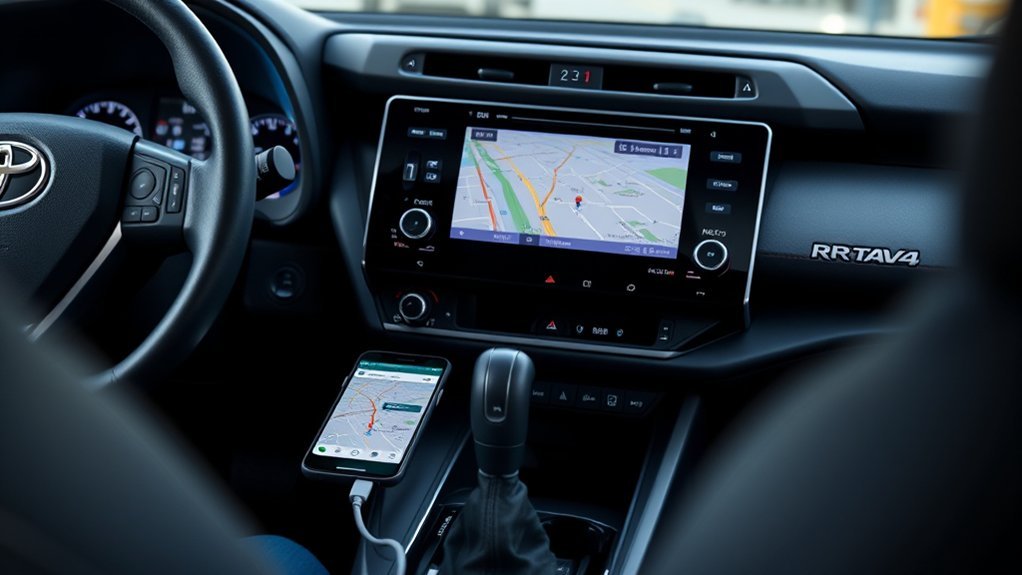
To connect Google Maps to your Toyota RAV4, start by ensuring your smartphone has either Android Auto or Apple CarPlay installed, based on your device. Use a USB cable to connect your phone to the vehicle’s Data USB port. When prompted on the infotainment screen, select “Yes” to establish the connection. If you prefer a wireless method, activate Bluetooth on your phone and follow the on-screen instructions in the infotainment system to pair your devices. Once connected, you can access Google Maps through the infotainment system, allowing you to utilize navigation features displayed on your car’s screen. For enhanced functionality, it’s recommended to initiate navigation on your smartphone before connecting to the Toyota RAV4 Prime.
Wired vs. Wireless: Choose Your Connection Method
Choosing between wired and wireless connections for Google Maps in your Toyota RAV4 can greatly impact your navigation experience. If you opt for a wired connection, use the Data USB port to access Android Auto. This guarantees seamless integration, allowing you to manage routes directly from the infotainment screen. On the other hand, a wireless connection requires activating Bluetooth on your phone and following the prompts from your vehicle’s infotainment system. This method offers more freedom, but it’s essential to initiate navigation on your phone before connecting to enhance the experience. Whichever option you choose, both wired and wireless methods facilitate effective navigation, so select the one that best fits your driving style and preferences.
Step-by-Step Guide to Using Android Auto
Using Android Auto in your Toyota RAV4 allows for a streamlined navigation experience with Google Maps. To get started, verify Android Auto is installed on your smartphone. Connect your phone to the vehicle using a USB data cable—this isn’t just for charging. Once connected, confirm on the infotainment screen by selecting “Yes,” granting access to Google Maps and other apps. For peak functionality, initiate navigation on your smartphone before connecting, so multi-stop routes are recognized. To hear directions through your car’s audio, enable “Play voice over Bluetooth” in Google Maps settings. If you face issues, check your USB connections, restart your phone, and verify your vehicle’s infotainment software is up to date for compatibility with Android Auto.
Setting Up Apple CarPlay for Navigation
Setting up Apple CarPlay for navigation in your Toyota RAV4 is a straightforward process that enhances your driving experience. First, verify your iPhone is updated to the latest iOS and that Apple CarPlay is enabled in the vehicle’s settings. Connect your iPhone to the RAV4 using a USB cable plugged into the Data USB port. When prompted on the infotainment screen, select “Yes.” For best performance, initiate navigation on your iPhone before connecting. Once connected, tap the Apple Maps icon on the infotainment screen to access the navigation system and enter destinations directly. Don’t forget to activate Siri on your iPhone for hands-free navigation commands while driving. Enjoy the freedom of seamless navigation!
Playing Directions From Google Maps via Bluetooth
To play Google Maps directions via Bluetooth in your Toyota RAV4, you’ll first need to set up the connection between your phone and the car’s infotainment system. Make certain both devices are paired correctly, and adjust the settings in Google Maps to guarantee voice directions come through your car speakers. If you encounter any audio issues, troubleshooting steps can help restore clear navigation prompts.
Connection Setup Process
Connecting your phone to the Toyota RAV4’s Bluetooth system is essential for playing Google Maps directions through the car’s audio. First, enable Bluetooth on both your phone and the RAV4’s infotainment system. On the vehicle’s screen, navigate to “Settings,” then select “Bluetooth & devices” to add your phone. Before pairing, open Google Maps and start navigation to your desired destination to enhance functionality. In the app’s settings, enable “Play voice over Bluetooth” and “Play as Bluetooth phone call” options to guarantee directions are audible. After pairing, confirm the Bluetooth connection by selecting “Yes” on the infotainment screen. This setup allows you to hear Google Maps directions clearly while driving, providing a seamless navigation experience.
Troubleshooting Audio Issues
After successfully connecting your phone via Bluetooth, you might encounter audio issues when trying to play Google Maps directions through your Toyota RAV4’s speakers. Here are some troubleshooting steps to resolve the problem:
- Confirm Bluetooth is enabled on your phone, and verify it’s connected to your car’s audio system.
- Open Google Maps, tap the profile icon, and enable the “Play voice over Bluetooth” option in settings.
- Check that the volume is turned up on both your phone and the RAV4’s audio system.
- If directions still aren’t playing, try restarting your phone or disconnecting and reconnecting the Bluetooth connection.
Also, verify that no other devices are interfering with the audio output. Enjoy your travels with Maps!
Fixing Google Maps Issues
If you’re facing issues with Google Maps in your Toyota RAV4, there are several troubleshooting steps you can take. Start by ensuring your phone is connected to the correct Data USB port and consider initializing navigation on your phone before connecting. Additionally, check your software versions and connections to address any route transfer challenges you might encounter.
Connectivity Troubleshooting Steps
When you’re experiencing issues with Google Maps in your Toyota RAV4, addressing connectivity problems is vital for a seamless navigation experience. Follow these troubleshooting steps to resolve any connectivity issues:
- Confirm your phone’s connected to the Data USB port, as a charging-only port won’t allow Google Maps to function properly.
- If you’re using Bluetooth, verify that your phone is paired correctly and that the “Play voice over Bluetooth” and “Play as Bluetooth phone call” options are enabled in Google Maps settings.
- Restart your phone to fix potential app malfunctions affecting connectivity.
- Check for software updates for both Android Auto/Apple CarPlay and your vehicle’s infotainment system to avoid outdated software causing issues.
Implementing these steps should enhance your Google Maps experience.
Navigation Initialization Tips
Resolving connectivity issues is just the first step toward a smooth navigation experience with Google Maps in your Toyota RAV4. Always initiate Google Maps on your smartphone before connecting it to your vehicle via Android Auto or Apple CarPlay. Make sure your phone connects to the correct Data USB port; using the wrong one can hinder functionality. If you encounter issues with directions, pull over safely and re-enter your destination for better accuracy. Enhance your experience by enabling the “Play voice over Bluetooth” option in Google Maps settings for clearer audio directions. For complex multi-stop routes, set them up on your phone first, as transferring them directly to your car’s navigation system isn’t straightforward. Enjoy your journey!
Route Transfer Challenges
Although transferring routes from Google Maps to your Toyota RAV4 can be challenging, understanding the process can enhance your navigation experience. Here are some tips to tackle route transfer challenges:
- Create Multi-Stop Routes: Set your routes with multiple stops on your smartphone first.
- Start Navigation Stationary: Initiate navigation while your car is parked to avoid display issues on the infotainment screen.
- Use the Correct USB Port: Connect your phone to the USB data port; using a charging-only port may cause Google Maps to malfunction.
- Prefer Smartphone Navigation: Many RAV4 owners find Google Maps or Waze through their phones more reliable than the built-in system.
Best Practices for Efficient Google Maps Integration With Your RAV4
To achieve efficient integration of Google Maps with your Toyota RAV4, it’s essential to start navigation on your smartphone before connecting to the car via Android Auto or Apple CarPlay. Always connect your phone to the vehicle’s Data USB port to guarantee full functionality of Google Maps. Plan multi-stop routes on your smartphone, allowing seamless access through the car’s infotainment system. For ideal voice directions while driving, enable the “Play voice over Bluetooth” and “Play as Bluetooth phone call” options in Google Maps settings. Finally, regularly check for updates for both Android Auto or Apple CarPlay and your vehicle’s infotainment software. This guarantees smooth performance and compatibility, maximizing your driving experience and navigation efficiency.
Using Advanced Features of Google Maps for Navigation
Advanced features of Google Maps can markedly enhance your travel experience in the Toyota RAV4. Here’s how to utilize them effectively:
Enhance your Toyota RAV4 travel experience with Google Maps’ advanced features for seamless navigation and convenience.
- Multi-stop Routes: Create routes with multiple stops on your smartphone, then access them through Android Auto once you connect to your RAV4.
- Voice Over Bluetooth: Enable the “Play voice over Bluetooth” option in Google Maps settings to hear navigation directions through your car’s audio system.
- Points of Interest: Use Google Maps to search for nearby cafes or petrol stations, making travel seamless and convenient.
- Initiate Navigation: Start your route on your smartphone before connecting to the car for improved integration and accuracy.
These features guarantee you get the most out of Google Maps while traveling.
Enhancing Your Navigation Experience With Community Tips
Leveraging community insights can greatly enhance your navigation experience with Google Maps in your Toyota RAV4. Start by initiating navigation on your smartphone before connecting to Android Auto; this maximizes integration and functionality. Many users recommend third-party apps like Waze for overcoming navigation challenges, as they often provide more reliable routes. Confirm your phone connects to the correct USB data port, as using a wrong one can disrupt Google Maps. Engaging in forums allows you to tap into valuable tips from fellow RAV4 owners who’ve faced similar navigation hurdles. Finally, remember that customizing routes in Google Maps isn’t straightforward; sharing experiences can lead to better integration solutions among the community. Embrace these insights for a smoother journey.
Frequently Asked Questions
How Can I Get Google Maps to Display on My Car Screen?
To get Google Maps on your car screen, connect your smartphone via USB to enable Android Auto or Apple CarPlay. Open Google Maps on your phone, and it’ll display directions on the car screen.
How to Use Google Maps on Carplay in Toyota?
To use Google Maps on CarPlay in your Toyota, connect your iPhone via USB or Bluetooth. Access CarPlay compatibility, tap Google Maps, and utilize its features for navigation, ensuring voice directions play through your car’s audio system.
How to Set up Navigation on Toyota RAV4?
To set up navigation on your Toyota RAV4, connect your phone via USB or Bluetooth. Adjust navigation settings and map preferences for ideal performance, ensuring a seamless journey that liberates your travel experience.
How Do I Connect My Phone Maps to My Toyota?
To connect your phone maps to your Toyota, verify phone compatibility, activate Bluetooth pairing, and follow the prompts on your infotainment system. This lets you access navigation seamlessly while driving. Enjoy your journey!
Conclusion
Now that you know how to seamlessly integrate Google Maps into your Toyota RAV4, imagine starting your next journey with confidence. Picture the roads ahead illuminated by real-time traffic updates, guiding you through the twists and turns. But what if you encounter unexpected issues? Don’t worry; we’ve covered solutions to keep you on track. With these tips in hand, you’re ready to navigate the open road, transforming every drive into an adventure waiting to unfold.
