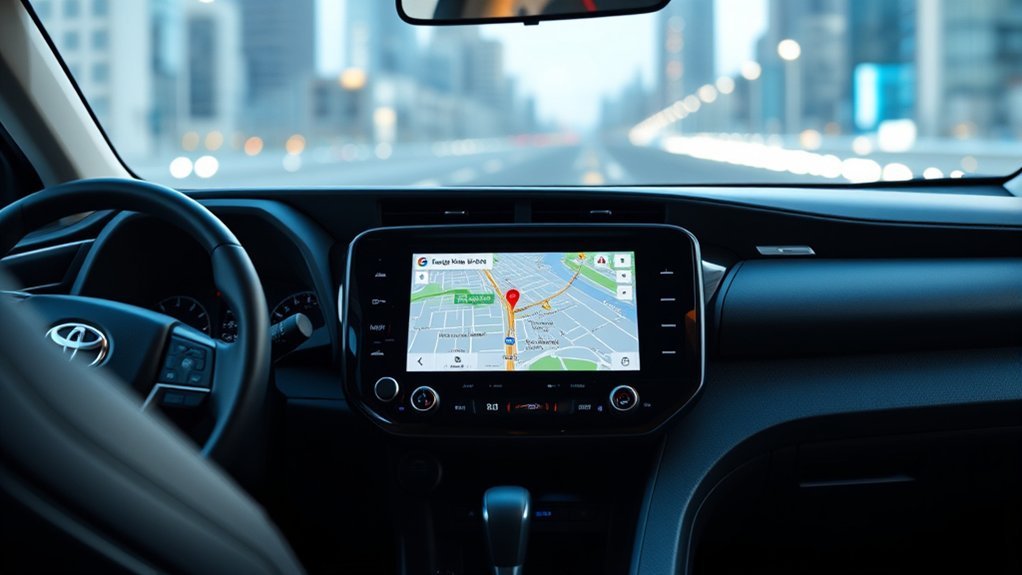
How to Display Google Maps on Toyota RAV4
What’s in This Article
- Before You Begin
- Setting Up Android Auto or Apple CarPlay in Your RAV4
- How to Connect Your Phone to the Toyota RAV4 for Google Maps
- Accessing Google Maps on the Infotainment Screen
- Fixing Google Maps Connection Issues
- How to Use Bluetooth for Google Maps Directions in Your RAV4
- Comparing Built-In Navigation With Google Maps in Your RAV4
- Maximize Your Navigation Experience With Google Maps
- Frequently Asked Questions
Google Maps will not show on your Toyota RAV4 screen through normal Bluetooth audio alone. You need Android Auto or Apple CarPlay on a supported RAV4 model, then you can open Google Maps from the infotainment screen and use turn-by-turn directions through your car speakers.
Quick Answer
To display Google Maps on your Toyota RAV4, connect your phone with Android Auto or Apple CarPlay. Use the USB media port with a good data cable, or use wireless projection if your RAV4 supports it. After your phone connects, tap the Google Maps icon on the infotainment screen and start your route while parked.
Key Takeaways
- Use Android Auto or Apple CarPlay to show Google Maps on the RAV4 screen.
- Use a USB media port and a data-capable cable if wireless projection does not work.
- Use Bluetooth alone only for voice directions from your phone, not full map display.
- Keep your phone, Google Maps, and Toyota multimedia software updated.
- Set up navigation while parked so you can keep your attention on the road.
Estimated total time: 5 to 10 minutes.
Before You Begin
Check your RAV4 owner’s manual or Toyota multimedia settings to confirm Android Auto or Apple CarPlay support. Feature support can vary by model year, market, trim, and multimedia system.
For Android Auto, use an Android phone running Android 6.0 or newer with an active data connection. For Google Maps on Apple CarPlay, use an iPhone 5 or newer, iOS 12 or newer, and Google Maps version 5.24 or newer.
- Park your RAV4 before setup.
- Update Google Maps on your phone.
- Use a good USB data cable, not a charge-only cable.
- Turn on Wi-Fi and Bluetooth for wireless Android Auto or wireless CarPlay.
- Enable Siri on iPhone if you use Apple CarPlay voice control.
Warning: Do not set up Android Auto, Apple CarPlay, or Google Maps while driving.
Setting Up Android Auto or Apple CarPlay in Your RAV4
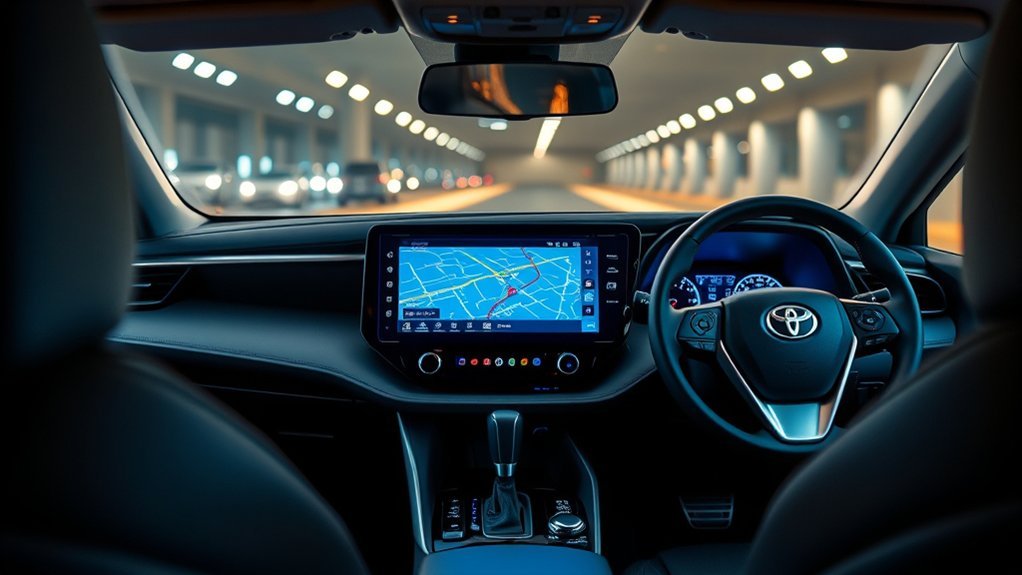
Setting up Android Auto or Apple CarPlay in your Toyota RAV4 lets you use Google Maps on the infotainment screen. Android 10 and newer phones include Android Auto support, while Android 9 or older phones may need the Android Auto app.
For a wired setup, connect your phone to the RAV4 USB media port with a high-quality cable. For a wireless setup, turn on Bluetooth and Wi-Fi on your phone, then follow the prompts on the Toyota multimedia screen.
After setup, the RAV4 screen should show the Android Auto or Apple CarPlay interface. Tap Google Maps, choose your destination, and start the route before you shift out of Park.
How to Connect Your Phone to the Toyota RAV4 for Google Maps
Connect your phone to the Toyota RAV4 with the method your vehicle supports. Use wired projection first if you have connection trouble, because it removes many wireless pairing problems.
- Update your phone: Install the newest available phone system update, Google Maps update, and Android Auto or CarPlay support.
- Connect with USB: Plug your phone into the USB media port using a data-capable cable.
- Approve the prompt: Allow Android Auto or Apple CarPlay on your phone and on the RAV4 screen.
- Open Google Maps: Tap Google Maps on the car screen and choose your route.
- Check voice guidance: Raise the media volume while Google Maps speaks a direction.
Here’s a quick reference table:
| Step | Action |
|---|---|
| 1 | Update Google Maps and phone software |
| 2 | Connect through USB media port or wireless projection |
| 3 | Approve the connection on both screens |
| 4 | Open Google Maps from Android Auto or CarPlay |
| 5 | Test voice guidance before you drive |
Once you complete these steps, Google Maps should appear on the RAV4 infotainment screen.
Accessing Google Maps on the Infotainment Screen
Once your phone connects to the Toyota RAV4, tap the Android Auto or Apple CarPlay icon on the infotainment screen. Then select Google Maps from the app list.
If Google Maps does not appear, check that your phone has the app installed and updated. On iPhone, you can also go to Settings > General > CarPlay, select your RAV4, and make sure Google Maps appears in the CarPlay app order.
Use the touchscreen, voice button, Siri, or Google voice controls to search for a destination. Keep your phone unlocked during the first setup if the system asks for permission.
Note: Bluetooth pairing can support calls and audio, but Android Auto and CarPlay need USB or supported wireless projection to show Google Maps on the screen.
Fixing Google Maps Connection Issues
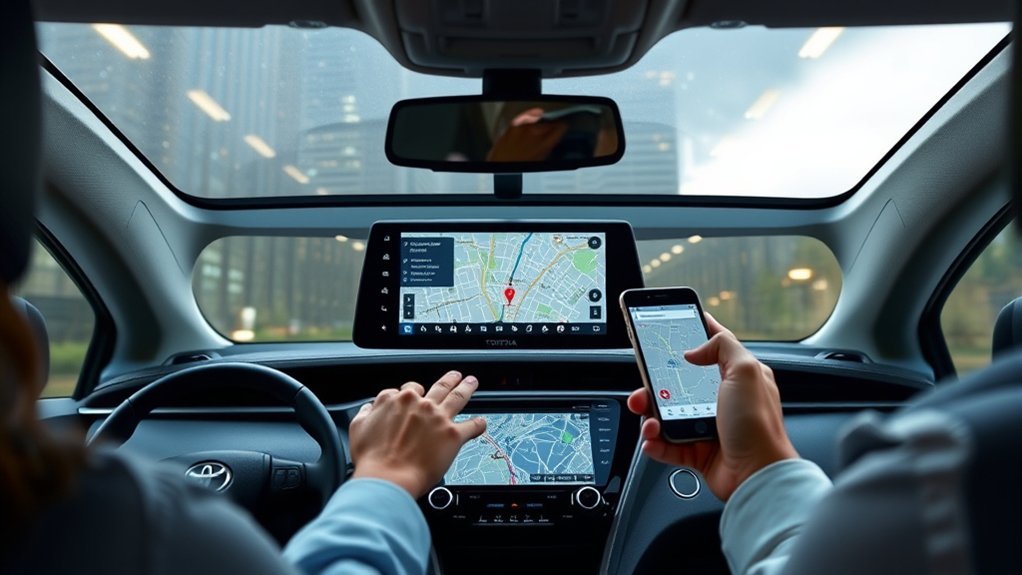
If Google Maps will not show on your Toyota RAV4 screen, start with the cable, port, and phone permissions. Most issues come from a charge-only cable, the wrong USB port, outdated apps, or a failed wireless pairing.
Work through the simple fixes first. Then check compatibility if the screen still does not show Android Auto or Apple CarPlay.
Check USB Connection Type
Use the RAV4 USB media port for wired Android Auto or Apple CarPlay. Some USB ports only charge devices, so they will not start phone projection.
| Connection Type | Device Compatibility | Notes |
|---|---|---|
| USB media port | Android Auto and Apple CarPlay | Use this for wired Google Maps display |
| Charging-only port | Charging only | This will not show Google Maps on the screen |
| Data-capable cable | Android and iPhone | Needed for stable wired connection |
| Damaged cable | Unreliable | May cause dropouts or no connection |
Give the RAV4 a few seconds to detect your phone after you plug it in. If nothing happens, try another cable before changing other settings.
Restart Phone and Apps
After you check the USB connection, restart your phone and reopen Google Maps. A restart can clear app errors and failed connection sessions.
- Restart your phone: Turn it off, wait a few seconds, and turn it back on.
- Close Google Maps: Fully close the app, then open it again before reconnecting.
- Reset wireless pairing: Turn Bluetooth and Wi-Fi off and on, then pair your phone again if needed.
If your RAV4 stores an old phone profile, delete that profile from the multimedia settings and pair the phone again.
Update Software and Apps
Keep your phone, Google Maps, Android Auto support, and Toyota multimedia software up to date. Updates can improve compatibility and fix connection bugs.
Restart both your phone and the infotainment system after updates. Then reconnect with USB before testing wireless projection again.
| Action | Purpose |
|---|---|
| Update phone software | Improve Android Auto or CarPlay support |
| Update Google Maps | Fix app issues and routing bugs |
| Restart devices | Clear temporary connection errors |
| Use a quality USB cable | Reduce dropouts and failed detection |
How to Use Bluetooth for Google Maps Directions in Your RAV4
Bluetooth can play Google Maps voice directions through your RAV4 speakers, but it will not show the full map on the infotainment screen by itself. Use this option if your RAV4 does not support Android Auto or Apple CarPlay, or if projection fails.
Use Bluetooth for voice guidance only when you cannot show Google Maps through Android Auto or Apple CarPlay.
- Enable Bluetooth: Turn on Bluetooth on your phone and in the RAV4 multimedia settings.
- Pair your phone: Open the RAV4 Bluetooth menu, add your phone, and approve the pairing code.
- Start directions: Open Google Maps on your phone, enter your route, and start navigation while parked.
- Enable voice audio: In Google Maps settings, turn on voice guidance and Bluetooth audio options if available on your phone.
- Adjust volume: Raise the phone and vehicle volume while Google Maps speaks.
This setup gives you spoken directions, but you must still use your phone screen for the map. Keep the phone mounted safely if local law allows it.
Comparing Built-In Navigation With Google Maps in Your RAV4
Some RAV4 trims include built-in Toyota navigation, while many drivers use Google Maps through Android Auto or Apple CarPlay. Each option can work well, but your best choice depends on route needs, data connection, and personal comfort.
Navigation Feature Comparison
Google Maps often helps when you want live traffic, quick rerouting, saved places, and familiar search tools. Built-in navigation may help when you drive in areas with weak phone data, depending on your RAV4 system and map package.
| Feature | Google Maps | Built-In Navigation |
|---|---|---|
| Live traffic | Strong with data connection | Depends on service and system |
| Saved places | Uses your Google account | Uses vehicle system storage |
| Phone requirement | Requires compatible phone | May work without phone |
| Screen display | Requires Android Auto or CarPlay | Uses factory navigation screen |
When Google Maps Makes More Sense
Google Maps makes sense if you already use it on your phone and want familiar search, traffic, and route options. It also helps when you need multi-stop trips or fast destination search by business name.
Built-in navigation may make sense if you want a phone-free route display or drive where mobile data drops often. Test both systems on a short route before a long trip so you know which one feels easier.
Maximize Your Navigation Experience With Google Maps
To get better results from Google Maps in your Toyota RAV4, set up the route before you start driving. Then use voice controls as much as possible.
- Save common places: Add home, work, and frequent stops in Google Maps.
- Download offline maps: Save maps for areas where phone signal may drop.
- Check voice volume: Adjust volume while Google Maps speaks, not while music plays.
- Keep Wi-Fi and Bluetooth on: Wireless Android Auto and wireless CarPlay may need both.
- Use the correct profile: Select your phone profile if several phones connect to the RAV4.
Pro tip: If wireless projection drops often, use a USB data cable for long trips.
Frequently Asked Questions
How do you get Google Maps on a Toyota RAV4?
Use Android Auto with an Android phone or Apple CarPlay with an iPhone. Connect by USB media port or supported wireless projection, then tap Google Maps on the RAV4 screen.
Why won’t Google Maps show on my RAV4 screen?
Your phone may use the wrong USB port, a charge-only cable, outdated software, or an unsupported connection method. Bluetooth alone can play voice directions, but it cannot show the full Google Maps screen.
Can you use Google Maps in a RAV4 without a USB cable?
You can use Google Maps without a USB cable only if your RAV4 supports wireless Android Auto or wireless Apple CarPlay. If your model supports wired projection only, use the USB media port.
How do you use Google Maps on CarPlay in a Toyota?
Install Google Maps on your iPhone, connect to CarPlay, and tap Google Maps on the CarPlay screen. If it does not appear, check the CarPlay app order in your iPhone settings.
Can Bluetooth show Google Maps on the RAV4 screen?
No. Bluetooth can send voice guidance through your speakers, but it does not mirror the Google Maps screen. Use Android Auto or Apple CarPlay for the full map display.
Conclusion
The easiest way to display Google Maps on your Toyota RAV4 is to use Android Auto or Apple CarPlay with a compatible phone. Start with a USB data cable if setup fails, then try wireless projection after the system works.
Before your next drive, update Google Maps and test one short route while parked. A clean setup gives you clearer directions, better traffic help, and a safer screen experience.
References
- Connected Services — Toyota Owners, 2026
- Android Auto — Google, 2026
- Android Auto app requirements — Google Play, 2026
- Use CarPlay with your iPhone — Apple Support, 2025
- Use Google Maps on CarPlay — Google Maps Help, 2026
- 2020 Toyota RAV4 multimedia enhancements — Toyota USA Newsroom, 2019
- 2026 Toyota RAV4 features — Toyota, 2026
