How to Connect Scout GPS Link to Toyota RAV4
Last updated: May 2026
What’s in This Article
- Before You Begin
- Why Use Scout GPS Link in Your RAV4?
- Check Vehicle and Smartphone Compatibility
- Step 1: Pair Your Smartphone With Entune
- Step 2: Download the Right Scout GPS Link App
- Step 3: Set Up and Launch the Scout GPS Link App
- Step 4: Update Your Entune System
- Step 5: Open Scout GPS Link on Your RAV4 Screen
- Key Features of Scout GPS Link for Navigation
- How to Fix Common Setup Issues?
- Tips for Getting the Most Out of Scout GPS Link
- Frequently Asked Questions
Scout GPS Link can be confusing because Toyota used it on select older Entune systems, but support has changed. To connect it on your Toyota RAV4, first confirm that your vehicle still supports Scout GPS Link and that the app appears for your model. Then pair your phone with Toyota Entune, allow location access, open the Scout GPS Link app, and follow the prompts on your vehicle screen.
Quick Answer
You can connect Scout GPS Link to a compatible Toyota RAV4 by pairing your phone with Entune through Bluetooth, opening the Scout GPS Link app, allowing location access, and installing any Entune prompt on the vehicle screen. Toyota says Scout GPS Link support ended after October 30, 2023, for select 2018 Toyota vehicles with Audio and Audio Plus, so check your vehicle screen and Toyota support before you spend time troubleshooting.
Key Takeaways
- Check your RAV4’s Entune system first because Scout GPS Link does not work on every model year or trim.
- Use the Scout GPS Link app, not the regular Scout app, when your vehicle still supports it.
- Pair your phone with Entune by Bluetooth before you try to launch navigation on the vehicle screen.
- Allow location access and keep the app open because Scout GPS Link uses your phone for navigation data.
- Use your phone’s map app or built-in Toyota navigation if Scout GPS Link no longer works on your RAV4.
Before You Begin
Estimated time: 10 to 20 minutes if your RAV4 still supports Scout GPS Link.
Before you start, park your RAV4 in a safe place. You’ll need a compatible iPhone or Android phone, Bluetooth turned on, location access enabled, and enough mobile data for maps and traffic information.
According to Toyota Support, Scout GPS Link no longer receives support after October 30, 2023, for select 2018 Toyota vehicles with Audio and Audio Plus. If the app no longer appears on your phone or your Entune screen, your RAV4 may no longer support this setup.
Warning: Set up Scout GPS Link while parked, not while driving.
Why Use Scout GPS Link in Your RAV4?
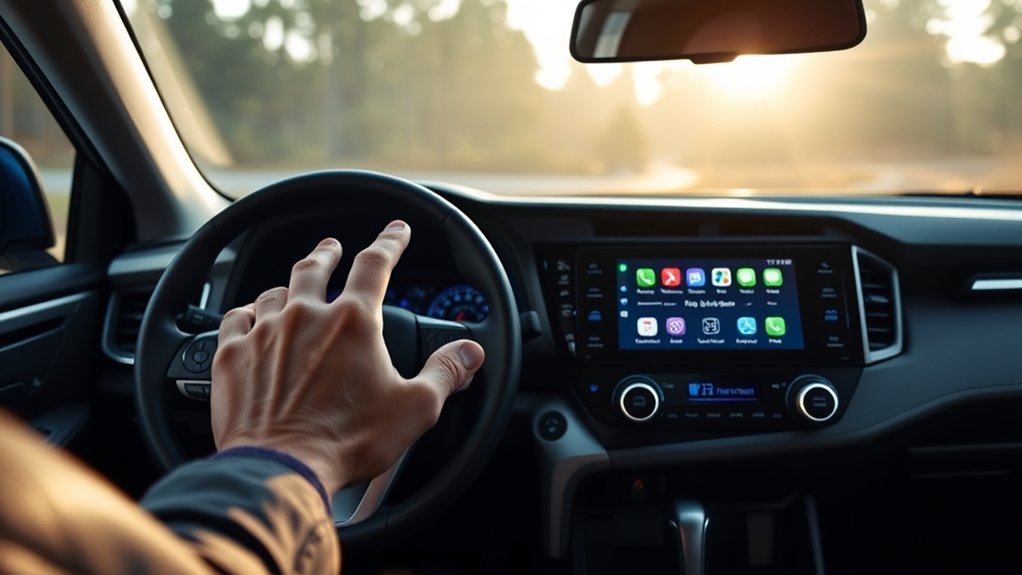
Scout GPS Link gave compatible Toyota RAV4 drivers phone-powered navigation through the Entune screen. Telenav, the company behind Scout GPS Link, describes the app as a way to search on your phone, view route options, and continue guidance in the car through Bluetooth and USB on supported vehicles.
The main benefit comes from keeping directions on the vehicle display instead of relying only on your phone screen. You can use turn-by-turn guidance, saved places, home and work routes, and voice interaction when your vehicle and phone still support the service.
Scout GPS Link also uses your phone’s data connection. That means route quality, traffic updates, and cloud features depend on your phone signal, data plan, app status, and vehicle support.
Check Vehicle and Smartphone Compatibility
Confirm compatibility before you download apps or change phone settings. Scout GPS Link worked with select Toyota Entune Audio Plus and related Entune systems, but Toyota did not offer the same support across every RAV4 model year and trim.
Open your RAV4’s Apps screen and look for Scout GPS Link. If you do not see it, check your owner’s manual, Toyota support, or your dealer’s service team before you keep troubleshooting.
On your phone, turn on Bluetooth and location access. Scout GPS Link also needs mobile data, so check your data plan if you want traffic-based routes and cloud search features.
Note: If your RAV4 supports Apple CarPlay, Android Auto, built-in navigation, or Bluetooth audio directions, those options may work better than Scout GPS Link.
Step 1: Pair Your Smartphone With Entune
Start by pairing your smartphone with the Toyota Entune system. Turn on Bluetooth on your phone and make the phone discoverable.
- Open the Bluetooth settings on your smartphone.
- Select your Toyota RAV4 or Entune system from the device list.
- Confirm the pairing code on your phone and the vehicle screen if both screens show one.
- Check that your phone shows an active Bluetooth connection to your RAV4.
Keep the phone close to the vehicle screen during setup. A weak Bluetooth connection can stop Scout GPS Link before it loads.
Step 2: Download the Right Scout GPS Link App
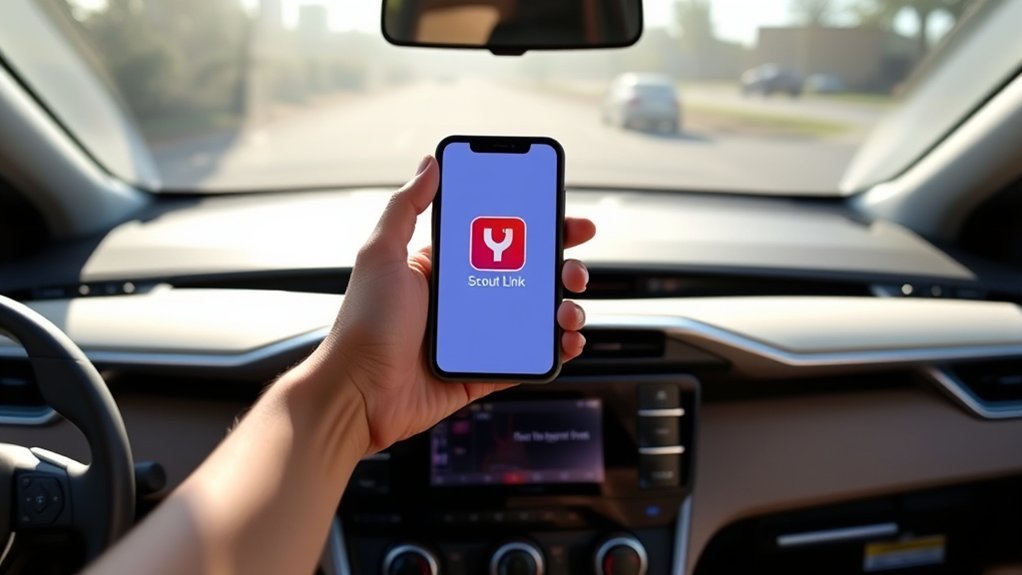
Open the Apple App Store or Google Play and search for Scout GPS Link. Use the exact app name because the regular Scout app will not give you the same Toyota Entune setup.
- Search for “Scout GPS Link”: Look for the vehicle-focused app, not a general navigation app.
- Check app availability: If your app store no longer lists it, your phone or region may not support it.
- Check the app icon and publisher: Confirm the app matches Scout GPS Link before you install it.
After installation, keep the app on your phone’s home screen so you can open it quickly during the vehicle setup.
Step 3: Set Up and Launch the Scout GPS Link App
Tap the Scout GPS Link app icon on your phone. Create an account, sign in, or choose the setup option the app gives you.
Allow the app to access your location. Without location access, Scout GPS Link cannot give your RAV4 accurate route guidance.
- Open Scout GPS Link on your smartphone.
- Choose “Let’s get started” or the closest setup option shown in the app.
- Sign in, create an account, or skip the account step if the app allows it.
- Allow location access when your phone asks for permission.
- Keep the app open while your phone connects to Entune.
Step 4: Update Your Entune System
After you open Scout GPS Link on your paired phone, your RAV4 may show an Entune update prompt. If your screen asks you to update, select “Now” and follow the instructions on the touchscreen.
The update may use your phone’s mobile data. Use Wi-Fi on your phone first if your carrier allows it, or make sure your plan has enough data before you continue.
- Confirm the Scout GPS Link or Entune update prompt on the vehicle display.
- Select “Now” to start the download.
- Wait for the download to finish before you turn off the vehicle.
- Select “Install” when the screen asks you to complete the setup.
After the installation finishes, the Scout GPS Link button should appear on the Apps screen. If it does not appear, restart your phone, restart the vehicle, and check compatibility again.
Step 5: Open Scout GPS Link on Your RAV4 Screen
Open the Apps screen on your RAV4 and tap Scout GPS Link. Keep your phone unlocked and close to the vehicle screen during the first launch.
Search for a destination on your phone or vehicle screen, then start guidance. If your RAV4 supports the feature, the route should transfer to the vehicle display with turn-by-turn directions.
Do not rely on Scout GPS Link as your only navigation source. Keep a backup map option ready on your phone, especially for long trips or rural routes.
Key Features of Scout GPS Link for Navigation
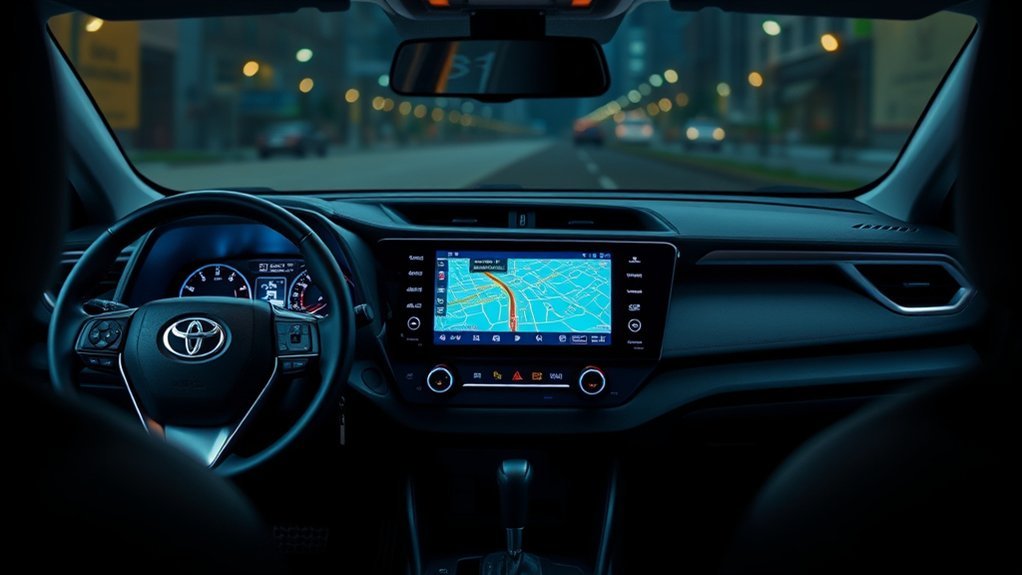
Scout GPS Link offered several helpful navigation features on supported Toyota systems. These features focused on phone-powered directions, route search, saved places, and in-car guidance.
Voice-Activated Navigation Convenience
Voice navigation helps you keep your hands on the wheel and your eyes on the road. On supported Toyota systems, Scout GPS Link used the vehicle’s voice controls to help you search and start directions.
- Use hands-free search: Search for places without typing on your phone while driving.
- Follow turn-by-turn prompts: Hear route guidance through the vehicle audio system.
- Find nearby stops: Search for gas stations, food, and other common places when the feature works in your area.
Real-Time Traffic Updates
Scout GPS Link used your smartphone data to show traffic-based route information on supported systems. This helped you compare route options and avoid slow roads when the app had enough signal and fresh traffic data.
Traffic features depend on your phone, carrier, location, and app support. If Scout GPS Link cannot load traffic, use your phone’s main map app as a backup.
How to Fix Common Setup Issues?
If Scout GPS Link does not connect to your Toyota RAV4, start with the easiest fixes first. Many problems come from Bluetooth, app permissions, app availability, or expired support.
- Check that your smartphone’s Bluetooth stays on and connected to Entune.
- Confirm that you installed Scout GPS Link, not the regular Scout app.
- Allow location access for the app in your phone settings.
- Keep the Scout GPS Link app open during setup.
- Restart your phone and your RAV4’s infotainment system.
- Check whether Toyota still supports Scout GPS Link for your exact model and audio system.
If voice commands fail, check your phone microphone, vehicle volume, and Bluetooth range. If the Scout GPS Link button never appears, your RAV4 may not support the service anymore.
Tips for Getting the Most Out of Scout GPS Link
You’ll get the best results when your phone, app, and vehicle system stay connected from start to finish. Open the app before you start driving, choose your destination while parked, and keep your phone charged.
- Keep Bluetooth on during the whole trip.
- Allow location access every time the app asks.
- Use a charging cable on longer drives.
- Watch your mobile data use if your plan has a limit.
- Save home, work, and common stops for faster route setup.
For safety, enter destinations before you move. If Scout GPS Link loses connection during a drive, pull over before you change app settings.
Frequently Asked Questions
How Do I Connect My Scout GPS to My Toyota?
Pair your phone with Toyota Entune through Bluetooth, open Scout GPS Link on your phone, allow location access, and follow any prompts on your vehicle screen. If your RAV4 supports the service, the Scout GPS Link button should appear on the Apps screen.
Why Is My Scout GPS Not Working on My Toyota?
Scout GPS Link may fail because Bluetooth dropped, location access remains off, the wrong app was installed, or Toyota no longer supports the feature for your vehicle. Start with Bluetooth and app permissions, then confirm support for your exact RAV4 model and audio system.
How Do You Connect Maps to a Toyota RAV4?
Your best option depends on your RAV4 year and infotainment system. Older compatible models may use Scout GPS Link, while other models may support built-in navigation, Bluetooth audio directions, Apple CarPlay, or Android Auto.
Is Scout GPS Link Free?
Scout GPS Link has been free to download where the app remains available. It still uses your phone’s data plan, so your carrier may charge you for mobile data.
Does Scout GPS Link Still Work in 2026?
It may work only on some supported older systems, but Toyota states that Scout GPS Link support ended after October 30, 2023, for select 2018 Toyota vehicles with Audio and Audio Plus. Check Toyota support, your app store, and your RAV4 Apps screen before you rely on it.
What Should You Use if Scout GPS Link Does Not Work?
Use your phone’s map app, built-in Toyota navigation, Bluetooth audio directions, Apple CarPlay, or Android Auto if your RAV4 supports those options. These choices may give you more stable navigation than Scout GPS Link on unsupported systems.
Conclusion
Scout GPS Link can still help if your Toyota RAV4 and phone support the full setup. Start by checking compatibility, then pair your phone, open the correct app, allow location access, and install any Entune prompt on the vehicle screen.
If the app no longer appears or refuses to load, do not waste time repeating the same setup steps. Confirm support for your exact RAV4, then use another navigation option that works reliably for your drive.
The best navigation system is the one you can set up before you leave and trust while you stay focused on the road.
References
- Toyota App Suite Sunset — Toyota Support, accessed May 2026
- Scout GPS Link official site — Telenav, accessed May 2026
- Scout GPS Link setup brochure — Toyota dealer support material, 2016
