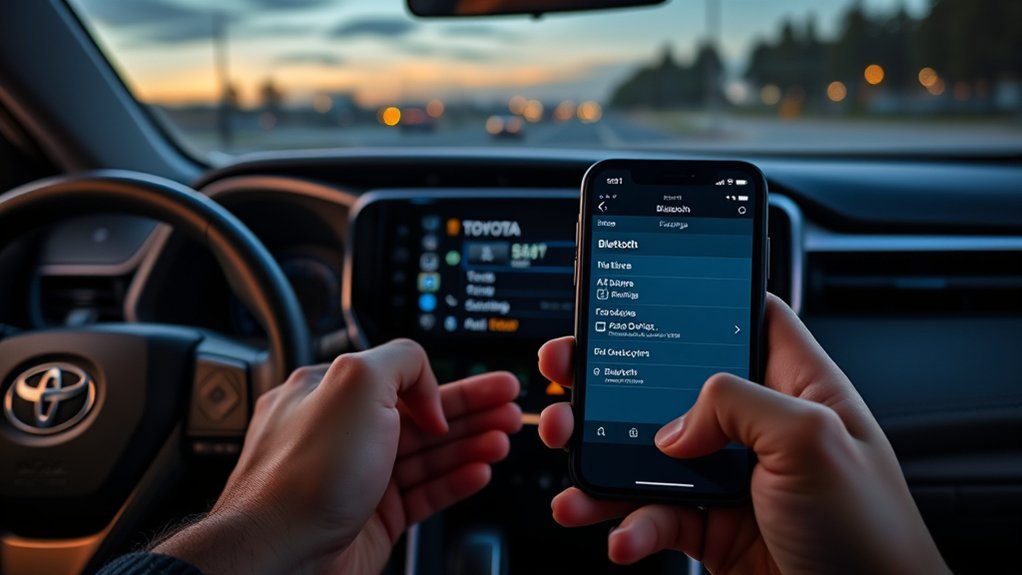
To sync your iPhone to your Toyota RAV4, first, make sure Bluetooth is enabled on your iPhone. Then, power up the RAV4’s Entune™ system, navigate to Setup, and select Bluetooth to add a new device. Confirm the pairing on both devices. For Apple CarPlay, use a certified USB-A to Lightning cable to connect your iPhone. This setup allows access to navigation and music apps while enabling hands-free calls. Stick around for more tips on enhancing your experience.
Why Syncing Your iPhone to Your RAV4 Is Essential
Syncing your iPhone to your RAV4 is essential for maximizing your driving experience, as it seamlessly integrates your device with the vehicle’s systems. By utilizing Apple CarPlay, you can access navigation, listen to music, and manage your applications directly through the car’s interface. This integration enhances safety, allowing you to make a call or receive one without taking your hands off the wheel. Your phonebook and contact history sync automatically, giving you quick access to important contacts while driving. Voice command capabilities enable a distraction-free way to control navigation and media. Overall, syncing your iPhone elevates your driving experience, ensuring you stay connected and entertained on the road.
Preparing Your iPhone and RAV4 for Connection
Before you connect your iPhone to your RAV4, there are a few important steps to guarantee a smooth pairing process. First, verify your iPhone’s Bluetooth setting is turned ON. Next, power up the Toyota Entune™ system and navigate to the Apps section on the touchscreen. Select Setup, then choose Bluetooth® and click on Add New Device to initiate the pairing process. Your RAV4 will search for devices, and you’ll see your iPhone appear on the screen. Confirm the connection on both your iPhone and the RAV4’s touchscreen to complete the sync. Following these steps will enhance your experience, allowing you to enjoy hands-free functionality and seamless access to your favorite apps while driving.
Choose the Right Cable for Optimal Performance
Choosing the right cable is essential for ideal performance when connecting your iPhone to a Toyota RAV4. For reliable syncing, opt for an Apple brand USB-A to Lightning cable rather than aftermarket alternatives. These certified cables minimize the risk of connectivity issues that can compromise your experience. While shorter aftermarket cables may prevent tangling, they often lack the same reliability as Apple-branded options. Always verify your cable is in good condition; damaged cables can hinder the connection and disrupt Apple CarPlay functionality. Even if an aftermarket cable worked with your previous iPhone X, using certified cables is your best bet to avoid potential syncing problems. Prioritize performance and enjoy seamless connectivity in your RAV4.
How to Pair Your iPhone With Bluetooth?
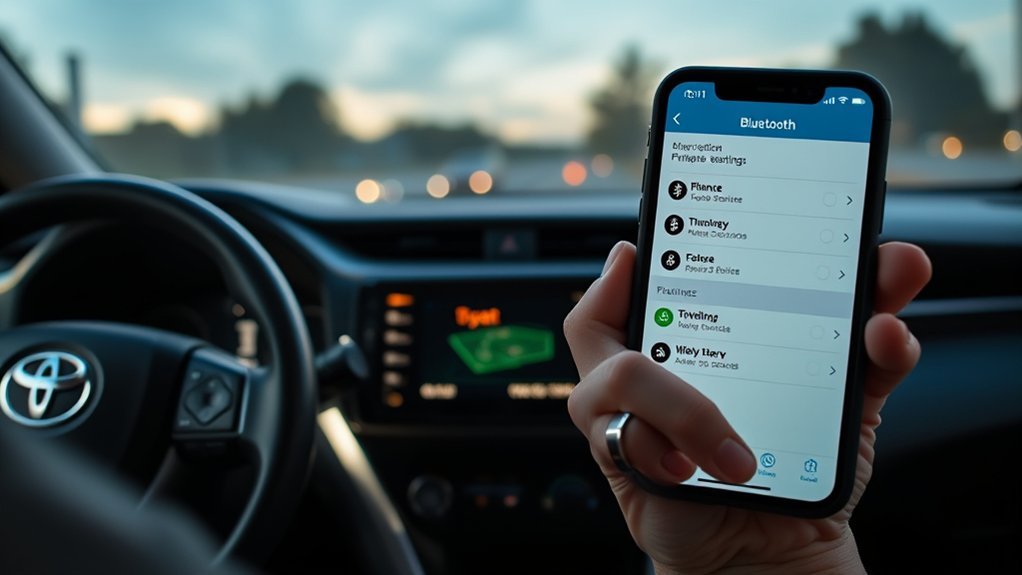
To pair your iPhone with your Toyota RAV4, start by enabling Bluetooth on your iPhone. Next, access the Entune system and navigate to the Setup menu to prepare for pairing. Follow the on-screen instructions to complete the pairing process, ensuring a seamless connection for hands-free communication.
Enable Bluetooth On iPhone
Enabling Bluetooth on your iPhone is a straightforward process that allows you to connect with your Toyota RAV4 effortlessly. Please follow these steps:
- Go to “Settings” on your iPhone and select “Bluetooth.”
- Toggle Bluetooth on to guarantee it’s enabled.
- Once your Toyota RAV4’s Entune system is powered on and in Bluetooth pairing mode, search for available devices on your iPhone.
Make sure to select your RAV4 from the list. Confirm the pairing request on both devices by selecting “Pair” and allowing access to your contacts. Once connected, you can freely make calls, send messages, and listen to music through your Toyota’s system. Enjoy the liberation of seamless connectivity!
Access Toyota Entune System
Now that Bluetooth is enabled on your iPhone, you can access the Toyota Entune system to pair your device. Start by moving to the Apps section on your RAV4 Hybrid’s display. Click on Setup, then select Bluetooth from the menu. Choose “Add New Device” to initiate a search for your iPhone. When your iPhone appears on the Entune screen, select it to confirm pairing. This connection will allow your phonebook and contact history to be automatically downloaded to the vehicle, providing easy access while you drive. If you encounter any issues during this process, don’t hesitate to consult your vehicle’s manual or reach out—I’m happy to help! Enjoy the seamless integration of your iPhone and RAV4 Hybrid.
Complete Pairing Process Steps
Pairing your iPhone with your Toyota RAV4 is a straightforward process that enhances your driving experience. Follow these steps for a seamless connection:
- Plug your iPhone into the RAV4 using an Apple USB-A to Lightning cable.
- Enable Bluetooth on your iPhone by going to “Settings” and selecting “Bluetooth.”
- On the Entune™ system, navigate to “Apps,” click “Setup,” select “Bluetooth,” and then “Add New Device.”
Once your iPhone appears on the screen, select it and confirm access to your contacts. After successful pairing, enjoy the syncing benefits like navigation and music through Apple CarPlay. Keep these connection tips in mind, and choose the right cable for a hassle-free experience.
Troubleshooting Common Pairing Problems and Solutions
When you encounter issues while trying to sync your iPhone with your Toyota RAV4, it’s essential to troubleshoot effectively to guarantee a smooth connection. Here are some common errors and connection tips:
| Error | Solution | User Experience |
|---|---|---|
| Bluetooth is OFF | Turn ON Bluetooth on your iPhone | Most users forget this step |
| Aftermarket cables used | Use a certified Apple USB-A to Lightning cable | Many report issues with non-certified cables |
| CarPlay not prompting | Check CarPlay settings on both devices | Users often overlook this |
Make sure your apps are updated for compatibility. If problems persist, consult Rav4 World for additional troubleshooting tips and shared user experiences to resolve your issues effectively.
How to Enable Apple CarPlay for Enhanced Functionality?
To enable Apple CarPlay in your Toyota RAV4, start by connecting your iPhone using a USB cable. Next, check that Bluetooth is enabled on your device to guarantee a seamless connection. Once connected, you can easily access navigation and music apps directly through the RAV4’s touchscreen.
Connect iPhone via USB
Connecting your iPhone to the Toyota RAV4 via USB is a straightforward process that enables Apple CarPlay for enhanced functionality. Follow these steps for a seamless connection:
- Locate the USB port in your RAV4, typically found in the center console.
- Use an Apple brand USB-A to Lightning cable to plug your iPhone in.
- When prompted, enable Apple CarPlay on your RAV4’s Entune™ system.
Be sure your iPhone’s Bluetooth is on to avoid potential iPhone compatibility issues. If asked, grant access to your contacts for full functionality. For ideal performance, keep your apps updated and follow cable maintenance tips to avoid connection issues. Enjoy the freedom of integrated navigation and music at your fingertips!
Enable Bluetooth Settings
After you’ve connected your iPhone using a USB cable, enabling Bluetooth settings is the next step to activate Apple CarPlay for enhanced functionality. First, verify Bluetooth and Wi-Fi on your iPhone are turned on. This is essential for smooth operation and ideal performance. Conduct iPhone compatibility checks to confirm your device supports Apple CarPlay. If you encounter common connection issues, like the system not recognizing your iPhone, try disconnecting and reconnecting the USB cable or restarting your phone. Follow Bluetooth connectivity tips by making sure your RAV4’s software is updated. Once everything is set, the Toyota Entune™ system will prompt you to enable Apple CarPlay, allowing you to access navigation and music apps seamlessly through the touchscreen interface.
Access Navigation Apps
Once your iPhone is connected via the USB cable, enabling Apple CarPlay opens the door to a range of navigation apps that enhance your driving experience. To make the most of this feature, follow these steps:
- Verify Apple CarPlay is toggled on in your RAV4’s “Settings” under “Bluetooth & Devices.”
- Access popular navigation apps like Apple Maps, Google Maps, and Waze directly through CarPlay for advanced navigation app features.
- Utilize Siri commands for hands-free operation, allowing you to input destinations without taking your eyes off the road.
Keep in mind any potential CarPlay compatibility issues that may arise, but with these steps, you’ll enjoy a safer, more efficient driving experience.
Using Music and Navigation Apps on Your RAV4 With iPhone
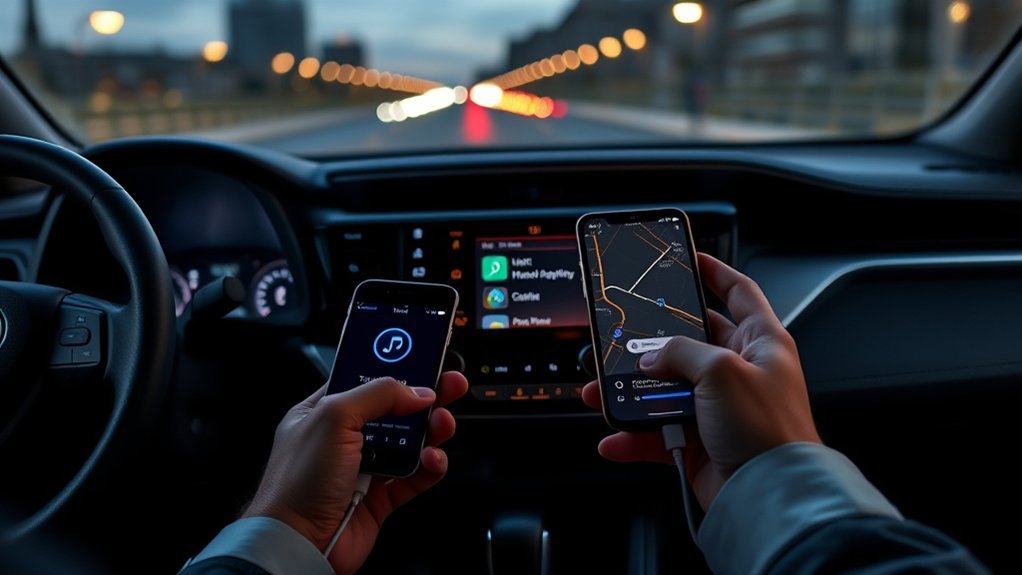
To enjoy music and navigation apps on your RAV4 with your iPhone, you’ll want to connect your device using an Apple brand USB-A to Lightning cable. This guarantees seamless integration with Apple CarPlay. Once connected, CarPlay prompts you to use navigation app compatibility with options like Apple Maps or Google Maps, alongside various music streaming options directly from your vehicle’s touchscreen. If you face issues with specific apps, updating them often resolves compatibility problems. You can control music playback and navigation through the RAV4’s interface, minimizing distractions for a safer driving experience. For hands-free operation, utilize Siri voice command features to navigate and manage your music, guaranteeing you stay focused on the road ahead.
Making Hands-Free Calls and Managing Contacts
Connecting your iPhone to the Toyota RAV4 not only enhances your music and navigation experience but also allows for hands-free calling and efficient contact management. With Bluetooth connectivity, you can enjoy hands-free convenience while ensuring driving safety. Here’s how to manage your calls:
- Press the Phone icon on the RAV4’s touchscreen to browse your contacts.
- Select the desired contact to make a hands-free call.
- Receive incoming calls directly through the vehicle’s audio system, keeping your hands on the wheel.
Your phonebook and contact history automatically download to the RAV4, making it easy to manage calls. This seamless integration promotes safer driving while you stay connected without physically handling your iPhone.
How to Easily Disconnect and Reconnect Your iPhone?
Disconnecting and reconnecting your iPhone to the Toyota RAV4 is a straightforward process that can enhance your driving experience. To disconnect, access the vehicle’s touchscreen, navigate to “Settings,” select “Bluetooth & Devices,” and choose your iPhone, then tap “Forget.” For reconnection, make certain Bluetooth is enabled on your iPhone and select your vehicle from the Bluetooth menu to initiate pairing. If you face issues, restart both your iPhone and the Toyota Entune™ system to refresh the connection. Also, toggle on the Apple CarPlay feature in your iPhone’s Bluetooth settings for seamless integration. Regularly check for software updates on both devices to maintain vehicle compatibility and improve connection reliability for a hassle-free experience.
Frequently Asked Questions
How Do I Sync My iPhone to My Toyota RAV4?
To sync your iPhone to your Toyota RAV4, adjust iPhone settings for Bluetooth connectivity, then access Toyota multimedia features. Follow prompts to establish a connection, ensuring seamless integration for navigation and music.
Why Won’t My Phone Connect to My RAV4?
Your phone might not connect due to Bluetooth compatibility issues or outdated iPhone software. Confirm your Toyota infotainment system is updated, and check if your iPhone’s Bluetooth is enabled and functioning correctly.
Why Won’t My iPhone Connect to My Toyota?
If your iPhone won’t connect to your Toyota, check for Bluetooth issues, compatibility problems, and ascertain your software updates are current. Updating both your iPhone and vehicle system can often resolve these connectivity challenges.
How Do I Get My iPhone to Sync With My Car?
How can you effortlessly sync your iPhone with your car? Check your iPhone settings for Bluetooth issues and verify your car’s compatible. Once connected, enjoy hands-free calling and music streaming seamlessly.
Conclusion
Syncing your iPhone to your Toyota RAV4 not only enhances your driving experience but also keeps you connected on the road. With just a few simple steps, you can seamlessly access music, navigation, and hands-free calls. Think of it as transforming your car into a mobile command center, making every journey more enjoyable. So, take a moment to set it up—you’ll wonder how you ever drove without it! Enjoy the ride with your iPhone by your side.
