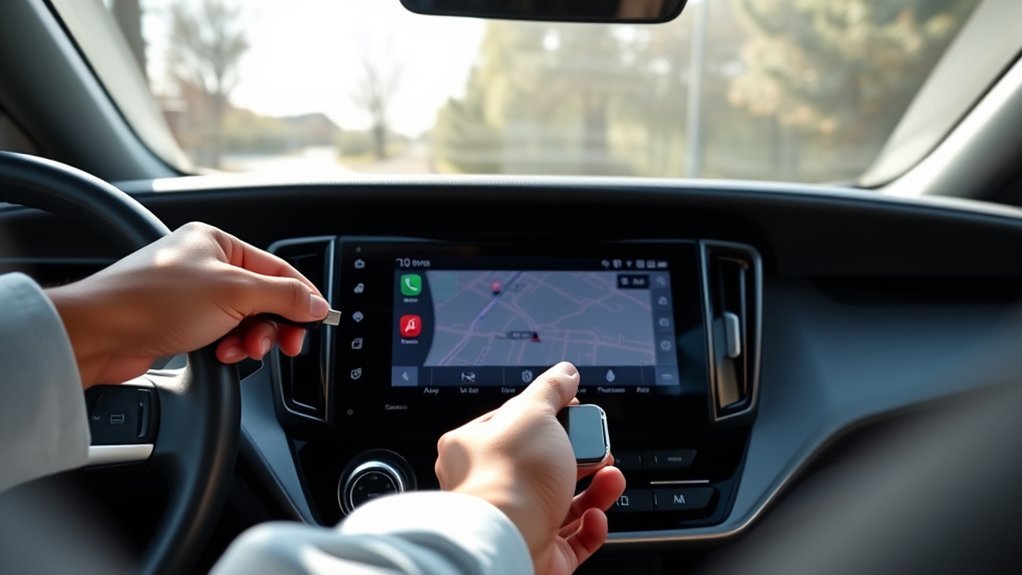
To set up Android Auto in your Toyota RAV4, start by making sure your vehicle’s in Park mode. Then, check that your smartphone has the Android Auto app installed and is compatible. Use a certified USB cable to connect your phone to the RAV4’s USB port, or enable Bluetooth for a wireless setup. Follow the on-screen prompts to finalize the process. By connecting, you’ll access navigation, calls, and music seamlessly, and you’ll find more helpful tips as you continue.
How to Prepare Your Vehicle for Android Auto Setup
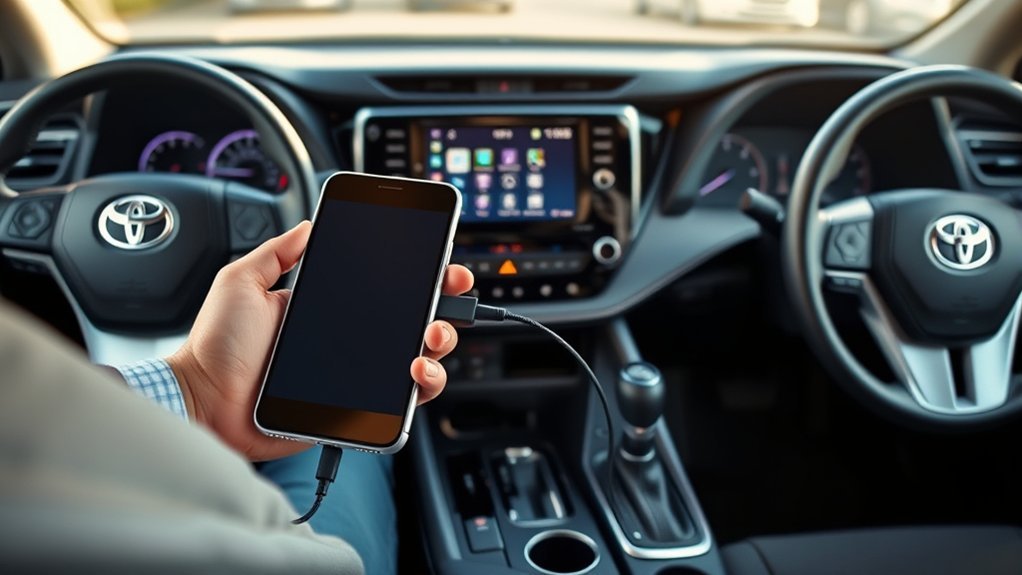
Before you begin the Android Auto setup in your Toyota RAV4, make certain your vehicle is in Park (P) mode. Start by verifying that the Android Auto™ app is installed on your smartphone, especially if you’re using an Android™ device with version 9 or earlier. For the initial wired setup, connect your Android™ phone to the vehicle’s USB media port using a manufacturer-certified USB cable. Your vehicle’s multimedia system should prompt you to activate Android Auto™; select “Yes” to proceed. If you prefer a wireless connection, confirm Bluetooth® is enabled on your phone. Then, navigate to the vehicle’s multimedia screen to add your device. This preparation sets the stage for a smooth Android Auto experience.
Ensuring Your Phone Is Ready for Android Auto
To guarantee your phone is ready for Android Auto, start by confirming that the Android Auto™ app is installed on your device if it runs Android™ 9 or earlier. If your phone has Android™ 10 or later, Android Auto™ is built-in. Next, make sure your Android device is compatible by checking the official list of supported devices. For a reliable connection, use a manufacturer-certified USB cable, especially if you’re not using wireless Android Auto. Confirm your phone is accessible and Bluetooth® is enabled during setup to facilitate a smooth connection. Finally, allow necessary permissions for the Android Auto™ app, including access to contacts, messages, and location services. This guarantees peak functionality and a seamless experience.
Connecting Your Android Device to the RAV4
With your phone prepared for Android Auto, it’s time to connect it to your Toyota RAV4. First, make sure your vehicle is in Park (P) mode. For a wired connection, use a manufacturer-certified USB cable to link your Android™ phone to the RAV4’s USB media port. If you prefer a wireless setup, enable Bluetooth® on your Android device and go to the vehicle’s multimedia screen. Select ‘Add another device’ in the Bluetooth® settings and follow the on-screen instructions on both your phone and the RAV4’s display to confirm the connection. Once connected, you’ll gain access to navigation, calls, messages, and music directly through the Android Auto™ interface, enhancing your driving experience.
How to Activate Android Auto in Your RAV4
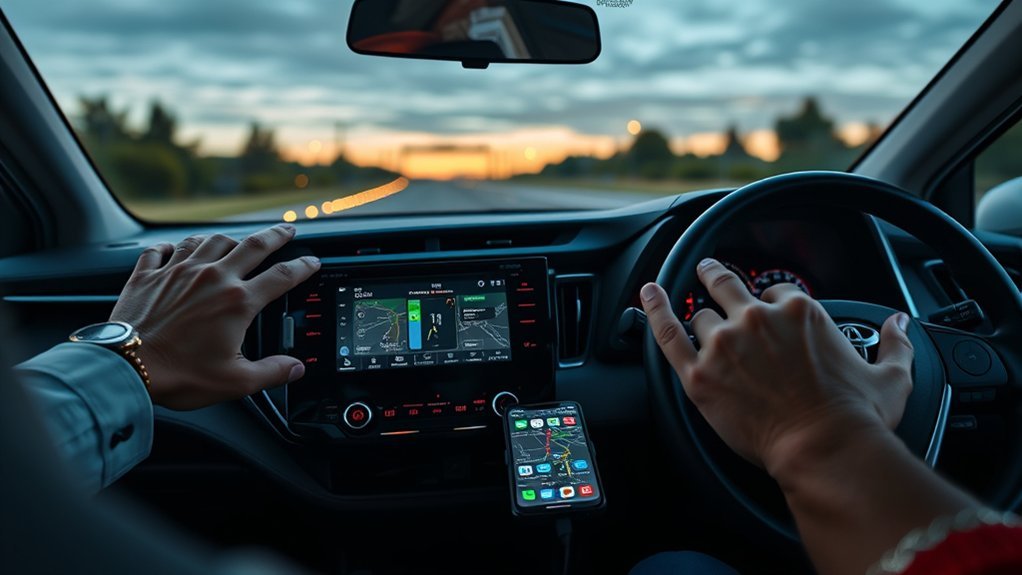
To activate Android Auto in your RAV4, start by ensuring your vehicle is in Park (P) mode and connect your Android phone with a certified USB cable. Depending on your phone’s operating system, you may need to download the Android Auto app or use the built-in version if you have Android™ 10 or later. Follow the on-screen prompts to complete the setup and enjoy seamless access to your apps.
Initial Setup Requirements
Setting up Android Auto in your Toyota RAV4 requires a few essential steps to guarantee a smooth activation process. Before you begin the initial setup, make sure to check the following:
- Confirm your vehicle is in Park (P) mode.
- Verify that your vehicle supports Android Auto functionality.
- Install the Android Auto™ app on your smartphone if it runs Android™ 9 or earlier.
- Use a manufacturer-certified USB cable to connect your Android™ phone to the vehicle’s USB media port.
Once connected, follow the instructions on the multimedia system and select “Yes” when prompted to use Android Auto™. This will prepare your RAV4 for a liberated driving experience with all the features Android Auto offers.
Wired And Wireless Connection
While you can enjoy Android Auto in your Toyota RAV4 through both wired and wireless connections, each method has its own setup process. For a wired connection, simply connect your Android phone to the vehicle using a manufacturer-certified USB cable, ensuring your vehicle is in Park (P) mode. To activate the wireless connection, enable Bluetooth on your Android phone, access the vehicle’s multimedia system settings, and select ‘Add another device’ to start the pairing process. Confirm the connection by selecting your phone’s name on the multimedia screen and following the prompts. Once set up, Android Auto launches automatically, giving you convenient access to navigation, calls, messages, and music directly from your vehicle’s interface.
Using the Android Auto Interface
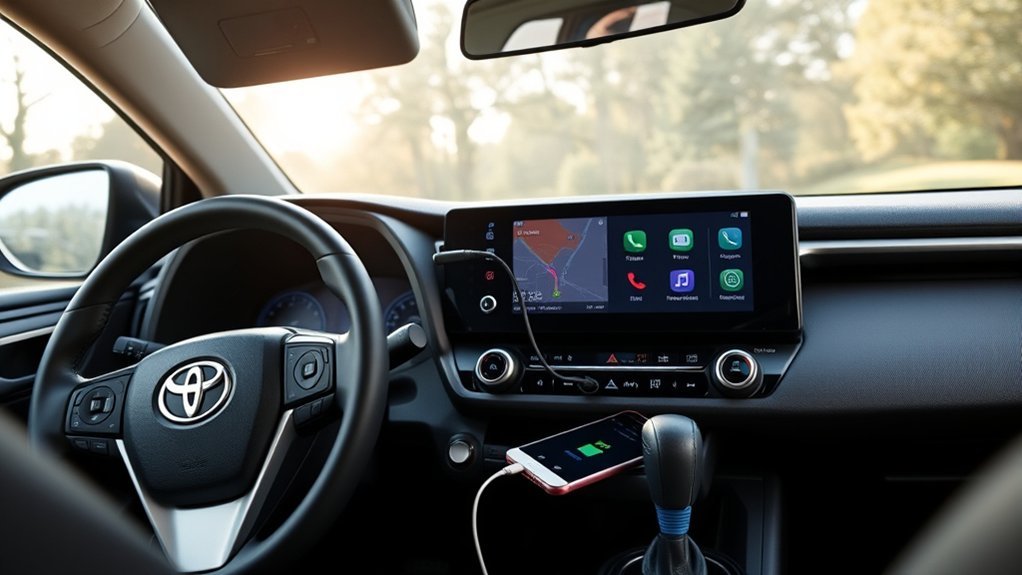
Once you launch Android Auto in your Toyota RAV4, you’ll find a user-friendly interface that streamlines navigation, communication, and entertainment. This system enhances your driving experience by integrating seamlessly with your vehicle’s multimedia. Here’s what you can do:
- Access navigation apps like Google Maps or Waze for real-time directions.
- Make hands-free phone calls using voice commands or by selecting contacts.
- Send and receive messages through apps like WhatsApp or SMS without touching your phone.
- Stream music from apps like Spotify or Pandora directly through Android Auto.
Troubleshooting Common Android Auto Issues
If you’re facing issues with Android Auto, start by checking your connection and vehicle settings. Verify your smartphone’s app is compatible and updated, as this can often resolve functionality problems. Restarting both your phone and the multimedia system may also help restore connectivity.
Connection Troubleshooting Steps
Sometimes, connecting Android Auto to your Toyota RAV4 can be a bit tricky. To troubleshoot common connection issues, follow these steps:
- Verify your vehicle is in Park (P) mode and the Android Auto™ app is installed on your smartphone.
- Check that you’re using a manufacturer-certified USB cable, securely connected to both the vehicle’s USB port and your device.
- If you’re connecting wirelessly, confirm Bluetooth® is enabled and properly paired with your RAV4’s system.
- Follow the on-screen instructions on both the vehicle and your smartphone, confirming necessary settings.
If problems persist, reset the Bluetooth connection or re-launch the Android Auto™ app. You might also need to check support requests status or create new requests to resolve ongoing issues.
App Compatibility Issues
App compatibility is essential for a smooth Android Auto experience in your Toyota RAV4. First, confirm your Android device runs Android™ 9 or later; earlier versions need the Android Auto™ app installed. Next, check that the Android Auto™ app is updated to the latest version to prevent compatibility issues. Not all apps work with Android Auto, so verify that the apps you want to use are compatible. If you run into problems, try disconnecting and reconnecting the USB cable, as a faulty cable can disrupt the connection. Finally, make certain that you’ve granted all necessary permissions for the Android Auto app on your smartphone, since denied permissions can hinder full functionality.
Vehicle Settings Check
To guarantee a seamless setup of Android Auto in your Toyota RAV4, start by checking that your vehicle is in Park (P) mode. This initial vehicle settings check is essential for a successful connection. Confirm you also consider the following:
- Verify your Android device’s compatibility with Android Auto and that the app is installed (especially for Android™ 9 or earlier).
- Use a manufacturer-certified USB cable for peak functionality.
- If you’re setting up a wireless connection, make sure that Bluetooth® is enabled on your Android device.
- Look for prompts on the multimedia display to confirm Android Auto’s activation and any additional settings needed.
Using Android Auto for Navigation and Communication
While driving your Toyota RAV4, using Android Auto enhances both navigation and communication, making your journey safer and more enjoyable. With Android Auto, you can access navigation apps like Google Maps or Waze, providing real-time directions and traffic updates right on your multimedia system. For communication, you can make hands-free phone calls using voice commands or the touchscreen interface, keeping your focus on the road. Integrated messaging apps allow you to send and receive messages effortlessly through voice commands, ensuring quick communication. Plus, you can control music streaming from apps like Spotify and Pandora, enriching your in-car experience. Overall, Android Auto promotes a hands-free driving environment, prioritizing safety and convenience.
Setting Up a Wireless Connection for Android Auto on RAV4
Setting up a wireless connection for Android Auto in your Toyota RAV4 is a straightforward process that enhances your driving experience. Follow these steps to get started:
- Verify Bluetooth® is enabled on your Android™ phone.
- Access the multimedia screen, select the Settings (gear icon), navigate to ‘Bluetooth® & devices’, and choose ‘Add another device’.
- Initiate a ‘Search for devices’ to find your phone, confirm the connection by selecting your phone’s name, and follow the on-screen prompts.
- Make sure your vehicle is in Park (P) mode and that the Android Auto™ app is installed if your phone runs on Android™ 9 or earlier.
Once connected, Android Auto will launch automatically, giving you access to navigation, calls, messages, and music.
Frequently Asked Questions
How Do I Enable Android Auto on My RAV4?
To enable Android Auto on your RAV4, make sure your vehicle’s in Park, connect your phone using a certified USB cable, then follow the prompts for Android Auto setup via Toyota connectivity in your multimedia system.
How to Activate Android Auto in Toyota?
Want seamless access to Android features in your Toyota? To activate Android Auto, connect your phone via USB, follow on-screen prompts, and resolve any connectivity issues for a smooth experience managing your apps.
Why Is My Toyota Android Auto Not Connecting?
If your Toyota’s Android Auto isn’t connecting, troubleshoot connectivity by checking your USB cable, ensuring Bluetooth is enabled, and verifying app installation. Common issues include faulty cables or improper pairing, so double-check those elements.
How Do I Get Google Maps on My Toyota Car Screen?
To get Google Maps on your Toyota car screen, connect your phone via Android Auto. Confirm Toyota compatibility, launch the app, and tap the Google Maps icon for navigation. You’ll be cruising in no time!
Conclusion
Now that you’ve mastered the art of setting up Android Auto in your Toyota RAV4, you’re not just driving; you’re soaring through the digital landscape! With seamless navigation, music at your fingertips, and hands-free communication, your car is practically an extension of your smartphone. So buckle up, hit the road, and let Android Auto transform your driving experience into an exhilarating tech adventure! You’re ready to conquer every journey like a tech-savvy superhero!
