What’s in This Article
- Understanding Android Auto Compatibility With Your Toyota RAV4
- Before You Begin
- Step-By-Step Guide to Setting Up Android Auto
- Troubleshooting Common Connection Issues With Android Auto
- Setting Up Wireless Connection for Android Auto
- Essential Tips for Enhancing Your Android Auto Experience
- Resources for Further Assistance With Android Auto
- Frequently Asked Questions
- Conclusion
- References
Android Auto should make your Toyota RAV4 easier to use, not harder to set up. The most common problem comes from using the wrong connection method, a weak USB cable, or an unsupported wireless setup. This guide shows you how to check compatibility, connect your phone, fix common issues, and improve Android Auto in your RAV4.
Quick Answer
To connect Android Auto to your Toyota RAV4, first confirm that your vehicle and phone support it. For most 2021 RAV4 models, use a high-quality USB cable and follow the prompts on the multimedia screen. Wireless Android Auto only works when both your phone and your RAV4 multimedia system support wireless connection.
Key Takeaways
- Check your RAV4 model year, multimedia system, and phone before you start setup.
- Use a high-quality USB cable for the most stable wired Android Auto connection.
- Pair Bluetooth first when your RAV4 supports wireless Android Auto.
- Restart your phone and multimedia system when Android Auto fails to launch.
- Keep your phone, apps, and Toyota multimedia software updated for better reliability.
Understanding Android Auto Compatibility With Your Toyota RAV4
Before you connect Android Auto, confirm that your Toyota RAV4 supports it. Google lists Toyota models from 2018 and newer as Android Auto compatible, but exact features can vary by market, trim, and multimedia system.
The 2021 Toyota RAV4 owner information includes Apple CarPlay and Android Auto support. Most 2021 RAV4 setups use a wired USB connection for Android Auto, so don’t assume wireless will work unless your exact system supports it.
Your Android phone also needs to meet Google’s current requirements. Google lists Android 9.0 or newer with a data plan for Android Auto on a car display. Phones with Android 10 or newer don’t need a separate Android Auto app to run it.
Note: Wireless Android Auto only works with certain phones and certain vehicles, so a successful Bluetooth pairing alone does not prove wireless support.
Before You Begin
Estimated setup time: 5 to 10 minutes.
Get these items ready before you start. They help you avoid most setup errors:
- A Toyota RAV4 with Android Auto support
- An Android phone running Android 9.0 or newer
- An active mobile data plan
- A high-quality USB cable for wired setup
- Bluetooth enabled on your phone for wireless setup or pairing
- Your RAV4 parked safely in Park (P)
Step-By-Step Guide to Setting Up Android Auto
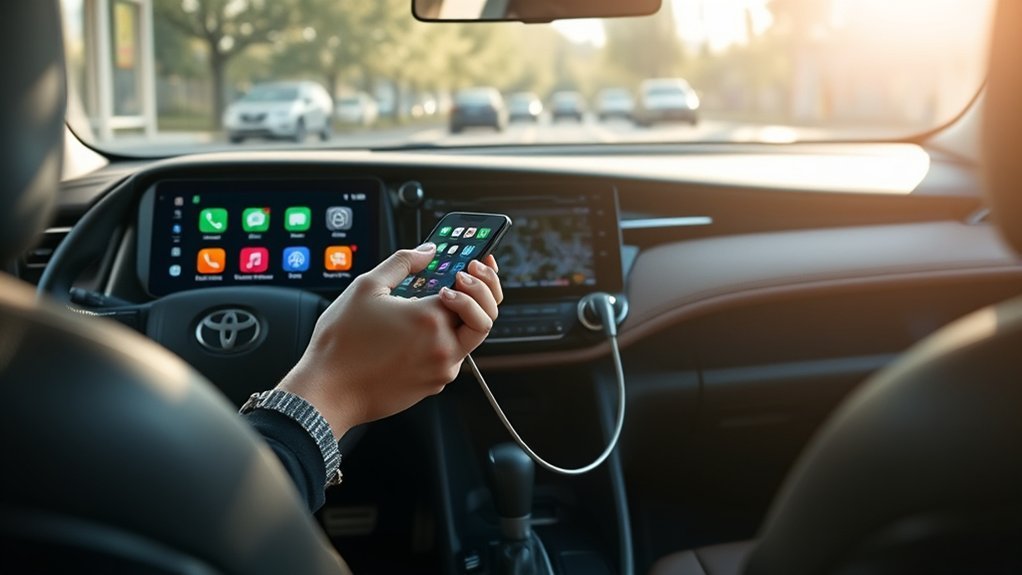
Setting up Android Auto in your Toyota RAV4 works best when you start with the wired method. Use this method first, then move to wireless setup only if your vehicle supports it.
| Step | Action |
|---|---|
| 1. Park Safely | Shift your RAV4 into Park (P) |
| 2. Check Phone Setup | Install Android Auto only if your phone requires it |
| 3. Connect Cable | Plug your phone into the USB media port |
| 4. Confirm Prompts | Select “Yes” or “Enable” on the multimedia screen |
| 5. Allow Permissions | Approve phone, contacts, messages, and app permissions |
- Park your RAV4 and keep the vehicle in Park (P).
- Unlock your Android phone and confirm that mobile data works.
- Connect your phone to the USB media port with a high-quality cable.
- Accept the prompts on your phone and the RAV4 multimedia screen.
- Open Android Auto from the car display if it does not start on its own.
After setup, you can use supported navigation, calling, messaging, and audio apps on the RAV4 screen. Keep your focus on the road and use voice controls when possible.
Troubleshooting Common Connection Issues With Android Auto
Android Auto connection issues often come from the phone, cable, car system, or app permissions. Start with the easiest fixes before you reset anything.
- Reconnect by USB: Unplug your phone, wait a few seconds, then plug it back into the USB media port.
- Change the cable: Try a high-quality cable that supports data transfer, not only charging.
- Restart both systems: Restart your phone, then turn your RAV4 off and back on.
- Check app permissions: Allow Android Auto to access phone, contacts, messages, location, and media.
- Update software: Update your phone, Google apps, and Toyota multimedia system if updates are available.
- Reset only if needed: Reset the multimedia settings after simpler steps fail.
Warning: A factory reset can remove paired phones and saved settings, so use it only after you try basic fixes.
Setting Up Wireless Connection for Android Auto
Wireless Android Auto depends on both your phone and your RAV4 multimedia system. Google says wireless connection works only with compatible phones and compatible vehicles or supported aftermarket stereos.
If your RAV4 supports wireless Android Auto, enable Bluetooth on your phone first. Then use the multimedia screen to add your phone as a new device.
Bluetooth Connection Setup Steps
Use Bluetooth pairing to start wireless setup. Keep your phone unlocked and near the multimedia screen.
- Enable Bluetooth on your Android phone before you start the vehicle.
- Open the RAV4 multimedia Settings menu from the screen.
- Select “Bluetooth® & devices,” then choose “Add another device.”
- Choose your phone name when it appears on the screen.
- Confirm the pairing code on both the phone and the vehicle screen.
- Allow Android Auto permissions when your phone asks.
After pairing, Android Auto may launch within a few seconds. If it does not, open the Android Auto icon on the multimedia screen or reconnect from your phone settings.
Troubleshooting Wireless Connection Issues
If your wireless connection fails, first confirm that your RAV4 supports wireless Android Auto. Some RAV4 models support wired Android Auto only, even though Bluetooth phone calls still work.
| Issue | Solution | Notes |
|---|---|---|
| Phone not found | Restart phone and vehicle | Keep Bluetooth on |
| Connection drops | Remove and pair the phone again | Keep the phone nearby |
| Android Auto will not launch | Try wired USB setup first | Wireless may not be supported |
| System keeps failing | Reset multimedia settings | Back up settings first |
Essential Tips for Enhancing Your Android Auto Experience
You can make Android Auto more stable by improving the connection, software, and phone settings. These simple habits reduce lag, failed launches, and dropped connections.
Optimize Bluetooth Settings
Bluetooth helps with phone pairing and wireless Android Auto setup. Keep it simple and remove old pairings you no longer use.
- Enable Bluetooth: Turn Bluetooth on before you start your RAV4.
- Keep one main phone: Connect the phone you use most often with Android Auto.
- Remove old devices: Delete unused phones from the RAV4 device list.
- Check permissions: Allow contacts, calls, messages, and media access when prompted.
If pairing fails, restart your phone and the multimedia system. Then remove the old pairing and add the phone again.
Regular Software Updates
Keep your Toyota RAV4 infotainment system updated so it can work better with newer phones. Also update your Android system, Google Maps, Google Play services, and Android Auto settings.
Software updates can fix bugs, improve app support, and reduce connection problems. Check Toyota’s owner resources or ask your dealer if you cannot find the update menu.
Use High-Quality Cables
A weak or charging-only cable can stop Android Auto from launching. Use a high-quality USB cable that supports both charging and data transfer.
- Choose certified cables: Use a reliable cable from your phone maker or a trusted brand.
- Check data support: Avoid cables made only for charging.
- Inspect for damage: Replace cables with bent ends, cuts, or loose connectors.
- Keep ports clean: Remove dust from the phone port and USB media port.
Pro tip: Test Android Auto with two different data cables before you assume the RAV4 system has a fault.
Resources for Further Assistance With Android Auto
If Android Auto still does not work in your Toyota RAV4, start with official support. Google’s Android Auto support pages explain phone requirements, app setup, cable checks, and wireless support.
You can also contact your Toyota dealer for vehicle-specific help. Ask them to check your multimedia software version and confirm whether your exact RAV4 trim supports wireless Android Auto.
Some drivers use third-party wireless adapters in vehicles that support wired Android Auto. These adapters can help, but compatibility varies, so check reviews and return policies before you buy one.
Frequently Asked Questions
How do you activate Android Auto in a Toyota RAV4?
Park your RAV4, unlock your Android phone, and connect it to the USB media port with a high-quality cable. Accept the prompts on your phone and the multimedia screen, then open Android Auto if it does not launch on its own.
Why won’t Android Auto connect to your Toyota RAV4?
Your phone, cable, app permissions, Bluetooth settings, or multimedia software may cause the issue. Start by changing the USB cable, restarting your phone, and checking that your RAV4 supports Android Auto.
How do you connect Google Maps to a Toyota RAV4?
Connect Android Auto first, then open Google Maps from the RAV4 screen. You can enter a destination on the screen or use voice control for safer navigation.
How do you get Android Auto to show on your car screen?
Use a compatible Android phone, a supported RAV4 multimedia system, and a high-quality USB cable. If your car supports wireless Android Auto, pair your phone with Bluetooth and follow the on-screen prompts.
Does a 2021 Toyota RAV4 have wireless Android Auto?
Most 2021 Toyota RAV4 models use wired Android Auto through USB. Check your owner information, multimedia settings, or Toyota dealer to confirm your exact trim and region.
Conclusion
The easiest way to connect Android Auto to your Toyota RAV4 is to start with a wired USB setup. Once that works, you can check whether your exact RAV4 supports wireless Android Auto.
Use a good data cable, keep your phone updated, and confirm every prompt during setup. If the system still fails, ask your Toyota dealer to check the multimedia software and compatibility details. A stable setup gives you safer access to maps, calls, messages, and music every time you drive.
References
- Drive with Android Auto — Android, 2026
- Android Auto Vehicle Compatibility — Android, 2026
- How do I setup Android Auto? — Toyota Customer Service
- 2021 RAV4 Apple CarPlay / Android Auto Owner Information — Toyota
