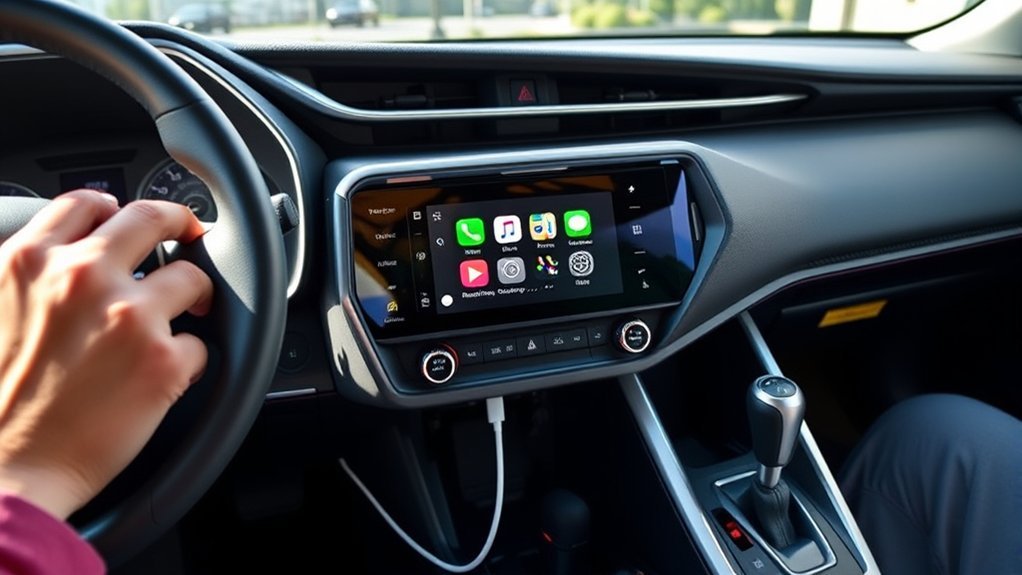
To set up Apple CarPlay in your Toyota RAV4, first verify your iPhone is updated to iOS 13 or later. Activate Siri and connect your iPhone using a certified Lightning USB cable while your vehicle is in Park mode. On the RAV4’s infotainment screen, select “Yes” when prompted to enable CarPlay. Once connected, you can access navigation, music, and other apps hands-free. Want to know more about troubleshooting or customizing your experience?
What Is Apple CarPlay and Why Use It?
Apple CarPlay is a powerful tool that connects your iPhone to your vehicle’s infotainment system, allowing for seamless integration of apps, navigation, and communication right from your car’s touchscreen. With Apple CarPlay, you can access turn-by-turn directions, play music, send messages, and make phone calls hands-free, keeping your attention focused on the road. It’s compatible with a variety of iPhone models running iOS 7.1 or later, making it accessible to many users. This feature is standard in many new Toyota models, including the 2021 RAV4, ensuring you stay connected while driving. By utilizing Apple CarPlay, you reduce distractions and create a more streamlined driving experience, promoting safety and enhancing your journey on the road.
Does Your RAV4 Support Apple CarPlay?
Wondering if your RAV4 supports Apple CarPlay? The good news is that all 2020 Toyota RAV4 models and newer come equipped with Apple CarPlay as a standard feature. To check if your specific RAV4 supports Apple CarPlay, refer to your owner’s manual or contact your local Toyota dealership.
Here’s a quick reference table for you:
| Model Year | Apple CarPlay Support |
|---|---|
| 2020 | Yes |
| 2021 | Yes |
| 2022 | Yes |
| 2023 | Yes |
If you’re driving a Limited or XSE trim, Apple CarPlay is prominently featured. Verify your iPhone is running iOS 13 or later for smooth integration. So, does your RAV4 support Apple CarPlay? Chances are, it does!
Preparing Your iPhone for Apple CarPlay Setup
Before you set up Apple CarPlay, check that your iPhone is running iOS 7.1 or later for compatibility. Next, activate Siri by going to Settings > Siri & Search and ensuring it’s turned on. This will allow for seamless voice commands while using CarPlay.
Enable Siri On iPhone
To set up Apple CarPlay in your Toyota RAV4, you’ll first need to enable Siri on your iPhone. Start by going to Settings and tapping on “Siri & Search.” Toggle the Siri feature on. Make sure to activate “Listen for ‘Hey Siri'” and “Press Side Button for Siri” for ideal voice command functionality. Siri must be fully operational to utilize hands-free features and voice commands through Apple CarPlay. Additionally, verify your iPhone is running the latest iOS version for the best compatibility. Once you’ve enabled Siri, you can activate it by saying “Hey Siri” or pressing the side button, paving the way for seamless integration with your RAV4’s multimedia system.
Check iOS Compatibility
Now that Siri is enabled on your iPhone, it’s important to check its iOS compatibility for Apple CarPlay setup. Verify your iPhone meets the necessary requirements to enjoy seamless functionality. Here’s what you need to check:
- Confirm your iPhone is running iOS 7.1 or later.
- Check that your Toyota RAV4 model supports Apple CarPlay.
- Verify CarPlay isn’t restricted in your iPhone’s settings (Settings > General > CarPlay).
How to Connect Your iPhone to Toyota RAV4 via USB
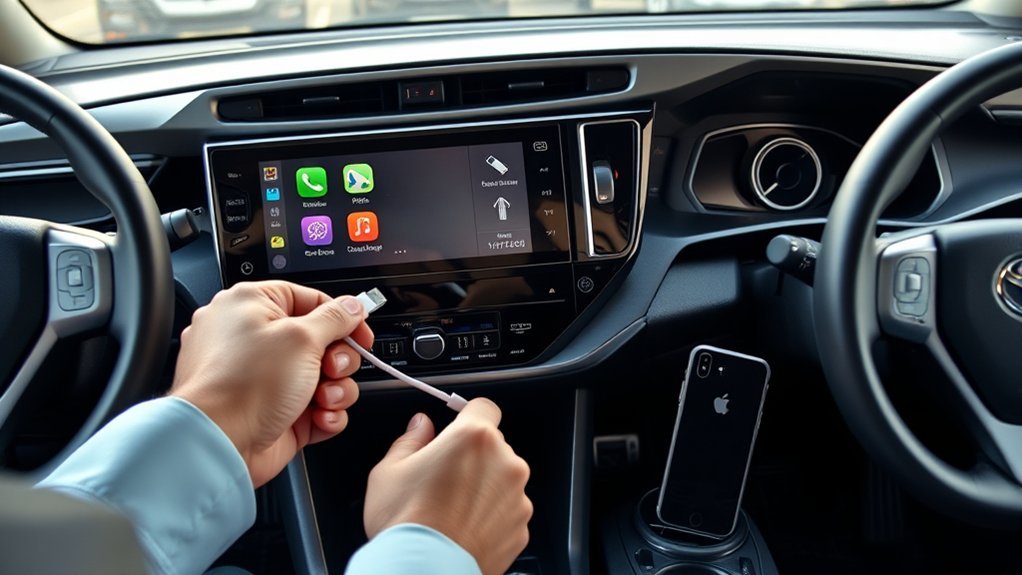
To connect your iPhone to the Toyota RAV4 via USB, you’ll need an Apple-certified Lightning USB cable and guarantee your vehicle is in Park (P) mode. Start by plugging the Lightning connector into your iPhone and the other end into the USB port in the RAV4. Once prompted on the multimedia system, select “Yes” to enable Apple CarPlay and confirm on your iPhone to access its features.
Required Equipment and Setup
Before you can enjoy the seamless integration of Apple CarPlay in your Toyota RAV4, you need to gather a few essential items and follow a straightforward setup process. Here’s what you’ll need:
- An Apple-certified Lightning cable
- Your iPhone
- Access to the USB port in your RAV4
Start by plugging the Lightning cable into your iPhone and connecting the other end to the USB port, usually found in the center console. When prompted on the multimedia system, select “Yes” to enable CarPlay. Confirm the prompt on your iPhone, also selecting “Yes.” Make sure your vehicle is in Park (P) mode and that Siri is enabled for ideal functionality with Apple CarPlay. Enjoy the enhanced driving experience!
Connecting Your iPhone
Connecting your iPhone to the Toyota RAV4 via USB is a straightforward process that enhances your driving experience. First, make certain your vehicle is in Park (P) mode and grab an Apple-certified Lightning cable. Connect your iPhone to the USB port in the vehicle. When prompted on the multimedia system, select “Yes” to use Apple CarPlay, and confirm the prompt on your iPhone. Make sure Siri is enabled by finding your way to Settings > Siri & Search. If CarPlay doesn’t launch automatically, check the multimedia settings for Apple CarPlay and USB function.
| Step | Action | Note |
|---|---|---|
| 1. Vehicle in Park | Engage Park (P) mode | Safety first |
| 2. Use Lightning Cable | Connect iPhone to USB port | Use Apple-certified cable |
| 3. Confirm Connection | Select “Yes” on the system | Follow prompts |
| 4. Enable Siri | Go to Settings > Siri & Search | Make sure Siri is active |
Accessing Apple CarPlay Features
Once your iPhone is connected to the Toyota RAV4, you can start accessing Apple CarPlay features seamlessly. First, verify your vehicle is in Park (P) mode and use an Apple-certified Lightning cable to connect your iPhone to the USB port. When prompted on the multimedia system, select “Yes” to allow access. Confirm the connection on your iPhone by selecting “Yes.” Apple CarPlay will launch automatically, granting you access to a range of compatible apps.
- Navigate using maps and GPS
- Stream music effortlessly
- Make hands-free calls and send messages
Don’t forget to enable Siri for hands-free control, enhancing your Apple CarPlay experience and liberating your drive. Enjoy the freedom of connectivity!
Setting Up Wireless Apple CarPlay
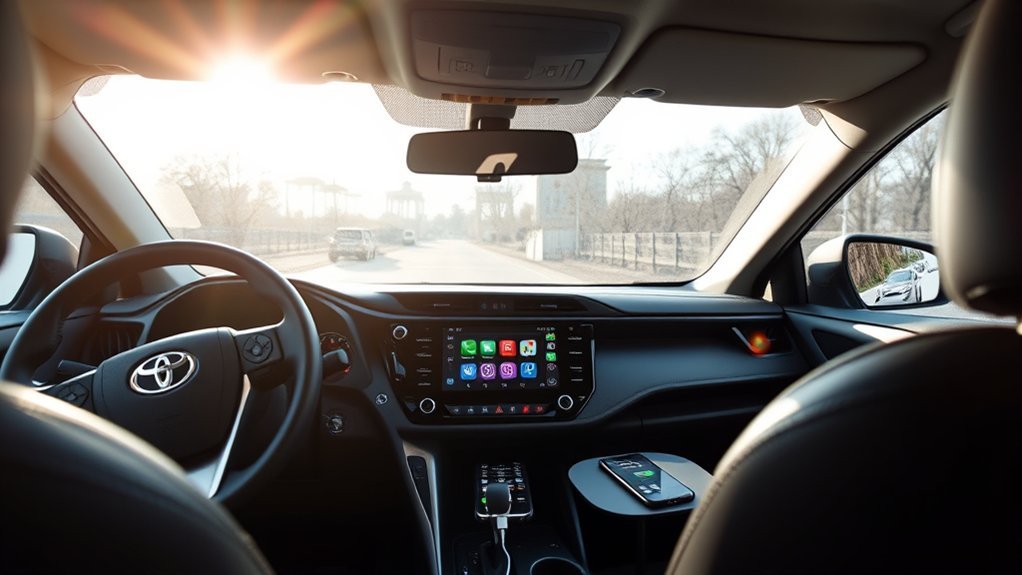
To set up Wireless Apple CarPlay in your Toyota RAV4, start by ensuring that Bluetooth is enabled on your iPhone. Next, access the multimedia screen in your RAV4 and select the settings gear icon. Navigate to ‘Bluetooth & devices’ to add a new device. Your iPhone should appear; confirm the pairing codes displayed on both the multimedia screen and your iPhone to establish the connection. Once paired, the RAV4 will prompt you to enable CarPlay. Select “Yes” to proceed with the setup. After completing these steps, Apple CarPlay will launch automatically, granting you hands-free access to compatible apps. Enjoy the freedom and convenience of Wireless Apple CarPlay in your vehicle!
Navigating the Apple CarPlay Interface in Your Toyota
Maneuvering the Apple CarPlay interface in your Toyota RAV4 is straightforward and user-friendly. You can easily access navigation features, utilize voice commands for hands-free control, and customize the app layout to fit your preferences. This streamlined system guarantees that you can stay focused on the road while accessing your favorite apps.
Accessing Navigation Features
While using Apple CarPlay in your Toyota RAV4, accessing navigation features is straightforward and intuitive. You can start by selecting either the Apple Maps or Google Maps icon on the CarPlay interface. Once activated, you’ll benefit from:
- Turn-by-turn directions displayed on your touchscreen.
- Easy switching between navigation apps by tapping the desired icon.
- Voice prompts through your vehicle’s audio system for enhanced guidance.
This seamless integration allows you to stay focused on the road while receiving essential navigation information. Enjoy the freedom of hands-free operation in your RAV4, making your driving experience not just convenient but liberating as well. Embrace the ease of CarPlay navigation and navigate with confidence.
Using Voice Commands
Using voice commands in your Toyota RAV4 with Apple CarPlay® enhances safety and convenience, allowing you to stay focused on driving. Activate Siri by pressing and holding the voice command button on the steering wheel or just say, “Hey Siri.” You can easily navigate by saying commands like, “Take me to [destination]” or “Get directions to [place].” To make hands-free calls, instruct Siri with “Call [contact name]” or “Dial [phone number].” For music, simply say, “Play [song/artist/album]” or “Play music” to enjoy your favorite tunes without distraction. Siri can also send and read text messages for you; just say, “Send a message to [contact name]” or “Read my messages” to stay connected on the go.
Customizing App Layout
- Remember layout changes for future connections
- Customize notifications within individual apps
- Maximize accessibility while using Apple Lightning
These adjustments streamline your driving experience, ensuring you have quick access to what matters most. Enjoy the liberation of a tailored CarPlay interface!
How to Troubleshoot Apple CarPlay Connection Issues
Experiencing issues with Apple CarPlay in your Toyota RAV4 can be frustrating, but troubleshooting these connection problems is often straightforward. First, make sure that Siri is enabled on your iPhone, as it’s essential for CarPlay functionality. Restart both your iPhone and the multimedia system to refresh the connection. Next, check if your iPhone has the latest iOS version and confirm that the RAV4’s firmware is updated to maintain compatibility. Inspect the USB cable for damage; if the connection remains unstable, try a different Lightning to USB cable or USB port. Finally, navigate to Settings > General > CarPlay on your iPhone to make sure CarPlay isn’t restricted. By following these steps, you can typically resolve most connection issues.
Updating Your iPhone and Vehicle Software for Optimal Performance
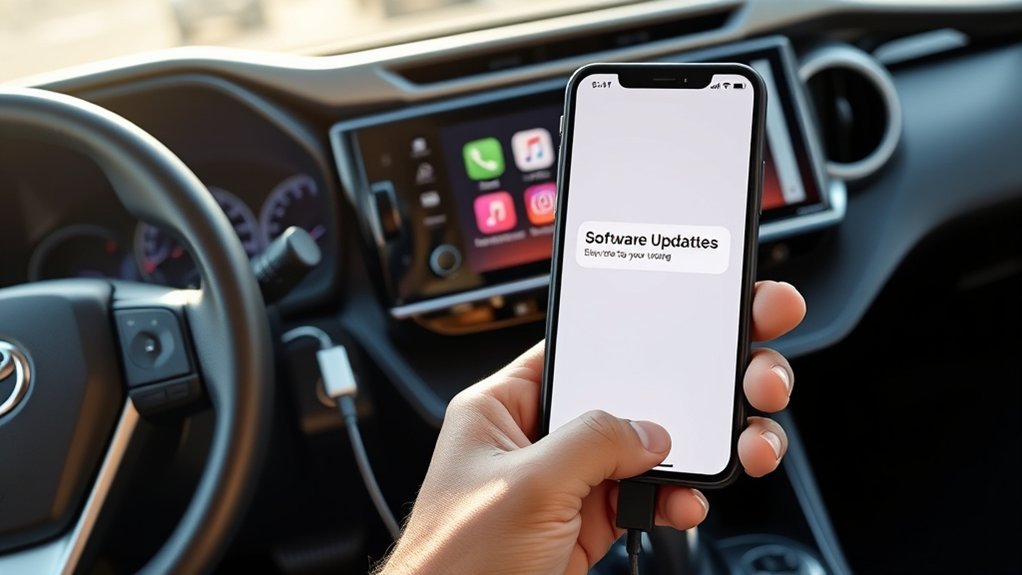
To guarantee ideal performance with Apple CarPlay in your Toyota RAV4, it’s crucial to keep both your iPhone and the vehicle’s multimedia system updated. Here’s how to make sure everything runs smoothly:
- Navigate to Settings > General > Software Update on your iPhone to check for the latest iOS version.
- Regularly connect your RAV4 to Wi-Fi to enable automatic software updates for the multimedia system.
- Restart both your iPhone and the multimedia system after updates to refresh the connection.
For specific instructions on updating the vehicle’s software, consult your owner’s manual or visit the Toyota Service website. Keeping your devices updated enhances compatibility and resolves known issues, guaranteeing a seamless Apple CarPlay experience.
Key Features and Functions of Apple CarPlay
With your iPhone and Toyota RAV4’s software updated, you can fully leverage the capabilities of Apple CarPlay. This system seamlessly integrates your iPhone apps like Maps, Music, Messages, and Phone through the vehicle’s touchscreen, enhancing your driving experience. You can use Siri for hands-free operation, allowing you to navigate, make calls, and send messages while keeping your eyes on the road. Apple CarPlay also supports a variety of third-party apps, such as Spotify and WhatsApp, broadening your options. You can personalize your interface by rearranging app icons and selecting a preferred wallpaper. Plus, enjoy real-time navigation updates, ensuring you have the latest traffic information and route guidance right at your fingertips.
Where to Get Help With Apple Carplay in Your RAV4?
Finding reliable help for Apple CarPlay issues in your Toyota RAV4 can streamline your troubleshooting process. Here are some resources to explore:
Discovering dependable support for Apple CarPlay in your Toyota RAV4 can simplify your troubleshooting journey.
- Toyota of Downtown LA: For expert assistance with CarPlay setup and issues.
- Official Toyota Website and Entune App: Access helpful tips and troubleshooting resources.
- Online Forums: Engage with the Toyota RAV4 community to share experiences and solutions.
If you continue facing challenges with Apple CarPlay, schedule a visit to your local Toyota dealership for in-person support. You can also reach out directly to specific departments for tailored help: Sales at 952.400.2900 and Service at 952.400.2920. Utilize these resources to maximize your Apple CarPlay experience in your RAV4.
Frequently Asked Questions
How Do I Use Apple Carplay on My Toyota RAV4?
To use Apple CarPlay in your Toyota RAV4, connect your iPhone, select the CarPlay option, and utilize voice commands for hands-free calls, texts, and navigation. Make sure Siri’s enabled for a seamless experience.
Why Is My RAV4 Not Connecting to Carplay?
Your RAV4 might not connect to CarPlay due to connection issues. Verify your iPhone’s iOS is updated, Siri’s activated, and you’re using a certified Lightning cable. Restart your devices to refresh the connection.
How Do I Connect My Apple Carplay to My Toyota?
Connecting your Apple CarPlay to your Toyota is like accessing a treasure chest. For wireless connection, enable Bluetooth on your iPhone, pair it with your RAV4, and watch the CarPlay interface spring to life!
How Do I Enable Apple Carplay?
To enable CarPlay compatibility, verify your iPhone’s updated, connect it via a Lightning cable, and confirm prompts on your vehicle’s multimedia system. Activate Siri in your settings for seamless integration and functionality.
Conclusion
Setting up Apple CarPlay in your Toyota RAV4 transforms your driving experience like turning on a light in a dark room. With seamless access to apps, navigation, and music, you can stay connected while keeping your focus on the road. If you encounter any issues, remember troubleshooting is just a few steps away. Enjoy the convenience and safety that Apple CarPlay brings, making your drives not just easier, but smarter.
