How To Add Phone To Toyota RAV4
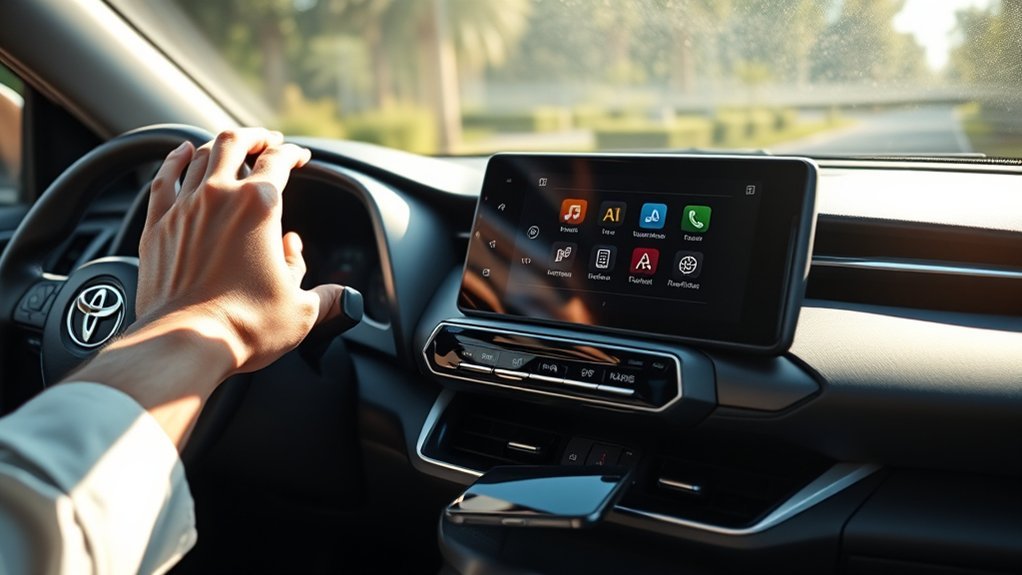
To add your phone to the Toyota RAV4, start by pressing the “Menu” button on the multimedia system and selecting “Setup.” Confirm your phone’s Bluetooth is on and in pairing mode. Then, choose “Add Device” on the RAV4 system to search for your phone. Follow the on-screen prompts to complete the pairing. If you encounter issues, check compatibility, restart both devices, or confirm the RAV4’s system is updated. Discover more tips to enhance your connectivity experience!
How to Enable Bluetooth on Your Smartphone
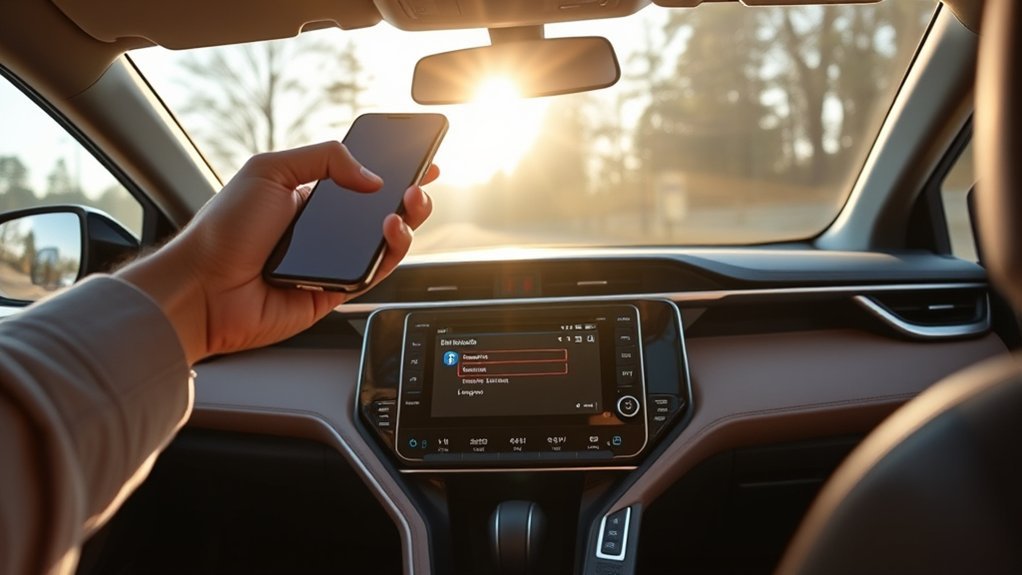
To get your smartphone ready for pairing with your Toyota RAV4, you first need to enable Bluetooth. Start by heading to the “Settings” menu on your Android phone. Once there, select “Bluetooth” to access the Bluetooth controls. Confirm the Bluetooth toggle is turned on, so your phone becomes discoverable to other devices. Some Android phones may prompt you to confirm this visibility, so be on the lookout for any notifications.
In your Bluetooth settings, you’ll see a list of paired devices and an option to initiate new connections. Tap “Add Device” or “Pair New Device” to begin searching for available devices. If your phone has a “Scan” option, use it to locate your vehicle’s multimedia system and prepare for a seamless connection. Following these steps guarantees you’re ready to connect your phone to your RAV4, enhancing your driving experience.
Initial Steps for Pairing Your Phone to the RAV4
Once you’ve confirmed Bluetooth is enabled on your phone, start the pairing process by pressing the “Menu” button on your Toyota RAV4’s multimedia system. Navigate to the “Setup” button and select the ‘Bluetooth’ option.
| Step | Action | Notes |
|---|---|---|
| 1 | Press “Menu” | Access the multimedia system |
| 2 | Select “Setup” | Find Bluetooth settings |
| 3 | Choose ‘Add Device’ | Start searching for devices |
| 4 | Follow on-screen instructions | Complete the pairing process |
Make sure your phone is in pairing mode to connect smoothly. This pairing process lets you harness the full potential of your RAV4’s multimedia system, providing you with hands-free calling and music streaming. Enjoy the freedom that comes with seamless connectivity!
Troubleshooting Bluetooth Pairing Issues
If you’re experiencing issues connecting your phone to your Toyota RAV4, don’t worry—common pairing problems can often be resolved quickly. Start by checking device compatibility and ensuring both Bluetooth settings are enabled and in pairing mode. If your phone still doesn’t show up, consider restarting both devices and updating your infotainment system’s firmware for a smoother connection.
Common Pairing Problems
While attempting to connect your phone to the Toyota RAV4, you might encounter a few common pairing problems that can disrupt the process. First, confirm your Bluetooth-enabled phone has Bluetooth activated and is in discoverable mode. If the infotainment system doesn’t detect your phone, try restarting both devices to reset the connection. Don’t forget to check that the RAV4’s multimedia system is in pairing mode; access the Bluetooth settings and select ‘Add Device’ for successful pairing. If you face audio playback issues post-pairing, verify that the infotainment system firmware is updated, and the correct audio settings are selected. For persistent problems, consult your vehicle’s multimedia system manual or the Toyota support website for tailored troubleshooting tips.
Device Compatibility Checks
To guarantee a smooth Bluetooth pairing experience between your smartphone and the Toyota RAV4, you should start by confirming device compatibility. First, verify your smartphone has Bluetooth enabled and is compatible with the vehicle’s multimedia system. Next, check that the multimedia system is in pairing mode; this is essential for successful connections. Don’t overlook software updates—old versions can hinder Bluetooth functionality, so check for updates on both your phone and the car’s infotainment system. Finally, assess your phone’s performance; poor carrier coverage may affect connectivity. If your phone doesn’t appear during the pairing process, simply select the ‘if not found’ option on the multimedia system to initiate a new search.
Syncing Contacts for Easy Access While Driving
Syncing your contacts to the Toyota RAV4 not only makes it easy to access important numbers but also helps you stay focused on the road. With Bluetooth enabled and your phone paired, you can quickly set up contact syncing for hands-free calling. This feature enhances convenience and promotes safer driving by reducing distractions.
Benefits Of Contact Syncing
Many drivers find that syncing their contacts to the Toyota RAV4 greatly enhances their driving experience. With contact syncing, you can easily access frequently contacted numbers through the infotainment system, promoting convenience while on the road. This feature minimizes distractions, allowing you to make calls using simple voice commands, ensuring your focus stays on driving. Once your contacts are synced, calling anyone in your phonebook becomes a seamless process, supporting a more streamlined communication experience. By integrating your mobile contacts directly into the vehicle’s system, you’re not only enhancing user experience but also fostering safer driving practices. Embrace the liberation that comes with hands-free communication, making your commutes more enjoyable and efficient.
Steps To Sync Contacts
When you’re ready to sync your contacts with your Toyota RAV4, the process is straightforward and enhances your driving experience considerably. Follow these steps to get started:
- Confirm Bluetooth is enabled on your phone.
- Set your vehicle’s multimedia system to pairing mode.
- Navigate to the Bluetooth settings on the multimedia system and select the option to sync contacts.
Once you complete these steps, the sync process will take a few moments as your contact list uploads. After syncing, you can easily call your contacts hands-free using voice commands or by selecting them directly from the multimedia interface. This not only promotes safer driving but also keeps you connected without distractions. Enjoy the freedom of seamless communication!
Is Your Phone Compatible With the Rav4’s Bluetooth?
Are you wondering if your phone is compatible with the Toyota RAV4’s Bluetooth system? To connect your device seamlessly, you’ll need a Bluetooth-enabled phone. Compatibility can vary based on your phone’s software and operating system version, so check that your device meets these requirements. Before you attempt to pair, make certain Bluetooth is activated on your smartphone.
Additionally, make sure the RAV4’s multimedia system is set to pairing mode; this is vital for establishing a connection. Remember, even if your phone is compatible, factors like coverage and carrier settings can affect performance and functionality.
Other Connectivity Options for Your RAV4
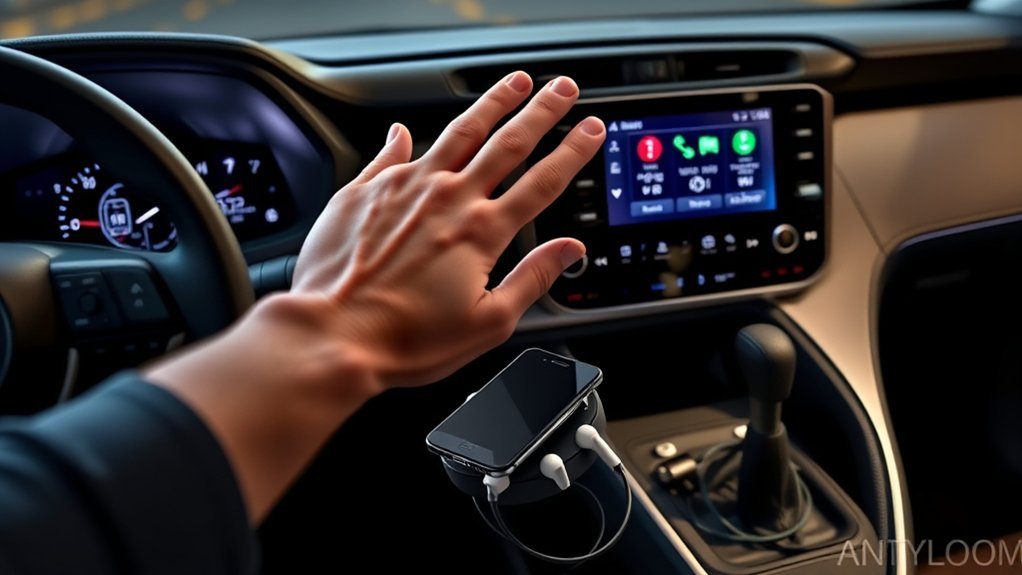
While Bluetooth connectivity offers a convenient way to make calls and stream audio, the Toyota RAV4 provides additional options to enhance your driving experience. Explore these connectivity choices to maximize your RAV4’s capabilities:
- Android Auto and CarPlay: For full app functionality, a USB connection is necessary, especially in the 2019 RAV4 Hybrid, which lacks native support.
- Multiple Device Connections: You can connect up to two phones, but remember, only one can use projection features like Android Auto or CarPlay at a time.
- Aftermarket Devices: Consider using devices like the Ottocast to enable Android Auto and CarPlay features, giving you more freedom and flexibility in your vehicle.
Embracing these options allows you to enjoy a more connected and liberated driving experience, transforming your RAV4 into a tech-savvy hub on the road.
Benefits of Connecting Your Phone to the RAV4
Connecting your phone to the Toyota RAV4 not only transforms your driving experience but also enhances convenience and safety on the road. With features like Apple CarPlay and Bluetooth connectivity, you gain seamless access to your music library, favorite apps, and hands-free calling.
| Feature | Benefit | Impact |
|---|---|---|
| Apple CarPlay | Access apps & navigation | Streamlined route planning |
| Bluetooth Connectivity | Quick phone pairing | Instant call and audio access |
| Hands-free Calls | Minimized distractions | Safer driving practices |
| Music Library Access | Personalized audio options | Enhanced enjoyment |
| Streamlined Controls | Easy interaction with vehicle systems | Improved focus on driving |
Frequently Asked Questions
How Do I Add a Phone to My Toyota RAV4?
To add your smartphone to your Toyota RAV4, make sure Bluetooth’s enabled, check compatibility, and follow the multimedia prompts. If you face connection issues, explore the Toyota app features for troubleshooting tips and enhanced connectivity.
How Do I Sync My Toyota to My Phone?
To sync your Toyota to your phone, check your Bluetooth settings first. Confirm your phone’s compatible. If you face connection issues, restart both devices and try pairing again for a seamless experience. Enjoy the freedom!
Why Won’t My Toyota RAV4 Connect to My Phone?
Your Toyota RAV4 might not connect due to Bluetooth issues, compatibility concerns, or outdated software. Confirm both devices have Bluetooth enabled, check for software updates, and restart them to resolve temporary glitches.
How Do I Add a New Device to My Toyota?
To add a new device to your Toyota, check your Bluetooth settings first. Confirm device compatibility and troubleshoot any connection issues. Follow the prompts on your multimedia system; soon, you’ll be connected and enjoying hands-free freedom!
Conclusion
By connecting your phone to your Toyota RAV4, you open up a world of convenience, safety, and entertainment. You streamline your driving experience, enhance your connectivity, and enjoy hands-free control. Whether you’re making calls, accessing navigation, or listening to your favorite tunes, the integration transforms your vehicle into a smart hub. So, embrace the technology, follow the steps, and enjoy the seamless blend of your phone and RAV4—making every journey more enjoyable and connected than ever before.