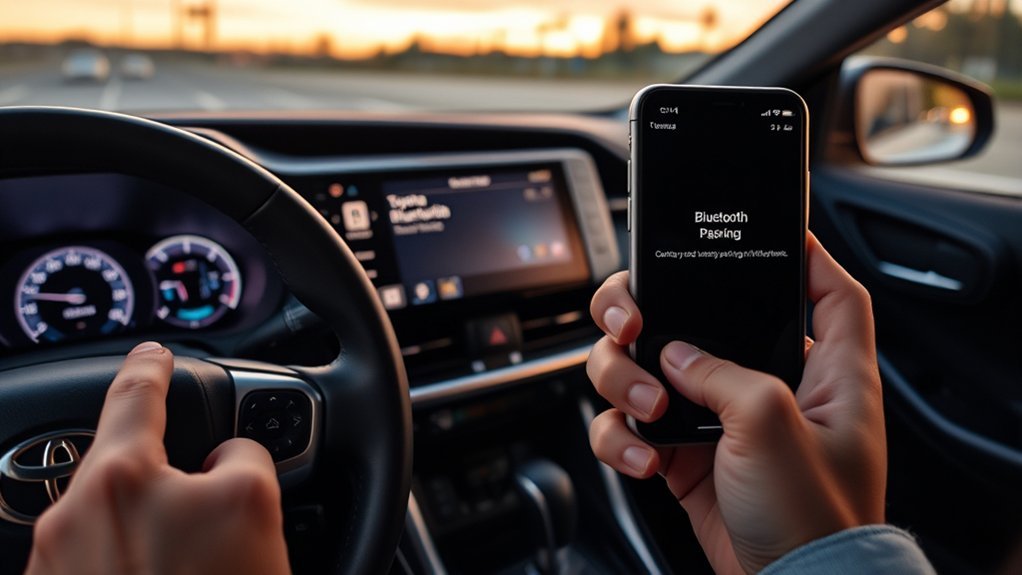
To pair an iPhone with a Toyota RAV4, open the multimedia screen, go to Bluetooth & Devices, add a device, choose your iPhone from the list and confirm that the passcode matches on both screens. That gives you hands-free calls and Bluetooth audio. If you also want CarPlay, the same pairing process can offer it, or you can connect the phone with a USB cable instead.
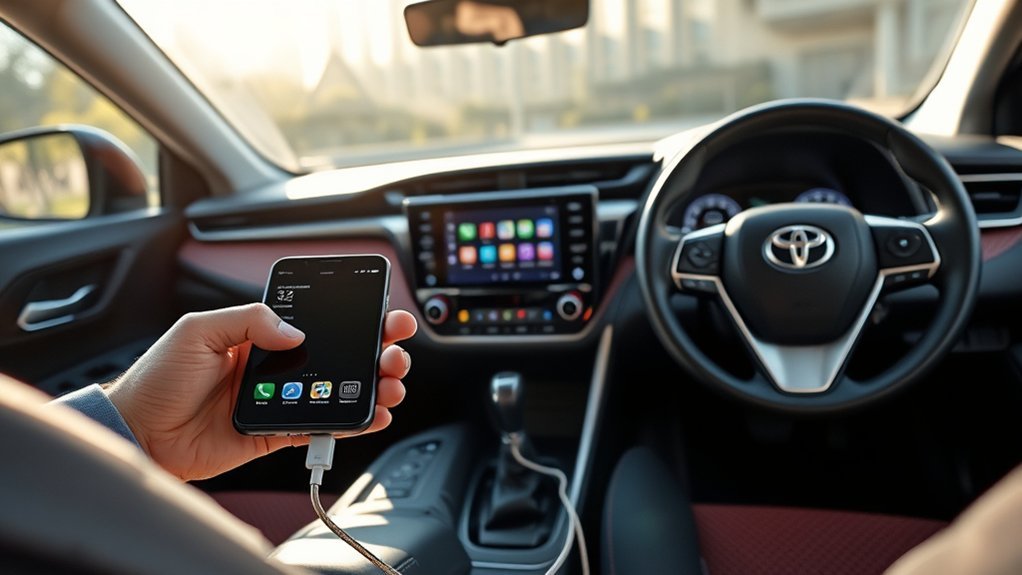
Pairing and CarPlay are two different things
Bluetooth pairing registers your iPhone with the RAV4 for hands-free calling and streaming audio. Apple CarPlay puts a car-friendly version of your apps on the touchscreen. Toyota’s RAV4 multimedia manuals treat them together: the Apple CarPlay option can appear during Bluetooth registration, and a CarPlay device is registered on the Bluetooth & Devices screen once it connects. You can use Bluetooth alone without CarPlay on any RAV4 with a Bluetooth audio system. For the full CarPlay walkthrough, including the wired and wireless options by model year, see our guide on mirroring an iPhone to a Toyota RAV4.
Before you start
- Turn on Bluetooth on the iPhone in Settings, Bluetooth, and leave that screen open.
- Unlock the iPhone and keep it close to the multimedia screen.
- Turn on the vehicle so the multimedia system is running, and do this while parked.
- Delete an old entry for the RAV4 from the iPhone’s Bluetooth list if a previous pairing failed.
Pair the iPhone: newer multimedia systems
Toyota’s manuals for the 2023 RAV4 Prime and the 2026 RAV4 list almost the same steps. The wording of the buttons changes slightly between systems.
| Step | 2023 RAV4 Prime manual | 2026 RAV4 manual |
|---|---|---|
| 1 | Touch the settings icon on the main menu | Touch the Vehicle & Settings icon on the main menu |
| 2 | Touch Bluetooth & Devices | Select Bluetooth & Devices |
| 3 | Touch Add another device, then Search for devices | Touch Add a device |
| 4 | Choose your phone from the list | Select your device from the list |
| 5 | Check that the PIN matches and touch OK | Check that the passcode matches and touch Confirm |
- On the multimedia screen, open Bluetooth & Devices using the path above for your model.
- Add a device and wait for the list to fill.
- Select your iPhone by name. If you have renamed it, look for that name.
- Compare the code on the screen with the one on the iPhone. If they match, confirm on both. The iPhone may also ask to share contacts and favorites for hands-free calling; accept it if you want your contacts on the car screen.
- Follow any prompts about a primary device or about Apple CarPlay. Toyota’s manual says these settings may be displayed during registration and that the CarPlay screen appears when its use is enabled.
- A confirmation message appears when registration is complete.
If the car cannot find the iPhone, the 2026 manual says to start the pairing from the phone while the system’s Bluetooth connection screen is displayed.
Older RAV4s
Model years before those systems, including early 2019 to 2022 RAV4s with earlier audio units, use different menu names. The path, the order of steps and the button names can differ, so use the Bluetooth or phone section of the owner’s manual for your exact model year. The idea is the same: choose to add a device on the car, choose the car on the iPhone, and confirm the passcode.
Limits to know about
- The manuals say up to 5 Bluetooth devices can be registered, but only 2 can be used as hands-free phones at the same time.
- The 2023 RAV4 Prime manual says iPod and USB audio cannot be used while CarPlay is connected by USB.
- The 2026 manual says CarPlay cannot be used at the same time as a 5 GHz Wi-Fi hotspot.
- Keyboard search is not available while CarPlay or Android Auto screens are active, according to the 2023 RAV4 Prime manual.
Remove a phone you no longer use
- Open Bluetooth & Devices on the multimedia screen.
- Select the phone you want to remove.
- On the 2026 system, touch the menu icon and choose Forget this device, then confirm. On the 2023 RAV4 Prime system, touch Forget and confirm.
- On the iPhone, open Settings, Bluetooth, tap the info icon next to the RAV4 and choose Forget This Device.
Removing the entry on both sides gives you a clean start if pairing has been unreliable.
Troubleshooting
The iPhone does not appear in the list
Check that Bluetooth is on and the Bluetooth settings screen is open on the iPhone. Then start the pairing from the phone while the car’s Bluetooth connection screen is displayed, as the 2026 manual suggests.
The passcodes do not match or pairing fails
Cancel the attempt, forget the old entry on both the car and the phone, and begin again. Check that you have not reached the 5-device limit; delete a phone you do not use first.
Calls work but there is no CarPlay
CarPlay needs a supported system and either a USB connection or wireless support. Apple’s CarPlay help page suggests a different cable or port, making sure Siri is on, checking Screen Time restrictions, and using Settings, General, CarPlay to forget the car and set it up again. Wireless CarPlay also needs Wi-Fi on and Auto-Join enabled for the CarPlay network.
It connects, then drops
Restart the iPhone and turn the vehicle off and on again. Keep iOS up to date. Your dealer can tell you whether the RAV4’s multimedia system has a software update for your model year.
Frequently asked questions
How many phones can I pair to a RAV4?
Up to 5 Bluetooth devices, with a maximum of 2 used as hands-free phones, per Toyota’s manuals for the 2023 RAV4 Prime and the 2026 RAV4.
Do I need CarPlay to make hands-free calls?
No. A normal Bluetooth pairing supports hands-free calls and audio streaming. CarPlay is an extra layer on top of it.
Should I pair while driving?
No. Pair while parked so you can read the screen and the passcode.
Does my iPhone need a certain iOS version?
Apple recommends keeping your iPhone on the current iOS release. The RAV4 Bluetooth pairing process itself does not depend on a particular version that Toyota lists in these manuals.
Sources opened while checking: Toyota 2026 RAV4 multimedia manual and Apple’s CarPlay help page.
