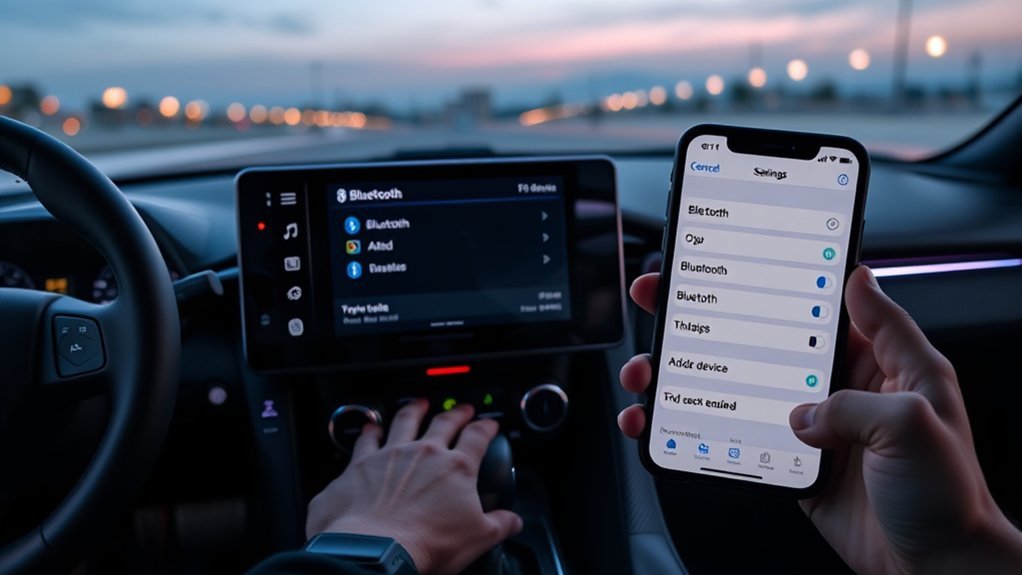
Pairing your phone with a Toyota Supra takes a couple of minutes: turn on Bluetooth on the phone, open the Supra’s media or telephone menu (the GR Supra uses a BMW-based system, not the Toyota software from other models), choose to add a new device, and confirm the matching code on both screens. If an old phone is causing trouble, delete it from the car’s device list first. The exact menu names vary by model year, so check your owner’s manual if a step looks different.
Why Add a New Phone to Toyota Supra Bluetooth
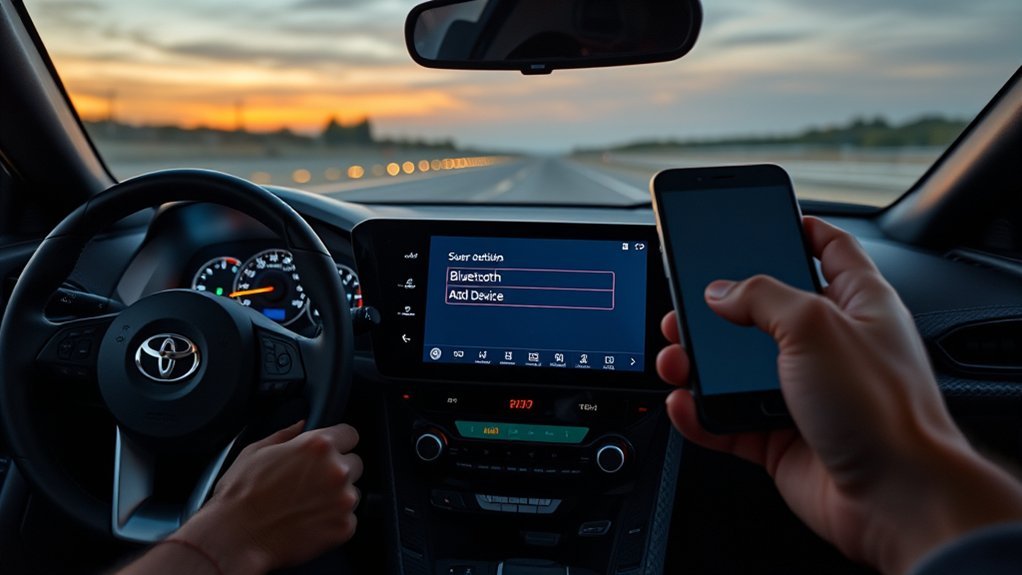
When you pair your smartphone with Toyota Supra Bluetooth, you activate a range of features designed to enhance your driving experience. This integration allows for hands-free calling, so you can stay connected without losing focus on the road. By utilizing Bluetooth connectivity, you can stream your favorite music, podcasts, or audiobooks seamlessly, making every drive more enjoyable.
Accessing your contacts and call history through the Supra’s infotainment system simplifies communication, enhancing both convenience and safety. Plus, Toyota’s multimedia system supports voice commands for hands-free operation, considerably reducing distractions.
Connecting your smartphone also grants quick access to navigation apps, allowing you to receive directions without taking your hands off the wheel. Don’t miss out on these essential features!
Preparing Your Phone for Bluetooth Pairing
To ensure a successful Bluetooth pairing with your Toyota Supra, start by preparing your smartphone. First, verify your phone’s Bluetooth setting is turned ON; this is vital for connectivity. Next, confirm that your vehicle is in park mode, prioritizing safety during the pairing process. It’s also wise to check for any available software updates on your smartphone, as these updates can enhance compatibility with the Toyota Bluetooth system.
Additionally, remove any existing Bluetooth connections that might interfere with this new pairing. Having a clutter-free Bluetooth environment will streamline the process. Finally, keep your phone within range of the vehicle’s multimedia system for a seamless connection. These steps are essential in preparing your phone for Bluetooth pairing and will make following the Step-By-Step Instructions to Pair much easier. With everything set, you’re ready to connect smoothly.
Step-By-Step Instructions for Pairing Your Phone With Toyota Supra
Now that your smartphone is ready for Bluetooth pairing, let’s get started with the step-by-step instructions to connect it to your Toyota Supra.
- Enable Bluetooth on your smartphone.
- Access the Toyota Audio Multimedia System: Click the “Menu” button, navigate to “Setup,” and select “Bluetooth.”
- Choose “Add Device” on the multimedia system and initiate a search for available devices on your smartphone.
- Confirm the pairing request displayed on both your smartphone and the Toyota system.
Once you’ve completed these steps to pair your smartphone, you’ll enjoy seamless access to your contacts, hands-free calls, and audio streaming directly through your Toyota multimedia system.
Troubleshooting Toyota Supra Bluetooth Pairing Issues
If you’re experiencing difficulties pairing your Toyota Supra with your smartphone, several troubleshooting steps can help resolve the issue. First, verify Bluetooth is enabled on both your smartphone and the Toyota Supra’s multimedia system. If pairing fails, restart both devices to refresh their connectivity. It’s also vital to check if your smartphone is already connected to another Bluetooth device, as this can block successful pairing with the Toyota Supra.
Next, review your phone’s Bluetooth settings for any restrictions or permissions that might hinder the connection process. If problems persist, consult the vehicle manual for specific troubleshooting tips tailored to your Toyota Supra model. These steps are fundamental for troubleshooting Toyota Supra Bluetooth pairing issues and can often restore connectivity swiftly. By following this guide, you’ll be one step closer to enjoying seamless audio streaming and hands-free calls in your Toyota Supra.
Disconnecting or Unpairing Your Smartphone
Bluetooth connectivity enhances your driving experience, but there may be times when you need to disconnect or unpair your smartphone from the Toyota Supra. Start by accessing the multimedia system and directing yourself to the Bluetooth settings menu. Here, you’ll see a list of paired devices. Select the smartphone you wish to disconnect. To proceed, confirm the action by selecting the “Remove” or “Forget” option. This will unlink your smartphone from the vehicle’s Bluetooth system.
If you encounter any issues, double-check your smartphone’s Bluetooth settings to verify it no longer shows as connected. Once you’ve successfully unpaired your device, you can easily connect a different smartphone by following the standard Bluetooth pairing procedure. This process allows you to maintain control over your connections and ensures a seamless driving experience tailored to your preferences.
Managing Multiple Devices With Toyota Supra Bluetooth
To effectively manage multiple devices with your Toyota Supra Bluetooth, start by accessing the multimedia system’s Bluetooth settings. Since only one device can connect at a time for audio playback and hands-free calling, follow these steps to switch between devices:
- Open Bluetooth settings: Navigate to the Bluetooth section in your multimedia system.
- Disconnect current device: Select the currently connected phone and choose the option to disconnect.
- Select another device: View your list of paired devices and select the phone you want to connect.
- Remove unwanted devices: If needed, select any device you wish to delete and choose the option to forget it.
Ensure your smartphone’s Bluetooth feature is enabled and within range for seamless switching. With these steps, you’ll experience the freedom to connect with your preferred devices effortlessly.
Updating Your Multimedia System
Keeping your Toyota Supra’s multimedia system updated is essential for peak performance and enhanced Bluetooth connectivity. To ensure ideal performance and compatibility with new smartphones, you should regularly check for software updates. Start by accessing the settings menu on your multimedia system. There, you can see if any updates are available. Follow the prompts to download and install them.
Connecting your Supra to a Wi-Fi network simplifies this process, allowing you to download updates directly to your vehicle. It’s a good practice to perform these updates periodically, as they can enhance Bluetooth connectivity and fix any bugs that may affect the pairing process. By staying current with updates, you’ll take advantage of new features and improvements that boost your multimedia system’s functionality, ensuring a seamless experience each time you connect a new device.
Tips for Optimizing Bluetooth Performance in Your Toyota Supra
While connecting your smartphone to the Toyota Supra’s multimedia system, optimizing Bluetooth performance can greatly enhance your experience. Follow these tips to ensure smooth connectivity and minimize issues:
- Enable Bluetooth: Make sure your smartphone’s Bluetooth is turned on and set to discoverable mode before pairing.
- Update Software: Regularly update your smartphone’s software to improve compatibility and performance with the Toyota Supra.
- Minimize Interference: Avoid pairing in crowded areas with multiple active Bluetooth devices or electronic equipment that could disrupt the connection.
- Restart Devices: If you encounter any connectivity issues during pairing, restarting both the Toyota Supra multimedia system and your smartphone can resolve many problems.
Other Ways to Connect Tech in Your Toyota Supra
Besides Bluetooth, your Toyota Supra offers other advanced connectivity options. You can use Apple CarPlay or Android Auto to access your favorite apps directly on the multimedia display.
Apple CarPlay Integration
Apple CarPlay integration offers a powerful way to connect your iPhone to the Toyota Supra, transforming your driving experience. With Apple CarPlay, you can enjoy:
- Seamless Access: Instantly connect your iPhone via USB and launch the CarPlay interface.
- Voice Control: Use Siri to make calls, send messages, and play music—keeping your hands on the wheel.
- Customizable Dashboard: Rearrange app icons and select favorites for quick access, putting you in control.
- Real-Time Navigation: Get accurate directions and traffic updates, ensuring a stress-free journey.
It’s time to drive smarter!
SiriusXM Streaming Services
With Bluetooth connectivity and a stable internet connection, you can access your favorite channels effortlessly. Here’s what you can expect:
- Personalized Playlists – Enjoy curated music tailored to your taste.
- Integrated Multimedia System – Seamlessly connect and control without extra devices.
Safety and Owner Manual Notes
Menu names, button positions and the exact steps differ by model year and market, so this guide describes the usual flow and the owner manual for your car is the final word. If a step does not match what you see, stop and check the manual rather than pressing buttons at random. Never set up a phone or change settings while driving; park first.
Apple CarPlay is offered on the GR Supra in most markets, but Toyota has not offered factory Android Auto on the GR Supra in most markets, so Android phones normally connect over Bluetooth only; check the specification for your model year.
Frequently Asked Questions
How many phones can the Supra store?
The system stores several paired phones, but only one is active for calls at a time. Choose the active phone in the mobile devices menu.
Why will my phone not pair?
Make the phone discoverable, delete old pairings on both the car and the phone, and try again with the car parked. A phone software update often fixes pairing problems.
How do I remove an old phone?
Open the mobile devices menu, select the old phone and choose the delete option. Also remove the car from the phone Bluetooth list so it does not reconnect.
Does Bluetooth give me Apple CarPlay?
No. Bluetooth handles calls and audio streaming. Apple CarPlay, where offered on your model year, is set up separately through the car and phone prompts.
Conclusion
Park, open the mobile devices menu, add the phone and confirm the code, then set it as the active phone; the owner manual for your model year covers the exact menu names.