You may want to disable the backup camera on your Toyota RAV4, but most RAV4 models do not give you a simple driver menu that turns it off fully. The rear-view camera supports a required safety function on many newer vehicles, so Toyota usually limits what you can change from the infotainment system or dashboard menu. You can often adjust the display, guidelines, brightness, or alerts, but a full disable may require dealer-level checks or may not be supported for your exact model year.
What’s in This Article
- Backup Camera Basics for the Toyota RAV4
- Before You Try to Change Backup Camera Settings
- Estimated Time and What You’ll Need
- How to Handle Backup Camera Settings Step by Step
- What to Do If Backup Camera Problems Start After Changes
- Check Recall Status Before Changing Camera Settings
- What Drivers Report About Backup Camera Changes
- Troubleshooting Common Backup Camera Issues
- Safe Ways to Reverse Without Relying Only on the Camera
- Frequently Asked Questions
- Conclusion
Quick Answer
You usually cannot fully disable a Toyota RAV4 backup camera from the normal settings menu. You can check camera display options, adjust the screen, or ask a Toyota dealer what your exact vehicle identification number supports. Do not cover or disconnect the camera for normal driving because it can reduce rear visibility and affect safety systems.
Key Takeaways
- Most RAV4 models let you adjust camera display settings, not fully turn off the rear-view camera.
- U.S. rear visibility rules apply to many newer vehicles, so treat the camera as a safety system.
- A Toyota dealer can confirm supported options for your exact model year and VIN.
- You should not cover or disconnect the camera for normal road use.
- Check your recall status if your rear-view image freezes, goes blank, or acts strangely.
Backup Camera Basics for the Toyota RAV4
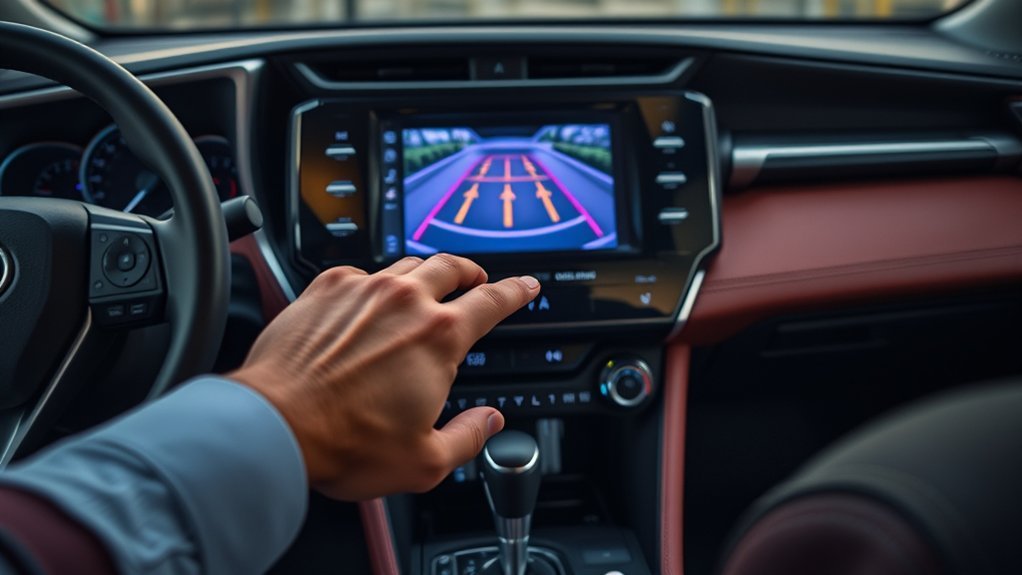
When you reverse your Toyota RAV4, the backup camera helps you see the area directly behind your vehicle. It can support safer parking, tighter turns, and better awareness near people, walls, curbs, and low objects.
According to the U.S. Department of Transportation, many vehicles under 10,000 pounds manufactured on or after May 1, 2018, must include rear visibility technology. That rule helps drivers see a 10-foot by 20-foot zone behind the vehicle and reduce backover risks.
Some RAV4 displays show guide lines that help you judge distance and path. Your exact guide line options depend on model year, trim, and multimedia system.
Before You Try to Change Backup Camera Settings
Before you look for a disable option, understand what Toyota usually lets you change. Toyota owner materials describe camera display adjustments, such as brightness and contrast, but they do not confirm a universal full off switch for every RAV4.
You should also check your local rules before you alter any safety feature. A dealer can tell you whether a change affects warranty coverage, safety compliance, or other driver-assist systems.
Note: Your RAV4 model year, trim, market, and multimedia system can change which camera settings you see.
Estimated Time and What You’ll Need
Plan on 5 to 10 minutes to check the normal menu options. You do not need tools if you only review the infotainment settings.
| Item | Why You Need It |
|---|---|
| Owner’s manual | Check model-specific camera instructions |
| Infotainment screen | Review display and camera options |
| Vehicle identification number | Ask a dealer about exact supported settings |
| Clean microfiber cloth | Clean the lens if the image looks poor |
| Toyota dealer contact | Confirm advanced or restricted options |
Do not remove trim panels, cut wires, or unplug camera wiring unless a qualified technician tells you to do so. Modern camera systems can connect to parking assist, display, and safety warning functions.
How to Handle Backup Camera Settings Step by Step
Use these steps to check your Toyota RAV4 settings safely. Treat the process as a settings check, not a guaranteed disable method.
- Park your RAV4 in a safe, level place and keep your foot on the brake.
- Power on the vehicle or switch it to the accessory mode your manual recommends.
- Open the infotainment system and select the main settings menu.
- Look for display, camera, safety, parking assist, or vehicle customization options.
- Adjust available camera display settings, such as brightness, contrast, or guide line display, if your system offers them.
- Read the owner’s manual if you do not see a camera menu.
- Contact a certified Toyota dealer if you want a deeper change than the normal menu allows.
Check the Vehicle Settings Menu
Your RAV4 may show camera-related options in the infotainment display or vehicle settings screen. Look for labels such as “Display,” “Camera,” “Parking Assist,” “Safety,” or “Vehicle Customization.”
- Turn on your vehicle and open the infotainment system.
- Select the main settings menu on the display.
- Check the display or camera section first.
- Review any guide line, brightness, contrast, or view options.
- Stop if you cannot find a clear setting in the normal menu.
Toyota quick reference materials describe camera image adjustment through the display settings. They do not confirm a universal setting that fully disables the rear-view camera.
Ask a Toyota Dealer About VIN-Specific Options
If you want to change more than display settings, a certified Toyota dealer gives you the safest path. The dealer can check your vehicle identification number and confirm what Toyota supports for your exact RAV4.
Ask about cost, warranty impact, safety-system impact, and whether Toyota allows the change. Do this before you approve any software or hardware work.
| Step | Action | What to Ask |
|---|---|---|
| 1 | Call your Toyota dealer | Ask if your VIN supports camera changes. |
| 2 | Describe the exact issue | Explain whether you want less glare, fewer lines, or no image. |
| 3 | Confirm safety impact | Ask if the change affects parking assist or compliance. |
| 4 | Get the answer in writing | Keep service notes for your records. |
A dealer can also check whether a recall, software update, or camera fault explains the problem you want to solve.
Use Only Safe Temporary or Diagnostic Methods
Some drivers try quick fixes when the camera image annoys them. These methods can create safety risks, so use caution and avoid permanent changes without professional guidance.
Warning: Do not cover, unplug, or disable the backup camera for normal driving because you can reduce rear visibility and affect safety systems.
- Clean the camera lens if glare, dirt, snow, or water affects the image.
- Adjust display brightness or contrast if the screen feels distracting at night.
- Ask a dealer before you use third-party customization tools.
- Avoid unplugging camera wiring unless a trained technician performs the work.
- Use a lens cover only during parked diagnostic checks, not while driving.
Choose the least invasive option first. Many drivers solve the real problem by changing screen settings or fixing a dirty lens.
What to Do If Backup Camera Problems Start After Changes
If your backup camera acts strangely after settings changes, start with the simple checks. A blank image, frozen image, poor view, or warning icon can come from dirt, display settings, loose connections, or software issues.
Do not keep reversing only by the screen if the image looks wrong. Use mirrors, shoulder checks, and slow movement until you fix the issue.
Check Camera Connection Issues
When you change settings or service the rear of the vehicle, camera problems can appear later. Use this checklist before you assume the camera has failed.
- Clean the backup camera lens with a soft cloth.
- Check the rear liftgate area for damage near the camera.
- Confirm that display brightness and contrast did not change too far.
- Restart the vehicle and test the camera again in a safe area.
- Ask a technician to inspect wiring if the image stays blank or flickers.
Avoid pulling panels or connectors yourself unless you have the right repair information. You can cause more faults if you disturb nearby wiring.
Reset Vehicle Settings Required
A settings reset may help if the display behaves strangely after a menu change. Use the reset option only if your owner’s manual supports it and you understand what personal settings you may lose.
Before you reset anything, write down your preferred audio, phone, navigation, and driver-assist settings. After the reset, test the backup camera in a safe place before you drive in traffic.
Pro tip: If the camera freezes or shows a blank image, check recall status before you pay for diagnosis.
Check Recall Status Before Changing Camera Settings
Some backup camera problems come from software, not from your settings. NHTSA recall 25V744 covers certain 2023-2025 Toyota RAV4 vehicles equipped with a Panoramic View Monitor system and a Parking Assist electronic control unit.
The NHTSA report says the rear-view image may briefly freeze or fail to display under certain conditions. The remedy calls for dealers to update the Parking Assist electronic control unit software free of charge for involved vehicles.
Use your vehicle identification number to check Toyota or NHTSA recall records before you modify camera settings. This step matters most if your RAV4 shows a blank image, delayed image, frozen image, or intermittent camera fault.
What Drivers Report About Backup Camera Changes
Drivers often want fewer alerts, a less distracting screen, or fewer guide lines rather than a fully disabled camera. That difference matters because display comfort usually has a safer fix than turning off the camera.
- Some drivers ask dealers to check customization options for their model year.
- Some drivers adjust brightness or contrast to reduce screen distraction.
- Some drivers clean the lens after blaming the camera system for a poor image.
- Some drivers report that guide line behavior changes by trim and camera package.
- Some drivers prefer mirrors first and use the camera as a support tool.
User reports can help you ask better questions, but they should not replace your owner’s manual or dealer guidance. Your RAV4’s exact equipment controls what you can change.
Troubleshooting Common Backup Camera Issues
Backup camera issues can frustrate you when you rely on the screen for parking. Start with the easiest checks before you assume the system needs repair.
Clean the lens, check the display brightness, and restart the vehicle in a safe place. If you see a warning symbol, delayed image, frozen image, or blank screen, check recall status and ask a Toyota dealer for diagnosis.
- Use a soft cloth to clean dirt, rain spots, or road salt from the lens.
- Check the rear liftgate area for signs of impact or damage.
- Make sure the display settings still show a visible image.
- Test the camera only while parked or in a clear, safe area.
- Contact a dealer if the issue returns after basic checks.
Do not rely only on the camera while you troubleshoot. Use mirrors and look over your shoulder before you reverse.
Safe Ways to Reverse Without Relying Only on the Camera
The backup camera helps, but it should not replace your eyes, mirrors, or judgment. A camera has a limited view and may miss objects outside its field of vision.
Better reversing habits help you stay aware, even when the camera works correctly.
- Check both side mirrors before you move.
- Look over your shoulder to scan blind spots.
- Reverse slowly in tight spaces.
- Use parking sensors as support, not as your only guide.
- Stop and recheck if a person, pet, or object leaves the camera view.
Practice in an open area if you feel too dependent on the screen. Strong basic reversing skills make you safer with or without the camera display.
Frequently Asked Questions
Can I Disable My Backup Camera?
You usually cannot fully disable a Toyota RAV4 backup camera from the normal settings menu. You can often adjust the display or guide line behavior, depending on your model year and multimedia system.
Ask a certified Toyota dealer before you try deeper software or hardware changes. That step helps you avoid safety, warranty, and compliance problems.
How Do I Turn off My Toyota Camera?
Start by checking the display, camera, parking assist, and vehicle customization menus. If you only want the screen to feel less distracting, adjust brightness, contrast, or guide line settings when available.
If you want the camera fully off, contact a Toyota dealer. Toyota may not support that change for your exact RAV4.
How to Turn off Parking Sensor RAV4?
Parking sensor controls differ by model year, trim, and package. Look for parking assist or sonar settings in the vehicle settings menu, then check your owner’s manual for the exact control path.
Parking sensors and the backup camera may work as separate systems. Turning down sensor alerts does not always disable the camera image.
What Recall Affects Some Toyota RAV4 Backup Cameras?
NHTSA recall 25V744 covers certain 2023-2025 Toyota RAV4 vehicles with a Panoramic View Monitor system. The report says a software issue may cause the rear-view image to freeze briefly or fail to display under certain conditions.
Check your vehicle identification number through Toyota or NHTSA before you assume your RAV4 has this issue. A dealer can complete the listed software remedy for involved vehicles.
Is It Safe to Cover the Backup Camera Lens?
No, you should not cover the backup camera lens for normal driving. A covered lens reduces rear visibility and can make reversing less safe.
If a technician asks you to cover the lens for diagnosis, do it only while parked or in a controlled test area. Remove the cover before regular driving.
Safety Disclaimer: This article is for informational purposes only and does not replace your owner’s manual or advice from a qualified Toyota technician. Always follow local laws, safety rules, and official service guidance before changing a vehicle safety system.
Conclusion
Your Toyota RAV4 backup camera works as a safety aid, so you should treat full disablement with care. Start with safer fixes, such as cleaning the lens, adjusting display settings, or checking the owner’s manual.
If the camera distracts you or fails to work correctly, ask a certified Toyota dealer to check your VIN and recall status. You’ll make the safest choice when you solve the real problem instead of removing a safety feature.
References
- NHTSA Announces Final Rule Requiring Rear Visibility Technology — U.S. Department of Transportation, 2014
- Federal Motor Vehicle Safety Standards; Rear Visibility — Federal Register, 2014
- Toyota RAV4 2024 Quick Reference Guide — Toyota, 2024
- Part 573 Safety Recall Report 25V744 — National Highway Traffic Safety Administration, 2025
