Connecting a dash cam to your phone lets you check the camera angle, change settings, review recordings, and save important clips without removing the memory card. The exact pairing method depends on the camera model: some use a direct Wi-Fi network, while others begin inside the official app with Bluetooth or QR-assisted setup.
Quick Answer
Power the dash cam and enable its wireless pairing mode. Install the manufacturer’s official app, then follow the app prompts or connect to the camera’s SSID in your phone’s Wi-Fi settings. Accept the “no internet” warning, grant the requested permissions, reopen the app, and choose Live View, Gallery, or Download.
Key Takeaways
- Use the official app listed in your dash cam’s manual or on the manufacturer’s support page.
- Start inside the app unless your model specifically tells you to select its Wi-Fi network manually.
- A “Connected without internet” message is normal for many direct dash-cam Wi-Fi networks.
- On iPhone, Local Network access is especially important. Android permissions vary by app and operating-system version.
- Keep the vehicle parked, maintain power during firmware updates, and back up important footage before resetting or formatting anything.
At a Glance
| Time Required | About 5–10 minutes for initial setup |
| Difficulty | Easy |
| Tools Needed | Powered dash cam, smartphone, official app, and the camera manual or Wi-Fi label |
| Cost | Usually $0 for direct Wi-Fi; optional cloud services may cost extra |
Note: This guide covers standard local Wi-Fi and app connections. Cloud-connected or cellular models, including supported BlackVue Cloud and Nextbase iQ cameras, may also offer remote access through the internet. Follow the cloud setup guide for your exact model.
Before You Connect Your Dash Cam
Complete these checks before changing network settings on your phone:
- Confirm phone connectivity: Check the camera specifications or manual to verify that the model supports Wi-Fi, Bluetooth pairing, or a mobile app.
- Install the official app: Use the app named by the manufacturer. Avoid similarly named third-party apps.
- Power the camera correctly: Keep the dash cam connected to its normal vehicle power source or another manufacturer-approved power supply.
- Insert the microSD card if required: Some models will not complete pairing or show a gallery without a compatible card installed.
- Keep the phone nearby: Sit inside or stand beside the parked vehicle during pairing.
- Find the Wi-Fi credentials: The SSID and password may appear on the camera screen, a label, the packaging, or in the manual.
- Pause conflicting connections: A VPN, wireless CarPlay, Android Auto, another saved Wi-Fi network, or another paired phone may interfere with setup.
Warning: Park safely before opening the dash cam app, watching live video, downloading recordings, or changing settings. Do not operate the app while driving.
Understanding Dash Cam Wi-Fi Connectivity
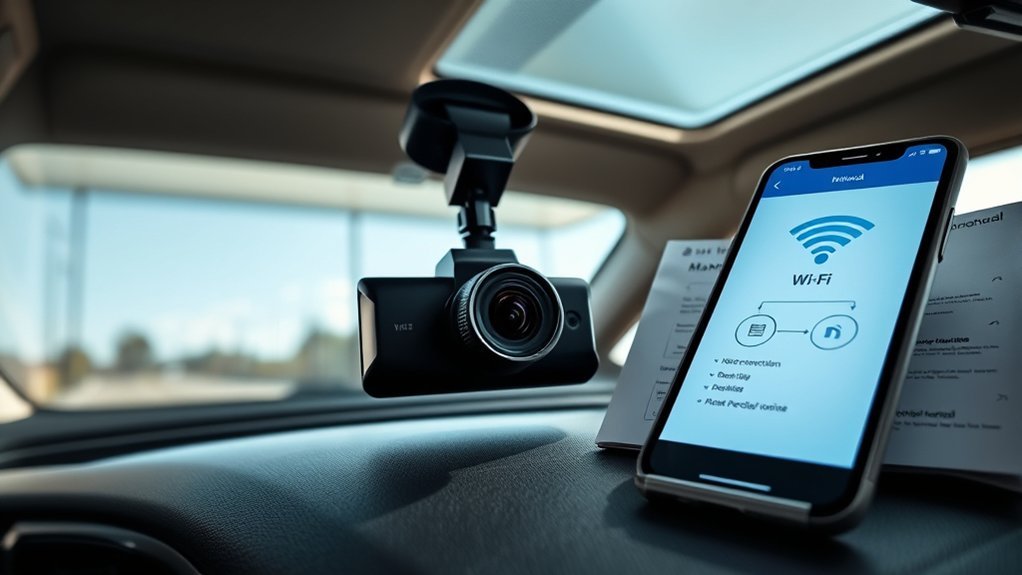
Many dash cams create a short-range local Wi-Fi network that lets your phone communicate directly with the camera. This network is mainly used for live view, playback, downloads, and settings. It normally does not provide internet access.
The connection method varies by model. Some cameras require you to select the camera’s SSID manually. Others begin with Bluetooth or a QR code inside the app and activate Wi-Fi only when you request live view or recorded footage.
Wi-Fi-band support is also model-specific. Some cameras use 2.4GHz, while others can use 5GHz or let you switch between the two. A 2.4GHz connection may provide better range, while a supported 5GHz connection can transfer video faster at close range. Check the manual or camera menu instead of choosing a band based only on the camera’s age.
Note: When your phone displays “No internet,” “Connected without internet,” or a similar warning, choose the option that keeps the phone connected. The dash cam’s local network is working as intended even though it cannot load websites.
Common Brand Pairing Methods
| Brand example | Typical setup method |
|---|---|
| VIOFO | Enable camera Wi-Fi, select the VIOFO SSID in phone settings, remain connected without internet, and open the VIOFO app. |
| BlackVue | Depending on the model, use Bluetooth-assisted seamless pairing, QR registration, or manual Wi-Fi setup in the BlackVue app. |
| Garmin | Begin in the Garmin Drive app, allow Bluetooth when prompted, place the camera in pairing mode, and follow the app instructions. |
| Nextbase | Open MyNextbase Connect, select the camera, verify its identity or serial number, and complete the Bluetooth and Wi-Fi prompts for the model. |
How to Connect a Dash Cam to Your Phone
- Park and power the camera. Turn on the ignition or connect the dash cam to an approved power source. Wait until the camera finishes starting.
- Open the official app. Select “Add Camera,” “Add Device,” “Connect Camera,” or the closest matching option.
- Follow the model-specific pairing prompt. The app may ask you to enable Bluetooth, scan a QR code, press a Wi-Fi button, hold a pairing button, or open a pairing menu on the camera.
- Connect to the dash cam’s network when requested. Open your phone’s Wi-Fi settings, select the correct SSID, and enter the password if your model uses manual Wi-Fi pairing.
- Stay connected without internet. If the phone warns that the camera network has no internet, choose “Stay Connected,” “Use This Network,” or the equivalent option.
- Return to the app. Do not remain in the phone’s Wi-Fi menu. Reopen the dash cam app and wait for the camera status to show connected.
- Grant requested permissions. Approve the permissions needed for local-device access, pairing, saving footage, or scanning a QR code.
- Test the connection. Open Live View or Preview. Then open the Gallery, Videos, or Playback section to confirm that recordings are visible.
Pro Tip: Complete the first pairing with the phone and camera very close together. After the camera is registered in the app, later connections are usually easier.
iPhone Permissions to Check
On an iPhone, open Settings → Privacy & Security → Local Network and make sure the dash cam app is enabled. Apple requires apps to request Local Network access before they can communicate with devices on the same local network.
Also check the dash cam app under Settings → Apps or in the main Settings app. Depending on the camera and feature, it may request Bluetooth, Camera, Photos, Location, or Cellular Data access. Camera access may be needed to scan a QR code, while Photos access may be needed to save downloaded clips.
Apple’s current Local Network guidance is available from Apple Support.
Android Permissions to Check
On Android, open Settings → Apps → your dash cam app → Permissions. Menu wording varies by phone manufacturer and Android version.
Grant the permissions the official app requests for the features you are using. These may include Nearby Devices, Location, Photos and Videos, Camera, or Bluetooth-related access. Android may also pause an unused app and remove or restrict its permissions, so review them again if a previously working connection suddenly fails.
Google explains current permission categories in its Android app-permission guide.
How to View, Download, and Save Dash Cam Footage
- Connect to the camera and open its official app.
- Select Gallery, Playback, Videos, Review Footage, or the model’s equivalent menu.
- Choose the front, rear, cabin, parking, event, or normal-recording category if the app separates files.
- Tap a clip to preview it.
- Select Download, Export, or Save to Phone to create a copy on the phone.
- Keep the app open and the phone close to the camera until the transfer finishes.
- Open the phone’s Photos, Gallery, or Files app and verify that the saved copy plays correctly.
- Share the saved copy only after confirming that it is stored outside the camera’s microSD card.
High-resolution or multi-channel recordings may take longer to transfer than short low-resolution clips. A supported 5GHz connection may improve speed at close range, but the actual transfer time depends on the camera, phone, file size, and signal quality.
Warning: Download important evidence before changing major recording settings, formatting the microSD card, performing a factory reset, or starting a firmware procedure. A reset or format can remove recordings, including files marked as events on some models.
Common Connection Problems and Their Causes
Start with the symptom shown on your phone or inside the app. The table below gives the most likely cause and the safest first action.
| Problem | Likely cause | What to do |
|---|---|---|
| Dash cam SSID does not appear | Camera Wi-Fi is off, the camera is not fully powered, or the model uses app-first pairing | Confirm the Wi-Fi indicator or pairing mode, restart the camera, and follow the exact manual for that model. |
| Phone reports no internet | The camera provides a local connection only | Choose the option to remain connected, then return to the dash cam app. |
| Phone is connected, but the app cannot find the camera | Local Network permission is off, Android is switching to cellular data, or a VPN is rerouting traffic | Enable the requested permissions, select “stay connected,” and temporarily disable the VPN or automatic network switching. |
| Incorrect-password message | The password was changed, entered with the wrong case, or saved incorrectly | Forget the saved network, re-enter the password from the camera or manual, or follow the manufacturer’s password-reset process. |
| Connection repeatedly drops | Weak signal, another network, CarPlay, Android Auto, VPN software, or another connected phone | Move closer, disconnect competing services, and make sure another phone is not actively using the camera. |
| Live view works, but downloads fail | Insufficient phone storage, missing Photos permission, an unstable connection, or a damaged file | Free storage, allow photo or file access, keep the app open, and test a shorter clip. |
| Camera previously worked but no longer connects | App permissions were reset, the app or firmware changed, or old pairing data is conflicting | Review permissions, restart both devices, forget the old network, and pair again. |
Dash Cam Wi-Fi Network Is Missing
Confirm that the dash cam is fully powered and has finished starting. Press or hold the Wi-Fi button only as directed by the manual. Some cameras require recording to be stopped before a wireless setting can be changed, while others keep Wi-Fi on automatically.
If the model uses Bluetooth-assisted setup, the SSID may not appear until you start the pairing process inside the app. Restart the dash cam and phone, move closer, and check that another phone is not already connected.
Phone Says “Connected Without Internet”
This message is expected when the dash cam creates a private local network. The network connects your phone to the camera but does not act as an internet router.
Choose Stay Connected, Use This Network, or similar wording. If Android continues moving app traffic to cellular data, temporarily disable mobile data while using the camera app. Restore it after you finish.
App Cannot Find the Connected Camera
First confirm that the phone is connected to the camera’s SSID rather than home, office, or vehicle Wi-Fi. Then return to the app and check permissions.
Temporarily disable third-party VPN or security-routing apps. These services can send local app traffic through another route and prevent the app from reaching the camera. Wireless CarPlay or Android Auto can also compete for Wi-Fi or Bluetooth, so disconnect them during setup if the manufacturer recommends it.
Wrong Wi-Fi Password
Wi-Fi passwords are case-sensitive. Check the camera screen, removable camera label, packaging, manual, or official app for the current credentials. Do not assume that a password found in an online forum applies to your model.
If your phone saved an incorrect password, select the camera network in Wi-Fi settings and choose Forget This Network or Forget. Reconnect and type the password again. Use the manufacturer’s official reset instructions if the password was changed and cannot be recovered.
Distance and Signal Strength
Keep the phone inside the parked vehicle and close to the camera during initial pairing. Some manufacturer documentation describes direct Wi-Fi operation at distances up to about 10 meters, but obstacles, interference, the selected band, and the phone can shorten that range. Garmin recommends keeping supported cameras and phones within 3 meters during pairing.
If the connection drops, move closer and keep the phone in a clear line of sight to the camera. Avoid testing from inside a building while the camera remains in the vehicle.
2.4GHz Versus 5GHz Problems
Use the band supported by both the camera and phone. Do not force 5GHz unless the model provides that option. If a supported 5GHz connection is unstable, switch to 2.4GHz and test again. If transfers are slow but stable on 2.4GHz, switch to 5GHz only while close to the camera.
How to Reset a Dash Cam Phone Connection
Use the following order. Test the connection after each step instead of performing every reset at once:
- Close the dash cam app completely and reopen it.
- Turn the camera’s Wi-Fi off and back on using the model’s approved control.
- Disconnect from other saved Wi-Fi networks and reconnect to the correct dash cam SSID.
- Restart the dash cam, then restart the phone.
- Forget the camera network on the phone and pair it again.
- Review Local Network, Nearby Devices, Bluetooth, Photos, Location, and other permissions requested by the app.
- Temporarily disable a VPN, wireless CarPlay, Android Auto, or automatic Wi-Fi switching.
- If you use Airplane Mode, turn it on briefly, then turn it off and manually re-enable the Wi-Fi and Bluetooth required by your camera.
- Remove the camera from the app and repeat the official pairing process.
- Update or reinstall the official app if it remains unable to detect the camera.
- Use a factory reset only after backing up important recordings and confirming the reset instructions for your exact model.
Pro Tip: Write down the exact error message before resetting anything. “SSID not found,” “wrong password,” and “camera not detected” have different causes and should not be treated as the same problem.
Checking and Updating the App and Firmware
App and firmware updates can correct compatibility problems, but the update method differs between cameras. Some models update through the mobile app, while others require a firmware file on the microSD card.
- Identify the exact model and hardware version. Do not install firmware intended for a similar-looking camera.
- Open the manufacturer’s official support page or app. Confirm that the update is newer than the version currently installed.
- Read the complete update instructions first. Check whether the phone needs internet access, cellular data, direct camera Wi-Fi, or a computer and microSD card.
- Back up important footage. Copy evidence and personal recordings before beginning.
- Use continuous power. Keep the camera connected to a stable, approved power source throughout the update.
- Do not close the app, remove the card, disconnect power, or press buttons unless instructed.
- Wait for the camera to restart completely. Then check the installed firmware version and test recording and app connectivity.
Warning: Interrupting a firmware installation can leave the dash cam unable to start. Follow only the instructions published for the exact model and maintain power until the manufacturer says the update is complete.
When to Use the microSD Card Instead
A direct card transfer is often better when the wireless connection is unstable, the recording is very large, or you need to preserve evidence quickly.
- Stop recording and power down the dash cam as directed by the manual.
- Remove the microSD card carefully.
- Insert it into a compatible card reader connected to a phone, tablet, or computer.
- Copy the required files to a separate folder without renaming or editing the originals.
- Verify that the copied files play correctly.
- Eject the card properly before returning it to the dash cam.
Do not delete files or format the card until the important footage has been copied and verified in at least one other location.
When to Get Help With Connection Problems
Contact the manufacturer if the camera will not broadcast its network, repeatedly rejects a verified password, disappears from the app after a factory reset, or cannot complete an official firmware procedure.
Provide the following information to support:
- Exact dash cam model and hardware version
- Camera serial number, if requested through a secure support channel
- Phone model and operating-system version
- Dash cam app version
- Installed firmware version
- The exact error message
- Whether the SSID appears in phone Wi-Fi settings
- Whether another phone can connect
- Steps already attempted
A failed connection does not automatically mean the camera has a hardware fault. Testing with another compatible phone can help separate a camera problem from a phone setting or app problem.
Frequently Asked Questions
Why is my dash cam not connecting to my phone?
The phone may be connected to the wrong network, the camera may not be in pairing mode, the app may lack Local Network or Nearby Devices permission, or another phone may already be connected. Restart both devices, follow the official pairing method, remain connected if the network has no internet, and reopen the app.
How do I connect a dash cam to my phone through Wi-Fi?
Power the camera, install its official app, and start the app’s Add Device or pairing process. If instructed, enable the camera’s Wi-Fi, select its SSID in phone Wi-Fi settings, enter the password, choose to stay connected without internet, and return to the app.
Why is my dash cam Wi-Fi network not appearing?
The camera’s Wi-Fi may be off, the camera may not be fully powered, or your model may create its network only after pairing starts inside the app. Check the Wi-Fi indicator, restart the camera, move the phone closer, and follow the exact manual.
Why does the dash cam Wi-Fi say there is no internet?
Most direct dash-cam Wi-Fi networks are designed only for local communication between the camera and phone. They do not provide normal internet service. Choose Stay Connected or Use This Network, then return to the camera app.
Can I see my dash cam live on my phone?
Most app-compatible dash cams provide a local Live View or Preview feature while the phone is connected to the camera. Remote live view from another location requires a supported cloud or cellular camera, internet access, and sometimes a subscription.
What should I do if I forgot the dash cam Wi-Fi password?
Check the camera screen, label, packaging, manual, and official app first. If the password was changed and cannot be recovered, follow the manufacturer’s model-specific Wi-Fi credential or factory-reset procedure. Back up recordings before a full reset.
Can two phones connect to the same dash cam?
Some models can remember more than one phone, but direct live view or Wi-Fi access may be limited to one active phone at a time. Disconnect the first phone or turn off its Bluetooth and Wi-Fi before pairing or testing the second phone.
Conclusion
To connect a dash cam to your phone, begin with the official app and follow the pairing method for your exact model. That may involve Bluetooth, a QR code, manual SSID selection, or a combination of these methods.
If the connection fails, confirm that the phone remains connected to the camera’s no-internet network, review app permissions, disable competing connections, and reset one step at a time. Keep the vehicle parked during setup, save important footage before resetting anything, and follow the manufacturer’s instructions for every firmware update.
Sources
- Apple Support: Local Network privacy — explains iPhone and iPad Local Network permission controls.
- Google Android Help: Change app permissions — explains current Android permission categories and unused-app controls.
- Garmin Support: Pairing a Garmin Dash Cam — supports app-first Bluetooth pairing, proximity, power, and microSD-card guidance.
- VIOFO Support: How to Use the VIOFO App — supports direct Wi-Fi setup and explains the normal no-internet warning.
- BlackVue Product Manuals: Using the BlackVue App — explains Bluetooth pairing, QR setup, manual Wi-Fi, live view, and video management.
- Nextbase: Connect a Dash Cam to Your Phone — supports MyNextbase Connect pairing and permission guidance.
