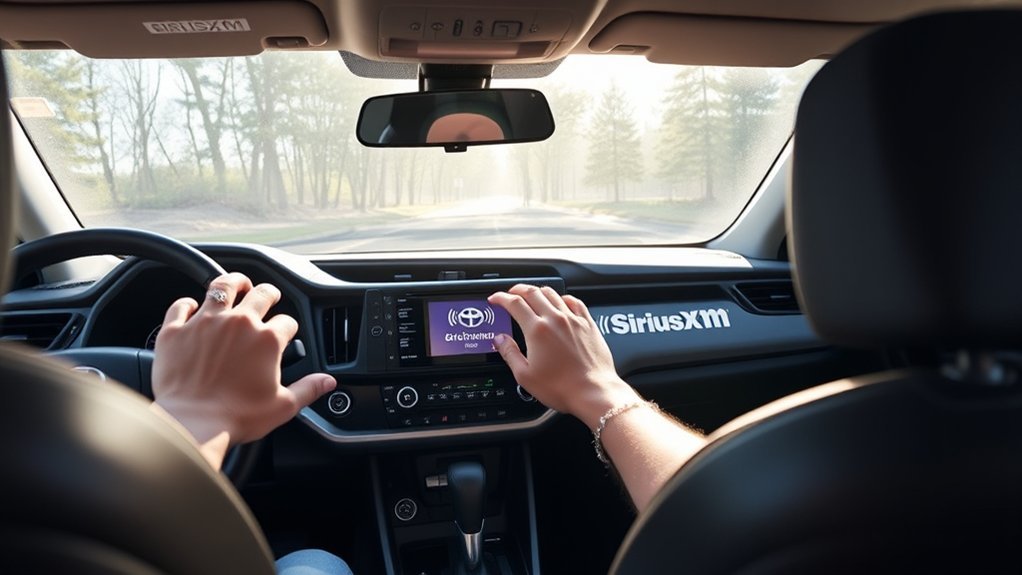
To activate SiriusXM in a Toyota RAV4, tune the radio to SXM channel 0 to display your Radio ID, then start a subscription or trial on the SiriusXM website or phone line using that ID, and keep the car parked outdoors with the radio on while the activation signal arrives. Channel lineups, trials and prices are set by SiriusXM and change over time, so check their site for the current offer rather than relying on any figure printed in an article.
How to Activate SiriusXM in a Toyota RAV4: Quick Steps
To activate SiriusXM in your Toyota RAV4, you’ll first want to ensure that the vehicle’s built-in SiriusXM feature is enabled. Check your infotainment system settings to confirm it’s ready for use. Next, you’ll need to register and log in through the SiriusXM app or your infotainment system to access the service. For existing subscribers looking to transfer service to your new RAV4, this can be done easily online or by contacting customer support. By following these steps, you’ll open up a world of audio entertainment, enhancing your driving experience with SiriusXM in your Toyota RAV4.
Steps to Create Your SiriusXM Account
To create your SiriusXM account, start by visiting the SiriusXM website and selecting the “Register” option. You’ll need to provide your personal information, including an email address and a secure password, along with any activation code from your Welcome Kit if you have a trial subscription. Once you’ve completed the registration, you’ll gain access to streaming features and be able to manage your subscription details.
Account Registration Process
Creating your SiriusXM account is a straightforward process that allows you to manage your subscription easily. Start by visiting the SiriusXM website or downloading the SiriusXM app on your device. Click on the “Register” or “Sign Up” option, then enter the required information, including your email address and password. Keep your vehicle identification number (VIN) handy, as it may be needed during the registration process for activation. After completing the registration form, verify your email by clicking the confirmation link sent to your inbox. Once your account is verified, log in using your email and password to access your SiriusXM subscription details and enjoy your radio experience in your Toyota RAV4.
Required Information Details
After registering for a SiriusXM account, you’ll need to gather some key information to complete the process. First, have your vehicle identification number (VIN) handy; this is essential for SiriusXM activation. You can find the VIN on your vehicle’s dashboard or inside the driver’s side door. Next, visit the SiriusXM website or use the app to input your personal details, including your name and email. Once you’ve entered these details, choose your preferred subscription plan that best fits your listening needs. After selecting the plan, follow the prompts to link your account to your vehicle by entering the activation code displayed on your radio. Make sure your radio is on and tuned to the specified SiriusXM channel for seamless activation.
Accessing Streaming Features
While accessing streaming features may seem intimidating, the process of creating your SiriusXM account is quite straightforward. Start by downloading the SiriusXM app on your preferred device. Open the app and follow the on-screen prompts to create your account using your email address and a password. Make sure to enter your vehicle’s VIN to link your subscription effectively. Once your account is set up, log in to the SiriusXM app with your credentials to begin enjoying streaming content immediately. Don’t forget to check your Welcome Kit for any specific instructions or activation codes needed for your trial subscription. If you encounter any issues, customer support is available to assist you with any difficulties.
Activating SiriusXM: Enter Your Radio ID
To activate SiriusXM, you’ll need to first locate your Radio ID by tuning to channel 0 on your RAV4’s radio. Once you have your Radio ID, you can enter it on the SiriusXM website or provide it to customer support to complete your activation.
Locate Radio ID
Finding your Radio ID is an essential step in activating SiriusXM in your Toyota RAV4. To locate it, tune your radio to channel 0. Alternatively, you can access the SiriusXM settings menu on your vehicle’s display to find the Radio ID. If you’re unable to locate it this way, check for a label on the radio or refer to your owner’s manual, where it’s often printed. Once you have your Radio ID, you’re ready to activate your service through the SiriusXM website or by calling their customer service.
Enter Activation Code
Once you’ve located your Radio ID, activating your SiriusXM service is straightforward. Head over to the SiriusXM activation website or call their customer service number. Enter your Radio ID when prompted to initiate the SiriusXM activation process. Verify your Toyota RAV4 is parked in an open area with a clear view of the sky to facilitate satellite communication. After submitting your Radio ID, you should receive a confirmation of your activation, which may take a few minutes. Don’t forget to restart your radio afterward to complete the setup. Enjoy your newfound audio experience!
Accessing Channels After Activation
Accessing SiriusXM channels in your Toyota RAV4 is straightforward and enhances your in-car entertainment experience. After activation, you can plunge into a vast array of channels featuring music, sports, talk, comedy, news, and podcasts. To access channels, use the SiriusXM app or the built-in vehicle interface for easy browsing and selection. For quicker navigation, type in channel numbers directly.
The SiriusXM app also offers personalized recommendations tailored to your listening habits, helping you discover new favorites and enrich your audio journey. Additionally, on-demand listening allows you to replay shows and performances, giving you the flexibility to enjoy your content whenever you want. This seamless integration of features ensures you maximize your SiriusXM experience, making every drive more enjoyable and liberating. Embrace the freedom of choice and elevate your Toyota RAV4’s entertainment options today!
Integrate Siriusxm With Apple Carplay
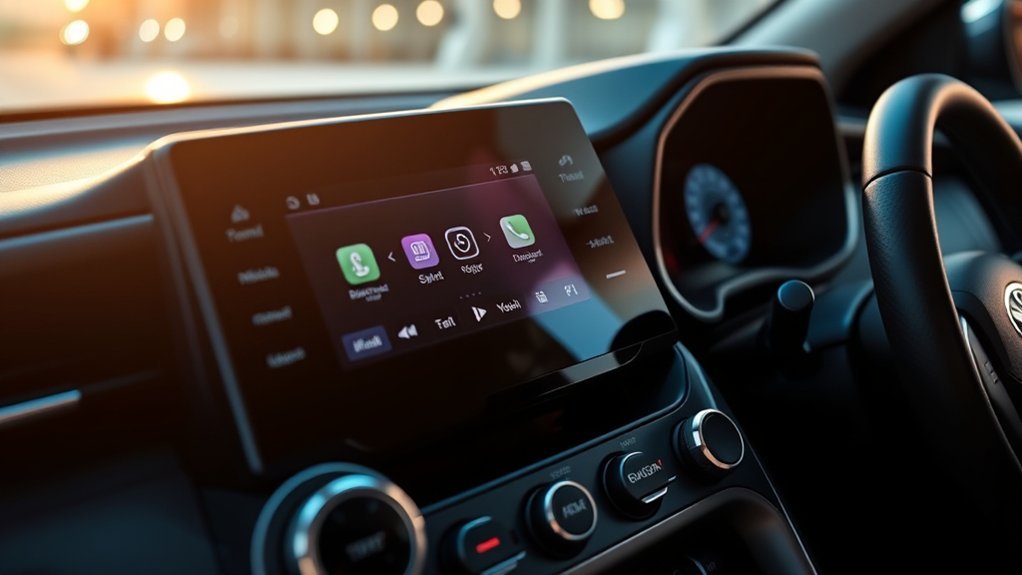
To integrate SiriusXM with Apple CarPlay in your Toyota RAV4, start by verifying the SiriusXM app is installed on your iPhone and connect your phone to the vehicle using a compatible USB cable. Once connected, the SiriusXM app will automatically launch, giving you direct access to your favorite channels and shows through the CarPlay interface. You can easily switch between SiriusXM and other audio sources using the audio source selection button on the car’s display screen.
If you prefer the built-in SiriusXM feature instead of the app, you’ll need to disable the SiriusXM app in your CarPlay settings on your iPhone. For peak performance, verify your vehicle’s software is updated to support the latest features and functionalities of both SiriusXM and Apple CarPlay. This integration enhances your driving experience, providing seamless entertainment while you navigate the road.
Troubleshooting SiriusXM Activation Issues
While activating SiriusXM in your Toyota RAV4 is typically straightforward, you may encounter issues during the process. First, verify your RAV4 XLE is equipped with the built-in SiriusXM feature and is within range of a satellite signal. Don’t forget to activate your subscription via the Toyota App; you’ll need to register and log in. Also, confirm that your vehicle’s radio firmware is up to date, as outdated software can cause activation problems. If issues persist, don’t hesitate to consult SiriusXM customer support for assistance or refer to your Welcome Kit for specific activation instructions. With these steps, you’ll navigate potential activation hiccups and enjoy your new Toyota’s SiriusXM features.
Manage Your SiriusXM Subscription
After resolving any activation issues, managing your SiriusXM subscription is the next step to ensure you get the most out of your entertainment experience. Start by logging into your online account for efficient subscription management. Here, you can easily navigate through your account to view and adjust your subscription details, including trial end dates and upgrade options. Keep an eye out for subscription management tips that enhance your experience. If you’re looking to save, consider family discount options, which allow you to bundle multiple subscriptions at a reduced rate. This not only cuts costs but also keeps everyone entertained. Should you encounter any challenges while managing your account, don’t hesitate to reach out to customer support for quick assistance. By actively managing your subscription, you’ll verify that your SiriusXM experience remains enjoyable and tailored to your needs.
Enhancing Your SiriusXM Listening Experience

Enhancing your SiriusXM listening experience in your Toyota RAV4 is straightforward, thanks to its built-in capabilities. This feature allows you to dive deeper into content that resonates with you and access channels by simply typing their numbers.
For a seamless audio experience, pair the SiriusXM app with Apple CarPlay. This integration enables easy switching between SiriusXM and other audio sources, including navigation apps, ensuring you stay connected while on the go.
Explore curated content across various genres, from music and sports to talk shows and podcasts. This diversity allows you to discover new favorites and enjoy exclusive programs. Finally, regularly check your subscription details in the Welcome Kit to maintain uninterrupted access to your preferred SiriusXM channels. Enjoy the freedom of tailored audio experiences in your RAV4!
Safety and Owner Manual Notes
Trial lengths, prices and packages change and differ by market, so check the current terms on the SiriusXM site. If the satellite source is missing from your audio menu, the car does not have the tuner and a streaming subscription through the SiriusXM app over CarPlay or Android Auto is the alternative.
Related reading:
- How to Activate SiriusXM in Your Toyota RAV4
- Does the Toyota RAV4 Have SiriusXM Satellite Radio?
- How To Delete Stations On Toyota RAV4 Sirius Xm
Frequently Asked Questions
Where do I find the Radio ID?
Select the satellite radio source and tune to channel 0; the Radio ID appears on the screen. It is also on the window sticker of a new car.
Why does the radio say no signal?
Satellite radio needs a clear view of the sky. Move out of a garage or from under trees and wait while the signal is received.
How long does activation take?
Usually a few minutes once the request is sent, with the radio on and tuned to a SiriusXM channel. Some systems need a refresh signal from the SiriusXM site.
Can I use SiriusXM without the tuner?
Yes, through the SiriusXM app on your phone over CarPlay, Android Auto or Bluetooth with a streaming subscription.
Conclusion
Channel 0 for the Radio ID, activate online or by phone, keep the radio on with a clear view of the sky, and check the current terms for trials and prices.