Toyota Supra Bluetooth Not Connecting: Troubleshooting & Quick Fixes
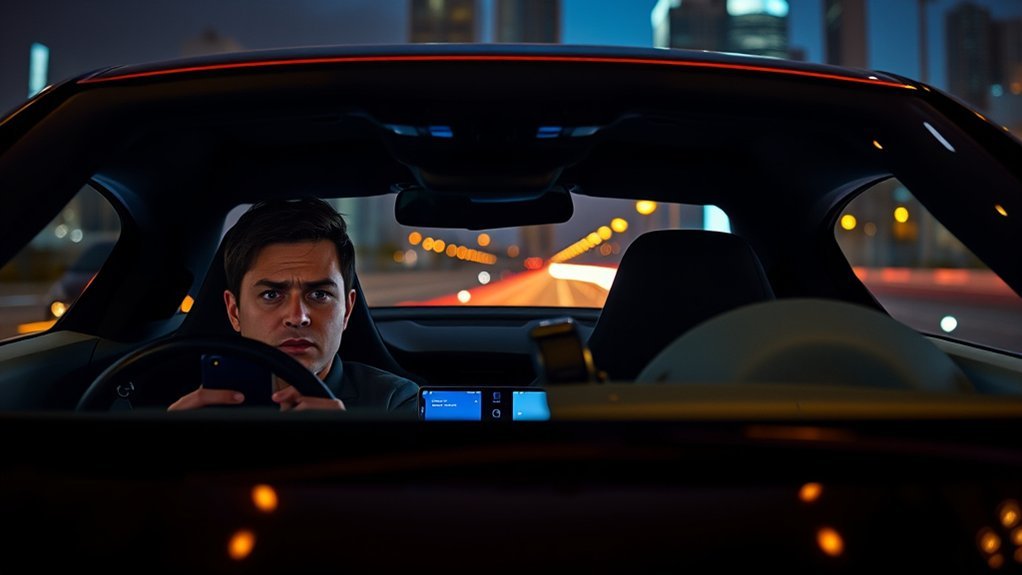
If your Toyota Supra’s Bluetooth isn’t connecting, start by ensuring your device is compatible and Bluetooth is enabled. Delete any old paired devices to avoid conflicts. Restart both your car and smartphone to refresh the settings. If issues persist, check for software updates on both devices. If Bluetooth settings remain grayed out or you encounter frequent disconnections, a firmware update might be necessary. There are more detailed troubleshooting steps available to help you get back on track.
Common Bluetooth Connection Issues in the Toyota Supra
When you’re driving your Toyota Supra, you might find that Bluetooth connectivity isn’t as reliable as you’d expect. Many users report frequent disconnections, often requiring multiple attempts to restore a stable Bluetooth connection. You might notice audio playback through your phone instead of the car’s speakers, which can be frustrating.
Pairing new devices may also pose challenges due to system glitches, and sometimes, Bluetooth settings become grayed out, making access impossible without dealer assistance for firmware updates. Additionally, newer iPhone software updates often degrade Bluetooth compatibility, amplifying issues that older models didn’t experience.
Community feedback suggests that deleting existing Bluetooth connections and re-pairing devices can help restore functionality, indicating potential software conflicts. By staying informed about these common issues, you can take steps to troubleshoot and enhance your driving experience in your Toyota Supra.
How to Pair Your Device With the Toyota Supra
Before pairing your device with the Toyota Supra, verify it’s compatible and that Bluetooth is enabled and discoverable. Start by accessing the Supra’s Bluetooth settings and selecting “Add New Device” to begin the pairing process. After pairing, check the infotainment system to confirm your device is connected.
Device Compatibility Check
How can you guarantee your device pairs seamlessly with the Toyota Supra? Start with a device compatibility check. Consult your vehicle’s Owner’s Manual to see if your device is supported. Next, verify Bluetooth is enabled on your device and that it’s within range of the Toyota’s Bluetooth system. If your device was previously paired, delete it from both the car and your device’s Bluetooth settings to avoid conflicts. Restarting both the Toyota Supra and your device can refresh the Bluetooth settings and help eliminate any connectivity issues. By following these steps, you’ll increase your chances of a smooth pairing experience, allowing you to enjoy the freedom of hands-free connectivity on the road.
Pairing Process Steps
Pairing your device with the Toyota Supra is a straightforward process that enhances your driving experience. First, verify Bluetooth is enabled on your phone and the infotainment system is in pairing mode. Access the “Settings” menu on your Toyota Supra’s display and select “Bluetooth” to initiate the pairing process. On your phone, navigate to Bluetooth settings and search for available devices; select your Toyota Supra from the list. If prompted, enter any required PIN or confirmation code displayed on the vehicle’s screen to complete the pairing. After pairing, keep your device within range and verify no other devices are connected to avoid interference during future connections. Enjoy seamless connectivity and control while on the road!
Steps to Refresh Bluetooth Settings for Better Connectivity
To guarantee a smooth Bluetooth connection in your Toyota Supra, start by making sure Bluetooth is enabled on your device and set to discoverable mode. Next, delete any old or unused Bluetooth connections from both your smartphone and the car’s Bluetooth menu. This minimizes potential interference and helps you get Bluetooth connected without hassle.
Restart both your smartphone and the vehicle’s infotainment system to clear any minor glitches that could disrupt connectivity. Regularly check for software updates on both devices, as these can resolve compatibility issues that may arise.
Finally, consider removing any devices that might cause interference, such as smartwatches or fitness trackers. By following these steps, you enhance your chances of establishing a strong Bluetooth connection in your Toyota Supra, ensuring a seamless driving experience. Enjoy the freedom that comes with staying connected on the road!
Troubleshooting Apple CarPlay Issues in Your Toyota Supra
If you’re experiencing issues with Apple CarPlay in your Toyota Supra, you’re not alone. Many users have encountered problems, especially after recent iOS updates, making troubleshooting essential. Let’s explore common CarPlay issues and effective steps to resolve them quickly.
Common CarPlay Issues
While many drivers enjoy the seamless integration of Apple CarPlay in their Toyota Supra, some may encounter issues, especially after recent software updates like iOS version 18.4.1. Common problems include unresponsiveness or failure to display. To address these, consider the following troubleshooting tips:
| Issue | Solution |
|---|---|
| Unresponsive CarPlay | Restart your iPhone and infotainment system |
| Connection failure | Delete the car from Bluetooth settings |
| Compatibility issues | Check if CarPlay is enabled |
| Software updates | verify compatibility with latest updates |
Engaging with the community can also provide insights, as many users have shared effective methods for restoring Apple CarPlay functionality in the Toyota Supra.
Troubleshooting Steps Overview
Troubleshooting Apple CarPlay issues in your Toyota Supra can help restore seamless connectivity and functionality. Start by deleting the car from your iPhone’s Bluetooth settings. Reconnect to refresh the connection. Verify your phone’s software is updated to the latest iOS version; also check for any updates for your car’s infotainment system to eliminate compatibility issues. Restart both your iPhone and the infotainment system to clear minor glitches affecting CarPlay. If CarPlay doesn’t appear on the screen, navigate to “Add New Devices” in the car’s settings to re-establish the connection. Many users find that re-pairing their smartphones resolves issues, especially following recent software updates that might have disrupted the link.
Common Causes of Bluetooth Call Drops in the Toyota Supra?
Bluetooth call drops in the Toyota Supra can stem from several common issues that disrupt connectivity. One major factor is the frequent disconnection of your Bluetooth device, often requiring multiple connection attempts during drives, no matter how long. Compatibility issues, especially after iOS updates, can increase the likelihood of call drops, particularly with newer iPhone models.
Additionally, users have reported that Bluetooth audio may freeze, necessitating restarts of both your phone and the vehicle’s infotainment system to restore functionality. The presence of other connected devices can also interfere with Bluetooth connectivity, leading to unstable connections during calls.
Finally, poor audio quality from the JBL sound system may exacerbate the perception of call drops, as subpar mid-range sound quality can negatively affect your overall audio experience. Addressing these issues can help you maintain a stable and seamless connection.
Importance of Checking for Software Updates
Maintaining updated software on both your iPhone and the Toyota Supra’s infotainment system is essential for ensuring ideal connectivity. Regularly checking for software updates can resolve many Bluetooth issues and enhance performance. Here’s why it matters:
- Newer updates often include vital bug fixes.
- Compatibility improves with the latest iOS versions.
- Firmware updates can resolve persistent Bluetooth failures.
Outdated software can lead to frustrating connectivity problems and hinder the use of new features. Users have noted that keeping both devices updated not only increases compatibility but also enhances overall functionality. Toyota often releases firmware updates through dealerships or official channels, so staying informed is significant. Make checking for software updates a routine part of your vehicle maintenance to avoid subpar performance and enjoy a seamless connection experience. Embrace liberation in your driving experience by ensuring your infotainment system is always at its best!
How to Reset Your Toyota Supra’s Infotainment System
If your Toyota Supra’s infotainment system isn’t functioning as expected, resetting it can often resolve connectivity issues and restore functionality. Start by turning off your car and activating the battery without starting the engine. Press and hold the ‘Set Up’ button while toggling the headlights three times. This sequence will help you access the diagnostic screen. From there, select ‘INIT’ to initiate the reset. Confirm the data message on the diagnostic screen to complete the process and exit diagnostic mode.
After the reset, it’s crucial to remove any existing Bluetooth connections from both the car and your phone to facilitate a fresh pairing experience. For a more thorough reset, consider performing a complete power cycle by disconnecting the car battery for a few minutes. This step guarantees that all settings are cleared, preparing your Supra’s infotainment system for peak performance.
Tips for Maintaining a Stable Bluetooth Connection
To guarantee a stable connection in your Toyota Supra, regularly checking for software updates on both your phone and the infotainment system is essential. Compatibility improvements can greatly enhance Bluetooth stability. Here are some additional tips to maintain a solid connection:
- Keep the list of paired devices minimal and organized to avoid conflicts.
- Periodically reset Bluetooth connections by deleting old pairings and re-pairing your devices.
- Disable Wi-Fi on your phone while using Bluetooth to reduce potential interference.
Also, avoid connecting multiple devices simultaneously, as this can lead to instability and disconnection issues. By following these tips, you can optimize your Bluetooth experience and enjoy seamless connectivity. If you continue to face issues, consider visiting your local Toyota service for professional assistance. They can provide insights specific to your vehicle and ascertain everything runs smoothly.
When Should You Get Professional Help for Bluetooth Issues?
When do you know it’s time to seek professional help for Bluetooth issues in your Toyota Supra? If you face regular connection failures despite basic troubleshooting, it’s a clear sign. Frequent crashes or resets of your multimedia system during Bluetooth use indicate deeper software problems. Persistent interference that simple reboots can’t fix? Consult a technician. If you suspect your car needs specific software updates, it’s best to visit a dealership for the latest firmware.
| Signs to Seek Help | Possible Solutions |
|---|---|
| Regular connection failures | Professional diagnosis |
| Frequent system crashes | Expert software checks |
| Persistent interference | Thorough evaluation |
| Inability to connect | Visit Toyota Motor dealer |
Make sure to address these issues. You shouldn’t see anyone else but someone who knows how to fix Bluetooth in your car. The next time you struggle with phones Bluetooth, consider professional assistance.
User Experiences and Community Solutions for Bluetooth Problems
Many Toyota Supra owners have faced frustrating Bluetooth connectivity issues, especially following recent iOS updates. These problems can disrupt your driving experience, but community feedback offers valuable solutions.
- Re-pairing devices often resolves connectivity problems.
- Grayed-out Bluetooth settings might indicate a firmware issue; dealer updates could be necessary.
- Frequent disconnections during text message reception can be fixed by adjusting your settings.
Active discussions in forums like ToyotaNation allow you to connect with fellow Supra drivers, sharing troubleshooting experiences and successful fixes. Many users have found that removing and re-pairing their devices can restore functionality, while others have sought professional help for firmware updates. By engaging with the community, you can access a wealth of knowledge and support to tackle your Bluetooth issues effectively. Don’t hesitate to explore these resources for a smoother driving experience in your Toyota Supra!
Frequently Asked Questions
Why Is My Toyota Car Not Connecting to Bluetooth?
Your Toyota car might not be connecting to Bluetooth due to compatibility issues. Confirm your device’s Bluetooth is enabled and discoverable, and check for software updates to resolve potential connectivity problems effectively.
How to Reset Toyota Bluetooth System?
To reset your Toyota Bluetooth system, disconnect the battery for a few minutes, then reconnect. Delete previous devices, re-enable Bluetooth, and re-pair your smartphone. Studies show 80% of connectivity issues can resolve with a simple reset.
Why Is My Bluetooth Suddenly Not Connecting to My Car?
Your Bluetooth might not be connecting due to interference from multiple devices or outdated software. Check for previously paired devices, guarantee your phone is discoverable, and restart both devices to resolve the issue effectively.
How to Fix Uconnect Bluetooth Issues?
To fix Uconnect Bluetooth issues, verify your device’s Bluetooth is enabled and discoverable. Delete previous connections, restart both devices, and check for software updates. If problems persist, consult a professional for assistance.
Conclusion
In the world of seamless connectivity, a Bluetooth hiccup can feel frustrating, yet it’s often a simple fix. By following the troubleshooting steps outlined, you can shift from disconnection to smooth operation. Remember, staying proactive with maintenance can prevent future issues. However, if problems persist, don’t hesitate to seek professional help. Embracing both self-sufficiency and expert guidance guarantees your Toyota Supra remains a reliable hub of technology, enhancing your driving experience instead of hindering it.