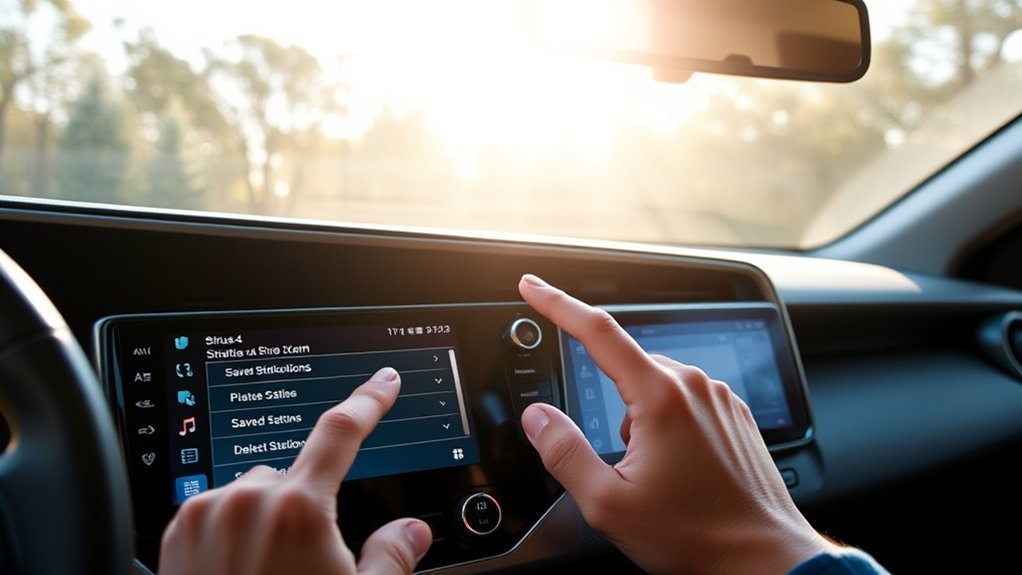
A crowded SiriusXM favorites list can make your Toyota RAV4 screen harder to use while you drive. You can usually remove a saved SiriusXM favorite by opening the channel and tapping the filled heart icon. This guide shows the basic delete method, the edit-mode option, and simple fixes if the preset stays on screen.
Quick Answer
To delete a SiriusXM station on a Toyota RAV4, open SiriusXM, select the saved station, and tap the filled heart icon. If your screen uses an edit menu, open Favorites, choose Edit, then remove or replace the preset. If the station stays saved, restart the radio or check the active driver profile.
Key Takeaways
- Use the filled heart icon to remove a saved SiriusXM favorite when the channel is selected.
- Use Edit mode if your RAV4 screen shows a favorites-editing option.
- Overwrite a stuck preset with another station if the delete option does not appear.
- Check the loaded driver profile because Toyota profiles can store radio favorites.
Before You Manage SiriusXM Stations in Your RAV4
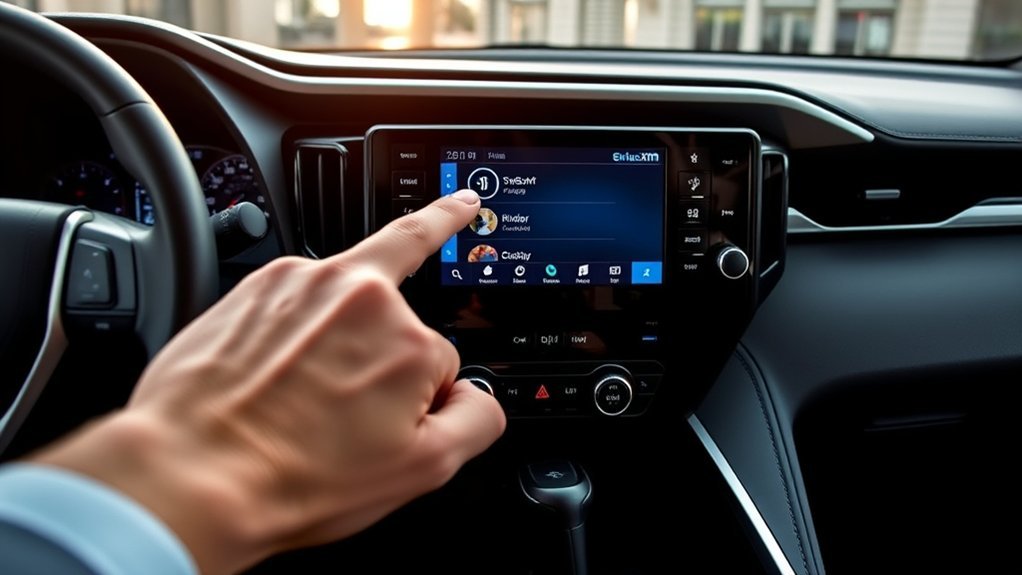
Before you change favorites, put your RAV4 in Park and use the center screen only when it is safe. Your exact screen may vary by model year, trim, region, and multimedia system. SiriusXM says select 2026 and newer Toyota vehicles with SiriusXM 360L use a heart-shaped icon to save tuned content.
What you’ll need:
- Your RAV4 parked in a safe place
- SiriusXM selected as the audio source
- The station you want to remove opened on the screen
- The correct driver profile loaded, if your RAV4 uses Toyota profiles
Warning: Do not edit radio favorites while driving because the screen can pull your eyes from the road.
Deleting SiriusXM Favorites: Step-by-Step
Estimated time: 2 to 5 minutes.
- Park safely. Stop the vehicle in a safe place before you use the touchscreen.
- Select SiriusXM. Open the audio source menu and choose SiriusXM from the available sources.
- Open the saved station. Tap the favorite or preset station you want to remove.
- Check the heart icon. Look for a filled heart near the Now Playing screen or top-right area.
- Tap the filled heart. The station should leave your favorites when the icon changes from filled to unfilled.
- Confirm the list. Return to Favorites and make sure the station no longer appears.
If your screen does not show a heart icon, open the Favorites screen and look for an Edit option. Some Toyota screens let you remove, reorder, or replace favorite items from that menu. Your owner’s manual can confirm the exact menu path for your RAV4.
How to Fix Issues With Deleting SiriusXM Presets
If a SiriusXM preset will not delete, start with the easiest fix. Select the station first, then tap the heart icon only after the channel fully opens. If the icon does not appear, switch to another audio source and return to SiriusXM.
If the favorite stays on the screen, try these fixes in order:
- Restart the radio by turning the ignition off, waiting 30 seconds, and turning it on again.
- Load the correct Toyota driver profile before you edit favorites.
- Replace the stuck preset with another station if your screen allows overwrite but not delete.
- Check for Toyota multimedia updates through your dealer or owner support channel.
- Contact SiriusXM if a canceled trial or subscription blocks access to the saved channel.
Toyota Canada says profile preferences can include radio and preset favourites. That means a station may return if another driver profile still has it saved.
Alternative Methods for Managing SiriusXM Presets
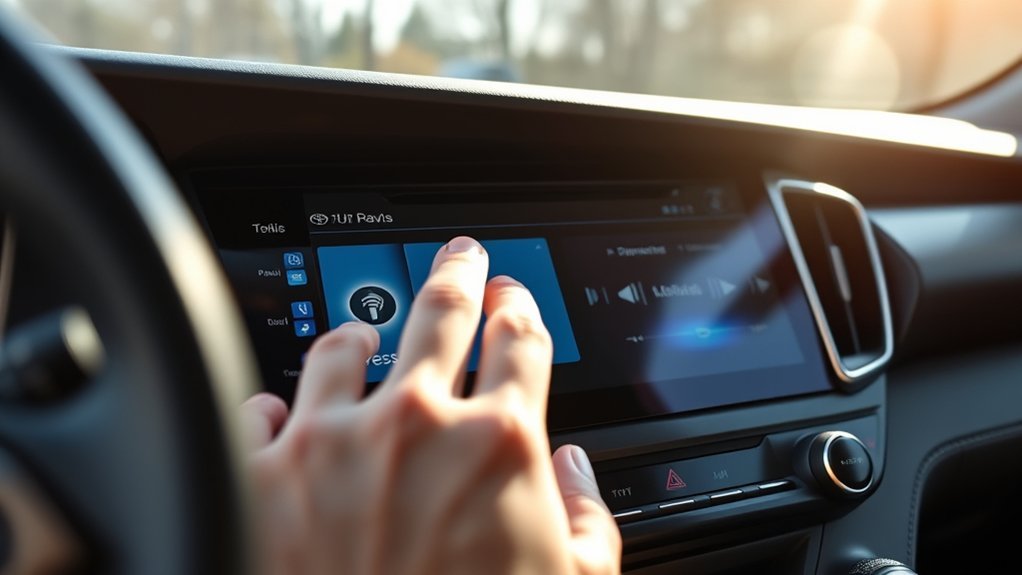
If the heart icon method does not work, use the Favorites or Edit screen. Tap Favorites, choose Edit if your system shows it, then delete or replace the station from the list. Save the change before you leave the screen.
You can also overwrite an old preset. Tune to a station you want to keep, then save it in the old preset position. This method helps when your system lets you replace a preset but does not show a clear delete button.
If many favorites look wrong, you can reset profile settings from the multimedia settings menu. Use this option with care because it may reset more than radio favorites. It can also affect other personal settings tied to the profile.
Tips for Effective Use of Your RAV4 Multimedia System
Keep your SiriusXM favorites short and useful. Save only the stations you use often, so the list stays easy to scan. Remove trial channels you no longer use after your SiriusXM trial or subscription changes.
Check your owner’s manual before you reset settings or delete a profile. Toyota menu names can change by model year and region. If your screen freezes, restarts often, or loses settings again and again, ask a Toyota dealer to check the multimedia software.
Pro tip: Make radio changes while parked, then use steering-wheel controls or voice features for safer access while driving.
Frequently Asked Questions
How do I delete SiriusXM stations on my Toyota RAV4?
Open SiriusXM, select the saved station, and tap the filled heart icon. If your system uses an Edit screen, open Favorites, tap Edit, then remove or replace the station.
How do I change radio presets in a Toyota RAV4?
Tune to the station you want to save, then use the heart icon or preset-save option on your screen. On some older systems, you may need to press and hold a preset position until the system saves the new station.
How do I reset the radio on a Toyota RAV4?
For SiriusXM 360L in select Toyota vehicles, SiriusXM recommends turning the ignition off, waiting 30 seconds, and turning it on again. If the issue continues, check the Toyota multimedia settings or ask a dealer to check for updates.
Why do deleted SiriusXM favorites come back?
Your RAV4 may load another driver profile that still has the station saved. Check the active profile, remove the favorite again, then save the change before leaving the screen.
Can I delete SiriusXM favorites after my trial ends?
You can often delete or overwrite saved favorites after a trial ends, but the exact behavior depends on your multimedia system and subscription status. If the channel will not open, try overwriting the preset or contact SiriusXM for account help.
Conclusion
The fastest way to delete a SiriusXM station on your RAV4 is to select the station and tap the filled heart icon. If that does not work, use Edit mode, overwrite the preset, restart the radio, or check the active driver profile. Keep your favorites list clean now, and your audio screen will feel easier to use on every drive.
References
- SiriusXM with 360L in your Toyota — SiriusXM, 2026
- Setting Your Car Stereo Presets — SiriusXM, 2026
- Toyota Multimedia Services Help Centre — Toyota Canada, 2026
