
To use your dash cam effectively, start by turning on loop recording to guarantee continuous footage. Activate the G-sensor to capture significant incidents while minimizing false triggers. Set the resolution to at least 1080P for clear images. Don’t forget to sync your dash cam with your smartphone for easy access to footage and settings. Regular maintenance is key too. Stay tuned for more tips on optimizing your dash cam for the best protection and performance.
Why Using a Dash Cam Is Important for Drivers
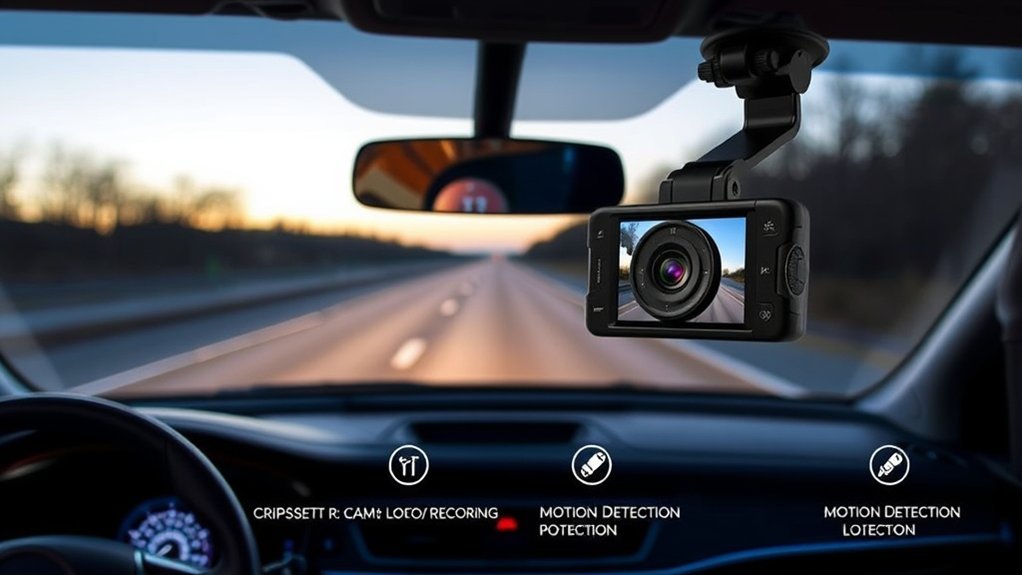
When you’re on the road, having a dash cam can be a game changer, as it provides critical evidence during accidents. With real-time video, you can easily prove fault and streamline insurance claims, reducing stress when you need it most. But the benefits don’t stop there. Dash cams also feature parking mode, which records any suspicious activity while your vehicle’s parked, acting as a deterrent against theft and vandalism. This can save you from headaches down the line. Plus, their ability to counter fraudulent claims is invaluable; recorded footage can refute false accusations, ensuring justice prevails. Many dash cams offer advanced features like GPS tracking and speed data, enhancing their utility for legal and insurance needs. If you’re a parent or manage a fleet, these devices help monitor driving behavior, promoting safety and accountability. Remember to use a reliable microSD card to store your footage securely.
Must-Have Settings for Your Dash Cam
To get the most out of your dash cam, you need to adjust some essential settings. Start by activating loop recording, which guarantees you never run out of storage space. Additionally, setting the G-sensor sensitivity will help capture critical moments during unexpected events, keeping your footage safe.
Loop Recording Activation
Loop recording is a must-have feature for your dash cam, as it guarantees your device continuously captures footage without interruption. By activating loop recording, you’ll never have to worry about running out of space on your microSD card. Here are some key points to regard:
- Automatic Overwrite: Old footage gets overwritten, guaranteeing your dash cam is always recording.
- Continuous Coverage: Important incidents are captured without manual intervention.
- Adjustable Loop Recording Lengths: Customize settings from 1 to 10 minutes based on your preference.
- Storage Efficiency: Recent clips are saved while outdated files are deleted automatically.
Regularly check your settings to guarantee loop recording is activated. This feature is essential for maintaining uninterrupted video capture during your drives.
G-Sensor Sensitivity Adjustment
Adjusting the G-sensor sensitivity on your dash cam is essential for ensuring that it captures significant incidents without being triggered by minor bumps. You’ll want to customize this setting based on your driving conditions. For instance, if you’re traversing bumpy roads, a higher sensitivity may be beneficial, while smoother surfaces might require a lower setting to avoid interruptions in continuous recording. Some dash cam models even allow different sensitivity settings for driving and parking modes, optimizing performance for each situation. To find the ideal balance, monitor the G-sensor data through your dash cam’s app or software. Analyzing previous footage can help you fine-tune your settings, ensuring your dash cam works effectively when it matters most.
How to Set the Correct Time and Date
To set the correct time and date on your dash cam, start by accessing the time settings through the device’s menu. You can easily sync it with your mobile app, which typically pulls the time from your phone. If needed, adjust the settings manually to guarantee everything matches your local time zone.
Accessing Time Settings
Setting the correct time and date on your dash cam is essential for ensuring accurate timestamps on your recordings. To access time settings, follow these steps:
- Connect your dash cam to the mobile app for automatic time setting.
- Check the time zone setting to match your location for precise timestamps.
- If your dash cam lacks automatic features, navigate the menu interface to manually input the time and date.
- Regularly verify your settings, especially after firmware updates, to avoid defaults.
Synchronizing With Mobile App
Now that you’ve accessed the time settings on your dash cam, synchronizing it with your mobile app is the next step for ensuring accurate time and date records. Start by connecting your dash cam to the app via Wi-Fi; this will automatically update the time from your smartphone. Make sure your smartphone’s time settings are correct and set to the right time zone, as your dash cam will reflect this during synchronization. Some models might require you to manually adjust the time zone within the app, just in case. After syncing, double-check the dash cam’s settings to confirm that the displayed time and date match your mobile device. Regularly verify these settings, especially after firmware updates or power loss.
Enable Loop Recording for Continuous Footage
Enabling loop recording on your dash cam guarantees you never miss essential footage during your drives. This feature allows your device to continuously overwrite the oldest footage when the memory card fills up, confirming you always have the latest recordings. Here’s how to set it up effectively:
Enabling loop recording ensures your dash cam captures every crucial moment, continuously overwriting old footage for the latest recordings.
- Select your loop recording duration: Choose from options typically ranging from 1 to 5 minutes.
- Use a high-endurance microSD card: Opt for a card with 32GB to 256GB capacity to handle continuous footage without interruptions.
- Enable loop recording in settings: Make certain this option is activated to prevent missing critical moments during unexpected incidents.
- Monitor storage regularly: Keep an eye on your memory card to confirm it’s functioning properly.
With loop recording active, you can focus on the road, confident that your dash cam is capturing every essential moment on your journey.
Activate the G-Sensor for Enhanced Protection
Activating the G-sensor on your dash cam can greatly enhance your protection while driving. By adjusting its sensitivity, you can minimize false triggers from minor bumps and guarantee critical incidents are recorded. Additionally, utilizing parking mode allows the camera to capture any movement around your vehicle, adding an extra layer of security.
G-Sensor Sensitivity Adjustment
The G-sensor in your dash cam plays an essential role in safeguarding your recordings during unexpected events. By adjusting the sensitivity settings, you can customize how your dash cam reacts to changes in motion. Here’s how to optimize it:
- Test Different Levels: Start with medium sensitivity and adjust based on your driving experiences.
- Reduce False Triggers: Lower the sensitivity to limit unnecessary event recordings from minor bumps or potholes.
- Monitor Your Drive: Pay attention to how often the G-sensor activates so you can fine-tune it.
- Choose Your Preference: Decide if you want to disable the G-sensor or keep it active based on your driving conditions.
Finding the right balance enhances your dash cam’s protective capabilities while minimizing disruptions.
Parking Mode Activation
When you park your car, ensuring your dash cam is in parking mode can greatly enhance your vehicle’s protection. This feature allows your camera to automatically start recording when it detects motion or impact, capturing essential footage if an incident occurs. By activating the G-sensor in parking mode, your dash cam will sense vibrations or shocks, triggering recording to document potential threats. To optimize performance, adjust the G-sensor sensitivity settings, which helps reduce false triggers from minor disturbances, ensuring that only significant events are recorded. Many modern dash cams even announce their activation into parking mode, providing you with audible confirmation. Regularly check and manage these settings to maximize your vehicle’s security and reliability.
Managing False Triggers
To effectively manage false triggers in your dash cam, fine-tuning the G-sensor sensitivity is essential. This adjustment helps balance capturing critical events while minimizing unnecessary recordings. Follow these steps to optimize your settings:
- Assess your driving environment: Urban roads may require different sensitivity than highways.
- Adjust G-sensor sensitivity: Lower settings can reduce false triggers from bumps and potholes.
- Test various levels: Experiment with sensitivity settings to find what works best for you.
- Consider continuous recording: If false triggers remain an issue, you might prefer a constant recording mode.
Sync Your Dash Cam With Your Smartphone for Easy Access
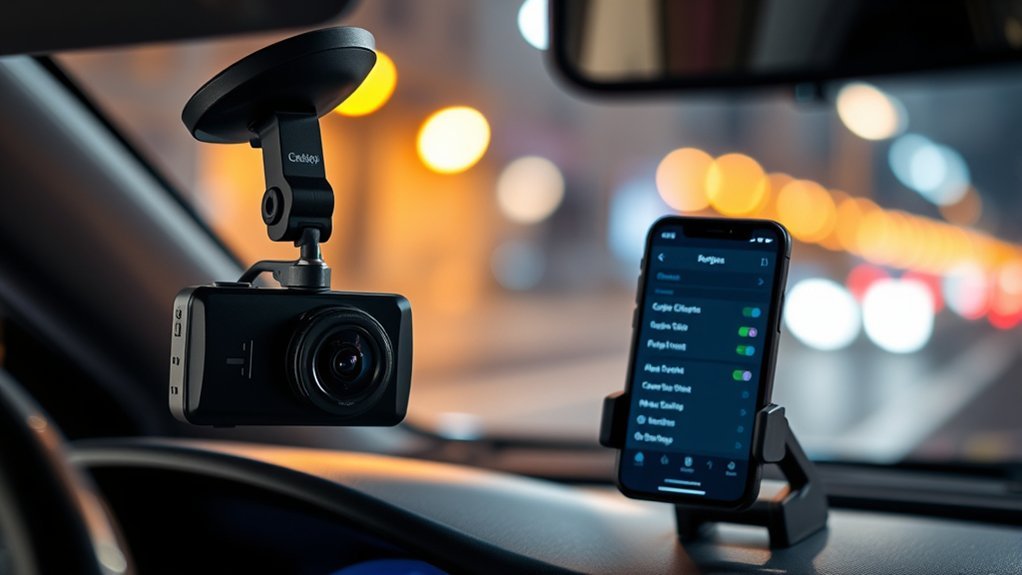
How can syncing your dash cam with your smartphone enhance your driving experience? By connecting your dash cam to your smartphone, you gain easy access to recorded footage and settings adjustments at your fingertips. Start by downloading the app from your dash cam manufacturer, like AUTO-VOX, and follow the in-app instructions to connect via Wi-Fi or Bluetooth. Make sure your smartphone’s Wi-Fi is enabled and linked to the dash cam’s network. You might need to enter a default password, often “12345678,” during setup. Once synced, you can enjoy features like GPS tracking, live video viewing, and quick file transfers without fussing with the microSD card. Plus, don’t forget to regularly check for firmware updates within the app to maximize functionality and keep your dash cam equipped with the latest features. This simple sync can truly liberate your driving experience.
How to Optimize Video Quality and Resolution Settings
Optimizing your dash cam’s video quality and resolution settings is vital for capturing clear and detailed footage, especially during critical moments on the road. To guarantee you get the best results, follow these steps:
- Set Resolution: Choose at least 1080P or higher for crystal-clear images, allowing you to capture license plates and significant details.
- Adjust Field of View: Aim for 60% of the road and 40% of the sky. This balance enhances your footage’s context and detail.
- Activate Loop Recording: Enable this feature to overwrite old footage continuously, making sure you won’t miss important events due to storage limits.
- Utilize the G-sensor: This automatically saves footage during sudden stops or collisions. Adjust its sensitivity to avoid unnecessary triggers from minor bumps.
Regular Maintenance for Your Dash Cam
Maintaining your dash cam is just as important as setting it up correctly. To guarantee clear video quality, clean the lens regularly with a microfiber cloth. This simple step prevents distortion in your footage. For smooth operation, format the microSD card monthly to avoid data corruption.
Check the stability of your dash cam mount every few weeks, especially after extreme weather, to keep it secure and aligned. Inspect the power cable connections periodically; secure connections are essential for uninterrupted performance.
Lastly, don’t forget to regularly update the firmware of your dash cam models. These updates provide the latest features, enhancements, and bug fixes, keeping your device running efficiently. By committing to this regular maintenance, you’ll enhance your dash cam’s reliability and effectiveness, empowering you to capture every moment on the road without worry.
Troubleshooting Common Dash Cam Issues
Many drivers encounter common issues with their dash cams that can disrupt your peace of mind on the road. Here are some quick troubleshooting tips to help you:
- Power Issues: If your dash cam isn’t turning on, check the power cable and outlet. Try using a different port or cable to guarantee a secure connection.
- SD Card Problems: If footage isn’t saving, replace the SD card and verify that loop recording settings are properly configured.
- Video Quality: For poor video quality, clean the lens and adjust the resolution settings to 1080P or higher for clearer details.
- File Management: Use file locking features to prevent important clips from being overwritten, guaranteeing you retain vital evidence when needed.
What to Do If Your Dash Cam Malfunctions?
A malfunctioning dash cam can be frustrating, especially when you rely on it for safety and evidence on the road. If your dash cam isn’t turning on, first check the power cable and outlet. Try a different port or cable if needed. If footage isn’t saving, verify the loop recording is enabled and consider replacing the SD card if it’s corrupted.
To enhance video quality, regularly clean the lens and adjust the resolution settings to 1080P or higher for sharper details. If you find your dash cam frequently triggers event saving from bumps, tweak the G-sensor sensitivity settings to minimize false recordings.
Lastly, keep your dash cam’s firmware up to date for peak performance. Regular updates can bring new features and fix bugs, making sure your device works reliably when you need it most. Taking these steps helps restore your confidence in your dash cam’s functionality.
Frequently Asked Questions
How Do I Make My Dash Cam Always On?
To make your dash cam always on, adjust the power settings for continuous recording and activate parking mode. This guarantees it captures any activity even when your vehicle’s ignition is off, enhancing your security.
Do Dashcams Automatically Start Recording?
Yes, dash cams automatically start recording with their automatic recording features when you turn on your vehicle. They also manage dash cam storage efficiently, activating emergency recording mode during collisions to capture vital moments.
Does Your Insurance Go Down if You Have a Dash Cam?
Yes, your insurance might diminish with a dash cam! Dash cam benefits like documented driving behavior can lead to delightful discounts. Always check policy considerations with your insurer for specific savings opportunities.
Will a Dashcam Drain a Car Battery?
Yes, a dash cam can drain your battery, especially if it’s hardwired. Using parking mode and effective power management techniques can help preserve battery life, ensuring your vehicle stays ready to go when you are.
Conclusion
In the unpredictable world of driving, having a dash cam can be your best ally, capturing those unexpected moments that could save you from disputes or accidents. By adjusting the right settings and staying proactive with maintenance, you can guarantee your dash cam works when you need it most. Remember, it’s not just about recording; it’s about having peace of mind. So, gear up, set your dash cam, and drive confidently knowing you’re prepared for whatever comes your way.




Leave a Reply