
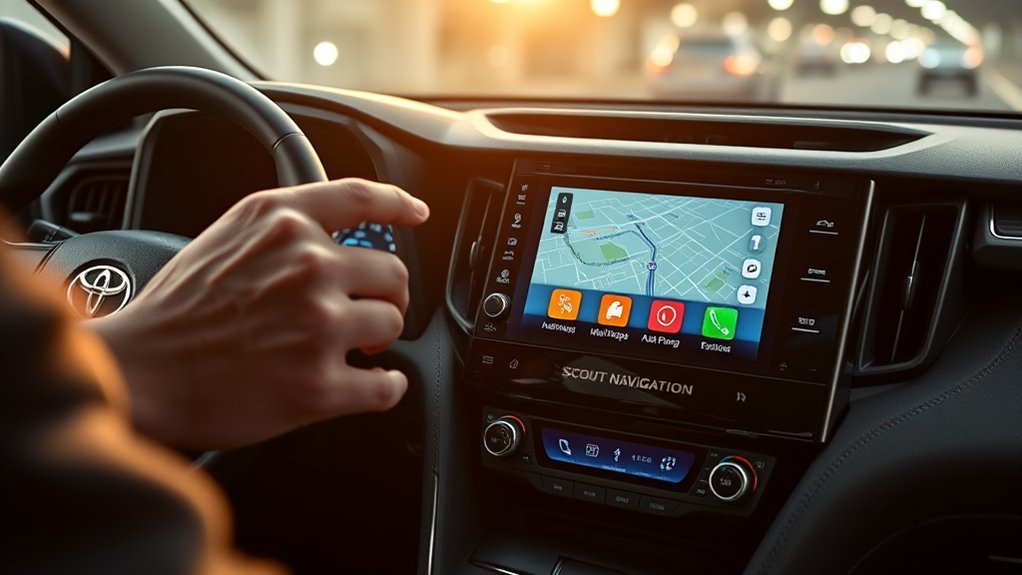
To connect Scout GPS Link on your Toyota RAV4, make certain your model is 2016 or newer with Entune™ Audio Plus. Pair your smartphone via Bluetooth, enabling location services for accurate navigation. Download the Scout GPS Link app and log in. Follow prompts to set it up. Keep your Entune system updated for the best performance. By doing this, you’ll enjoy hands-free navigation and real-time updates. Discover more about optimizing your experience as you navigate.
Why Use Scout GPS Link in Your RAV4?
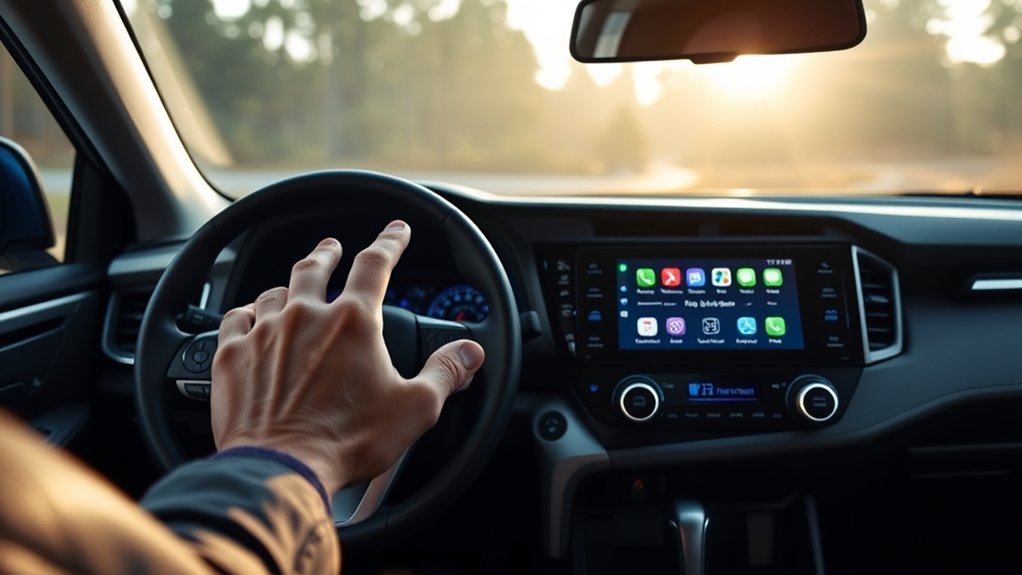
Using Scout GPS Link in your RAV4 can greatly enhance your driving experience, especially when it comes to navigation. This app provides real-time turn-by-turn directions and traffic updates, ensuring you stay informed throughout your journey. With voice-activated navigation, you can maintain hands-free control, making your driving safer and more focused. By syncing the Scout GPS Link app with your smartphone, you tap into mobile data for seamless updates and precise route calculations. Personalization features enable quick access to your home and work routes, plus nearby gas prices, optimizing your travel efficiency. Compatible with 2016 or newer RAV4 models equipped with the Entune™ Audio Plus system, Scout GPS Link transforms your driving into a modern, liberating experience.
Ensuring Compatibility of Your Vehicle and Smartphone
To guarantee a successful connection between your Toyota RAV4 and the Scout GPS Link app, you must first confirm that your vehicle meets specific criteria. Verify your RAV4 is a model year 2016 or newer and equipped with the Entune™ Audio Plus system, as these features are necessary for Scout GPS Link functionality. Next, check that your smartphone is compatible with the app, available for both Apple and Android devices. Don’t forget to enable Bluetooth on your smartphone to connect it to your vehicle’s Entune™ system. Finally, activate Location Services on your smartphone for accurate navigation and traffic updates. Once everything’s set, you can easily access the Scout GPS button and enjoy seamless navigation.
Step 1: Pair Your Smartphone With Intune
With your Toyota RAV4 and smartphone ready, the next step is pairing them through the Entune™ system. First, verify your smartphone’s Bluetooth is enabled and discoverable. Access the Bluetooth settings on your smartphone and select your Toyota vehicle from the list of available devices. This establishes a connection between the two. Once paired, check that the Bluetooth icon on your smartphone turns green, confirming a successful link to the Entune™ system via Bluetooth. Before moving forward, it’s crucial to download the Scout GPS Link app from your app store. After pairing and verifying the app is installed, you’ll be set to launch Scout GPS and access all navigation features within your RAV4.
Step 2: Download the Right Scout GPS Link App
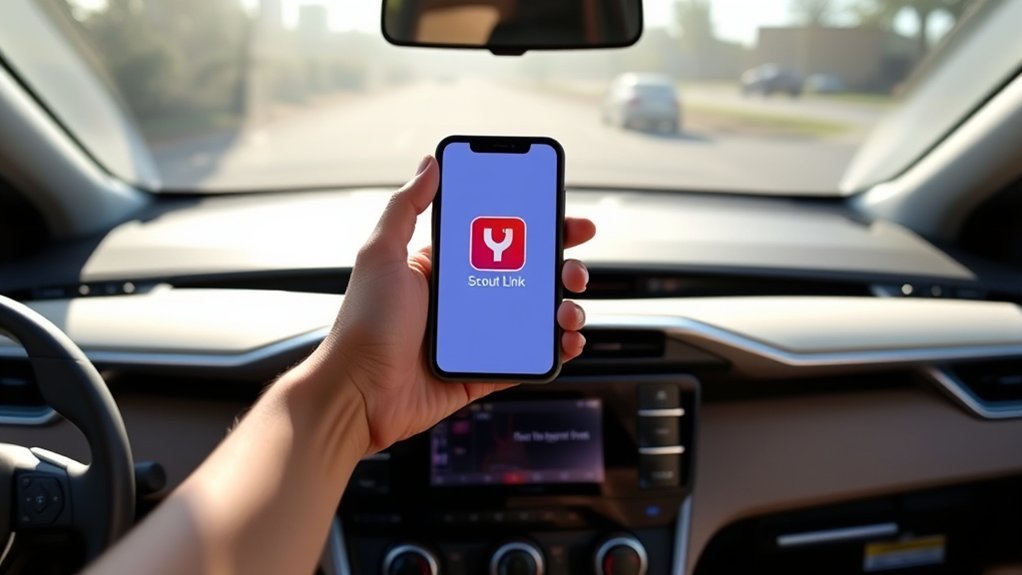
Before you can enjoy the full benefits of Scout Navigation in your Toyota RAV4, it is essential to download the correct Scout GPS Link app from the Apple App Store or Google Play. Follow these steps to guarantee you get the right app:
- Search for “Scout GPS Link”: Make sure you’re looking specifically for this app, as it’s designed for Toyota vehicles.
- Avoid Misleading Apps: Don’t download any app simply titled “Scout,” as it won’t work with the Toyota Entune system.
- Verify the Icon: Confirm you see the correct app icon before proceeding with the installation.
Once downloaded, you can launch the app by tapping its icon on your smartphone’s home screen, ready to set up your account.
Step 3: Setting Up and Launching the Scout GPS Link App
Once you’ve downloaded the Scout GPS Link app, you’ll frequently need to set it up to fully utilize its features. Start by tapping the app icon on your smartphone’s home screen, ensuring it’s the correct one, as there are similar apps that aren’t compatible. Upon launching, you’ll be prompted to log in or create a new Scout account. Make sure your smartphone’s Bluetooth is enabled and paired with your Toyota’s Entune™ system for peak functionality. Follow any additional prompts within the app to finalize the setup process. Once you see confirmation that the installation is complete, you’re ready to experience seamless navigation with your Toyota RAV4, accessing the full potential of the Scout GPS Link app.
Step 4: Update Your InTune System
After setting up the Scout GPS Link app, you’ll need to check if your vehicle’s Entune™ system requires an update. If prompted, select the “Now” option on your touchscreen to begin the process. Keep in mind that downloading the update will consume data from your smartphone, so make certain you have enough data available.
Here are the steps to follow:
- Confirm the update prompt on the Entune™ display.
- Select “Now” to initiate the download.
- Follow the installation prompts once the download is complete.
Completing the installation will add the Scout GPS button to your vehicle’s Apps screen, providing you with easy access to navigation features. Stay connected and enjoy your enhanced driving experience!
Key Features of Scout GPS Link for Navigation
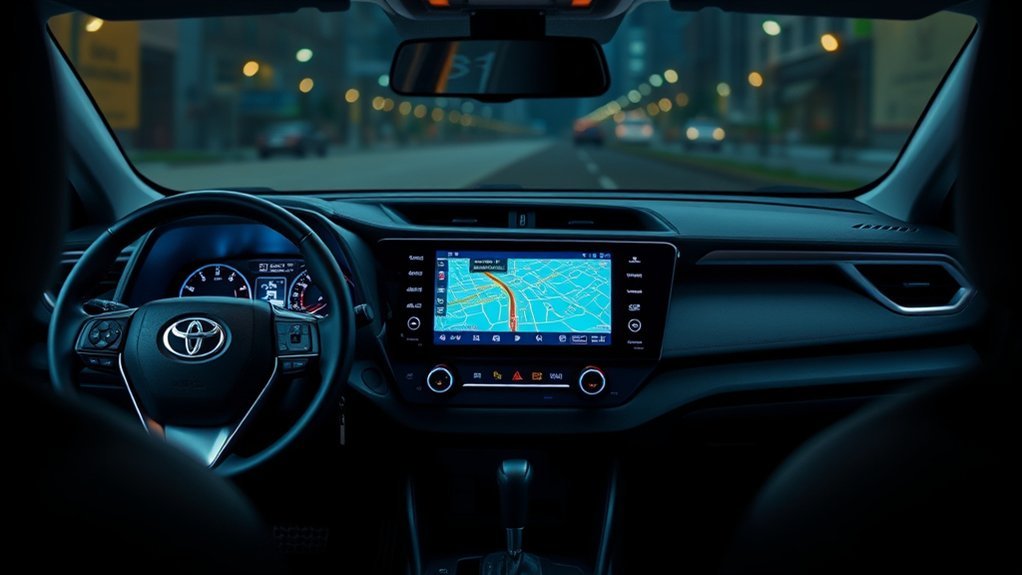
Scout GPS Link enhances your navigation experience with voice-activated controls, letting you manage directions and searches hands-free. You’ll also benefit from real-time traffic updates, ensuring you stay informed about route changes and delays. These features make your drive more efficient and convenient while using your Toyota RAV4.
Voice-Activated Navigation Convenience
Voice-activated navigation in the Scout GPS Link transforms your driving experience by allowing you to access turn-by-turn directions without diverting your attention from the road. This feature, compatible with the Entune™ Audio Plus system in 2016 or newer Toyota RAV4 models, enhances safety and convenience. Here are three key benefits:
- Hands-Free Operation: Initiate voice commands to search for destinations, keeping your hands on the wheel and eyes on the road.
- Seamless Integration: The Scout GPS Link works smoothly with your vehicle’s audio system, providing an intuitive navigation experience.
- Nearby Amenities: Quickly locate essential services like gas stations through voice commands, ensuring you stay informed without distractions.
With voice-activated navigation, driving becomes a liberated, focused experience.
Real-Time Traffic Updates
With the added convenience of voice-activated navigation, staying informed about real-time traffic updates becomes a game changer for your driving experience. Scout GPS Link utilizes smartphone data to provide live traffic information, helping you avoid congested routes and reach your destination more efficiently. You’ll receive turn-by-turn directions without taking your focus off the road, minimizing distractions. The app not only identifies the quickest routes to familiar locations, like home and work, but also suggests alternative paths to navigate around traffic jams, construction, or accidents. By leveraging real-time traffic updates, Scout GPS Link empowers you to make informed decisions on the go, ensuring a smoother, more liberated driving experience.
How to Fix Common Setup Issues?
If you’re experiencing setup issues while connecting Scout Navigation to your Toyota RAV4, there are several steps you can take to troubleshoot the problem.
- Verify your smartphone’s Bluetooth is enabled and paired with the Entune™ system.
- Confirm that the Scout GPS Link app is downloaded correctly from the app store, avoiding similar apps.
- Validate that Location Services on your smartphone are activated for accurate navigation.
If the app fails to initialize, check for available updates for the Entune™ system via your vehicle’s touchscreen while your smartphone is connected. For any voice activation issues, make sure your microphone and speaker settings are functioning properly and that you’re within Bluetooth range. Following these steps can help you resolve common setup issues effectively.
Tips for Getting the Most Out of Scout GPS Link
After resolving any setup issues with Scout Navigation, you can enhance your experience by making the most of its features. Start by ensuring your smartphone’s Bluetooth is enabled and paired with the Entune™ system for seamless connectivity. Regularly update your Entune™ system to access the latest features, including the Scout GPS button on the Apps screen. Utilize the voice-activated navigation feature for hands-free operation, allowing you to receive turn-by-turn directions without distraction. Keep an eye on your smartphone’s data usage, as Scout GPS Link relies on mobile data for real-time traffic updates. Finally, use the app to find nearby gas prices, helping you save money on fuel while exploring in your Toyota vehicle.
Frequently Asked Questions
How Do I Connect My Scout GPS to My Toyota?
To connect your Scout app to your Toyota, enable Bluetooth, pair your device, download the app, and follow the prompts. You’ll access essential Toyota features like turn-by-turn navigation for a seamless driving experience.
Why Is My Scout GPS Not Working on My Toyota?
If your Scout GPS isn’t working on your Toyota, check for app issues, Bluetooth connectivity, and verify your smartphone’s compatible. Sometimes, simply updating the app or system resolves the problem and restores functionality.
How to Connect Maps to Toyota RAV4?
To connect navigation apps to your RAV4, guarantee your vehicle’s compatible with Entune™ Audio Plus. Download the appropriate app, pair your smartphone via Bluetooth, and follow prompts to sync with your RAV4’s display.
Is Scout GPS Link Free?
Yes, Scout GPS Link is free to download and use, but remember, it requires a smartphone data plan. With features like turn-by-turn navigation and gas prices, it’s a solid alternative to other navigation apps.
Conclusion
By connecting Scout GPS Link to your Toyota RAV4, you’re transforming your driving experience into a seamless journey. Picture steering through winding roads with real-time updates, your smartphone guiding you like a compass through uncharted territory. As you cruise down scenic routes, enjoy the convenience of voice commands and personalized routes. Embrace the adventure ahead, and let Scout GPS Link be your co-pilot, ensuring every drive is not just a trip but a memorable experience.





Leave a Reply