
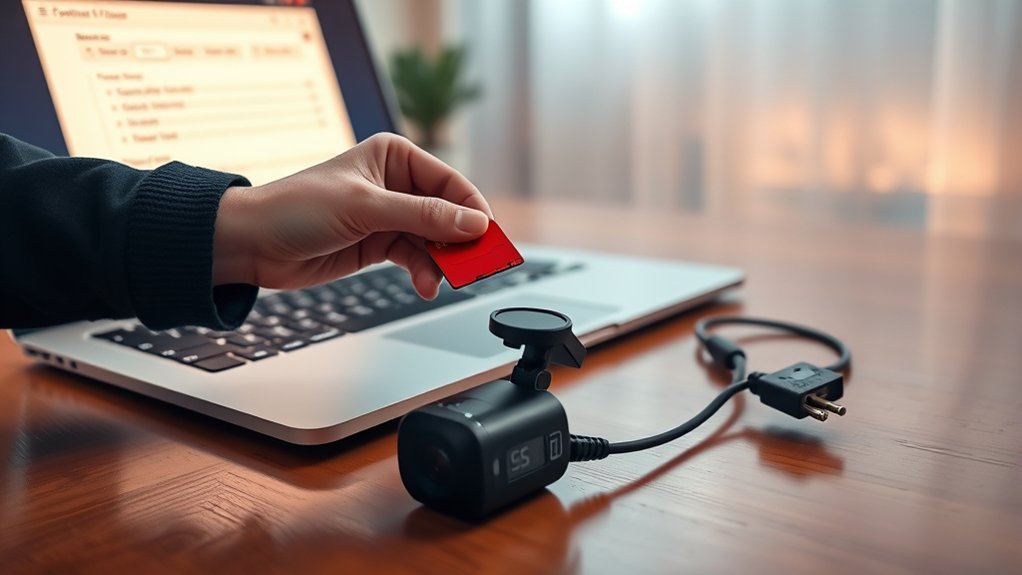
To format your SD card for your dash cam, start by powering off the camera and inserting the card. Access the settings menu and select the “Format SD Card” option. Confirm the action and wait for it to complete. If you’re using a computer, format the card via File Explorer on Windows or Disk Utility on a Mac, choosing FAT32 or exFAT as needed. Regular formatting keeps things running smoothly, and there’s more to discover on maintaining performance.
Quick Answer
Formatting your SD card regularly keeps your dash cam recording reliably without errors or corrupted files. Do it every two to three weeks, or weekly if you drive every day. Always format the card directly in the dash cam for best results, and choose FAT32 for cards up to 32 GB or exFAT for larger ones. Back up your videos first since formatting deletes everything.
How to Format Your SD Card for Dash Cam Reliability
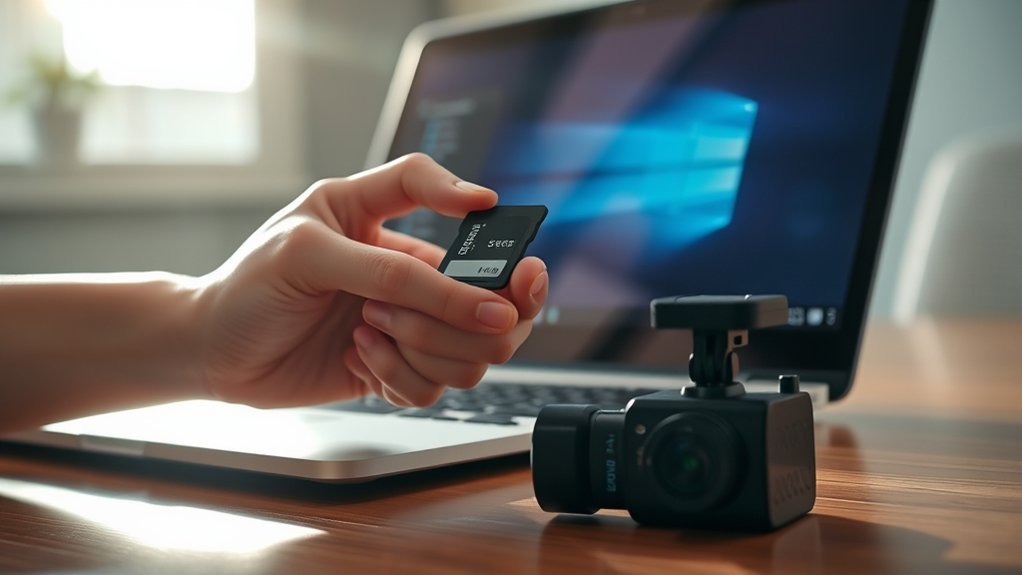
Regularly formatting your SD card helps your dash cam stay reliable. Dash cams write video nonstop, so a clean file structure prevents fragmentation and corrupted clips. Most people should format the card every two to three weeks. This wipes everything, including hidden files, and gets the card ready for fresh recordings.
Always back up any important footage first. Dash cams work best with cards formatted to FAT32 for up to 32 GB or exFAT for bigger cards. Using the right file system avoids compatibility problems. Formatting the card right inside your dash cam is the safest choice because it sets everything up exactly for that model.
Step-by-Step Guide to Formatting Your SD Card in a Dash Cam
Formatting your SD card in a dash cam is simple when you follow these steps. Here’s exactly how to do it:
- Power Off: Turn off your dash cam and make sure the SD card is properly inserted.
- Access Settings: Turn the camera back on and go into the settings menu. Find the “Format SD Card” option (the wording may differ slightly by model).
- Confirm Action: When asked, confirm that you want to format. This will erase everything on the card.
- Complete Process: Wait until it finishes. You should see a confirmation message. Restart the dash cam so it recognizes the freshly formatted card.
These steps get your dash cam ready for clear, reliable recording.
How to Format an SD Card on Your Computer: Windows vs. Mac
If the dash cam doesn’t recognize the card or you prefer to use your computer, formatting is easy on both Windows and Mac. Here’s a quick comparison:
| Windows | macOS |
|---|---|
| Insert the SD card and open File Explorer. | Insert the SD card and open Disk Utility. |
| Right-click the SD card icon and select “Format.” | Select the card (not the volume) and click “Erase.” |
| Choose FAT32 for cards up to 32 GB or exFAT for larger ones. | Choose FAT32 for smaller cards or exFAT for larger ones, making sure MBR is selected. |
| Enable Quick Format and safely eject after formatting. | Confirm the SD card isn’t mounted before erasing. |
For Windows users, leave the Allocation unit size set to Default for best performance. Always safely eject the card before putting it back in the dash cam.
Choosing the Best File System for Your Dash Cam: FAT32 or exFAT?
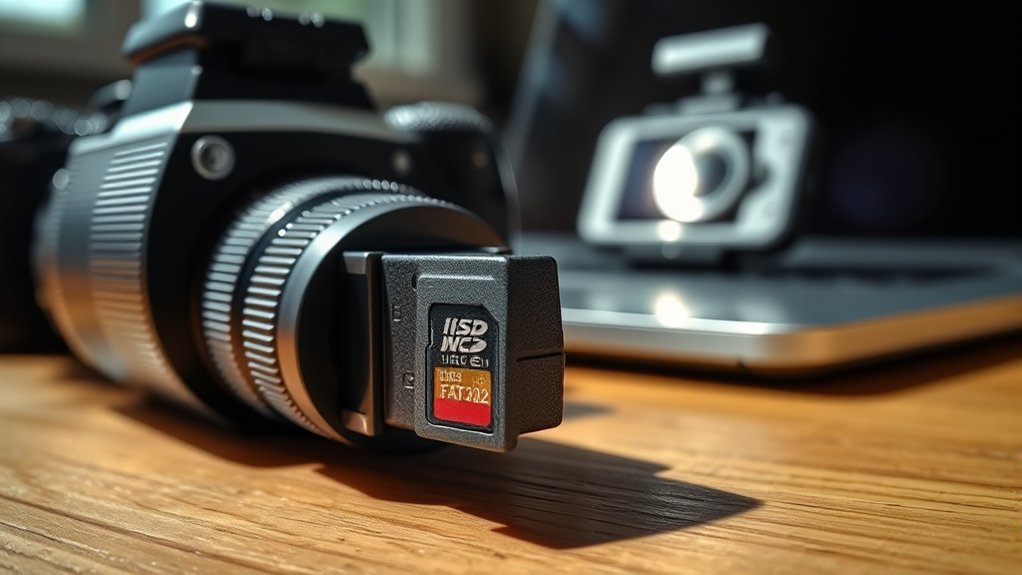
FAT32 or exFAT—which one should you pick for your dash cam? Your choice affects recording reliability. Here’s what you need to know:
- FAT32: Best for SD cards up to 32 GB. It works with almost every device and plays back recordings smoothly.
- exFAT: Ideal for larger cards, especially when you record high-resolution video over 4 GB, like 4K footage.
- File Fragmentation: Both file systems help avoid fragmentation problems, but exFAT handles big files more efficiently.
- User Manual: Check your dash cam’s manual for any specific requirements.
[Products Worth Considering]

Compatible with Nintendo-Switch (NOT Nintendo-Switch 2)
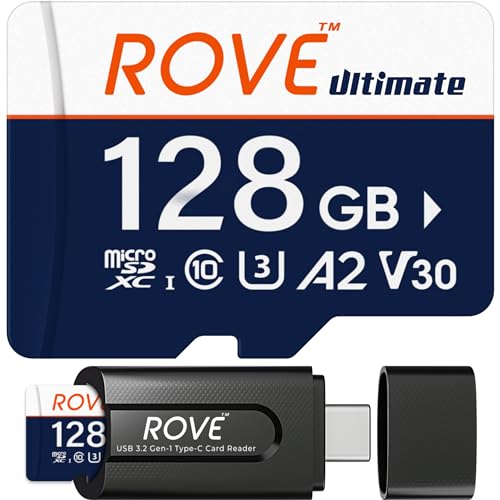
THE ONE ULTIMATE CARD: An ultimate micro sd card with extreme read/write speed for all your memory card needs.

EXTREME ENDURANCE FOR MONITORING DEVICES: Capture your crucial moments in high-resolution, even in harsh conditions; Engineered to deliver long lasting performance, the Samsung PRO Endurance SSD is a perfect fit for CCTV, dash cams and body cams
Tips for Keeping Your Dash Cam SD Card in Top Shape
Good maintenance keeps your card working well. Here are the main things to do:
| Task | Frequency | Purpose |
|---|---|---|
| Format your SD card | Every 2-3 weeks | Prevent file system errors |
| Back up important files | Before formatting | Avoid data loss during formatting |
| Clean contacts | Monthly | Prevent dirt buildup affecting performance |
| Use high-quality SD cards | Always | Handle continuous writing demands |
What to Do If Your SD Card Won’t Format?
When your SD card refuses to format, try these fixes first:
- Check Connection: Make sure the card is seated properly and shows up in File Explorer or Disk Utility.
- Use Disk Utility: On Windows use Disk Management or on Mac use Disk Utility for a more thorough format.
- Check Write-Protection: Look for the little switch on the card and slide it to unlock if needed.
- Specialized Software: If nothing works, try repair tools that can fix bad sectors.
If it still won’t format after these steps, the card probably needs replacing.
[Products Worth Considering]
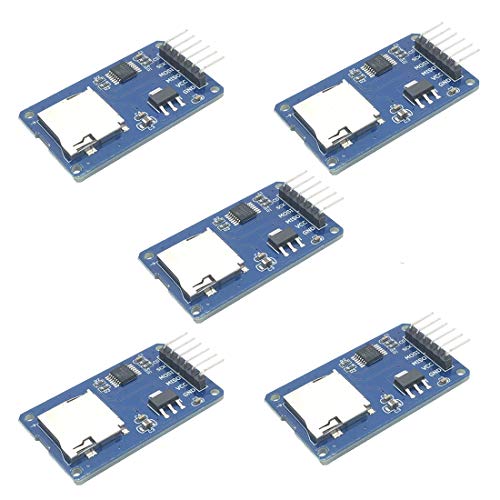
Compatible with Arduino UNO, R3, MEGA 2560 Due: The HiLetgo 5pcs Micro SD TF Card Adapter Reader Module works with these Arduino boards for easy data transfer.

Simple operation, wide range, strong commonality etc. characteristics; Can use standard WAV files, convenient application. And provide.it format conversion software that allows customers to use the free editor.

Onboard self-ejection TF (Micro SD) card Slot socket.
How Often Should You Format Your Dash Cam SD Card?
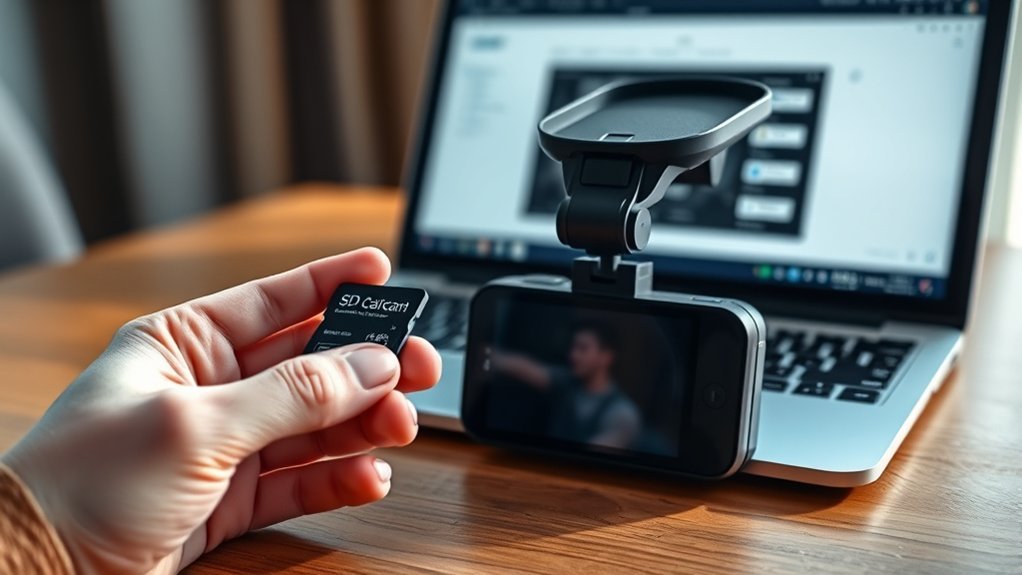
Formatting every two to three weeks keeps performance high. Daily drivers may want to do it weekly. Frequent formatting clears leftover data and cuts the chance of corrupted clips. It also helps the card last longer by easing the wear from constant writing.
Set a calendar reminder so you don’t forget. This simple habit gives you peace of mind on the road.
Signs That Your SD Card May Need Replacement
Frequent data corruption or inconsistent video quality often means the card is wearing out. If recordings are glitchy or unplayable, it’s time to replace it.
[Products Worth Considering]

Compatible with Nintendo-Switch (NOT Nintendo-Switch 2)

Compatible with Nintendo-Switch (NOT Nintendo-Switch 2)

Compatible with Nintendo-Switch (NOT Nintendo-Switch 2)
Frequent Data Corruption Issues
Watch for these warning signs:
- Error Messages: “Format SD Card” or “SD Card Error” messages.
- Failed Formatting: The card won’t format on any device.
- Corrupted Video Files: Clips that won’t play or have glitches.
- Recording Failures: The camera freezes or stops recording.
Inconsistent Video Quality Problems
Choppy footage, pixelation, missing clips, or gaps point to card trouble. Error messages asking you to format the card, recording interruptions, or a sudden drop in quality during fast motion are all clues that the card can no longer keep up.
Frequently Asked Questions
What Is the Best Format for SD Card for Dash Cam?
FAT32 works best for cards up to 32 GB. Use exFAT for larger cards. Pick high-endurance brands for the best compatibility and performance.
Should I Format My SD Card to Do FAT32 for Dash Cam?
Yes. FAT32 gives the widest compatibility, better video quality, and fewer data problems. Check your manual for the exact capacity limit.
Do I Need to Format a New SD Card for a Dash Cam?
Yes. Formatting a brand-new card makes sure it works perfectly with your dash cam and prevents corrupted files later.
What Format to Use for a Dash Cam?
Stick with FAT32 for cards 32 GB and smaller, exFAT for anything bigger. High write speeds and regular formatting help everything run smoothly.
Conclusion
Regularly formatting your SD card is like changing the oil in your car—it keeps everything running smoothly. Follow the steps, pick the right file system, and watch for signs of wear. When your card starts showing problems, replace it. That way your dash cam stays ready whenever you hit the road.







Leave a Reply