How to Connect to Toyota RAV4 Wi-Fi
Your Toyota RAV4 can turn into a Wi-Fi hotspot, but the setup only works when your vehicle supports Wi-Fi Connect and your trial or paid plan is active. Once you turn on the hotspot, you can join the network from your phone, tablet, or laptop using the network name and password shown in the vehicle settings. This guide shows you how to activate the hotspot, connect your device, choose a plan, and fix common connection problems.
Quick Answer
To connect to Toyota RAV4 Wi-Fi, turn on Wi-Fi Connect in the infotainment system, then open Wi-Fi settings on your device. Select your RAV4 hotspot name, enter the password shown in the vehicle settings, and keep an active Toyota Wi-Fi Connect trial or paid plan.
Key Takeaways
- Your RAV4 needs Wi-Fi Connect support and an active trial or paid data plan.
- Toyota says Wi-Fi Connect can support up to five Wi-Fi-enabled devices on compatible vehicles.
- You can activate or renew Wi-Fi Connect through the Toyota app, your vehicle, or the AT&T portal.
- The hotspot name and password appear in the vehicle’s Wi-Fi or hotspot settings.
- If the connection fails, check the plan status, restart the infotainment system, and reconnect your device.
Before You Begin
Estimated time: 5 to 10 minutes.
Before you start, confirm that your RAV4 supports Toyota Wi-Fi Connect. Toyota lists Wi-Fi Connect as an available Connected Services feature on select vehicles, and it works through AT&T in the United States.
You will need:
- A compatible Toyota RAV4 with Wi-Fi Connect
- The Toyota app installed on your phone
- A My Toyota account
- An active Wi-Fi Connect trial or paid subscription
- The hotspot name and password from your vehicle settings
Activating the Wi-Fi Hotspot in Your RAV4
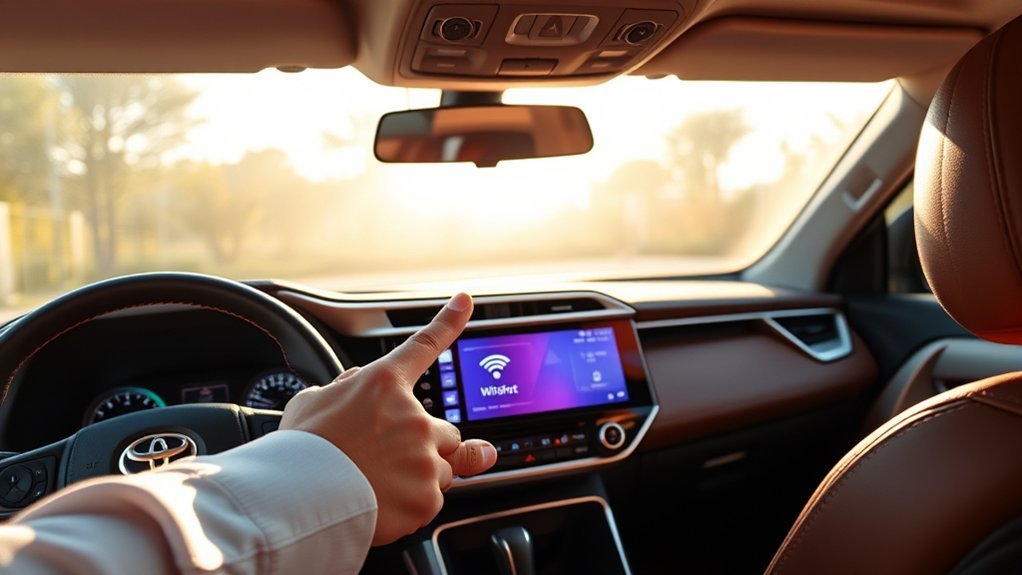
To activate the Wi-Fi hotspot in your RAV4, first open the vehicle’s infotainment system. Go to the Wi-Fi or hotspot settings menu, then turn on the hotspot feature.
Next, open the Toyota app and sign in with your My Toyota account. If you do not have an account, create one and add your vehicle by following the app steps.
According to Toyota, you can sign up for Wi-Fi Connect through your vehicle, the AT&T web portal, or the Toyota app. You need an active trial or paid Wi-Fi Connect subscription before the hotspot can provide internet access.
Note: Most owners do not need to install a separate physical SIM card because Toyota Wi-Fi Connect uses the vehicle’s built-in connected service hardware.
Steps to Connect Your Device to the RAV4 Wi-Fi
Connecting your device to the RAV4’s Wi-Fi takes only a few steps. Keep your vehicle parked while you set up the connection, so you can focus on the screen and your device.
- Open the Wi-Fi or hotspot settings on your RAV4 infotainment screen.
- Turn on the Wi-Fi hotspot if it is off.
- Find the network name, also called the service set identifier (SSID).
- Check the hotspot password shown in the same settings area.
- Open Wi-Fi settings on your phone, tablet, or laptop.
- Select your RAV4’s network name from the list.
- Enter the password exactly as shown on the vehicle screen.
- Confirm that your device shows a connected Wi-Fi status.
You can use the Toyota app to manage your Connected Services and review your subscription status. If the network name or password does not appear, check the hotspot settings again or review your owner support information.
How to Troubleshoot Your RAV4’s Wi-Fi Connection
If your RAV4’s Wi-Fi connection does not work, start with the easiest checks first. Many connection issues come from a disabled hotspot, an expired trial, weak coverage, or a wrong password.
- Check hotspot status: Open the infotainment settings and make sure the hotspot is turned on.
- Check your plan: Confirm that your Wi-Fi Connect trial or paid subscription still works.
- Re-enter the password: Type the hotspot password again and watch for capital letters or special characters.
- Restart your device: Turn Wi-Fi off and on, then reconnect to the RAV4 network.
- Restart the infotainment system: Turn the vehicle off safely, wait a short time, and try again.
- Check coverage: Move to an area with better cellular service if your hotspot connects but loads pages slowly.
If the issue continues, contact Toyota support or AT&T Connected Car support. Give them your vehicle identification number (VIN), plan status, and the exact message you see on the screen.
Warning: Do not change hotspot settings while driving because screen use can distract you from the road.
Understanding RAV4 Data Plans: What’s Best for You?
How can you choose the right data plan for your Toyota RAV4’s Wi-Fi? Start with your real use, not the highest plan name.
Toyota lists Wi-Fi Connect as an optional add-on connected by AT&T. Toyota also lists Wi-Fi Connect at $25 per month on its Connected Services page, but plan terms can change by vehicle, account, and market.
Choose your RAV4 Wi-Fi plan based on how many devices you connect and how often passengers stream, browse, or work online.
- Use a trial first if your vehicle includes one, so you can test speed and coverage.
- Choose a paid plan if passengers need regular internet access on road trips.
- Check AT&T and Toyota app terms before you subscribe, because pricing and plan details can change.
- Use your phone’s hotspot instead if you only need internet once in a while.
According to Toyota, Wi-Fi Connect can connect up to five Wi-Fi-enabled devices on compatible vehicles. That can help if your passengers use tablets, laptops, or phones during longer drives.
Tips for Maximizing Your RAV4’s Wi-Fi Experience
Maximizing your RAV4’s Wi-Fi experience starts with smart data habits. Streaming video, app updates, and cloud backups can use a large amount of data in a short time.
Use the Toyota app to review your Connected Services status. You should also check your AT&T plan details before a long trip, especially if several passengers will use the hotspot.
| Tip | Description |
|---|---|
| Connect Your Device | Open Wi-Fi settings on your device and join the RAV4 hotspot. |
| Use Your Trial | Test coverage and speed before you pay for a plan. |
| Monitor Data Usage | Review plan details through Toyota or AT&T account tools. |
| Limit Heavy Streaming | Download music, maps, and videos before long trips when possible. |
| Check Coverage | Expect slower speeds in areas with weak cellular service. |
Pro tip: Download playlists, maps, and videos before a trip to save hotspot data for live tasks.
Frequently Asked Questions
How do you connect Wi-Fi to a RAV4?
Open the Wi-Fi or hotspot settings on your RAV4 infotainment screen, then turn on the hotspot. On your device, choose the RAV4 network name and enter the password shown in the vehicle settings.
How do you activate Toyota Wi-Fi?
You can activate Toyota Wi-Fi Connect through the Toyota app, your vehicle, or the AT&T web portal. Sign in with your My Toyota account, add your vehicle, and choose an available trial or paid subscription.
Is Wi-Fi Connect free on Toyota?
Toyota Wi-Fi Connect may include a trial on some compatible vehicles, but you need a paid plan after the trial ends. Check the Toyota app or AT&T portal for your vehicle’s exact plan options.
How do you find the Toyota RAV4 Wi-Fi password?
Open the Wi-Fi or hotspot settings on your RAV4 infotainment screen. Look for the hotspot name and password in the manage hotspot settings area.
How many devices can use Toyota RAV4 Wi-Fi?
Toyota says Wi-Fi Connect can connect up to five Wi-Fi-enabled devices on compatible vehicles. Speed can change based on coverage, signal strength, and how each passenger uses data.
Why is your RAV4 Wi-Fi connected but not working?
Your device may connect to the hotspot even when your plan has expired or the vehicle has weak cellular coverage. Check your Wi-Fi Connect plan status, restart the device, and try again in an area with stronger service.
Conclusion
Your Toyota RAV4 Wi-Fi works best when the hotspot is on, your plan is active, and your device uses the correct network password. Start with the Toyota app, confirm your subscription, then connect through your device’s Wi-Fi settings. If the connection fails, check the simple fixes before you contact support. A stable setup helps your passengers stay connected without turning every trip into a tech problem.
References
- Toyota Connected Services — Toyota, 2026
- Toyota Connected Services Plans — Toyota, 2026
- Toyota App and Connected Services — Toyota, 2026
- AT&T Connected Car — AT&T, 2026
