
To connect your dash cam to your phone, first enable the Wi-Fi on the dash cam and select its SSID in your phone’s Wi-Fi settings. Forget other networks to avoid conflicts. Next, open the dash cam app for access to features like video playback and settings. If you face connection issues, make sure the app has all necessary permissions, and consider troubleshooting steps like resetting devices or checking for firmware updates. More solutions await if you continue exploring the topic.
Understanding Dash Cam Wi-Fi Connectivity
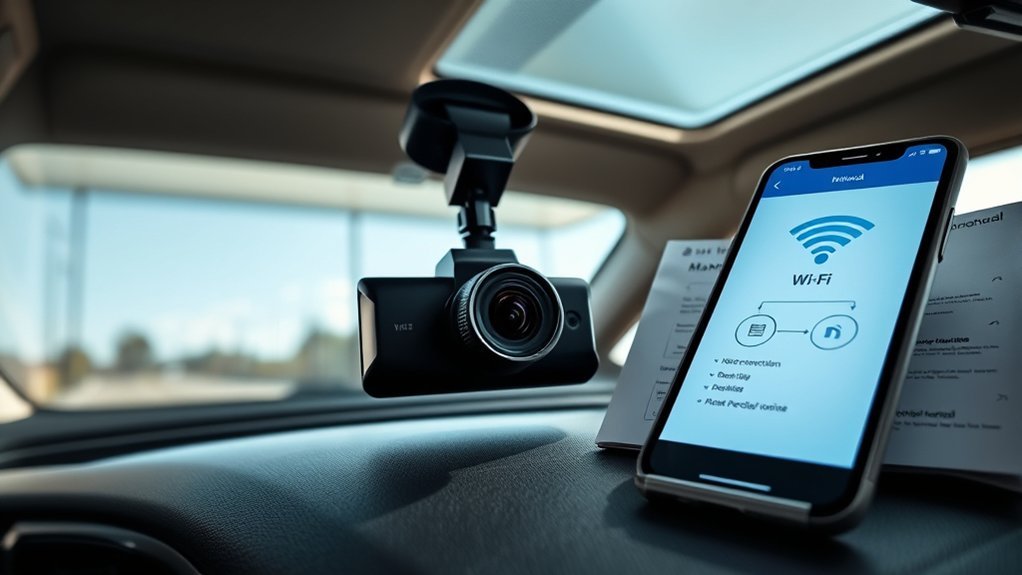
When you want to connect your dash cam to your phone, it’s vital to understand how its Wi-Fi connectivity works. Dash cams create their own Wi-Fi networks, allowing you to access various features and recordings through an app on your smartphone. Typically, these connections operate on the 2.4GHz band, which guarantees better range and penetration through obstacles compared to the 5GHz band. To establish a successful connection, you need to select the correct SSID from your phone’s Wi-Fi settings and forget any other networks to avoid automatic switching. Common troubleshooting issues can arise from incorrect Wi-Fi password entries or interference from other devices. Additionally, verify that your app permissions allow for necessary access. Regularly updating the firmware for both your dash cam and the companion app is vital for maintaining peak functionality and resolving any compatibility issues that may arise.
Enabling Dash Cam Wi-Fi and Selecting the Network
To connect your dash cam to your phone, start by enabling its Wi-Fi, which is usually done by pressing a dedicated button on the device. Next, access your phone’s Wi-Fi settings and select the dash cam’s unique SSID (network name), typically found in the user manual. Most dash cams operate on the 2.4GHz frequency band, so verify your phone’s Wi-Fi recognizes this band for ideal connectivity. If your phone connects automatically to other networks, forget those networks to avoid connection issues.
| Step | Action | Notes |
|---|---|---|
| 1. Enable Wi-Fi | Press the dedicated button | Check manual for location |
| 2. Open Wi-Fi | Go to phone’s Wi-Fi settings | Look for dash cam SSID |
| 3. Select Network | Choose the dash cam’s SSID | Verify 2.4GHz is enabled |
| 4. Launch App | Open dash cam app | Access features like live view |
After connecting, you’re ready to use the dash cam app effectively.
Connect Your Phone to the Dash Cam App
Connecting your phone to the dash cam app requires you to first confirm the dash cam’s Wi-Fi is activated and that you’re connected to its SSID. Open your phone’s Wi-Fi settings and select the Dash Cams Network to establish a connection. Once you’re connected to the dash, launch the corresponding app from your app store. This app will provide access to essential features like live view and video playback.
If your connection fails, verify Bluetooth is turned off, as it can interfere with your Wi-Fi Network connection. Additionally, check for app permissions related to local network access, photos, and location, granting them if necessary. Should problems persist, restarting both the dash cam and your phone can often resolve temporary glitches, restoring a seamless connection. Following these steps will enhance your experience and maximize the functionality of your dash cam.
Common Connection Problems and Their Causes
When connecting your dash cam to your phone, you might encounter several common issues that can disrupt the process. Wi-Fi connection problems, app permission settings, and distance from the device can all affect signal strength and stability. Identifying these potential obstacles is essential for establishing a reliable connection.
Wi-Fi Connection Issues
While trying to connect your dash cam to your phone via Wi-Fi, you might encounter several common issues that can disrupt the process. Here’s a quick reference to help troubleshoot:
| Issue | Solution |
|---|---|
| Phone connects to home Wi-Fi | Forget other networks and select the correct SSID. |
| Wrong frequency band | Make certain your phone connects to the 2.4GHz band. |
| Connectivity issues | Enable Airplane Mode to refresh the network. |
| Outdated firmware/app | Check for updates from the manufacturer. |
Addressing these Wi-Fi issues will enhance your experience connecting to the dash. Maintaining app permissions is also essential, as they can impact the functionality of your dash cam.
App Permission Problems
App permissions play an essential role in guaranteeing your dash cam app functions correctly, as it requires access to various features like Local Network, Photos, Cellular Data, Location, and Bluetooth. Failing to grant these permissions can lead to frustrating connectivity issues. Here’s what to check:
- Verify that you’ve allowed access to Local Network and Bluetooth.
- Confirm Photos and Location permissions are granted for proper functionality.
- If you haven’t used the app for a while, re-grant permissions, as some devices reset them automatically.
- Consider re-installing the app to prompt permission requests anew.
Before attempting a Wi-Fi Connection with your dash cam, checking and adjusting these app permissions is vital to avoid freezes or dropped connections.
Distance and Signal Strength
To guarantee a stable connection between your dash cam and phone, maintaining an ideal distance is essential. Keeping the distance under 10 meters (about 33 feet) markedly enhances your Wi-Fi signal, reducing interference and connection issues. Remember, dash cams typically operate on the 2.4GHz Wi-Fi band, which offers better range through obstacles compared to the 5GHz band. If your phone connects to a stronger Wi-Fi signal, like your home network, it may disconnect from the dash cam. To avoid this, forget other networks in your phone’s settings. If you encounter connection troubles, try basic troubleshooting like turning on Airplane Mode for 30 seconds to refresh the Wi-Fi signal and reconnect effectively.
How to Troubleshoot Common Connection Problems
When troubleshooting connection issues, try toggling Airplane Mode on your smartphone to reset the Wi-Fi connection. It’s also essential to verify that the dash cam app has the necessary permissions enabled; without them, you might face connection failures. Addressing these factors can often resolve persistent connectivity problems.
Airplane Mode Reset Benefits
If you’re experiencing connection issues with your dash cam, activating Airplane Mode can serve as an effective troubleshooting method. This simple reset allows your phone to reconnect more efficiently. Follow these steps for ideal results:
- Enable Airplane Mode on your phone, disabling all wireless signals.
- Wait at least 30 seconds to allow for a fresh start.
- Disable Airplane Mode to restore connectivity.
- Reconnect to your dash cam’s Wi-Fi network.
Using Airplane Mode can help prevent your phone from switching to stronger signals, which often disrupts a stable connection. While it’s not a permanent fix, regularly utilizing Airplane Mode can considerably troubleshoot persistent connectivity issues and enhance your overall experience with your dash cam.
Verify App Permissions
After addressing connection issues through Airplane Mode, it’s important to verify your dash cam app has the necessary permissions to function properly. Begin by checking the app permissions on your phone. Confirm your dash cam app has access to Local Network, Photos, Cellular Data, Location, and Bluetooth. If permissions were previously denied or reset, uninstalling and reinstalling the app can prompt those requests again. For iPhones, navigate to Settings > Privacy > Local Network, while Android users can find permissions in the app settings menu. Regularly review these permissions, especially after software updates or inactivity. Once you’ve confirmed permissions, try connecting again to verify your dash cam functions seamlessly with your phone connected to Wi-Fi.
Checking and Updating Firmware for Optimal Performance
To guarantee your dash cam operates at its finest, regularly checking and updating its firmware is essential. Keeping your device up to date guarantees peak performance and peace of mind. Here’s how you can manage your Dash Cams firmware effectively:
- Check Manufacturer’s Website or App: Regularly visit the manufacturer’s site or open the app to find available updates.
- Ensure Wi-Fi is Turned On: Make sure your dash cam is connected to Wi-Fi during the update process for seamless connectivity.
- Power Supply: Verify your dash cam is adequately charged or connected to power throughout the update to prevent interruptions.
- Follow Instructions: Adhere to the detailed guidelines provided by the manufacturer to avoid any issues during the update.
When to Get Help With Connection Problems?
Experiencing connection problems with your dash cam can be frustrating, especially when you’ve already tried basic troubleshooting steps. If you’ve reset both your dash cam and phone but still can’t connect, it might indicate a hardware issue. Document your troubleshooting efforts, including any error messages, as this information will be valuable when you reach out for help.
If checking for firmware updates and app permissions doesn’t resolve your connectivity problems, it’s time to contact the manufacturer’s support. Consistent Wi-Fi rejection from your dash cam may require a factory reset to restore its functionality. For complex issues that persist, don’t hesitate to seek expert assistance or consult community forums, where you can find additional insights and solutions. Remember, getting help sooner rather than later can save you time and enhance your experience with your dash cam.
Frequently Asked Questions
Why Is My Dash Cam Not Connecting to My Phone?
Your dash cam might not connect due to compatibility issues, incorrect phone settings, or missing app permissions. Check firmware updates and troubleshoot common errors to guarantee a successful connection between devices.
How to Connect Dash Cam to Phone via Wi-Fi?
To connect your dash cam to your phone via Wi-Fi, activate the Wi-Fi setup, select the dash cam in your mobile app, and explore dash cam features. Troubleshoot any connection issues for ideal streaming options.
Why Is My Dash Cam Not Connecting to Wi-Fi?
If your dash cam isn’t connecting to Wi-Fi, check the Wi-Fi signal strength and verify firmware updates are current. Network interference or device compatibility issues might also cause problems; consider reset procedures for troubleshooting.
Can I See My Dash Cam Live on My Phone?
Yes, you can see your dash cam live on your phone through the mobile app. Confirm compatibility, enable Wi-Fi, and utilize features for real-time monitoring and smartphone notifications for ideal live video feed performance.
Conclusion
Connecting your dash cam to your phone can streamline your driving experience, much like a conductor unifying an orchestra. By following the outlined steps and troubleshooting tips, you can guarantee a seamless connection for easy access to footage and settings. Remember to check for firmware updates regularly to optimize performance. If you encounter persistent issues, don’t hesitate to seek professional help. With a little patience and knowledge, you’ll enhance your dash cam’s functionality and reliability.






Leave a Reply