Yes, your Toyota RAV4 does play MP3 files! To enjoy your favorite tracks, just format a USB stick to FAT32 and load it with compatible audio files like .mp3. Keep your folder structure simple and organized to guarantee smooth playback. Many drivers prefer this method for its reliability over streaming options. Want to optimize your audio experience even more? There’s plenty to explore regarding formats, troubleshooting, and enhancing your setup.
How to Play MP3 Files in Your Toyota RAV4
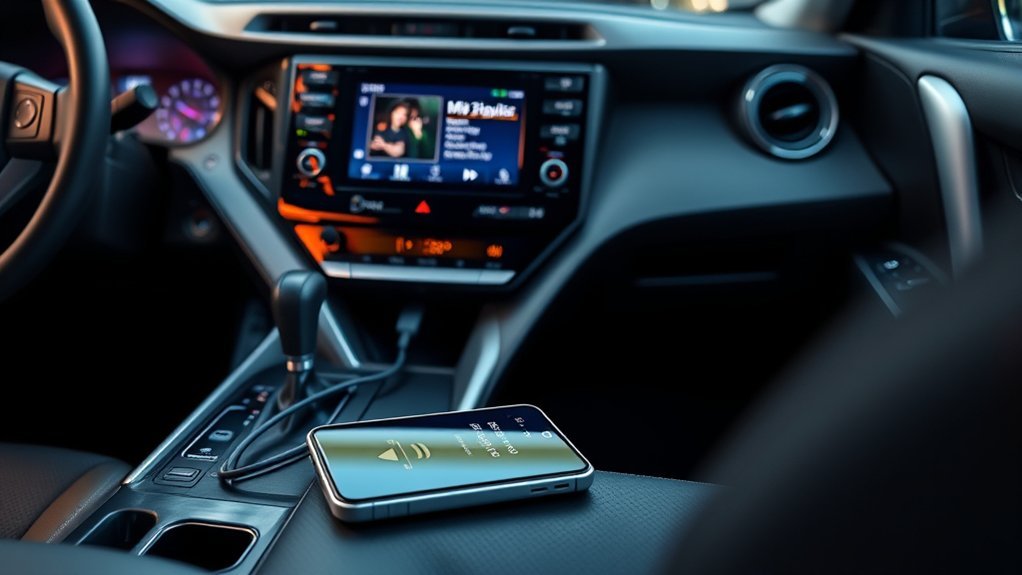
Playing MP3 files in your Toyota RAV4 is a straightforward process that enhances your driving experience with your favorite tunes. To get started, grab a USB stick and make sure it’s formatted as FAT32, which is essential for compatibility. Load it up with your audio files while ensuring they have the correct extensions: .mp3, .wma, or .m4a. For ideal navigation, organize your files within a maximum of eight folder levels, ideally sticking to two for ease of access. Once everything’s set, plug the USB into the RAV4’s USB port. If the system doesn’t recognize your USB, double-check the format, inspect the port, and verify your file organization. Many drivers prefer USB playback over Android Auto due to its reliability. With these steps, you’re all set to enjoy a liberating auditory experience on the road!
How to Format Your USB Stick for Easy Playback
To enjoy your favorite MP3 files seamlessly in your Toyota RAV4, formatting your USB stick correctly is key. Start by formatting your USB stick to FAT32, the recommended file system for media playback. Organize your audio files in folders no deeper than two levels to avoid playback issues. It’s also crucial to name your files without special characters and guarantee they have the appropriate extensions like .mp3, .wma, or .m4a.
Here’s a quick reference table to guide you:
| Step | Action | Notes |
|---|---|---|
| Format USB Stick | FAT32 | Best compatibility with RAV4 |
| Organize Files | Max 2 levels deep | Prevents playback issues |
| File Naming | No special characters | Guarantees recognition by the vehicle |
Supported Audio Formats for MP3 Playback in the RAV4
Many drivers appreciate the versatility of the Toyota RAV4’s audio system, which supports a wide array of audio formats for MP3 playback. You can enjoy MP3 files alongside other formats like WMA, AAC, WAV, FLAC, ALAC, and OGG Vorbis. Just verify your files have the correct extensions—like .mp3 or .wma—to be recognized by the RAV4’s system.
For seamless playback, remember to format your USB drives as FAT32 or NTFS. When loading your MP3 files onto a USB memory stick, keep folder structures simple, ideally no more than two levels deep. This will make navigation a breeze while you’re driving. However, be aware that if your MP3 files are encoded with variable bitrate (VBR), the system might not display the playtime correctly during fast forward or reverse. Overall, the RAV4’s audio capabilities offer a liberating experience for music lovers on the road.
Troubleshooting Common USB Playback Issues
When you’re trying to play music via USB in your Toyota RAV4, a few common issues might pop up. It’s essential to make sure your USB stick is formatted correctly and that your files meet compatibility requirements. Plus, organizing your music efficiently can help avoid playback order challenges, ensuring a smoother listening experience.
USB Format Requirements
Although troubleshooting USB playback issues in your Toyota RAV4 can be frustrating, understanding the format requirements can make a significant difference. First, verify your USB memory is formatted as FAT32, as this is essential for MP3 playback compatibility. Supported audio formats include MP3, WMA, AAC, WAV, FLAC, ALAC, and OGG Vorbis, so double-check your file extensions. If your system isn’t recognizing the USB stick or files, it’s likely a formatting or organization issue. For ideal performance, keep your folder structures within the USB drive no more than two levels deep. Community feedback suggests testing various USB sticks and adhering to these guidelines can often resolve common playback issues, liberating you to enjoy your music seamlessly.
File Compatibility Issues
Even with the right USB format, you might still encounter file compatibility issues while trying to play your music in the Toyota RAV4. To avoid these hiccups, make certain your audio files are in supported formats like MP3, WMA, AAC, WAV, FLAC, ALAC, or OGG Vorbis. If your USB drive isn’t recognized, double-check that it’s formatted as FAT32, as NTFS won’t work. Additionally, missing or incorrect ID3 tags can lead to confusion during playback, so make sure they’re accurate. Remember, organizing files one by one can also help achieve the desired playback order. By addressing these file compatibility issues, you can enjoy a seamless musical experience on your journeys.
Playback Order Challenges
As you explore the audio capabilities of your Toyota RAV4, you might find that the playback order of MP3 files can be tricky to navigate. Playback order challenges often stem from how files are written to your memory stick. To maintain an organized listening experience, consider copying files individually for alphabetical arrangement. While folders can be up to 8 levels deep, limiting them to just 2 enhances performance and makes navigation smoother. Additionally, watch out for Variable Bit Rate (VBR) files, which may not display correct playtime during playback. Finally, using underscores or spaces in file names—while avoiding special characters—can greatly improve recognition and compatibility, ensuring your musical journey remains uninterrupted.
Best Practices for Organizing Your MP3 Files
To get the most out of your MP3 playback in the Toyota RAV4, you should focus on an efficient folder structure and clear file naming conventions. Keeping your folders no more than two levels deep will speed up access, while renaming files without special characters guarantees smooth recognition. By following these best practices, you’ll streamline your listening experience and enjoy your favorite tracks hassle-free.
Folder Structure Optimization
When organizing your MP3 files for ideal use in your Toyota RAV4, keeping your folder structure simple can greatly enhance your audio experience. To attain effective folder structure optimization, consider these best practices for your thumb drive:
- Limit your folder depth to no more than 2 levels for easier navigation.
- Organize files in alphabetical order to guarantee smooth playback.
- Format your USB drive using FAT32 to maintain compatibility with your RAV4’s audio system.
- Avoid using special characters in file names to prevent playback issues.
File Naming Conventions
Creating an effective file naming convention is just as important as optimizing your folder structure when organizing MP3 files for your Toyota RAV4. To guarantee compatibility, avoid special characters in your file names; use underscores or spaces instead. This simple practice helps your audio system recognize the files without hassle. For smooth playback, copy your MP3s one by one to maintain alphabetical order. While your folders can be up to 8 levels deep, keeping them within 2 levels promotes efficient navigation. Always include the .mp3 extension for recognition. Consider using software like DRIVESORT to streamline your file naming conventions and enhance your overall listening experience on the road. Embrace these tips for a liberated audio journey!
Real-Life Experiences of RAV4 Owners With MP3 Playback
While many Toyota RAV4 owners enjoy the convenience of MP3 playback, their experiences can vary considerably based on the model year and the USB sticks used. Here’s what you can learn from real-life encounters:
- Formatting your USB stick as FAT32 often guarantees compatibility.
- Organizing files in a simple folder structure helps with recognition and playback order.
- Many users favor Android Auto for a smoother navigation experience compared to USB playback.
- When selecting MP3s, aim for 128kb or 192kb bitrate for satisfactory quality.
Older RAV4 models generally handle MP3 files well, but newer ones might struggle with certain USB types or file formats. If you’re facing issues, checking your formatting and file organization can make a difference. By sharing these insights, RAV4 owners can enhance their audio experience and enjoy their favorite tunes on the road.
Exploring Alternatives: Streaming and Bluetooth Options
As you explore alternatives to MP3 playback in your Toyota RAV4, streaming music and Bluetooth options emerge as convenient solutions. With Android Auto, you can easily access popular streaming apps like YouTube Music and Pandora One, elevating your in-car audio experience. Bluetooth connectivity allows you to play music directly from your smartphone without any messy wires, giving you the freedom to enjoy your favorite tracks seamlessly.
Moreover, wireless adapters like Carlinkit 5.0 enhance this experience by simplifying integration between your mobile device and the RAV4’s audio system. Many users are gravitating towards streaming services, appreciating the convenience they offer while on the road. However, keep in mind that while streaming, you might encounter some lag during song changes or folder browsing, which could disrupt your flow. Overall, embracing these modern options can liberate your listening experience and keep your drives entertaining.
Tips for Enhancing Your In-Car Audio
To truly enhance your in-car audio experience in the Toyota RAV4, you’ll want to focus on both the quality of your audio files and how you organize them. Start by ensuring your USB thumb drive is formatted to FAT32 and contains high-quality MP3 files. Here are some tips to optimize your audio:
Enhance your Toyota RAV4 audio by using high-quality MP3s and organizing files effectively on a FAT32 USB drive.
- Use MP3 files encoded at bitrates of 128kb/sec or higher for better sound quality.
- Organize MP3 files in folders no more than 2 levels deep to streamline navigation.
- Regularly check your USB stick for file compatibility and make sure it’s securely inserted into the correct port.
- Explore compatible apps like Musicolet Music Player or use streaming services like Spotify through Android Auto for a versatile listening experience.
Frequently Asked Questions
How to Play Music From Phone on Toyota RAV4?
To play music from your phone on the Toyota RAV4, connect via Bluetooth. Make certain your phone’s Bluetooth is enabled, pair it with the RAV4, and enjoy streaming your favorite tracks wirelessly through the audio system.
What Format Is USB Music in Toyota RAV4?
Your Toyota RAV4’s audio compatibility is like having a concert in your car! Just use USB drives formatted in FAT32 or NTFS, and guarantee your music files include supported formats like MP3, WMA, or AAC.
What’s the Most Common Problem With a Toyota RAV4?
The most common problem with your Toyota RAV4 is reliability issues. You might experience USB compatibility troubles, playback order discrepancies, or connection errors, which can disrupt your driving experience and diminish your vehicle’s overall performance.
What Is the Lawsuit Against the Toyota RAV4?
The RAV4 lawsuit claims Toyota’s infotainment system has defects, causing USB recognition issues and frustrating playback experiences. These allegations suggest violations of consumer protection laws, affecting your satisfaction as a RAV4 owner.
Conclusion
To sum up, your Toyota RAV4 does more than just get you from point A to B—it turns your drive into a musical journey. By playing MP3 files effortlessly, you can customize your soundtrack. It’s interesting how a simple USB stick can transform your car into a concert hall on wheels. So, whether you’re cruising through the city or hitting the open road, don’t forget to pack your favorite tunes for an unforgettable ride! Happy listening!
