Do The Toyota RAV4 Have Videos? (explained)
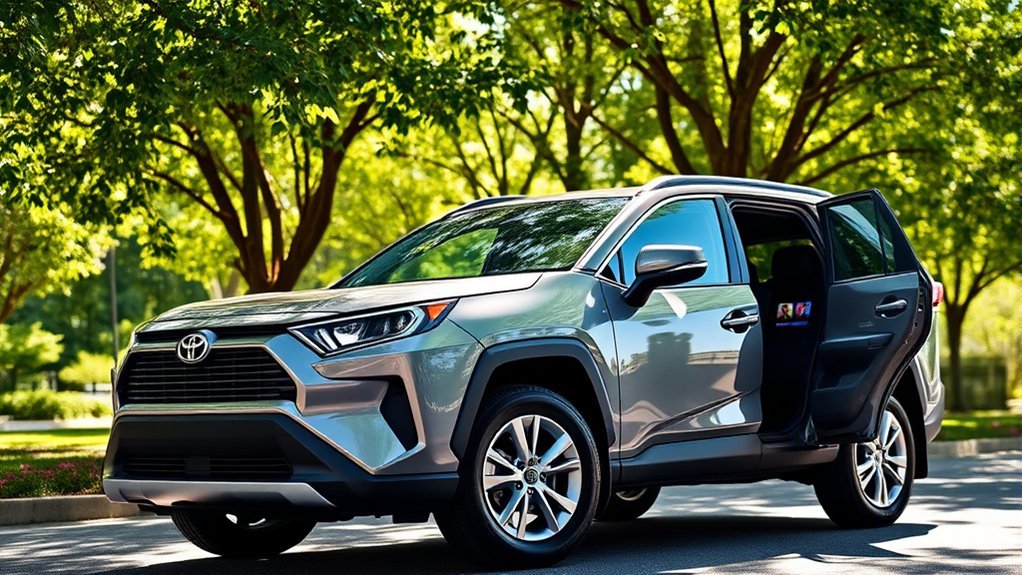
Toyota RAV4 video playback is not a single feature shared by every model year. Some older factory multimedia systems include parked USB video, the 2026 RAV4 can play clips recorded by its built-in Drive Recorder, and newer CarPlay technology can support parked video in compatible cars. Your exact multimedia manual is the final authority.
Quick Answer
You generally cannot stream YouTube, Netflix, or similar video on a Toyota RAV4’s factory screen while driving. Certain older systems support compatible USB video while parked, and the 2026 RAV4 can replay its own Drive Recorder clips. CarPlay video requires a supported vehicle, and Toyota’s published 2026 RAV4 materials reviewed here do not confirm broad support.
Last updated: July 31, 2026
Key Takeaways
- USB movie playback is model-year, region, screen, and software dependent.
- A 2020 RAV4 multimedia manual documents USB video, but only sound is available while the vehicle is moving.
- The 2026 RAV4’s head-unit video playback is confirmed for Drive Recorder clips, not general movie files.
- Apple supports parked CarPlay video in compatible cars, but the automaker must enable it.
- Do not use bypass modules or change media settings while driving.
What’s in This Article
What Video Playback Works on a Toyota RAV4?
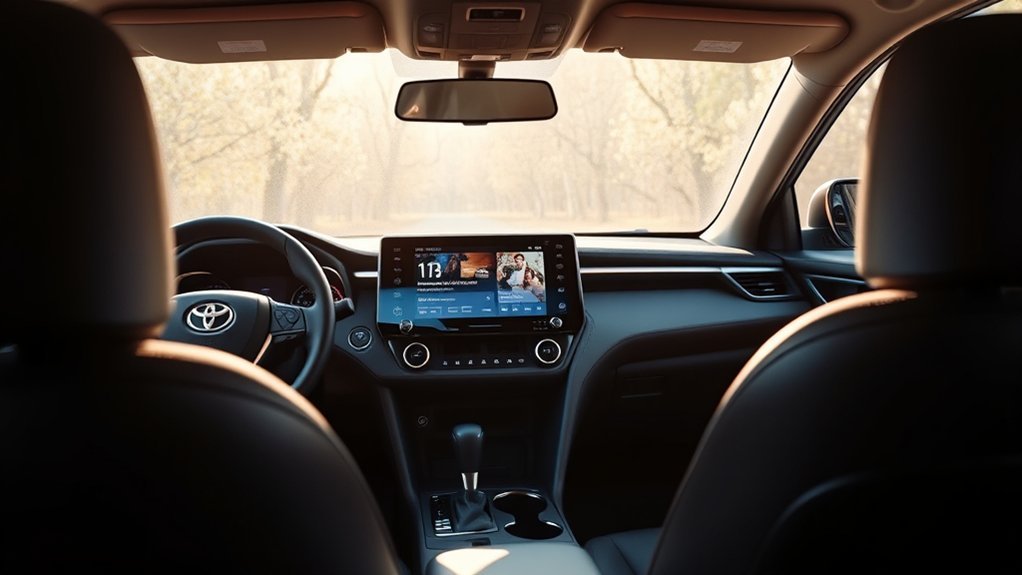
The answer depends on what you mean by “video.” Streaming an entertainment app, playing a local movie file, and reviewing a dashcam clip are three different functions.
| Video Method | RAV4 Support | Important Limit |
|---|---|---|
| USB movie files | Confirmed on some older systems, including the 2020 RAV4/RAV4 Hybrid multimedia system. | Compatibility is not universal. The 2020 RAV4 multimedia manual says video becomes sound-only while driving. |
| Drive Recorder clips | The 2026 RAV4 can play clips captured by its built-in Drive Recorder on the head unit. | This does not turn the screen into a general-purpose movie player. |
| CarPlay video | Apple supports video and AirPlay video in compatible cars while parked. | The vehicle maker must enable the feature. Do not assume a RAV4 supports it. |
| Android Auto video | General video apps are not a standard Android Auto feature on the RAV4. | Google’s parked video-app support is mainly for Android Automotive OS, which is different from phone-projected Android Auto. |
| Aftermarket mirroring adapters | Some third-party devices claim to mirror or unlock video. | They can defeat safety limits and create serious driver distraction. Avoid any device that defeats motion locks. |
Note: Toyota’s official 2026 multimedia announcement confirms head-unit playback for Drive Recorder clips and USB export of those clips. It does not announce Netflix, YouTube, or unrestricted movie playback.
Check Your RAV4 Multimedia System First
Do not choose a file format until you identify the exact system in your vehicle. Two RAV4s with different model years, regions, trims, or screens may have different menus and supported media.
- Confirm the model year and market. A U.S. manual may not match a vehicle sold in Canada, Europe, Australia, or another region.
- Find the multimedia manual. Use Toyota’s official manuals and warranties page, then select the correct year and RAV4 version.
- Search the manual. Look for “USB memory,” “USB video,” “compatible video format,” “video in the car,” or “Drive Recorder.”
- Check the source menu. A system with USB video may show a path such as Audio or Media > USB > Browse > Videos. An audio-only system will not show the same option.
- Review software notes. Toyota warns that manual screens and features can differ after software updates.
Pro Tip: Search the PDF or digital manual for the word “video.” If the only results refer to cameras or the Drive Recorder, the system may not support personal movie files from USB.
RAV4 Video Safety Limits
Factory systems are designed to limit driver-visible entertainment while the vehicle moves. The official 2020 RAV4 multimedia instructions state that USB video can output only sound while driving. Newer platforms also use vehicle-state restrictions for parked entertainment.
Warning: Do not watch video, browse files, connect a USB drive, or operate media controls while driving. Park safely before changing settings. Never install a bypass that defeats the vehicle’s motion-based display lock.
Follow the conditions shown by your system. Depending on the model, the vehicle may need to be stationary, in Park, and in any additional state listed in the manual. If the screen hides the picture but continues the audio, that may be normal safety behavior rather than a fault.
NHTSA reports that 3,208 people died in crashes involving distracted drivers in 2024. Entertainment is never worth taking your eyes or attention away from driving.
USB Video Formats and Drive Setup
If your own RAV4 manual confirms USB video, follow its exact container, codec, resolution, and USB file-system limits. A file extension alone is not enough. For example, two files ending in .mp4 can use different video and audio codecs, and only one may be compatible.
Common Format Terms
| Term | Meaning | Why It Matters |
|---|---|---|
| Container | The file type, such as MP4, AVI, or WMV | The system must recognize the container. |
| Video codec | How the picture is compressed, such as H.264 | An MP4 file can still fail if its codec is unsupported. |
| Audio codec | How the soundtrack is compressed, such as AAC or MP3 | Unsupported audio can cause silent or failed playback. |
| File system | How the USB drive is formatted, such as FAT16 or FAT32 | The RAV4 may not detect a drive formatted in an unlisted system. |
Some Toyota multimedia systems from the USB-video era list MP4, AVI, and WMV containers. That does not prove those formats work on every RAV4. Do not assume MOV, MKV, HEVC/H.265, 4K video, or very high frame rates will work unless your exact manual lists them.
Prepare the USB Drive
- Use the file system listed in the manual. If it specifies FAT16 or FAT32, do not substitute exFAT or NTFS.
- Keep the folder structure shallow. One or two folder levels are easier for older systems to scan.
- Start with one short test file. A small file helps separate format problems from drive-size or library-scanning problems.
- Use simple file names. Letters, numbers, spaces, hyphens, and underscores reduce naming problems.
- Eject the drive correctly. Safe removal lowers the chance of file-system corruption.
How to Test USB Video on a RAV4 Safely
At a Glance
| Time Required | About 10–15 minutes |
| Difficulty | Easy, if the multimedia system supports USB video |
| Tools Needed | Computer, compatible USB flash drive, and the correct multimedia manual |
| Cost | No added cost if you already own a compatible USB drive; otherwise the drive cost varies |
- Park in a safe place. Put the vehicle in Park and follow any parking-brake instruction in your manual or on the display.
- Turn on the multimedia system. Use accessory or ready mode only as directed by the vehicle manual, and avoid leaving the system on long enough to discharge the 12-volt battery.
- Insert the prepared USB drive. Use the media USB port, not a charge-only port.
- Select the USB source. Open the media or audio source menu.
- Look for a Videos option. On the documented 2020 system, the path includes Browse > Videos.
- Play the short test file. Check picture, sound, and controls while the vehicle remains parked.
- Stop if the menu is absent. An audio-only USB menu is a sign that the system or software does not support personal video files through that source.
What Can CarPlay and Android Auto Do With Video?
Apple CarPlay
Apple now documents two parked-video paths: video apps designed for CarPlay and AirPlay video sent from an iPhone to a compatible CarPlay display. Apple states that these features work in supported cars when the user is not driving. The automaker must integrate the required vehicle support.
Toyota’s official 2026 RAV4 materials confirm wireless Apple CarPlay, but the materials reviewed for this update do not confirm AirPlay video or CarPlay video apps for the RAV4. Until Toyota lists the feature for your vehicle or software version, expect normal CarPlay functions such as maps, calls, messages, and audio.
Android Auto
Android Auto and Android Automotive OS are not the same product. Android Auto projects a supported phone experience onto the vehicle display. Android Automotive OS is built into certain vehicles and can support parked video apps when the automaker includes that platform.
Google’s current developer guidance says video apps are supported on Android Automotive OS. Android Auto has begun adding parked app support, but games are the supported parked category at this time. A RAV4 with wireless Android Auto should not be treated as a car with built-in Android Automotive video apps.
Other Ways to Enjoy Media in Your RAV4
For normal driving, audio is the safer and more widely supported choice. Available features vary, but common RAV4 options include Bluetooth audio, USB audio, SiriusXM on equipped models, Apple CarPlay, Android Auto, and Toyota’s built-in streaming services on supported newer vehicles.
| Method | Best Use |
|---|---|
| Bluetooth | Music, podcasts, audiobooks, and calls |
| USB audio | Offline music files on a compatible drive |
| CarPlay or Android Auto | Maps, calls, messages, voice control, and supported audio apps |
| Integrated streaming | Supported onboard audio services; the 2026 system adds available Spotify integration |
| Rear-seat personal device | Passenger video on a securely mounted tablet or phone, without using the driver-visible center screen |
Troubleshooting Video Playback Issues in Your RAV4
Work through these checks in order while the vehicle is safely parked:
- No Videos menu: Confirm that your exact multimedia manual lists USB video. The system may support USB audio only.
- USB drive not detected: Try the correct media port, confirm the required file system, and test a smaller drive if the manual lists a capacity limit.
- File appears but will not play: The container may be recognized while the video or audio codec is not. Re-encode only to settings listed in your manual.
- Sound but no picture: Confirm that the vehicle is fully parked. Sound-only playback while moving is expected on the documented 2020 system.
- Long scan time: Remove unrelated files, reduce folder depth, shorten file names, and test a single small video.
- CarPlay video option missing: The RAV4 may not support Apple’s parked-video feature, even if the iPhone and app support AirPlay.
- 2026 Drive Recorder clip missing: Confirm that a clip was saved and review the Drive Recorder section of the vehicle’s multimedia manual.
Note: A dealer can help identify the head unit and software version, but a missing feature cannot usually be added by changing a file extension or USB drive alone.
Frequently Asked Questions
Can I play movies on my Toyota RAV4 screen?
Possibly, but only if the multimedia manual for your exact RAV4 lists USB video or another parked-video feature. The 2020 system documents USB video, while newer systems may have different menus. Do not assume support based only on the RAV4 model name.
Can the 2026 RAV4 play video on its center screen?
Toyota confirms that the 2026 RAV4 can play clips recorded by its built-in Drive Recorder on the head unit and export them to a USB flash drive. That confirmed feature is for vehicle-camera clips, not general movie or streaming-app playback.
Can I watch YouTube or Netflix through CarPlay?
Apple supports parked video in compatible cars through CarPlay video apps and AirPlay video. The vehicle maker must enable the feature. Toyota’s published 2026 RAV4 materials reviewed here do not confirm it, so YouTube or Netflix should not be expected on the factory screen.
Does Android Auto support video on a RAV4?
Not as a normal RAV4 feature. Google’s parked video-app support applies mainly to Android Automotive OS, which is built into certain vehicles and differs from phone-projected Android Auto. Current Android Auto parked-app support is more limited.
Which USB video format should I try first?
Use only a format and codec combination listed in your multimedia manual. On a system that specifically lists MPEG-4 with H.264 video and AAC audio, a short MP4 using those settings is a sensible test. Do not assume that every MP4 or MOV file is compatible.
Can passengers watch video while the RAV4 is moving?
The driver-visible center screen should not be used for entertainment video while moving. Passengers can use a separate, securely mounted rear-seat device where permitted, but the driver must not be able to watch it or become distracted.
Conclusion
RAV4 video support depends on the exact multimedia system. Some older models have parked USB video, the 2026 model can review Drive Recorder clips, and Apple’s newer parked-video features require vehicle-level support that Toyota’s published RAV4 materials reviewed here do not confirm. Check the correct manual, test one simple file while parked, and use audio features whenever the vehicle is moving.
Sources
- Toyota 2020 RAV4 Hybrid USB Memory Manual — confirms the USB video menu and sound-only operation while driving.
- Toyota 2022 Camry Hybrid Multimedia Operating Information — documents MP4, AVI, and WMV support plus codec limits on one Toyota USB-video system, illustrating why exact-system checks matter.
- Toyota: Latest Evolution of Toyota Multimedia — confirms 2026 RAV4 multimedia features, Drive Recorder clip playback, USB export, Spotify, and wireless phone projection.
- Apple CarPlay Developer Overview — explains parked CarPlay video apps and AirPlay video in supported vehicles.
- Android Developers: Parked Apps for Cars — distinguishes parked video support on Android Automotive OS from Android Auto categories.
- NHTSA Distracted Driving — supports the driver-distraction warning and 2024 fatality figure.