How To Use Apple CarPlay On Toyota RAV4
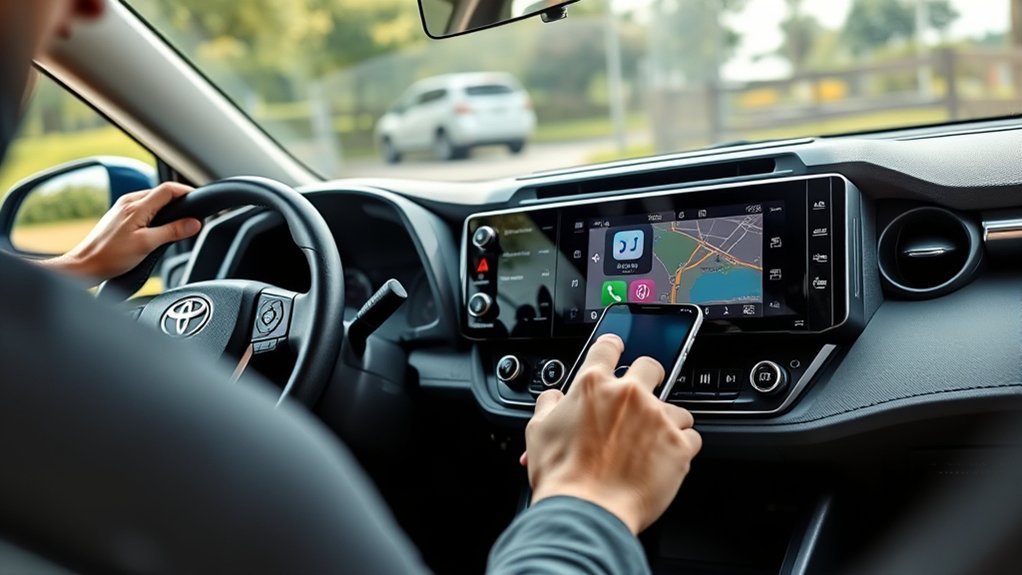
To use Apple CarPlay on your Toyota RAV4, verify your iPhone has the latest iOS version and Siri is enabled. Connect your iPhone using a certified Apple Lightning cable while the vehicle is in Park. Confirm any prompts on your multimedia system and iPhone for access. For wireless connections, enable Bluetooth and follow pairing instructions. Familiarize yourself with the apps available and customization options for an ideal experience. Discover additional tips to enhance your CarPlay journey.
Get Your iPhone Ready for Apple CarPlay
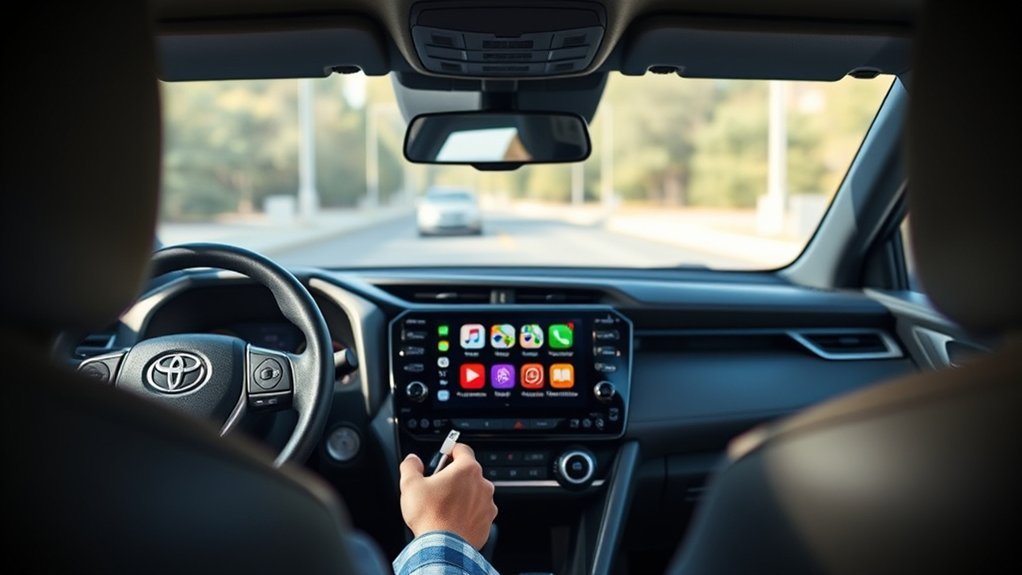
Before you connect your iPhone to Apple CarPlay in your Toyota RAV4, make certain it’s ready by following a few essential steps. First, update your iPhone to the latest iOS version for best compatibility. Next, activate Siri by going to Settings > Siri & Search and enabling the feature. To guarantee CarPlay is allowed, navigate to Settings > General > CarPlay and check the settings. For a successful wired connection, use an Apple Lightning cable and plug it into your RAV4’s USB port. Finally, confirm that your vehicle is in Park (P) mode. These steps will prepare your iPhone for a seamless Apple CarPlay experience, freeing you to enjoy hands-free navigation and entertainment.
Set Up Wired Apple CarPlay
To set up Wired Apple CarPlay in your Toyota RAV4, make sure your vehicle is in Park (P) mode and connect your iPhone to the car’s USB port using an Apple-certified Lightning cable. Follow these steps to enable Apple CarPlay:
To enable Wired Apple CarPlay in your Toyota RAV4, ensure the vehicle is in Park and connect your iPhone using a Lightning cable.
- Look for a prompt on the multimedia system asking if you want to enable CarPlay; select “Yes.”
- Confirm the prompt on your iPhone to allow CarPlay access by tapping “Yes.”
- Once connected, Apple CarPlay will automatically launch, providing access to navigation, music, and communication apps.
You can control Apple CarPlay using the vehicle’s touchscreen or through voice commands via Siri for a hands-free experience. Enjoy the enhanced connectivity and convenience that Apple CarPlay offers in your RAV4!
What to Do If CarPlay Doesn’t Work?
If CarPlay isn’t working in your Toyota RAV4, it’s essential to troubleshoot a few key areas to restore functionality. First, verify your iPhone is updated to the latest iOS version, as outdated software can hinder CarPlay operation. Check that Siri is enabled on your iPhone; CarPlay requires Siri for proper function. Use a certified Apple Lightning cable, as non-certified cables may only charge your device without enabling CarPlay. Restart both your vehicle’s multimedia system and your iPhone to refresh the connection. Finally, access the Toyota settings menu to toggle the Apple CarPlay option off and on, which might help re-establish the connection. Following these steps should help you get CarPlay back up and running smoothly.
Connect Your iPhone Wirelessly to Apple CarPlay
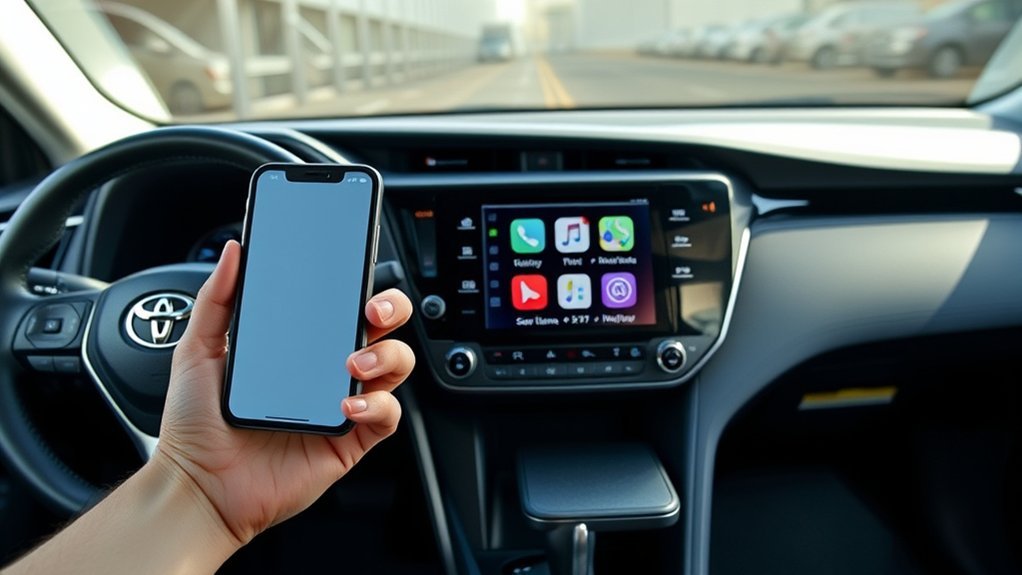
To connect your iPhone wirelessly to Apple CarPlay in your Toyota RAV4, start by enabling Bluetooth® on your device. Navigate to the multimedia screen, access the ‘Bluetooth® & devices’ settings, and select ‘Add another device.’ Follow the pairing prompts on both the multimedia screen and your iPhone to establish the connection seamlessly.
Bluetooth® Activation Steps
Connecting your iPhone® wirelessly to Apple CarPlay in your Toyota RAV4 involves a few straightforward steps. Follow these steps to activate Bluetooth®:
- On your iPhone®, navigate to Settings and verify Bluetooth® is enabled.
- Access the multimedia screen in your RAV4, select Settings (gear icon), and go to Bluetooth® & devices to start pairing.
- Choose Add another device and select Search for devices to locate your iPhone®.
Confirm the pairing prompts on both your multimedia screen and iPhone®. Once paired, select “Yes” on the RAV4’s screen to enable CarPlay®, and tap “use” on your iPhone® to launch Apple CarPlay automatically. Enjoy seamless connectivity on the go!
Pairing Your iPhone®
Pairing your iPhone® with Apple CarPlay in your Toyota RAV4 is a quick and easy process that enhances your driving experience. Follow these steps to connect wirelessly:
| Step | Action | Note |
|---|---|---|
| 1. Enable Bluetooth® | On your iPhone®, verify Bluetooth® is on. | Check settings if needed. |
| 2. Access Settings | Go to multimedia screen, select Settings. | Look for the gear icon. |
| 3. Add Device | Choose ‘Bluetooth® & devices’ then ‘Add another device’. | Start pairing process. |
| 4. Confirm Pairing | Select ‘Search for devices’ and confirm on both screens. | Verify both devices are ready. |
| 5. Enable CarPlay® | Select “Yes” on the multimedia screen. | Follow prompts on your iPhone®. |
Apple CarPlay will launch, giving you access to essential apps.
Accessing and Using Apps on Apple CarPlay
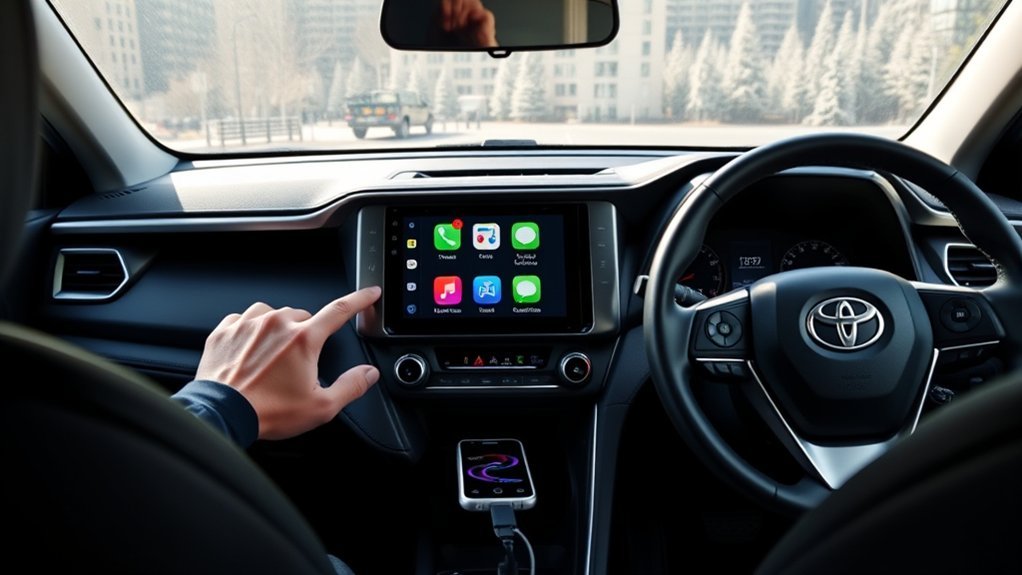
Once you access Apple CarPlay on your Toyota RAV4, you’ll see a range of compatible apps for navigation, music, messaging, and communication. You can easily use voice commands with Siri to make calls or get directions, keeping your focus on the road. Additionally, you can customize the app layout to suit your preferences from your iPhone’s settings.
Compatible Apps Overview
When you use Apple CarPlay in your Toyota RAV4, you’ll gain access to a variety of compatible apps designed to enhance your driving experience. With these apps, you can streamline navigation, music, and communication while keeping your focus on the road. Here are three key categories of compatible apps:
- Navigation: Access reliable options like Apple Maps, Google Maps, and Waze for turn-by-turn directions and real-time traffic updates.
- Music Streaming: Enjoy your favorite tunes with apps such as Apple Music, Spotify, and Pandora, all controllable hands-free.
- Messaging: Stay connected using iMessage and WhatsApp, allowing you to send and receive messages through voice commands.
Apple CarPlay transforms your driving experience, making it safer and more enjoyable.
Voice Command Usage
| Command Type | Example Command | App Used |
|---|---|---|
| Messaging | Send a message to John on Messages | Messages |
| Music | Play my favorite playlist on Apple Music | Apple Music |
| Navigation | Take me to Starbucks | Maps |
| Calendar | Check my calendar for today | Calendar |
| Streaming | Play [song or artist] on Spotify | Spotify |
Ensure Siri is enabled on your iPhone for best functionality with Apple CarPlay®.
Navigation and Music Access
Using Apple CarPlay in your Toyota RAV4 not only enhances voice command functionality but also provides seamless access to navigation and music apps. Here’s how you can make the most of it:
- Access Navigation: Tap the app icon for Google Maps or Apple Maps on the touchscreen after connecting your iPhone to get directions effortlessly.
- Play Music: Select compatible apps like Apple Music or Spotify on the CarPlay home screen to browse your library and playlists easily.
- Use Voice Commands: Press the voice control button on the steering wheel or tap the Siri icon to ask for directions or play specific songs hands-free.
Ensure your iPhone is updated to the latest iOS version for the best Apple CarPlay experience. Enjoy your drive!
Best Practices for Stable Apple CarPlay
To guarantee a stable and reliable Apple CarPlay experience in your Toyota RAV4, it’s vital to follow best practices that enhance connectivity. Start by using an Apple-certified Lightning cable for wired connections; this confirms stable data transfer and minimizes connectivity issues. Regularly check that your iPhone is updated to the latest iOS version, as updates can greatly improve Apple CarPlay performance. Don’t forget to keep your vehicle’s multimedia system firmware current to resolve bugs and enhance functionality. Enable Siri on your iPhone, as it’s essential for using voice commands and hands-free features. Finally, clean the USB port and Lightning connector on both your iPhone and vehicle, removing any debris that could disrupt a stable connection.
Frequently Asked Questions
How Do I Use Apple Carplay on My Toyota RAV4?
To use Apple CarPlay on your Toyota RAV4, connect your iPhone via USB. Enable Siri for voice control, access your apps through the touchscreen, and check for software updates to enhance compatibility and performance.
Why Is My Apple Carplay Not Working on My Toyota RAV4?
Your Apple CarPlay might not be working due to connection issues. Check for updates on your iPhone and Toyota’s multimedia system, verify Siri’s enabled, and use a certified Lightning cable for a reliable connection.
How Do I Connect My Apple Carplay to My Toyota?
To connect your Apple CarPlay wirelessly, enable Bluetooth on your iPhone, access the multimedia screen, and follow the prompts to pair your device. Enjoy seamless access to your favorite apps while driving.
How to Activate Apple Carplay?
To activate Apple CarPlay, make certain your iPhone’s Siri is enabled, connect it via USB, or pair it through Bluetooth. Confirm prompts on both devices, and enjoy seamless Apple compatibility for navigation and entertainment.
Conclusion
To sum up, using Apple CarPlay in your Toyota RAV4 can transform your driving experience into a seamless blend of convenience and connectivity. By following the steps outlined, you can easily navigate, communicate, and enjoy your favorite apps right from your dashboard. Remember, if you run into any hiccups, troubleshooting is just a few taps away. So buckle up, stay connected, and let Apple CarPlay steer you towards a smarter, safer journey on the road.