To use the projection feature in your Toyota RAV4, first, make sure Apple CarPlay is activated in your settings. Connect your iPhone to the designated USB port using a quality data transfer cable. Once plugged in, select the projection icon on the infotainment screen and allow access on your iPhone. You’ll then have access to navigation, messaging, and music apps. Keep exploring to uncover tips for troubleshooting issues and optimizing your CarPlay experience!
Understanding Apple CarPlay Features in Your Toyota RAV4
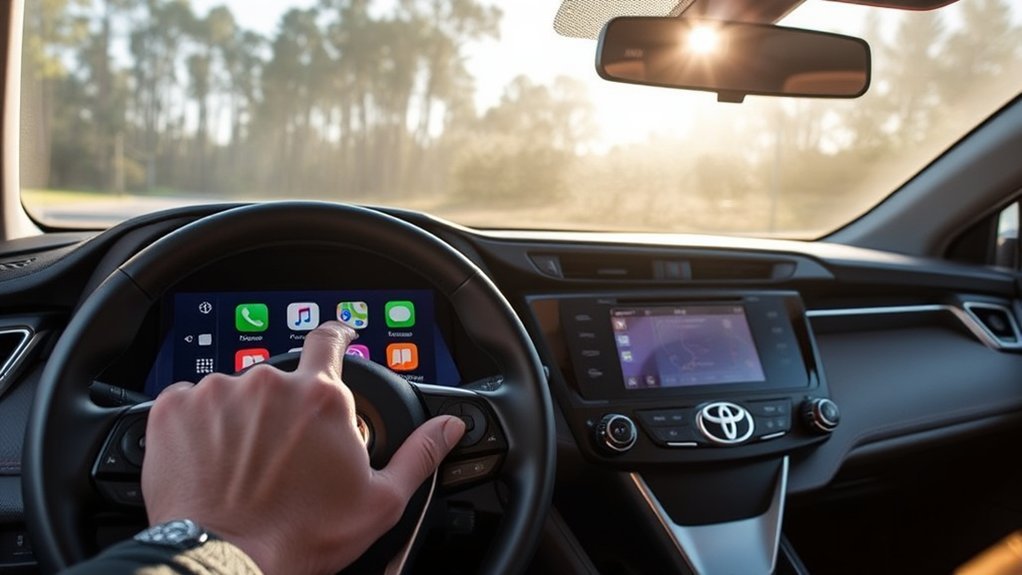
When you drive your Toyota RAV4, understanding how to use Apple CarPlay can greatly enhance your experience. Introduced in 2019, Apple CarPlay allows you to seamlessly integrate your iPhone with your vehicle’s infotainment system. To get started, verify you use an authentic Apple data transfer cable and connect it to the designated USB port. This connection activates the projection icon, which will change to “Apple CarPlay,” giving you access to essential apps like Messages, Calendar, and Google Maps right on your RAV4’s display.
With Siri at your fingertips, hands-free navigation, texting, and calling become not just convenient but also safer while you’re on the road. Embrace the freedom of driving without distractions, and let your Toyota RAV4 transform into a hub of information and entertainment, making every journey more enjoyable and efficient.
Turn On Apple CarPlay in Your RAV4 Settings
To turn on Apple CarPlay in your RAV4, head to the Projection Settings Menu by tapping Menu, then Setup. Make sure the Apple CarPlay feature is set to “On” to get started. Once activated, you can easily access all the great features right from your home menu.
Access Projection Settings Menu
Accessing the Projection Settings Menu in your Toyota RAV4 is a straightforward process that allows you to enable Apple CarPlay quickly. Start by moving through the Menu and selecting Setup, then choose Projection Settings. Here, you’ll find a clear Projection settings overview that indicates whether Apple CarPlay is compatible with your vehicle. If Apple CarPlay is your only option, you’ll see a simple toggle labeled “Apple CarPlay Off/On.” Make sure it’s turned on to activate this feature. After making your selections, return to the home menu to confirm the settings have been applied. If you run into any issues, remember that your local Toyota dealership can assist with vehicle software updates or the retrofit program for older models.
Enable Apple CarPlay Feature
Enabling the Apple CarPlay feature in your Toyota RAV4 is a simple yet essential step for enhancing your driving experience. Just follow these steps to enjoy its advantages, like seamless navigation and music streaming.
| Step | Action |
|---|---|
| 1. Access Menu | Navigate to the Menu on your display |
| 2. Select Setup | Choose Setup, then Projection Settings |
| 3. Activate Apple CarPlay | Toggle to turn Apple CarPlay On/Off |
Choosing the Right USB Port for Your Apple CarPlay Connection
How can you guarantee a smooth connection for Apple CarPlay in your Toyota RAV4? Start by selecting the right USB port. Look for the port labeled with the USB icon, as this is the designated connection for CarPlay. Avoid using USB ports labeled 2.1A, since they only charge your device and won’t support data transfer.
To secure a successful connection, keep these tips in mind:
- Use authentic Apple cables or high-quality data transfer cables.
- Steer clear of cheap charging-only cords from discount retailers.
- Double-check for common connection errors, like loose cables.
Selecting the appropriate USB port types and using the right cables makes all the difference. It’s the key to accessing the full potential of Apple CarPlay, allowing you to enjoy a seamless driving experience while staying connected.
Connecting Your iPhone to Apple CarPlay
Once you’ve chosen the right USB port for your Apple CarPlay connection, it’s time to connect your iPhone. First, verify that Apple CarPlay is enabled in your Toyota RAV4 by maneuvering to Menu > Setup > Projection Settings. Use a genuine Apple data transfer cable for your USB cable selection — avoid any charging-only ports to confirm iPhone compatibility.
Plug your iPhone into the designated USB port, and select the projection icon on the vehicle’s menu. If this is your first time, access your iPhone and tap “Allow” to enable the connection; no app installation is necessary. Remember, for seamless access to features like Messages and Maps through Siri, your iPhone must remain plugged in. Stay updated on CarPlay updates to enhance your driving experience and fully embrace the freedom of connectivity on the road!
What to Do After Plugging In: Activating Apple CarPlay
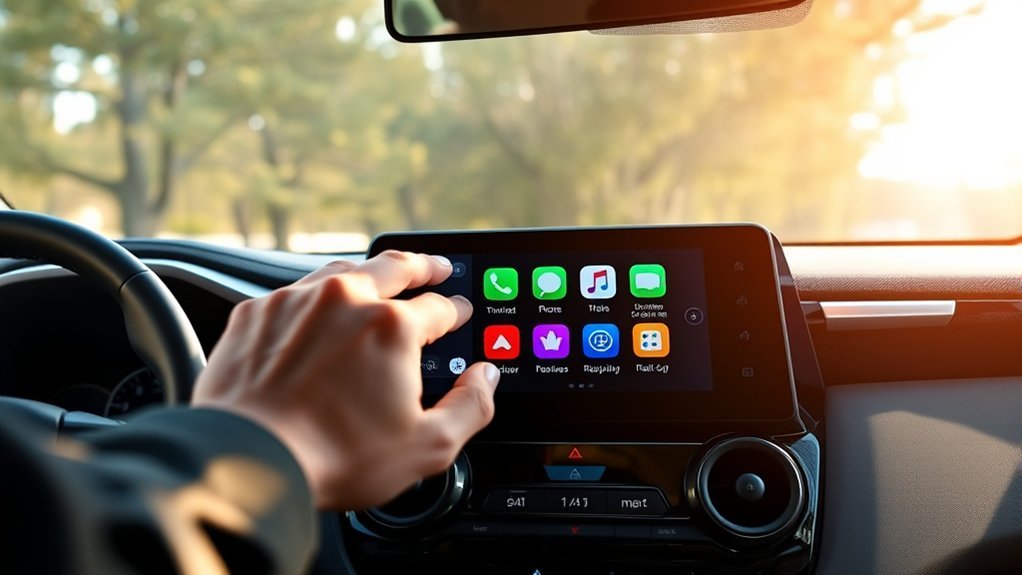
After you’ve plugged in your iPhone, activating Apple CarPlay is a straightforward process. Start by accessing the projection icon on your Toyota RAV4’s menu. Once connected, the icon will change to “Apple CarPlay,” signaling that you’re ready to engage. If it’s your first time, you might see some initial phone prompts; just access your device and press “Allow” to grant permission.
Here are some handy USB connection tips:
- Use the correct port: Make sure you’re using the designated USB port for Apple CarPlay.
- Keep your phone plugged in: This guarantees uninterrupted access to all features while driving.
- No need for extra apps: Apple CarPlay comes pre-installed, so you’re good to go right away!
Enjoy the freedom of hands-free navigation and control, making every drive a breeze!
Discover the Best Apps for Apple CarPlay
When you’re on the road with Apple CarPlay, having the right apps can make all the difference. You’ll want to explore essential navigation tools like Google Maps, stay connected with Messages, and enjoy your favorite tunes on Spotify. Let’s uncover the best apps that enhance your driving experience and keep you entertained.
Essential Navigation Apps
As you hit the road in your Toyota RAV4, having the right routing apps at your fingertips can make all the difference in your journey. Apple CarPlay provides seamless access to essential routing apps, letting you choose based on routing app comparisons. Here are some top picks:
- Google Maps for detailed turn-by-turn directions
- Waze for real-time traffic updates and alerts to dodge congestion
- Apple Maps for a user-friendly interface and Siri integration, allowing hands-free routing requests
With these apps, you can easily switch between them using simple taps on the CarPlay screen. Plus, you can enjoy entertainment from apps like Spotify while routing, enhancing your driving experience.
Communication and Messaging Tools
Staying connected while driving is essential, and Apple CarPlay makes it easier than ever with a range of communication and messaging tools. With voice command convenience, you can send and receive messages hands-free using apps like Messages, WhatsApp, and Skype. Just ask Siri to send a text or make a call, minimizing distractions and enhancing safety on the road. Notifications from your messaging apps pop up on the CarPlay screen, so you won’t miss important messages without checking your phone. Plus, Apple CarPlay guarantees seamless app integration, syncing effortlessly with your existing messaging platforms. Whether you’re calling a contact or responding to a message, you can maintain communication while enjoying the freedom of the open road.
Entertainment and Music Options
How can you enhance your driving experience with music and entertainment? With Apple CarPlay in your Toyota RAV4, you can access a world of music streaming services, like Apple Music, Spotify, and Pandora. Enjoy personalized playlists and radio stations while you drive, all at your fingertips.
Here are some tips to maximize your experience:
- Playlist organization tips: Create playlists for different moods or road trips to easily find the right vibe.
- Offline listening advantages: Download your favorite tracks to enjoy uninterrupted music, even without a signal.
- Siri integration: Use voice commands to control playback and request specific songs without taking your eyes off the road.
Elevate your drive with seamless music and entertainment options!
How to Use Siri for Navigation and Messaging in Apple CarPlay
Using Siri for navigation and messaging in Apple CarPlay on your Toyota RAV4 can make your driving experience more convenient and safer. To get started, simply press the voice command button on your steering wheel or say “Hey Siri.” You can ask for directions by saying commands like “Take me to [destination]” or “Navigate to [place].” This utilizes compatible navigation apps such as Google Maps, ensuring you reach your destination effortlessly.
For hands-free messaging, just say “Send a message to [contact name],” followed by your message. This allows for seamless communication without taking your hands off the wheel. Make sure Siri is enabled on your iPhone and that location services are active for maximum functionality. Don’t forget, your phone needs to stay connected via USB to the RAV4’s designated port for Siri shortcuts and other Apple CarPlay features to work effectively. Enjoy a stress-free drive!
Troubleshooting Apple CarPlay Issues in Your RAV4
Even with the convenience of Siri for navigation and messaging through Apple CarPlay, you might run into some issues while trying to connect your iPhone to your Toyota RAV4. Here are some troubleshooting tips to help you overcome common connectivity issues:
- Check the USB Port: Make sure you’re using the correct USB port labeled for Apple CarPlay and a compatible data transfer cable.
- Enable CarPlay: Navigate to Menu > Setup > Projection Settings in your RAV4 and confirm Apple CarPlay is turned on.
- Siri Permissions: If your iPhone prompts for permission, open it and select “Allow” to establish the connection.
If the projection icon doesn’t change to “Apple CarPlay,” try restarting both your infotainment system and iPhone. And don’t forget, having Siri enabled is essential for peak voice command functionality!
Frequently Asked Questions
How Do You Use the Projection on a Toyota RAV4?
To use projection in your Toyota RAV4, connect your iPhone via USB, enable Apple CarPlay, and enjoy hands-free navigation. If you encounter issues, troubleshoot by checking connections and settings for maximal benefits of projection.
How to Activate Phone Projection?
To activate phone projection, make certain your phone’s Bluetooth connectivity is on, check for screen compatibility, and meet app requirements. Connect your device, and watch your world transform into a seamless, digital adventure right before your eyes!
How Do I Project My Phone on My Toyota Screen?
To project your phone on your Toyota screen, check for phone compatibility issues first. Explore wireless projection methods if available, and follow app installation tips to guarantee a smooth connection for seamless access to your apps.
Can I Mirror My Phone to My RAV4?
You can’t mirror your phone to the RAV4. Instead, check phone compatibility with Apple CarPlay, adjust the projection settings, and connect via USB for seamless access to your iPhone’s apps and features.
Conclusion
Using Apple CarPlay in your Toyota RAV4 can seem intimidating, but it’s easier than you think! Once you familiarize yourself with the setup and features, you’ll wonder how you ever drove without it. Don’t worry if technology isn’t your strong suit—this system is designed for simplicity and convenience. So go ahead, connect your iPhone, and enjoy seamless navigation, music, and messaging on the go. You’ll quickly see how it enhances your driving experience!
