How To Connect Phone To Toyota RAV4
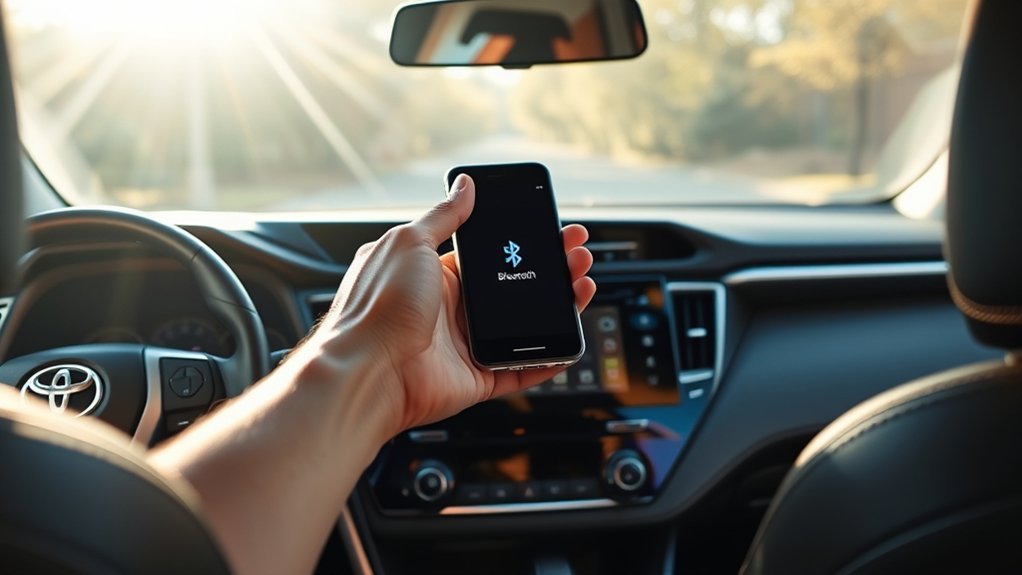
To connect your phone to a Toyota RAV4, press “Menu” on the multimedia system, select “Setup,” then go to the Bluetooth section and choose “Add Device.” Make sure your smartphone’s Bluetooth is enabled and discoverable. Once paired, enable contact sync for hands-free calling. If you encounter issues, verify both devices have Bluetooth activated and are within range. Need more tips for a seamless experience? There’s plenty more to explore!
How To Start The Bluetooth Pairing Process And Connect Your Smartphone
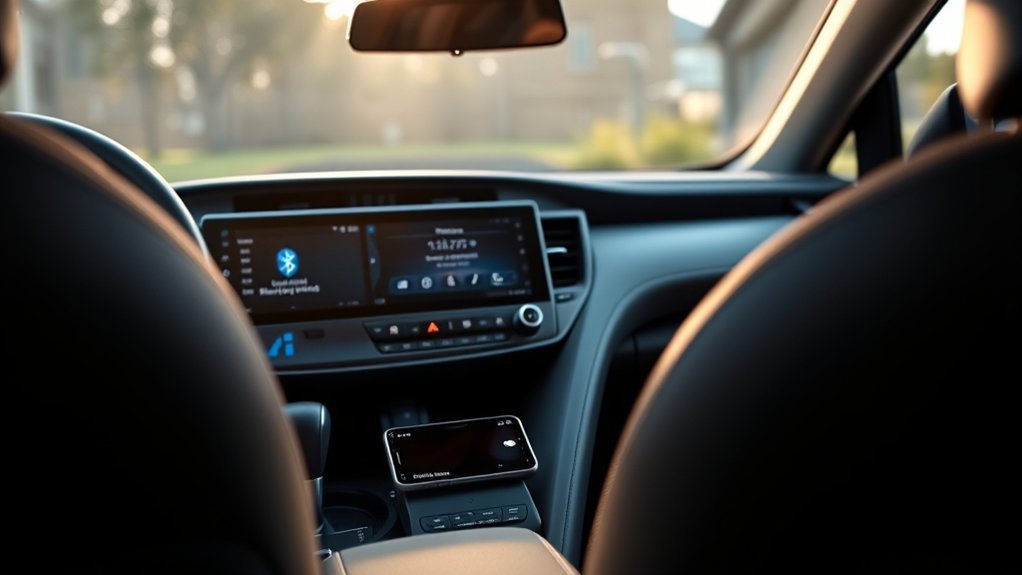
To connect your smartphone to the Toyota RAV4 via Bluetooth, start by pressing the “Menu” button on the multimedia system and selecting the “Setup” option. Next, navigate to the ‘Bluetooth’ section and choose ‘Add Device’ to initiate the search for your smartphone. Make sure your smartphone’s Bluetooth is enabled and set to discoverable mode for successful pairing.
Follow the onscreen instructions carefully, including confirming the code displayed on both the RAV4 and your smartphone. This step is vital for ensuring a secure connection. Once connected, you can register up to 5 Bluetooth devices, allowing you to prioritize connections for seamless access in the future.
This information applies to U.S. models of the Toyota RAV4 sold by Toyota Motor Sales. Enjoy the freedom of hands-free connectivity as you drive, enhancing your driving experience without distractions.
Sync Contacts For Easy Hands-Free Calling
While connecting your smartphone to your Toyota RAV4, syncing your contacts enhances your driving experience by providing easy access to your phonebook through the vehicle’s multimedia system. Once your phone is connected via Bluetooth, enable the contact sync feature. This transfer allows for hands-free calling, promoting road safety by minimizing distractions. To guarantee a smooth process, perform Bluetooth compatibility checks on both your RAV4 and smartphone. Additionally, make necessary smartphone settings adjustments to allow access to your contacts. Regularly updating your contact list can provide the most current information for quick retrieval while driving. Incorporate contact organization tips, such as grouping important contacts or removing outdated numbers, to streamline your phonebook. This way, you’ll enjoy a seamless experience, making calls effortlessly and safely from your RAV4. Embrace the freedom of hands-free communication on the road!
Troubleshooting Bluetooth Connection Issues After Pairing
If you’re experiencing issues with your Bluetooth connection after pairing your phone to the Toyota RAV4, there are several steps you can take to troubleshoot the problem. Start by ensuring Bluetooth is enabled on both your phone and the RAV4’s multimedia system. If you see Bluetooth error messages, try these troubleshooting steps:
Experiencing Bluetooth issues with your Toyota RAV4? Check connections, restart systems, and consult your manual for tailored troubleshooting.
- Restart the multimedia system to resolve connection hiccups.
- Verify your smartphone is discoverable and within range.
- Remove any previously paired devices to eliminate device compatibility issues.
Consult your vehicle’s manual for a tailored troubleshooting steps guide, as different models may have unique settings. Following these steps will empower you to regain control over your Bluetooth connection and enjoy hands-free functionality, making your driving experience smoother and more connected. Don’t let technology hold you back—take charge and get your RAV4 working seamlessly with your phone!
Using Bluetooth With Apple CarPlay For A Seamless Driving Experience
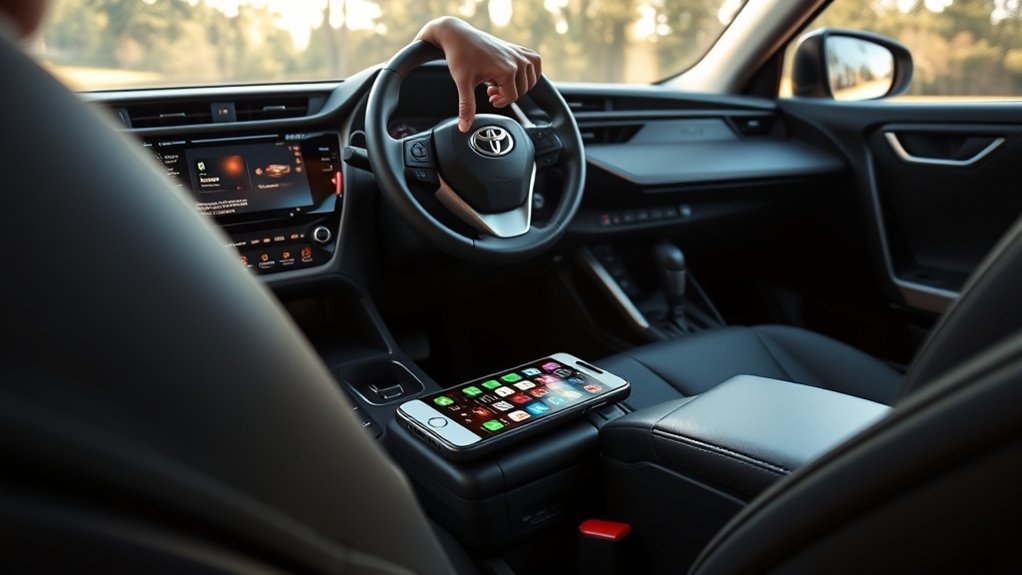
After ensuring your Bluetooth connection is stable, you can take advantage of Apple CarPlay to enhance your driving experience in the Toyota RAV4. To enable Apple CarPlay functionality, connect your iPhone via a USB cable, ensuring Bluetooth is enabled on both devices. Upon connection, a new Apple Car symbol will appear on the multimedia display, granting you access to frequently used apps with ease.
Apple CarPlay minimizes distractions while driving, allowing you to access music, podcasts, and navigation apps seamlessly. With voice command usage through Siri, you can communicate hands-free, maintaining focus on the road for safety. This system supports a wide range of app compatibility features, making it perfect for work commutes, school runs, or road trips. By integrating Apple CarPlay, you’ll enjoy a more liberated, connected driving experience that keeps you in control without sacrificing safety.
Tips For Managing Your Bluetooth Devices In The RAV4
How can you simplify managing your Bluetooth devices in the Toyota RAV4? Effective Bluetooth device management can enhance your driving experience. Here are a few tips to streamline your connectivity:
Simplify your Bluetooth management in the Toyota RAV4 for a smoother driving experience with these essential tips.
- Set Connection Priority Settings: Configure your system to prioritize new devices for quick access.
- Limit Registered Devices: Remember, you can register up to 5 devices. If you reach that limit, you’ll need to delete registered devices to add new ones.
- Delete Unused Devices: Access your Bluetooth settings, select “Remove Device,” and confirm to clear out old connections and associated contact data.
Using these strategies guarantees your RAV4 stays connected to the devices that matter most, freeing you to focus on the road ahead. Don’t let tangled connections hold you back—take control of your Bluetooth experience!
Frequently Asked Questions
How Do I Pair My Phone With My Toyota RAV4?
To pair your phone with your Toyota RAV4, access Bluetooth settings, enable discoverable mode, and follow on-screen instructions. For mobile app integration, troubleshoot common pairing issues by ensuring compatibility and checking updates.
Why Isn’t My iPhone Connecting to My RAV4?
Your iPhone might not connect due to compatibility issues, Bluetooth connection troubleshooting, or outdated vehicle software. Confirm your iPhone is discoverable, restart both devices, and check for software updates on your RAV4 for resolution.
How Do I Sync My Toyota to My Phone?
To sync your Toyota to your phone, guarantee Bluetooth is enabled. Check for smartphone compatibility issues and perform infotainment system updates. If problems persist, consult Bluetooth troubleshooting tips for a seamless connection.
How to Connect Phone to Toyota RAV4 2012?
To connect your phone to a 2012 Toyota RAV4, access the Bluetooth settings, add your device, and guarantee compatibility. Once paired, you can enjoy hands-free calling and audio streaming seamlessly while driving.
Conclusion
In conclusion, connecting your phone to your Toyota RAV4 enhances your driving experience, streamlines communication, and simplifies navigation. By mastering the Bluetooth pairing process, syncing contacts, and troubleshooting common issues, you’ll enjoy hands-free convenience. Utilizing Apple CarPlay further integrates your smartphone, while managing your Bluetooth devices guarantees a seamless connection. So, embrace the technology, enjoy the journey, and keep your focus on the road ahead. Your RAV4 is ready to connect, are you?