Toyota Rav4: How Can I Get Android Auto On My Toyota RAV4
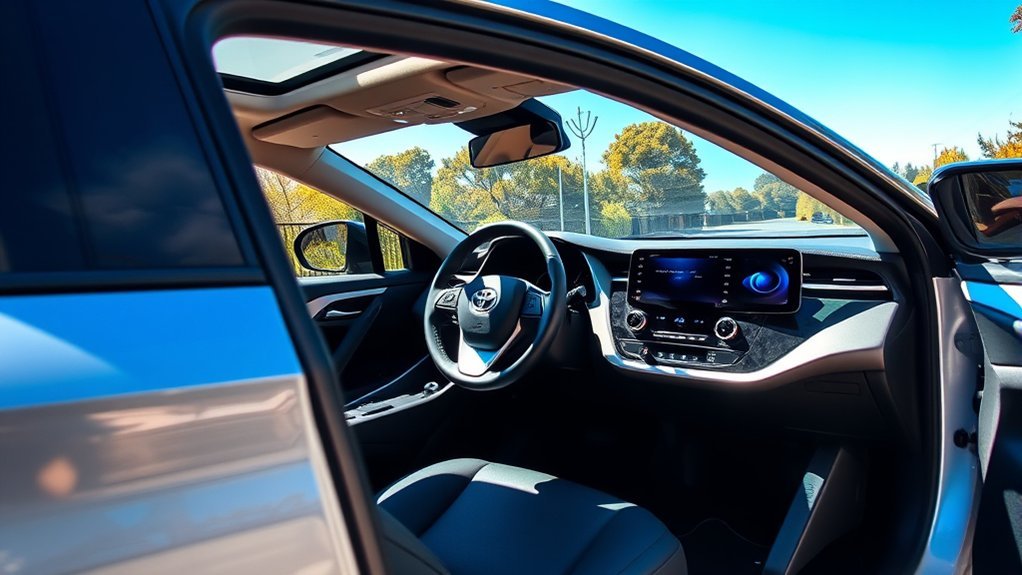
To get Android Auto on your Toyota RAV4, first, check if your model year is 2021 or newer, as compatibility starts there. You can set it up either wirelessly via Bluetooth or with a USB cable. For a wireless connection, make sure Bluetooth is activated on your phone, while a wired setup requires a certified USB cable. Once connected, you can enjoy navigation and entertainment seamlessly. Keep exploring to discover tips and troubleshooting for a smooth experience.
What Is Android Auto and Why Use It in Your RAV4?
If you’re looking to enhance your driving experience, Android Auto is a game changer for your Toyota RAV4. This innovative mobile app developed by Google seamlessly connects your Android smartphone to your vehicle’s infotainment system, allowing you to access navigation, music, calls, and messaging apps effortlessly. With features like wireless Android Auto, you can enjoy a clutter-free cabin while staying connected.
Imagine using voice commands or the touchscreen to navigate with Google Maps, play your favorite Spotify playlists, or send WhatsApp messages—all without taking your hands off the wheel. Android Auto minimizes distractions, elevating both safety and convenience during your travels.
Available in RAV4 models from 2021 onward, this technology transforms your driving experience into a personalized, interactive journey. Embrace the freedom of connectivity and liberation from traditional driving limitations with Android Auto in your Toyota RAV4.
How to Check if Your RAV4 Supports Android Auto?
Wondering how to determine if your Toyota RAV4 supports Android Auto? First, check the model year—Android Auto is available in the 2021 RAV4 and newer. If your vehicle is from 2020 or earlier, you might need to look into aftermarket solutions for integration. Next, access your RAV4’s multimedia system settings. Make sure the “preferred service” option has the Android/Apple box ticked. For models older than five years, remember that a wireless connection may not be possible; you’ll likely need to connect via a USB cable instead. If you’re still unsure, consult your vehicle manual for detailed compatibility information or reach out to your local Toyota dealership for confirmation and potential software updates. By following these steps, you can confidently determine if your RAV4 supports Android Auto, liberating your driving experience with seamless connectivity.
How to Set Up Android Auto: Wireless and Wired Options
Setting up Android Auto in your Toyota RAV4 is straightforward, whether you prefer a wired or wireless connection. For a wired setup, simply connect your phone with a certified USB cable, while for wireless, make sure Bluetooth® is enabled and follow the prompts on your multimedia system. If you encounter any issues during the connection process, troubleshooting steps can help you get back on track.
Wired Connection Setup Steps
To get started with Android Auto via a wired connection in your Toyota RAV4, first make certain your vehicle is in Park (P) mode. Then, connect your Android phone to the vehicle using a certified USB cable. Follow the prompts on your vehicle’s multimedia screen and select “Yes” to activate wired Android Auto. Once set up, Android Auto will launch automatically, giving you easy access to navigation, calls, and messaging apps.
| Step | Action | Notes |
|---|---|---|
| 1. Vehicle in Park | Make certain your RAV4 is in Park (P) | Safety first! |
| 2. Connect USB Cable | Use a certified USB cable | Avoid non-certified cables! |
| 3. Enable Android Auto | Select “Yes” on the screen | Start enjoying your apps! |
Wireless Connection Requirements
While you can enjoy the convenience of Android Auto wirelessly, it is essential to meet specific requirements for a seamless connection in your Toyota RAV4. First, confirm Bluetooth® is enabled on your Android™ phone. Navigate to the ‘Bluetooth® & devices’ section on your vehicle’s multimedia screen and select ‘Add another device’ to search for your phone. For peak performance, your Android™ device should run Android™ 10 or later, as these versions have Android Auto™ built-in. If your phone runs an earlier version, you’ll need the Android Auto™ app. Remember, if you prefer a wired connection, simply connect your phone using a certified USB cable while the vehicle is in Park (P) mode to get started easily.
Troubleshooting Connection Issues
Even with the right connection setup, you might encounter issues while trying to use Android Auto in your Toyota RAV4. To troubleshoot, first, confirm that Android Auto is enabled in your vehicle settings. If you’re using a wired connection, switch to a high-quality USB cable to guarantee a stable link. For wireless connections, make sure Bluetooth is enabled on your phone and that you’re in Park (P) mode. If problems persist, check for software updates on both your vehicle’s head unit and your Android device, as outdated software can impact compatibility. Also, consider researching wireless adapters if you prefer a cable-free experience. Taking these steps can help you regain that seamless connection.
How to Get Android Auto Up and Running Wirelessly
Getting Android Auto up and running wirelessly in your Toyota RAV4 is a straightforward process that enhances your driving experience. To start, verify Bluetooth® is enabled on your Android™ phone. Then, navigate to your vehicle’s multimedia screen and select ‘Bluetooth® & devices.’ Choose ‘Add another device’ to search for your phone.
| Step | Action |
|---|---|
| 1. Enable Bluetooth® | On your Android™ phone |
| 2. Connect to RAV4 | Select your phone from the discovered list |
| 3. Confirm Connection | Select “Yes” on the multimedia system |
Once paired, Android Auto™ will launch automatically, giving you access to navigation, calls, and compatible apps—all without the hassle of a wired connection. Enjoy the freedom of hands-free access while you’re on the road!
Setting up Android Auto With USB Connection
To set up Android Auto using a USB connection, start by confirming your Toyota RAV4 is in Park (P) mode. Next, grab a certified USB cable and connect your Android phone to the multimedia system. Keep an eye on your vehicle’s multimedia screen; you’ll see prompts guiding you through the setup. When asked, select “Yes” to enable Android Auto. This powerful feature will launch automatically once connected, revealing a world of compatible apps for navigation, calls, and messaging.
If your Android device runs version 9 or earlier, verify you’ve installed the Android Auto app to facilitate the connection. Finally, double-check your vehicle’s multimedia system settings to confirm everything’s configured to support Android Auto functionality. By following these steps, you’ll make your RAV4 a hub of connectivity, allowing you to enjoy a seamless driving experience with your favorite apps at your fingertips.
Troubleshooting Common Android Auto Setup Issues
When you’re setting up Android Auto in your Toyota RAV4, you might run into a few common issues. Confusion between connection types, Bluetooth pairing problems, and the quality of your USB cable can all hinder your experience. Let’s explore these troubleshooting points to guarantee a smooth setup.
Connection Type Confusion
How can users navigate the confusion between wired and wireless connections for Android Auto in their Toyota RAV4? First, remember that a wired connection requires a certified USB cable—using a high-quality one is vital to avoid issues. If you’re on Android™ 9 or earlier, download the Android Auto™ app; for Android™ 10 or later, verify it’s enabled in your vehicle settings. Always start by putting your vehicle in Park (P) mode before initiating setup. Look out for prompts on your multimedia system; confirming “Yes” is necessary to establish the connection. If you’re familiar with Wired CarPlay, this process can feel similar, but the specific steps for Android Auto are key for a smooth experience.
Bluetooth Pairing Issues
Bluetooth pairing issues can frustrate even the most tech-savvy users, but resolving them is often straightforward. First, verify Bluetooth® is enabled on your Android™ phone and that it’s within range of your vehicle’s multimedia system. On the multimedia screen, navigate to ‘Bluetooth® & devices,’ then select ‘Add another device’ to search for your phone. If your phone doesn’t appear, try restarting both the phone and the multimedia system. When prompted, confirm the pairing request on both devices by selecting “Yes.” If you’re still facing Bluetooth pairing issues, consider removing any previous connections and retrying the process. This can help eliminate conflicts that might hinder successful pairing. Remember, persistence is key!
USB Cable Quality
To guarantee a seamless Android Auto experience in your Toyota RAV4, using a high-quality USB cable is essential. Poor USB cable quality can lead to frustrating connection issues, slow data transfer, or even complete failure to connect. Always verify your cable supports data transfer and isn’t just for charging.
| Cable Quality | Impact on Android Auto |
|---|---|
| High-quality | Reliable connection, fast data transfer |
| Damaged | Frequent disconnections, slow performance |
| Low-quality | Inconsistent performance, potential failure |
Regularly inspect your cable for signs of wear, like frayed ends. If issues arise, try a different cable to diagnose the problem. Investing in a good cable makes a world of difference!
How to Use Android Auto for Navigation and Entertainment
Steering with Android Auto in your Toyota RAV4 offers a seamless experience that combines convenience and safety. You can easily access navigation and entertainment features, allowing you to focus on the road ahead. Here’s how to make the most of Android Auto:
- Navigate effortlessly using Google Maps or Waze for real-time traffic updates and turn-by-turn directions.
- Use voice commands with Google Assistant to initiate navigation, send messages, or make calls, keeping your hands on the wheel.
- Enjoy music from your favorite streaming apps like Spotify, YouTube Music, and Pandora while driving.
- Interact safely with a user-friendly interface designed with large icons and quick access to frequently used apps.
To get started, connect your phone via a certified USB cable or Bluetooth, and confirm the connection on your RAV4’s multimedia system. Embrace the freedom that Android Auto brings to your driving experience!
Consider Aftermarket Solutions for Older RAV4 Models
For RAV4 owners with older models, integrating modern technology like Android Auto can greatly enhance your driving experience. One effective solution is to evaluate aftermarket head units specifically designed for RAV4 models from 2014 to 2018. These units offer both wired and wireless Android Auto functionality, allowing you to stay connected on the road. Many users have successfully installed these aftermarket solutions, gaining access to features like Apple CarPlay and enhanced connectivity options.
Online forums are treasure troves of discussions and recommendations about compatible aftermarket head units, providing real user experiences and advice. Some kits even utilize factory components, like microphones and wiring harnesses, simplifying the installation process while keeping original features intact. With basic tools and skills, you can tackle the installation yourself, and detailed guides are readily available to help you every step of the way. Embrace the modern tech revolution and elevate your RAV4!
Best Practices for a Seamless Android Auto Experience
While steering through the integration of Android Auto in your Toyota RAV4, it’s vital to follow some best practices to guarantee a seamless experience. Here are key tips to enhance your connectivity:
- Confirm your RAV4’s model year supports Android Auto and verify settings are correctly enabled in the multimedia system.
- Use a certified high-quality USB cable for a wired connection to prevent connectivity issues and maintain stable performance.
- If your RAV4 supports wireless connection, enable Bluetooth on your Android phone and follow the prompts on both devices for easy pairing.
- Regularly update your Android Auto app and your phone’s operating system to enjoy the latest features and improvements for a smoother user experience.
Where to Find Additional Support and Resources for Android Auto
Looking for help with Android Auto in your Toyota RAV4? You’re not alone! Start by exploring online forums and communities where fellow RAV4 owners share valuable troubleshooting tips and experiences related to Android Auto. These peer discussions can often lead you to quick solutions.
Don’t forget to check the official Toyota website. They offer resources and FAQs that address common issues, guiding you through setup and troubleshooting.
Social media groups tailored for Toyota RAV4 owners also provide a vibrant platform for sharing insights and recommendations about Android Auto functionality.
For visual learners, YouTube is packed with tutorials that walk you through step-by-step processes for setup and connection issues.
If you still have questions or need specific assistance, reaching out to Toyota customer support can clarify software updates and compatibility for your vehicle model. Don’t hesitate to seek help—your Android Auto experience can be seamless!
Frequently Asked Questions
How Do I Install Android Auto in My rav4?
To install Android Auto in your RAV4, connect your phone via USB or enable wireless connectivity. Confirm Bluetooth is active, follow on-screen prompts, and check your vehicle’s settings for Android Auto compatibility. Enjoy!
How Do I Upgrade My Toyota to Android Auto?
To upgrade your Toyota to Android Auto, explore upgrade options like aftermarket kits for older models or check settings in newer models. Confirm your multimedia system supports it and follow connection instructions for seamless integration.
How Do I Get Android Auto to Show on My Car Screen?
To get Android Auto on your car screen, connect your smartphone via USB or Bluetooth, select “Yes” on your multimedia system, and enjoy seamless smartphone integration for navigation, messaging, and music while driving.
How to Activate Android Auto in Toyota?
To activate Android Auto, enable Bluetooth on your phone and vehicle. Pair the devices, and enjoy a wireless connection. Confirm any prompts that appear, and access your apps seamlessly through the multimedia system.
Conclusion
In conclusion, securing seamless smartphone synchronization with Android Auto in your Toyota RAV4 can greatly enhance your driving experience. Whether you’re exploring new neighborhoods or enjoying your favorite tunes, the convenience is undeniable. Don’t forget to check your vehicle’s compatibility and explore both wired and wireless options. With the right setup, you’ll be cruising confidently and connecting effortlessly. So, get ready to enjoy your ride with the fantastic features Android Auto offers!