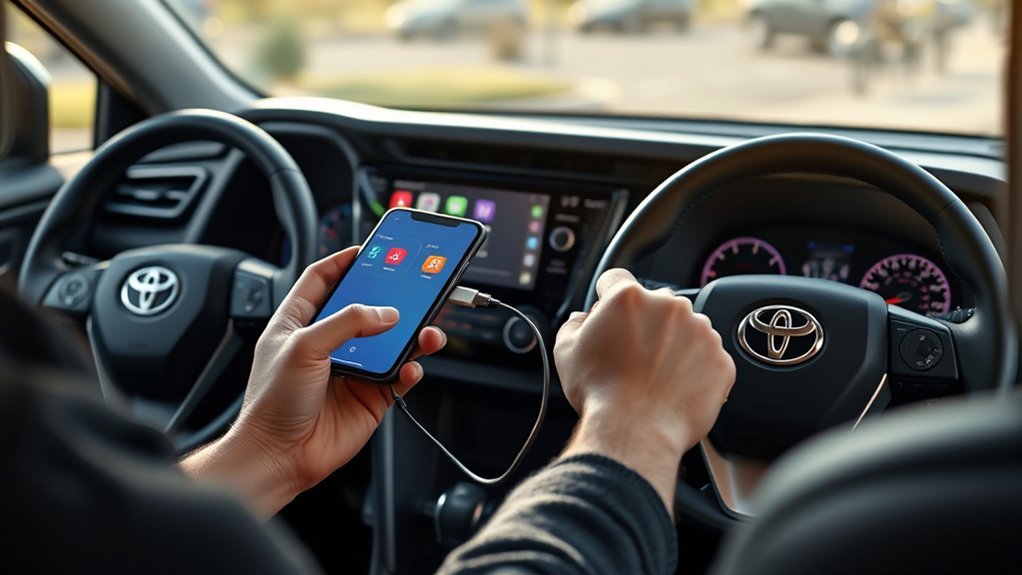
To install Apple CarPlay on your Toyota RAV4, start by ensuring your iPhone is updated and Siri is activated. CarPlay support depends on your model year and head unit, so check the owner manual. For a wired connection, use an Apple-certified USB cable and plug your iPhone into the vehicle’s USB port, confirming the CarPlay prompt. For wireless, enable Bluetooth and pair your devices via the multimedia system. Customize your settings for an ideal experience. Keep going to discover troubleshooting tips and additional features that enhance your driving journey.
How to Install Apple CarPlay on a Toyota RAV4 via USB
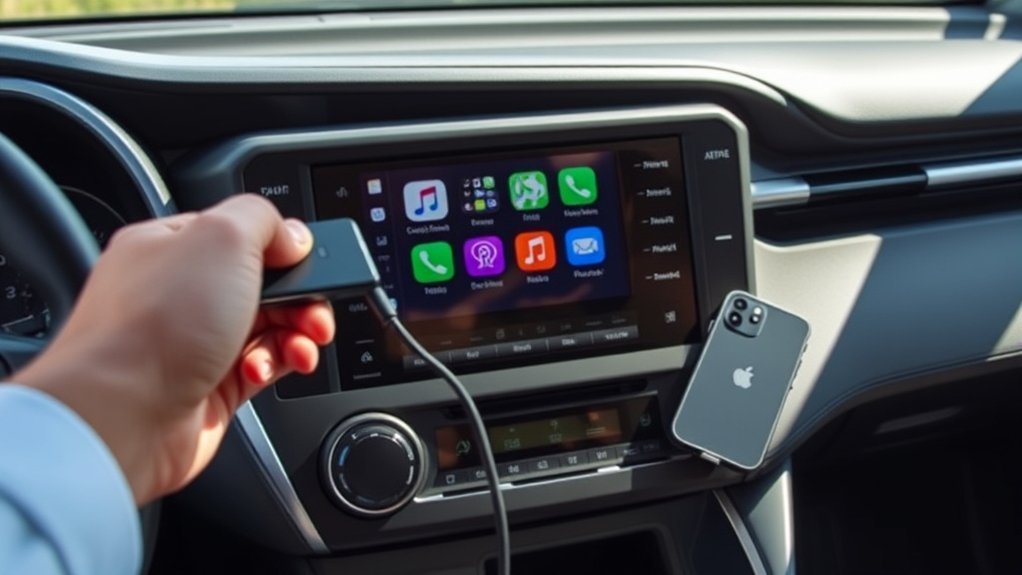
Connecting your iPhone to your Toyota RAV4 via USB is a straightforward process that enhances your driving experience. First, make certain the vehicle is in Park (P) mode and grab an Apple-certified USB cable. Plug your iPhone into the vehicle’s USB port. When a prompt appears on the multimedia system asking about CarPlay®, select “Yes.” You’ll also need to confirm on your iPhone by tapping “Yes” to allow CarPlay®. This will automatically launch Apple CarPlay®, giving you easy access to navigation, calls, messages, and music. Before you start, verify that CarPlay® and Siri® are enabled on your iPhone by checking Settings > Siri & Search and Settings > General > CarPlay®. Now, you’re ready to use CarPlay!
Preparing Your iPhone for CarPlay Connection
To prepare your iPhone for a seamless CarPlay connection, start by verifying it’s updated to the latest iOS version. This ensures compatibility with Apple CarPlay and enhances your multimedia system experience. Next, activate Siri by going to Settings > Siri & Search, enabling voice commands for easy hands-free control. Also, confirm that CarPlay is enabled; navigate to Settings > General > CarPlay and check your vehicle’s settings. Before connecting, make sure your vehicle is in Park (P) mode. Finally, have an Apple-certified USB cable ready for a wired connection or verify Bluetooth is turned on for a wireless setup. With these steps complete, you’re ready to enjoy the freedom and functionality of Apple CarPlay in your RAV4!
How to Set Up Wireless Apple CarPlay
With your iPhone prepared and ready for CarPlay, setting up Wireless Apple CarPlay in your Toyota RAV4 is a straightforward process. First, make sure Bluetooth is enabled on your iPhone and the vehicle is in Park (P) mode. Access the multimedia system settings, navigate to ‘Bluetooth & devices,’ and select ‘Add another device’ to start the wireless setup. Confirm the pairing request on both the multimedia screen and your iPhone to establish the connection. Once paired, respond to the prompt on the screen to enable CarPlay, and select “use” on your iPhone. With this process, you’ll enjoy seamless device compatibility and connection stability, allowing you to access your favorite apps effortlessly while driving.
Exploring Multimedia Features in Toyota RAV4
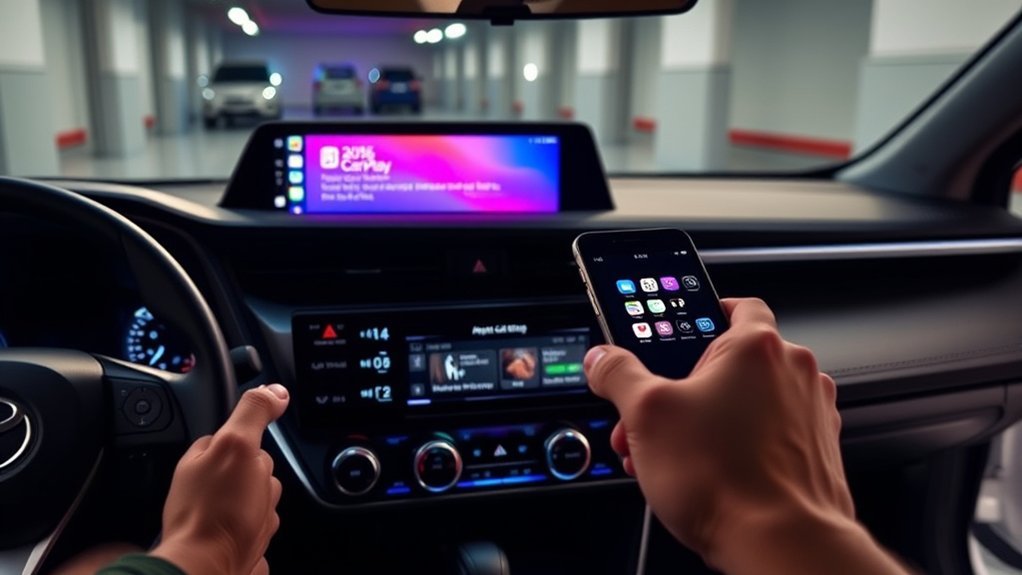
The Toyota RAV4’s multimedia system boasts a large touchscreen display that makes maneuvering through apps and settings a breeze. With voice command functionality, you can control navigation and other features hands-free, ensuring safety while driving. Plus, customizable application shortcuts let you access your favorite apps quickly, enhancing your overall driving experience.
Large Screen Display
As you explore the multimedia features in the Toyota RAV4, you’ll quickly appreciate the large touchscreen display that greatly enhances your driving experience. This display offers impressive visibility and ease of use, allowing you to navigate through various applications seamlessly. Thanks to touchscreen responsiveness enhancements, you’ll enjoy a fluid interaction while accessing your favorite apps like maps, music, and messaging. You can also take advantage of display customization options, enabling you to prioritize frequently used applications for quick access. With screen brightness adjustment, you can adapt the display to any lighting condition, ensuring clear visibility at all times. This thoughtful design empowers you to enjoy a more personalized and liberated driving experience.
Voice Command Functionality
How can you enhance your driving experience with voice command functionality in the Toyota RAV4? This feature offers incredible voice command benefits that elevate both safety and convenience. You’ll appreciate the voice command accuracy and customization options that make your driving experience seamless.
Here are some key advantages:
- Hands-Free Navigation: Say “navigate to [destination]” for easy route setting.
- Real-Time Updates: Directions display on your multimedia screen for instant guidance.
- Flexible Viewing: Toggle between map view and directional prompts as you prefer.
- Quick Access: Experience efficient response times, keeping your focus on the road.
With these features, you can drive freely and confidently, knowing you have control at your fingertips.
Customizable Application Shortcuts
Voice command functionality makes accessing your favorite applications easier than ever in the Toyota RAV4, and customizable application shortcuts take that convenience a step further. You can select up to five apps for quick access, optimizing your user experience while driving. This feature promotes safer driving by reducing distractions, allowing you to tap or use voice commands for your most-used apps.
Here are some shortcut organization tips and app selection strategies:
| Shortcut Tips | Suggested Apps |
|---|---|
| Prioritize navigation | Google Maps |
| Include music | Spotify |
| Add messaging | |
| Use for podcasts | Apple Podcasts |
| Select calendar | Google Calendar |
With these shortcuts, you can personalize your setup effortlessly!
How to Use Voice Commands With Apple Carplay
Using voice commands with Apple CarPlay can greatly enhance your driving experience by allowing you to perform tasks hands-free. Here are some voice command tips to maximize Siri functionalities:
- Navigate effortlessly: Just say, “navigate to [destination]” for quick directions.
- Stay connected: Ask Siri to “send a message” or “make a call” without taking your hands off the wheel.
- Control your tunes: Use voice commands to play your favorite playlists or switch tracks.
- Check your schedule: Request Siri to access your calendar and remind you of upcoming appointments.
With quick response times, Apple CarPlay prioritizes driving safety, letting you stay focused on the road while enjoying a seamless, liberated driving experience.
Troubleshooting Common Connection Issues
When experiencing connectivity issues with Apple CarPlay in your Toyota RAV4, several factors could be at play. Here are some troubleshooting tips to get you back on the road:
| Issue | Common Error Messages | Connectivity Solutions |
|---|---|---|
| Outdated iOS | “CarPlay Not Available” | Update your iPhone to the latest iOS. |
| Bluetooth not enabled | “Unable to Connect” | Verify Bluetooth is on for both devices. |
| Damaged USB cable | “Accessory Not Supported” | Use an Apple-certified USB cable. |
Don’t forget to restart both your iPhone and the multimedia system if CarPlay doesn’t launch automatically. Also, remember to put your vehicle in Park (P) mode for maximum performance.
Switching Between Apple CarPlay and Toyota Multimedia System
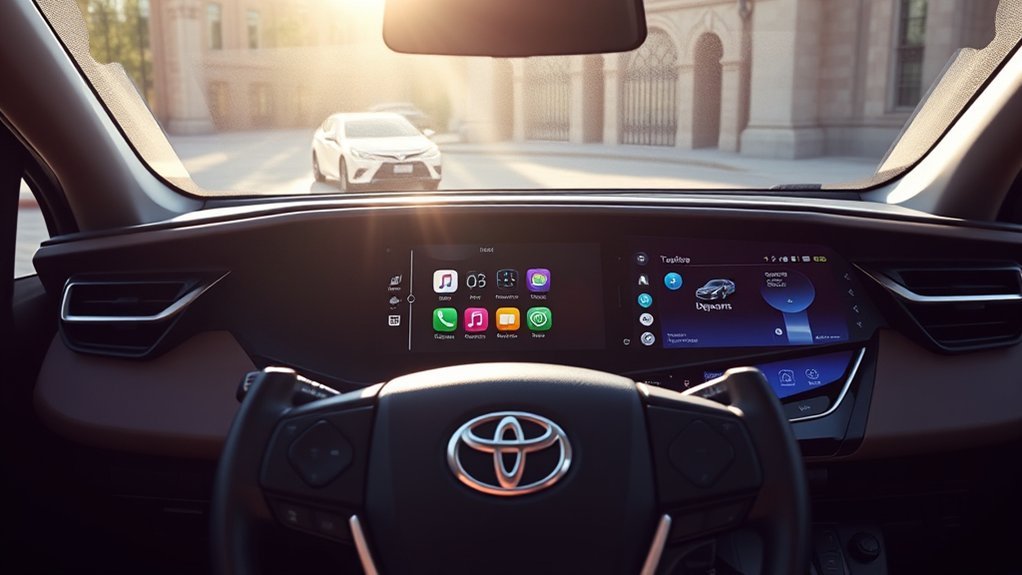
Switching between Apple CarPlay and the Toyota multimedia system is a seamless process that enhances your driving experience. This integration allows you to enjoy the best of both worlds effortlessly. Here’s how to make the changeover:
- Use the shortcut on the multimedia interface for quick access.
- Exit Apple CarPlay to return to Toyota’s navigation and settings.
- Toggle smoothly between Apple and Toyota maps without losing connectivity.
- Keep using voice commands, ensuring hands-free navigation and commands.
With these user experience enhancements, the Apple interface changeover becomes part of your driving routine, making it feel liberating. The user-friendly design ensures that you’ll navigate between systems without complications, allowing you to focus on what truly matters: the journey ahead.
Benefits of Using Apple CarPlay in Your Vehicle
Using Apple CarPlay in your vehicle greatly enhances your navigation experience, making it easier to find your way with real-time updates from trusted apps like Google Maps and Waze. You’ll also enjoy seamless connectivity features that integrate your iPhone with your car’s multimedia system, allowing for hands-free control of music and messaging. This streamlined setup not only keeps you safe on the road but also makes your driving experience more enjoyable.
Enhanced Navigation Experience
Apple CarPlay transforms the navigation experience in your Toyota RAV4, making it smarter and more efficient. With its advanced features, you can enjoy:
- Navigation Efficiency: Reach your destination faster with optimized routes.
- Real-Time Updates: Stay informed about traffic conditions and avoid congestion.
- Personalized Routes: Choose from multiple navigation apps, like Apple Maps or Google Maps, to tailor your journey.
- Hands-Free Control: Use voice commands to get directions without distractions, enhancing safety on the road.
The large display ensures clear visibility of maps and directions, empowering you to navigate with confidence. With Apple CarPlay, you can truly liberate your driving experience, making every trip enjoyable and stress-free.
Seamless Connectivity Features
When you’re on the road, maintaining connectivity is essential, and that’s where CarPlay shines in your Toyota RAV4. With seamless integration of your iPhone, you’ll access navigation, music, and communication apps directly on the stunning display. Voice commands let you navigate hands-free—just say, “navigate to [destination]”—enhancing driver safety and convenience.
| Feature | Benefit |
|---|---|
| Voice Command | Navigate hands-free |
| Customizable Shortcuts | Quick access to favorites |
| Compatible Apps | Choose between Apple Maps or Google Maps |
| Stable Bluetooth | Stay connected without distraction |
This technology not only personalizes your experience but also ensures you stay effortlessly connected, empowering you to focus on the journey ahead.
Frequently Asked Questions
How Do I Add Apple Carplay to My RAV4?
To add Apple CarPlay to your RAV4, check your model’s compatibility, consult installation costs, and follow the setup steps to access Apple features. Enjoy seamless connectivity for navigation and entertainment during your drives.
Can a Toyota Dealership Install Carplay?
Absolutely, a Toyota dealership can install CarPlay! Have you checked the dealership options? They ensure compatibility, handle installation costs, and often provide warranties. It’s a hassle-free way to upgrade your driving experience.
How to Upgrade Toyota to Apple Carplay?
To upgrade your Toyota for Apple CarPlay, check Toyota RAV4 compatibility, install the latest Entune app, and connect your iPhone with a certified USB cable. Verify your device meets installation requirements for seamless features.
Can I Install Apple Carplay Myself?
Absolutely, you can install Apple CarPlay yourself! With DIY installation tips, check compatibility requirements, and consider aftermarket options. Empower yourself with this upgrade, transforming your driving experience into something extraordinary and truly liberating!
Conclusion
In a world where connectivity drives convenience, installing Apple CarPlay in your Toyota RAV4 transforms your driving experience. With just a few easy steps, you can seamlessly integrate your iPhone, revealing a treasure trove of features at your fingertips. Whether you’re steering, listening to music, or using voice commands, CarPlay keeps you connected without distraction. So, plug in, tune out the chaos, and enjoy the ride—your RAV4 is ready for the tech-savvy journey ahead!