How To Connect Android Phone To Toyota RAV4 Bluetooth
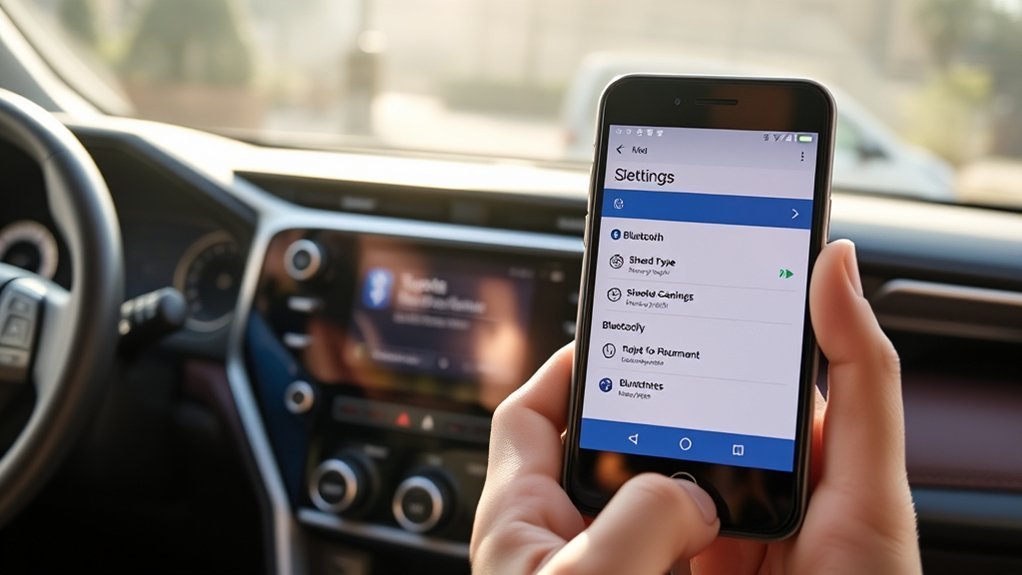
To connect your Android phone to a Toyota RAV4 Bluetooth, first enable Bluetooth on your phone and make certain it’s in discoverable mode. Next, turn on your RAV4 and navigate to the multimedia system; select “Menu,” then “Setup,” followed by “Bluetooth,” and tap “Add Device.” Follow the prompts on both your phone and RAV4 to complete the pairing. For troubleshooting, check that both devices are enabled and not connected to others. Keep exploring for tips on maximizing your connection.
Why Connect Your Android Phone to Toyota RAV4 Bluetooth?
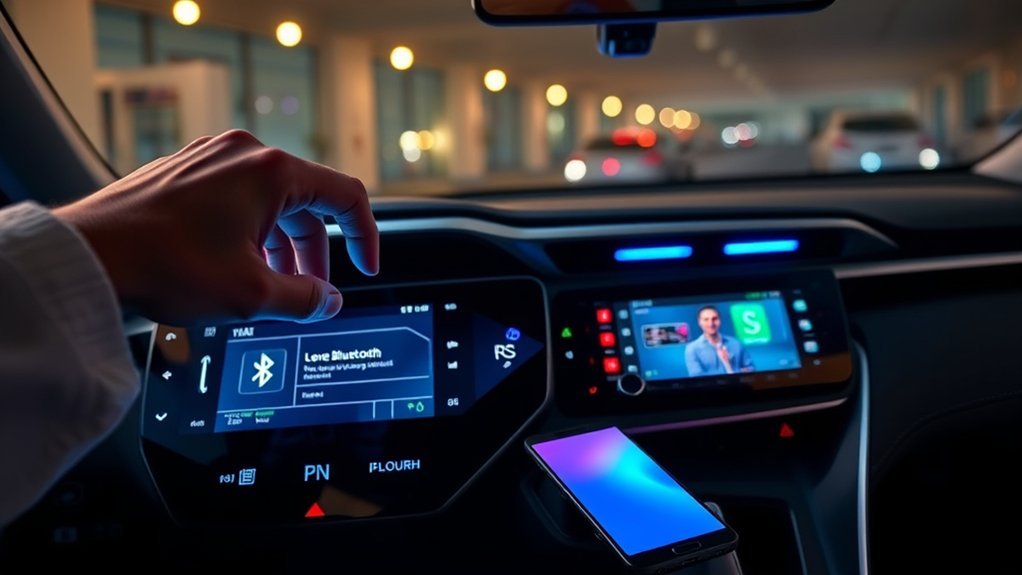
Why should you connect your Android phone to your Toyota RAV4’s Bluetooth? By doing so, you enhance your safety while driving, as hands-free calling minimizes distractions. Bluetooth connectivity allows you to seamlessly listen to music, podcasts, or audiobooks through your vehicle’s sound system, elevating your driving experience. When you connect your phone, your contact list integrates with the RAV4’s multimedia system, making call management easier without fumbling with your device. In addition, Bluetooth eliminates the clutter of cables, creating a more organized environment in your car. Ultimately, connecting your phone guarantees you can communicate and enjoy media without interruptions or technical difficulties, providing a sense of liberation while on the road. It’s a simple step towards a more connected driving experience.
Preparing Your Android Phone for Bluetooth Pairing
Before pairing your Android phone with the Toyota RAV4, make sure Bluetooth is enabled on your device. It’s also essential to check for compatibility by ensuring your phone’s software is up to date. This preparation will help prevent any issues during the pairing process.
Enable Bluetooth On Phone
To connect your Android phone to the Toyota RAV4 via Bluetooth, you first need to enable Bluetooth on your device. Follow these steps to guarantee proper setup:
| Step | Action |
|---|---|
| Access Settings | Open the Settings menu on your Android phone. |
| Enable Bluetooth | Select the Bluetooth option and turn it ON. |
| Set Discoverable Mode | Make sure your phone is discoverable for the RAV4. |
Also, check that your Android phone isn’t connected to other devices, and update its software if needed. If you run into issues, restarting your phone can refresh the Bluetooth system, helping resolve minor glitches. With these steps, you’re ready for a seamless connection.
Check Device Compatibility
Checking your Android phone’s compatibility with the Toyota RAV4’s Bluetooth system is essential for a smooth pairing process. Follow these steps to guarantee your device is ready:
- Make sure your Android phone is Bluetooth-enabled and supports at least Bluetooth version 4.0.
- Verify that your phone’s Bluetooth setting is turned ON and set to discoverable.
- Check for any software updates on your Android device to enhance performance and compatibility.
- Ensure there are no existing Bluetooth connections that might conflict with your new pairing.
Is Your Android Phone Compatible With Your RAV4?
To determine if your Android phone is compatible with your RAV4, you’ll need to check the Bluetooth version it supports. The 2012 RAV4 uses Bluetooth 4.0, which might limit pairing with newer phones that operate on Bluetooth 5.0. Additionally, verify your phone’s software is up to date and that it matches the supported Android models for peak performance.
Bluetooth Version Compatibility
While pairing your Android phone with a 2012 Toyota RAV4, it’s crucial to evaluate Bluetooth version compatibility. The RAV4 supports Bluetooth version 4.0, which may limit compatibility with newer Android phones that operate on Bluetooth 5.0 or higher. To guarantee a successful connection, consider these points:
- Check if your Android phone supports older Bluetooth versions.
- Be aware that some newer devices might fail to sync due to version discrepancies.
- Verify your phone is in pairing mode and the RAV4’s Bluetooth is activated.
- Look for any known Bluetooth connectivity issues after software updates.
Phone Software Requirements
Understanding the software requirements of your Android phone is essential for a successful Bluetooth connection to your 2012 Toyota RAV. First, verify your phone is Bluetooth-enabled and running at least Android 4.0, as older versions may struggle to sync with the RAV’s Bluetooth system. The 2012 RAV4 specifically supports Bluetooth 4.0, so confirm your device meets this standard. Regularly check for software updates on your Android, since these updates can improve Bluetooth performance and compatibility. Be aware that some newer phone models may encounter pairing issues with older systems like those in the 2012 RAV4, so consult your phone’s specifications to confirm compatibility. This verification can save you time and enhance your driving experience.
Supported Android Models
Determining if your Android phone is compatible with your 2012 Toyota RAV4’s Bluetooth system is crucial for a seamless connection. The RAV4 supports Bluetooth 4.0, which may limit compatibility with newer models. Generally, most supported Android models released after 2016, particularly those running Android 6.0 (Marshmallow) or higher, should work fine, provided they have basic Bluetooth functionality.
- Check for popular models like Samsung Galaxy S series and Google Pixel.
- Verify Bluetooth is enabled on your device.
- Disconnect any other Bluetooth devices before pairing.
- Be aware that software updates can disrupt connectivity.
Accessing Bluetooth Settings on Your Toyota RAV4
To access the Bluetooth settings on your Toyota RAV4, start by turning on your vehicle and the multimedia system. Next, click the “Menu” button on the multimedia system to navigate to the main options. From there, select the “Setup” button to enter the settings menu, where Bluetooth options are located. Choose the ‘Bluetooth’ option from the setup menu to manage connections and devices. This section allows you to view existing devices and make new connections. To initiate the pairing process with your Android phone, select ‘Add Device.’ This action sets the stage for connecting your Android device to your Toyota vehicle via Bluetooth, enabling you to enjoy hands-free calls and music streaming effortlessly.
Step-By-Step Guide to Pair Your Android Phone
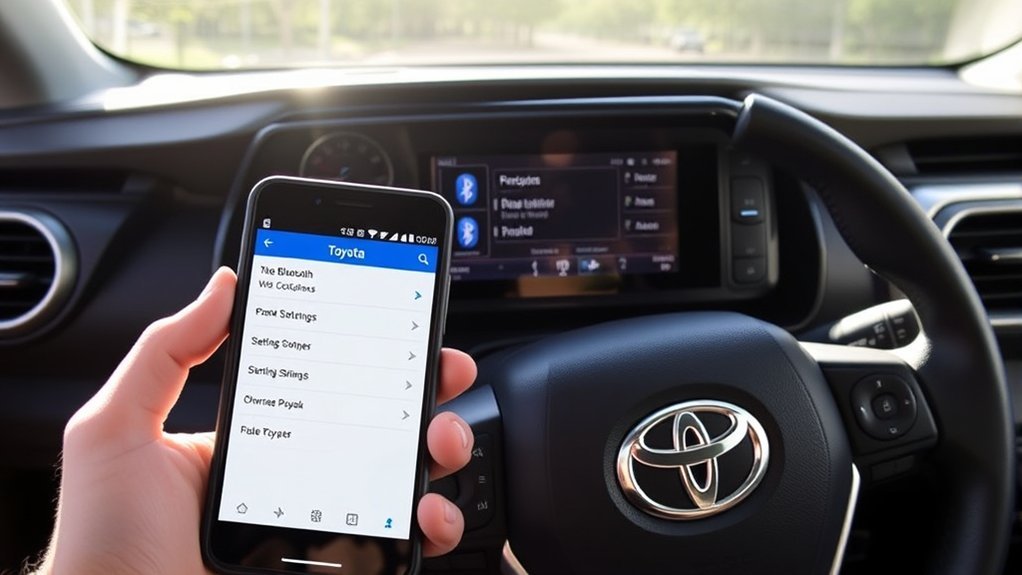
Now that you’ve accessed the Bluetooth settings on your Toyota RAV4, you’re ready to pair your Android phone. Follow these steps to complete the process efficiently:
- Verify your Android phone’s Bluetooth® is turned ON.
- Turn on the Toyota Entune™ system and navigate to the Apps menu, then click on Setup.
- Select Bluetooth® and choose the Add New Device option.
- On your Android phone, click “Scan for Devices” and select the Toyota system when it appears.
After selecting the device, accept the connection request on both your phone and the Toyota system. Once completed, your Android phone will be successfully paired, granting you the freedom to enjoy hands-free calls and audio streaming while driving.
What If Pairing Fails? Troubleshooting Connection Issues
If you encounter issues while trying to pair your Android phone with your Toyota RAV4, don’t worry—troubleshooting is straightforward. First, verify that the Bluetooth setting is enabled on both your phone and the RAV4’s multimedia system. If it still fails, restart both devices to refresh the connection process. Check if your phone is connected to another device, as that may block the pairing. Please feel free to remove any existing pairings from both the Android phone and the RAV4 to eliminate potential conflicts. Finally, make sure the RAV4 is in park, as Bluetooth pairing may not function correctly while driving. Following these steps will help you resolve most pairing issues efficiently.
Maximizing Bluetooth Features for Calls and Audio Streaming
Once you’ve successfully paired your Android phone with your Toyota RAV4, you can take full advantage of the Bluetooth features for calls and audio streaming. Here’s how to maximize your experience:
- Sync your contact list for hands-free calling.
- Stream audio from your favorite apps, enhancing your drive.
- Enable permissions on your Android for seamless integration.
- Keep your phone close to the RAV4 to avoid interference.
Keeping Your Phone and RAV4 Updated for Best Performance
To guarantee ideal Bluetooth performance between your Android phone and Toyota RAV4, it’s crucial to keep both devices updated. Regularly updating your Android phone to the latest software version can greatly enhance Bluetooth connectivity and overall performance. Don’t forget to check your RAV4’s infotainment system for the latest firmware updates. You can do this through the Toyota website or directly via the vehicle’s multimedia system. Keeping both your phone and RAV4 system updated not only helps resolve previous connectivity issues but also reveals new functionalities. This proactive maintenance guarantees a seamless experience when using Bluetooth for calls and media playback. If you have any questions or need assistance, we’re happy to help!
Solutions for Bluetooth Connection Issues
When facing Bluetooth connection issues between your Android phone and Toyota RAV4, a few straightforward solutions can help restore seamless connectivity. Start by ensuring your phone’s Bluetooth is ON and not connected to other devices. If you see an “endless searching” message or “function unavailable” error, remove existing pairings on both your phone and the RAV4.
Troubleshoot Bluetooth issues between your Android phone and Toyota RAV4 by ensuring connectivity and removing old pairings.
- Place your Android phone on the dashboard during pairing.
- Restart both your phone and the RAV4’s multimedia system.
- Regularly check for software updates on both devices.
- If problems persist, consult your Toyota Dealer for assistance.
Implementing these solutions can greatly improve your Bluetooth connection experience and enhance functionality.
Frequently Asked Questions
Why Won’t My Toyota RAV4 Connect to Bluetooth?
Your Toyota RAV4 might not connect to Bluetooth due to compatibility issues, existing device pairings, or Bluetooth settings. Try troubleshooting by restarting both devices, checking connections, and removing previous pairings to enhance connectivity chances.
Why Won’t My Android Auto Connect to My Toyota?
If your Android Auto won’t connect, check Bluetooth troubleshooting steps. Make sure both devices are updated, Android Auto is enabled, and your RAV4 is in park. Restarting both systems can often clear connectivity issues.
How to Connect Android Phone to Toyota Bluetooth via Bluetooth?
To connect your Android phone to Toyota Bluetooth, make sure Bluetooth’s on. Access your Toyota’s multimedia settings, select Bluetooth, and choose “Add New Device.” Scan for devices on your phone, then accept the pairing prompts.
How to Connect Android Auto to Car Wireless Toyota?
To connect Android Auto wirelessly, verify your Toyota supports the feature. Start with a USB connection for setup, then enable Android Auto in your phone and car settings. Restart both if you encounter issues.
Conclusion
Connecting your Android phone to your Toyota RAV4’s Bluetooth enhances your driving experience, making calls and streaming music effortless. Have you imagined cruising down the road with your favorite playlist or hands-free calls? By following the steps outlined and troubleshooting any issues, you can easily enjoy these features. Remember to keep both your phone and RAV4 updated to guarantee seamless connectivity. Now, hit the road and enjoy the convenience of your connected ride!