How to Set Up Android Auto In Toyota Supra: Step-by-Step Guide
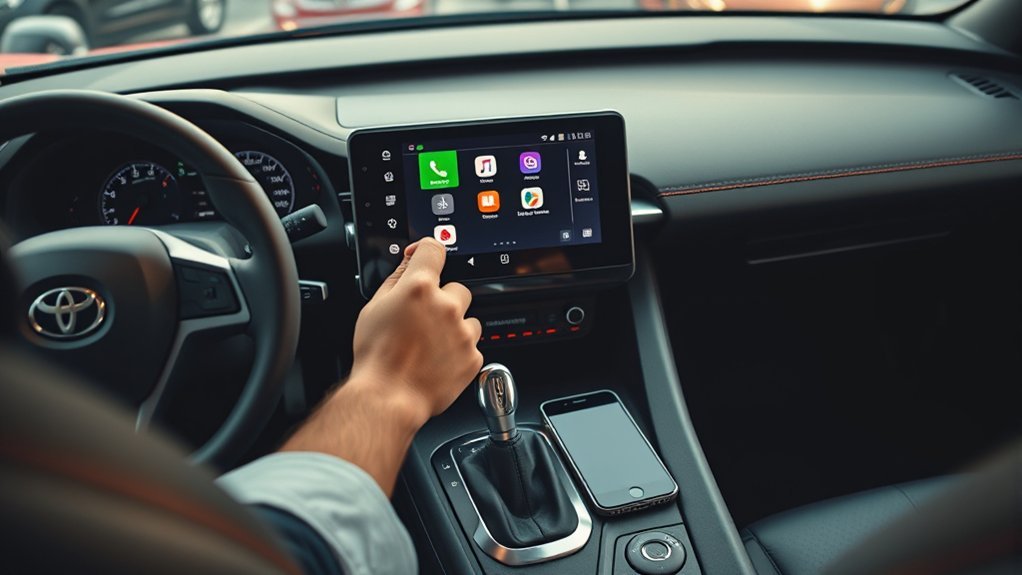
How to Set Up Android Auto in a Toyota Supra
Setting up Android Auto in a Toyota Supra can be confusing because not every Supra supports it from the factory. Before you plug in your phone, check your exact model year, trim, and infotainment system. Some Supra models focus on Apple CarPlay support, while Android Auto may require a compatible head unit, dealer update, or aftermarket solution. This guide shows you how to check support, connect your phone when Android Auto is available, and fix common connection issues.
Quick Answer
To set up Android Auto in your Toyota Supra, first confirm that your specific Supra supports Android Auto. If it does, update your phone, use a data-ready USB cable, connect through the correct USB media port while parked, and follow the prompts on your phone and display. If your Supra does not support Android Auto, you may need an aftermarket interface or head unit.
Key Takeaways
- Check your Supra’s exact model year and infotainment system before you try to use Android Auto.
- Use a USB cable that supports data transfer, not just charging.
- Keep your phone unlocked and parked safely during the first setup.
- Grant Android Auto the required permissions for calls, messages, maps, and media.
- If Android Auto does not appear, your Supra may not support it without extra hardware.
Check Whether Your Toyota Supra Supports Android Auto
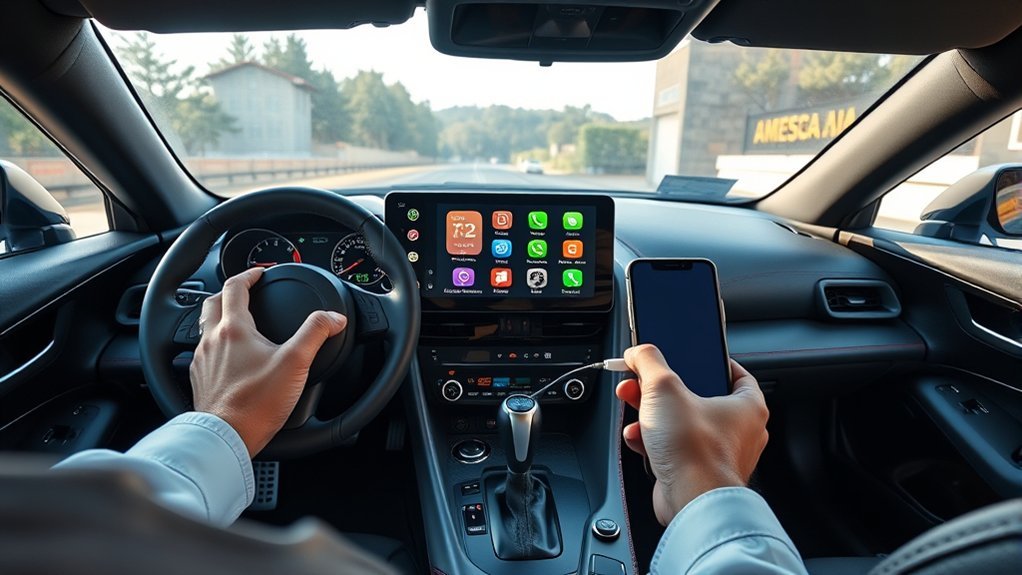
Start by confirming that your Toyota Supra actually supports Android Auto. This step matters because Supra infotainment features can vary by model year, market, package, and previous owner upgrades. Check your owner’s manual, the multimedia settings menu, or Toyota’s official compatibility information for your exact vehicle.
Do not assume Toyota Entune™ 3.0 applies to every Supra. The modern GR Supra uses a different multimedia setup than many other Toyota models, so the menu names may not match other Toyota vehicles. If Android Auto does not appear in your phone projection or app connection menu, your car may not support it from the factory.
Your Android phone also needs to support Android Auto. On many newer Android phones, Android Auto comes built into the operating system. If your phone prompts you to install or update it, use the Google Play Store and install the latest available version for your device.
Note: If your Supra only lists Apple CarPlay, Android Auto may not work without a compatible aftermarket solution.
Gather the Gear You Need Before Setup
Before you start, get the right connection gear ready. A poor cable causes many Android Auto problems, even when your phone and car both support the feature. Use a short, high-quality USB cable that supports data transfer.
You also need a compatible Android smartphone with enough battery power. Keep the phone unlocked during the first connection so you can accept permissions. Park the Supra before you begin, because setup prompts can distract you while driving.
- Use an Android phone that supports Android Auto.
- Use a USB cable built for charging and data transfer.
- Update your phone’s operating system and Android Auto app.
- Confirm that your Supra’s multimedia software is up to date.
- Find the correct USB media port before you connect the phone.
Step-by-Step Guide to Connecting Android Auto in Your Toyota Supra
Once you confirm support, the setup process is simple. The main goal is to let your phone and Supra recognize each other through the correct USB port. Follow the steps below while the vehicle is parked.
Initial Setup Requirements
Before you connect your phone, complete these setup checks. They reduce failed connections and make the first launch easier.
- Confirm support: Check that your Toyota Supra and Android phone both support Android Auto.
- Update your phone: Install available Android system updates and Android Auto updates.
- Prepare the cable: Use a data-ready USB cable that fits your phone securely.
- Park safely: Keep the Supra in park before you start the first setup.
Connect Your Smartphone
Connect your Android phone to the Supra’s USB media port using your data-ready cable. Keep your phone unlocked so Android Auto can show permission prompts. If your Supra supports Android Auto, the multimedia display should show a prompt or phone projection option.
- Plug in your phone: Connect the USB cable to your phone and the Supra’s USB media port.
- Accept phone prompts: Allow Android Auto to access maps, calls, contacts, messages, and media.
- Check the display: Tap the Android Auto or phone projection tile if it appears.
- Finish setup: Follow any prompts on the multimedia display and your phone.
Warning: Complete setup while parked so you do not handle your phone while driving.
Navigate the Android Auto Interface
After Android Auto opens, use the display to access maps, calls, messages, and media. The layout may vary by phone, app version, and screen size. Keep your most-used apps near the front through your Android Auto settings.
- Open maps: Choose Google Maps or Waze for route guidance and traffic alerts.
- Use voice control: Say “Hey Google” to make calls, send messages, or play music.
- Switch apps: Use the app launcher or task area to move between maps, media, and calls.
How to Use Android Auto Safely While Driving
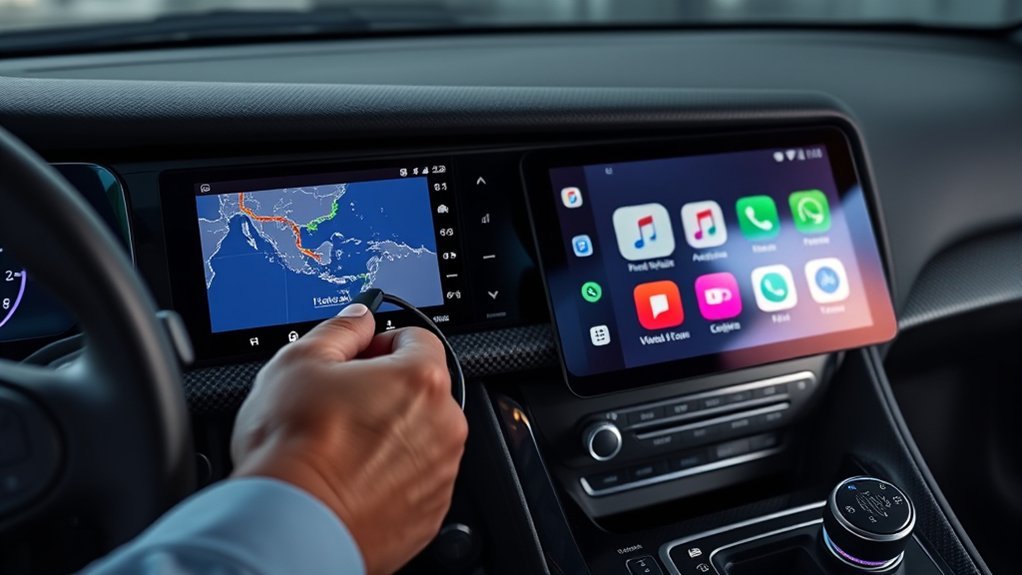
Once Android Auto runs on your Supra’s display, keep your focus on simple controls. Use voice commands when possible, especially for calls, texts, music, and navigation. Say “Hey Google” and ask for the task you need.
You can also use the touchscreen or vehicle controller to switch between apps. Keep those actions short and simple. If you need to change several settings, pull over first.
To make Android Auto easier to use, open Android Auto settings on your phone before driving. You can arrange app order, choose message settings, and adjust how notifications appear. This makes the display cleaner once you start your trip.
Best Android Auto Features to Use in a Toyota Supra
Android Auto helps you keep key phone features on the car display. The best tools are the ones that reduce phone handling and help you stay focused. Start with maps, voice control, and audio apps.
- Navigation apps: Use Google Maps or Waze for directions, traffic updates, and route changes.
- Music and podcast apps: Play audio from apps such as Spotify, YouTube Music, Pandora, or podcast apps.
- Hands-free calls: Use voice control to call contacts without picking up your phone.
- Message support: Hear supported messages read aloud and reply by voice when available.
These features work best when you set them up before your trip. Choose your route, start your playlist, and adjust app order before you drive.
What to Do If Your Supra Does Not Have Android Auto
If Android Auto does not appear after setup, your Supra may not support it from the factory. In that case, check the owner’s manual and multimedia settings first. You can also ask a Toyota dealer whether your exact vehicle has any available software update.
If no factory option exists, an aftermarket interface or replacement head unit may add Android Auto support. Choose hardware that fits the Supra’s screen, controls, audio system, and backup camera setup. Have a qualified installer handle the work if wiring or trim removal is required.
Troubleshooting Common Android Auto Issues
If Android Auto does not connect, start with the simplest fixes first. Many problems come from the cable, phone permissions, or the wrong USB port. Work through each step before you assume the car has a serious issue.
- Try another cable: Use a shorter data-ready USB cable from a trusted brand.
- Check the USB port: Use the Supra’s media USB port, not a charge-only port.
- Unlock your phone: Keep the screen open during the first connection.
- Restart both systems: Restart your phone and the Supra’s multimedia system.
- Update software: Install available Android, Android Auto, and vehicle software updates.
- Review permissions: Allow Android Auto to use calls, contacts, messages, location, and media.
If the Android Auto tile still does not appear, check whether your Supra supports Android Auto. A missing Android Auto option often means the feature is not built into that vehicle.
Frequently Asked Questions
How Do I Activate Android Auto on My Toyota Supra?
First, confirm that your Toyota Supra supports Android Auto. Then connect your Android phone with a data-ready USB cable, accept the permission prompts, and tap the Android Auto or phone projection tile if it appears.
What Are the Steps to Set up Android Auto?
Update your Android phone, use a compatible USB cable, connect through the correct USB media port, and follow the prompts on your phone and car display. Keep the car parked during the first setup.
Why Does Android Auto Not Show on My Supra Screen?
Android Auto may not show if your Supra does not support it, your cable only supports charging, or your phone permissions are blocked. Try a different data cable and check your vehicle’s phone projection menu.
Why Is My Toyota Android Auto Not Connecting?
Your Toyota Android Auto connection may fail because of an outdated phone, a bad USB cable, the wrong USB port, or unsupported vehicle software. Restart your phone, update your apps, and confirm support for your exact Supra model.
Can I Use Wireless Android Auto in a Toyota Supra?
Wireless Android Auto depends on your Supra’s hardware and software. If your vehicle does not offer factory Android Auto, wireless Android Auto will not work unless a compatible aftermarket solution adds that feature.
Conclusion
The most important step is to confirm Android Auto support before you start troubleshooting. If your Toyota Supra supports it, a proper USB cable, updated phone, and correct permissions usually complete the setup. If the feature does not appear, check your vehicle’s manual or ask a Toyota dealer about your exact model. Once everything works, set up your apps before driving and use voice commands to keep each trip safer and easier.
References
- Android Auto Help — Google
- Android Auto — Android
- Toyota Owners Resources — Toyota