How To Set Up Bluetooth On Toyota RAV4
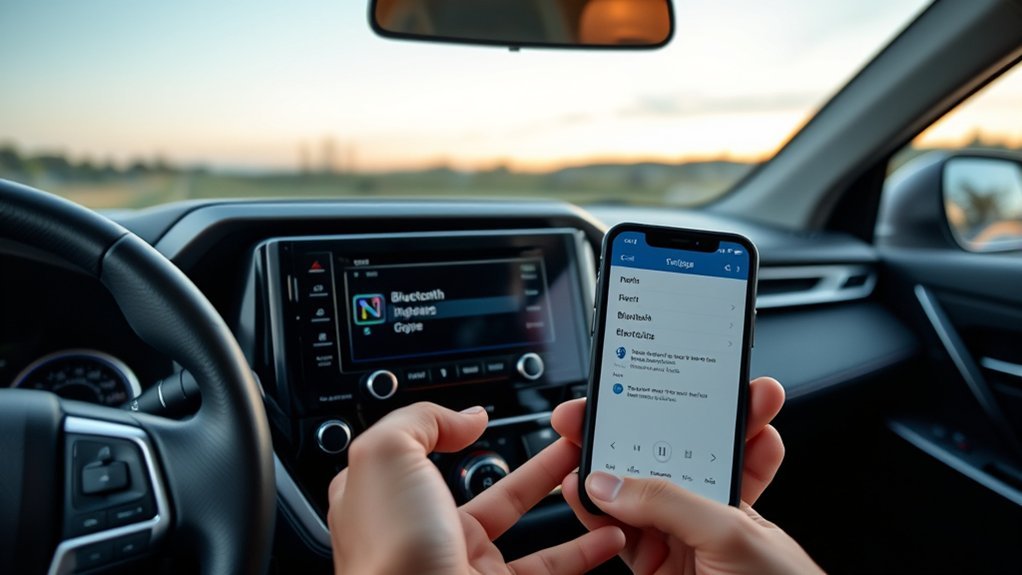
To set up Bluetooth on your Toyota RAV4, make sure your phone’s Bluetooth is on. Open the RAV4’s multimedia system, click “Menu,” then “Setup,” and select “Bluetooth.” Choose “Add Device” and follow the on-screen prompts. Confirm the pairing on your smartphone. Once connected, you can sync your contacts for hands-free calling. If you encounter issues, restarting both devices may help. There’s so much more to explore about enhancing your Bluetooth experience!
Preparing Your Phone for Bluetooth Connection
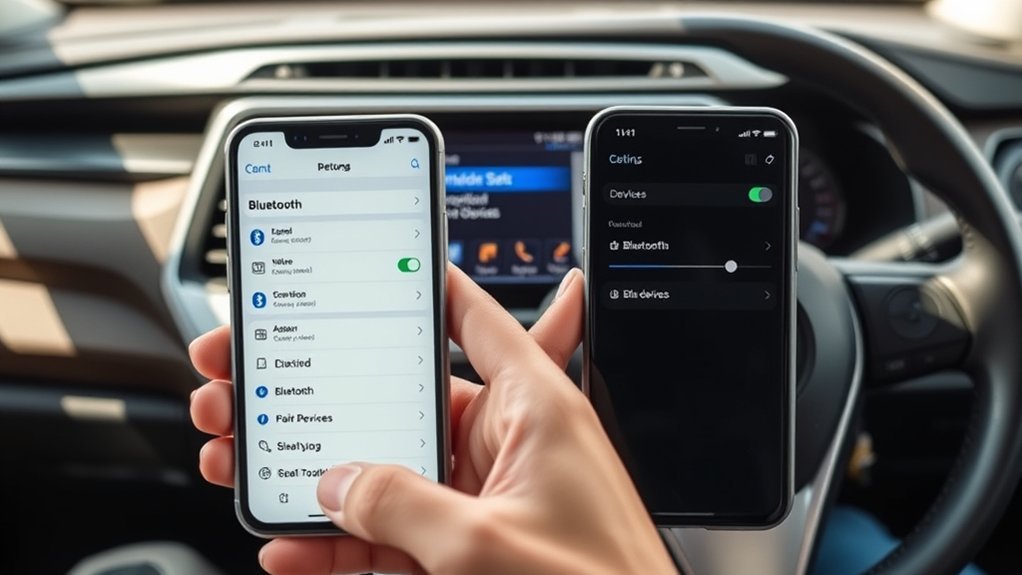
To successfully connect your phone to the Toyota RAV4’s Bluetooth system, you need to prepare your device properly. First, verify your phone’s Bluetooth setting is turned ON. Next, check for any software updates on your smartphone, as these can enhance compatibility with the RAV4’s system. It’s also important to make certain your phone isn’t currently connected to another Bluetooth device, since this can interfere with the pairing process. Review your phone’s settings to confirm there are no restrictions or permissions blocking Bluetooth connectivity. If you encounter any issues while trying to establish a connection, restarting your smartphone can often resolve them. With these steps, you’re well on your way to enjoying a seamless Bluetooth experience.
How to Find Bluetooth Settings in Your RAV4
Where can you find the Bluetooth settings in your Toyota RAV4? Start by clicking the “Menu” button on your multimedia system. From there, select the “Setup” button to access various system settings. Next, choose the ‘Bluetooth’ option to view registered devices and connection settings. This is where you can manage your Bluetooth® connection.
To help you navigate:
- Click “Menu” on the multimedia system.
- Select “Setup” for system options.
- Choose ‘Bluetooth’ to see devices.
- Select ‘Add Device’ to connect a new smartphone.
- Confirm Bluetooth is enabled on your phone.
With these steps, you can easily locate and manage your Bluetooth settings, paving the way for seamless connectivity.
Pairing Your Smartphone With RAV4 Bluetooth
Pairing your smartphone with the Toyota RAV4 Bluetooth system is a straightforward process that enhances your driving experience. Start by accessing the multimedia system, clicking the “Menu” button, and selecting “Setup,” then “Bluetooth.” Verify your smartphone’s Bluetooth is enabled, and select “Add Device” on the RAV4’s Bluetooth menu. Follow the on-screen instructions on the RAV4 display, and confirm the connection on your smartphone when prompted. Remember, only five Bluetooth devices can be registered simultaneously, so you may need to remove an existing device if all slots are filled. Once paired, your phonebook and contact history will sync to the RAV4, allowing hands-free calling and easier access to contacts while driving. Enjoy the freedom of seamless connectivity!
How to Sync Contacts for Hands-Free Calling?
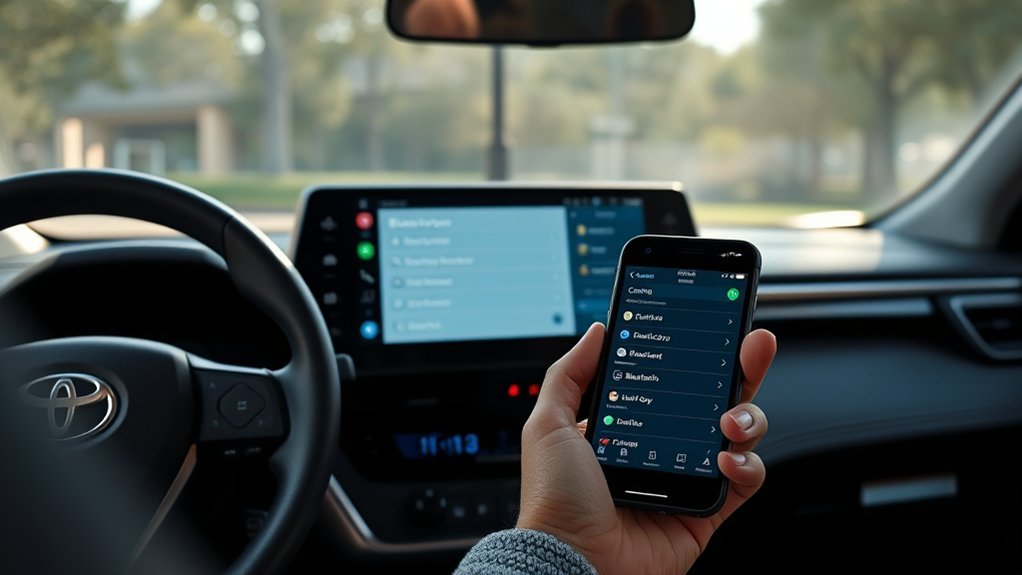
To sync your contacts for hands-free calling in your Toyota RAV4, start by ensuring your phone is connected via Bluetooth. This process not only enhances safety by minimizing distractions, but it also allows you to access your contacts easily through the vehicle’s interface. If you encounter any issues, troubleshooting steps can help you resolve sync problems effectively.
Syncing Contacts Steps
Syncing your contacts for hands-free calling in your Toyota RAV4 is a straightforward process. Follow these steps to guarantee your Bluetooth® device is ready:
- Enable Bluetooth on your smartphone.
- Access the RAV4’s multimedia system and click the “Menu” button.
- Select “Setup” and choose the “Bluetooth” option to add a device.
- Once paired, look for the sync contacts option on your screen.
- Confirm the sync to download your contact list.
After syncing, you can access your contacts directly through the RAV4’s multimedia system, enhancing your hands-free communication experience. Remember, syncing may vary by smartphone model, so check your device’s Bluetooth compatibility to guarantee seamless integration. Enjoy your connected drive!
Importance of Hands-Free Safety
Having your contacts synced with your Toyota RAV4 greatly enhances hands-free safety while driving. By connecting your Bluetooth® phone, you can automatically download your contact list to the vehicle, allowing you to access contacts directly through the multimedia system. This feature promotes hands-free calling, keeping both hands on the wheel and eyes on the road, which is critical for road safety. Many states require hands-free device use, making contact syncing not just a convenience but a legal necessity. With voice commands or the vehicle’s interface, you can communicate without the need to handle your phone, considerably reducing distractions and the risk of accidents. Prioritize this setup for a safer, more liberated driving experience.
Troubleshooting Sync Issues
If you encounter issues while syncing your contacts for hands-free calling in your Toyota RAV4, troubleshooting can help resolve the problem quickly. Here are some steps to guarantee your Bluetooth connection works seamlessly:
- Verify Bluetooth is enabled on both your smartphone and the RAV4’s multimedia system.
- Select the option to sync contacts when prompted after connecting your phone.
- Check Bluetooth settings on both devices to confirm they’re properly paired.
- Make certain your smartphone allows contact sharing with Bluetooth.
- Keep your smartphone’s software updated, and restart both devices if issues persist.
Following these steps can liberate you from frustrating sync issues, allowing you to enjoy hands-free calling effortlessly.
What to Do If Pairing Fails?
When pairing your smartphone with the Toyota RAV4 fails, there are several steps you can take to troubleshoot the issue. First, confirm Bluetooth is enabled on both your smartphone and the RAV4’s multimedia system. If that doesn’t work, restart both devices to clear any temporary glitches. Check if your smartphone is connected to another Bluetooth device, which may prevent it from pairing with the RAV4. Additionally, verify that your smartphone’s settings don’t have any restrictions impacting Bluetooth connectivity. If issues persist, consult your vehicle manual for specific troubleshooting steps, as different models may have unique requirements. Following these steps can help you regain Bluetooth connectivity with your RAV4 efficiently.
Enjoying Music and Media Through RAV4 Bluetooth
Once you’ve successfully paired your smartphone with the Toyota RAV4, you can enjoy a seamless audio experience. The RAV4’s Bluetooth connectivity lets you stream music, podcasts, and audiobooks directly, enhancing your drive. Here are some features to take advantage of:
- Access personal playlists from various audio apps.
- Stream media while keeping your hands on the wheel.
- Make hands-free calls for safer driving.
- Sync your phone’s contact list for easy access.
- Connect up to five devices simultaneously for shared enjoyment.
With these capabilities, you’ll liberate your in-car experience, making it more enjoyable and efficient. Embrace the freedom of wireless audio while you navigate the open road in your RAV4.
Managing and Deleting Bluetooth Devices in Your RAV4
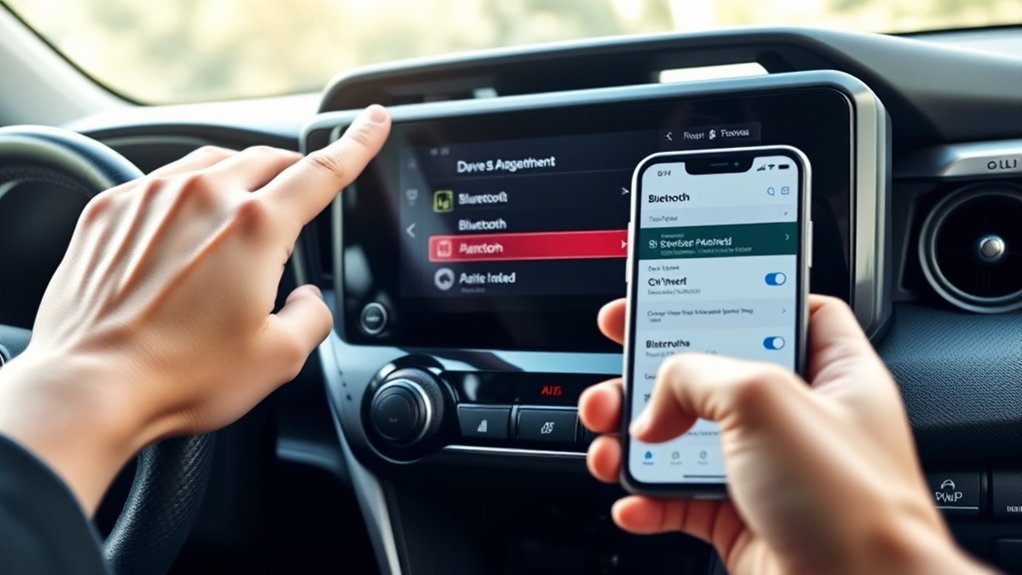
To manage your Bluetooth devices in the RAV4, you’ll need to access the Bluetooth settings screen. Here, you can easily delete registered devices or edit their information as needed. Remember, any changes you make will impact how your vehicle connects with your devices.
Deleting Registered Devices
If you need to delete a registered Bluetooth device in your Toyota RAV4, you can do so easily through the Bluetooth settings screen. Follow these steps for deleting registered devices:
- Access the Bluetooth settings.
- Select the device you want to remove.
- Choose “Remove Device.”
- Confirm the deletion by selecting “Yes.”
- Remember, you can’t perform this while driving for safety reasons.
Keep in mind that once you delete a device, all associated phone contacts will also be removed from your vehicle’s system. If your available device slots are full, deleting a device allows you to register a new one in its place. This keeps your connectivity options flexible and up-to-date.
Editing Device Information
Here’s a quick reference table for your convenience:
| Action | Steps | Notes |
|---|---|---|
| Change Device Name | Access Bluetooth settings, select device | Doesn’t affect unique address |
| Remove Device | Access settings, select “Remove Device” | All contacts linked will be deleted |
| Set Preferred Devices | Choose “Preferred Phones” or “Audio” | New devices get the highest priority |
| Reset Bluetooth Settings | Access settings, select reset option | Resets all configurations simultaneously |
Feel empowered to customize your Bluetooth setup!
Frequently Asked Questions
How Do I Connect My Bluetooth to My Toyota rav4?
To connect your Bluetooth to your Toyota RAV4, verify your phone’s Bluetooth is on, then navigate through the RAV4’s menu to add your device. If you face Bluetooth issues, double-check device compatibility and settings.
Why Won’t My Toyota RAV4 Connect to My Phone?
Your Toyota RAV4 won’t connect to your phone? Ironically, connection issues often stem from simple oversights. Make certain Bluetooth is enabled, check for other connections, and restart both devices to resolve the frustration.
How to Connect Toyota Car Bluetooth?
To connect your Toyota car Bluetooth, enable Bluetooth on your phone, press “Menu” on the multimedia system, select “Setup,” then “Bluetooth,” and choose “Add Device.” Confirm the pairing to access Bluetooth features seamlessly.
How to Make Toyota Bluetooth Discoverable?
To make your Toyota Bluetooth discoverable, press the “Menu” button, select “Setup,” then navigate to “Bluetooth” and choose “Add Device.” Confirm Bluetooth compatibility is enabled on your smartphone for successful pairing.
Conclusion
By setting up Bluetooth in your Toyota RAV4, you’re not just connecting devices; you’re opening a seamless journey where technology and convenience intertwine like the threads of a tapestry. With your phone paired, your hands-free calling and music streaming transform your drives into harmonious experiences. Should you encounter hiccups along the way, remember that troubleshooting is simply part of the road ahead. Embrace the ride, and let Bluetooth be the key that opens the door to effortless connectivity.