How To Delete Phone From Toyota RAV4
How to Delete a Phone From Toyota RAV4 Bluetooth
What’s in This Article
- Before You Begin: Park and Check Your RAV4 Menu
- Why You Should Remove Old Phones From Your RAV4
- How to Access Bluetooth Settings in Your RAV4
- Identify the Device You Want to Delete
- How to Remove Your Phone From Bluetooth
- Troubleshooting Common Problems When Removing a Phone
- Tips for Managing Your Bluetooth Connections
- How to Remove All Devices From Bluetooth
- Privacy Tips for Deleting Devices
- How to Reconnect a Phone to Your RAV4 Bluetooth
- Resources for Toyota Bluetooth Features and Support
- Frequently Asked Questions
Old Bluetooth pairings can keep your Toyota RAV4 from connecting to the phone you use now. They can also leave old contact access, call history access, or saved device names inside the multimedia system. This guide shows you how to delete one phone, clear all paired devices, and reconnect a phone safely.
Quick Answer
To delete a phone from your Toyota RAV4 Bluetooth system, park the vehicle, open the multimedia settings, choose Bluetooth or Bluetooth & Devices, select the phone, then tap Remove, Forget, or Delete. Confirm the prompt so the RAV4 clears the pairing. Menu labels vary by model year, so check your owner’s manual if your screen looks different.
Key Takeaways
- Delete old phones before you sell, lend, or share your RAV4.
- Use the parked vehicle’s multimedia screen to remove a paired phone.
- Check both your RAV4 and your phone if a deleted device keeps reconnecting.
- Use Remove All or a system reset only when you want to clear every saved device.
- Review your owner’s manual because Toyota menu names differ by model year.
Before You Begin: Park and Check Your RAV4 Menu
Estimated total time: 2 to 5 minutes.
Park your RAV4 before you change Bluetooth settings. Some multimedia options may not respond while the vehicle moves, and you should never manage phone settings while driving.
Toyota uses different menu labels across RAV4 model years. Many older systems use Menu, Setup, Bluetooth, and Registered Devices. Many newer Toyota Audio Multimedia systems use Settings, Bluetooth & Devices, the device name, and Forget.
- Keep the vehicle parked with the multimedia screen on.
- Know the phone name you want to remove.
- Have your phone nearby if you plan to pair it again.
- Check your owner’s manual when your screen uses different labels.
Why You Should Remove Old Phones From Your RAV4
When you remove old phones from your Toyota RAV4, you do more than clean up the Bluetooth list. You also reduce the chance that another driver can access old contact permissions, call history access, or saved device details.
A crowded Bluetooth list can also make pairing slower and less reliable. Keep only the devices you use now so your RAV4 connects to the right phone faster.
How to Access Bluetooth Settings in Your RAV4
Start from the multimedia home screen. On many RAV4 systems, press Menu, choose Setup, then select Bluetooth to view paired devices.
On many newer Toyota Audio Multimedia systems, tap the Settings gear, choose Bluetooth & Devices, then select the phone you want to manage. If your screen shows different labels, use the owner’s manual for your exact year and trim.
Note: Toyota may label the delete action as Remove, Forget, Delete, or Remove Device, depending on your system.
Identify the Device You Want to Delete
Open the paired device list and look for the exact phone name. If your family uses several phones, match the name on the RAV4 screen with the name shown in your phone’s Bluetooth settings.
Use this table to compare common menu labels before you delete the wrong device.
| System Style | Where to Look |
|---|---|
| Older multimedia menu | Menu > Setup > Bluetooth > Registered Devices |
| Newer Toyota Audio Multimedia | Settings > Bluetooth & Devices |
| Device delete label | Remove, Forget, Delete, or Remove Device |
| All-device delete label | Remove All, Delete All, or system reset |
| Phone-side cleanup | Phone Bluetooth settings > Toyota RAV4 > Forget |
Confirm the device name before you tap the delete option. This step matters if more than one driver uses the same RAV4.
How to Remove Your Phone From Bluetooth
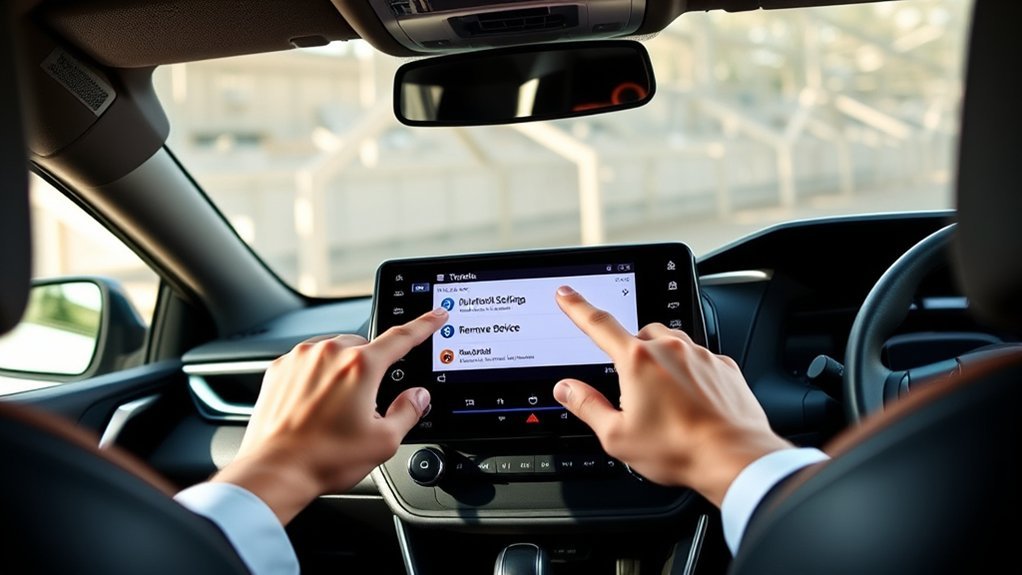
Follow these steps to remove one phone from your Toyota RAV4 Bluetooth list. Use the label that matches your screen.
- Park your RAV4 and turn on the multimedia system.
- Open the Settings gear or press Menu, then choose Setup.
- Select Bluetooth or Bluetooth & Devices.
- Choose Registered Devices if your system shows that menu.
- Tap the phone you want to remove.
- Select Remove, Forget, Delete, or Remove Device.
- Confirm the prompt by choosing Yes or OK.
- Check the device list again to make sure the phone no longer appears.
If you want a full cleanup, use Remove All only when you plan to delete every paired phone and audio device.
How to Delete the RAV4 From Your Phone
Your phone may still remember the RAV4 after you delete the phone from the vehicle. Clear both sides when you plan to pair the phone again from scratch.
- On iPhone: Open Settings, tap Bluetooth, tap the information icon beside the Toyota device, then choose Forget This Device.
- On Android: Open Settings, tap Connected Devices or Bluetooth, choose the Toyota device, then tap Forget, Unpair, or Delete.
After you clear both lists, restart your phone and pair it again from the RAV4 screen.
Troubleshooting Common Problems When Removing a Phone
You may face a few issues when you remove a phone from Toyota RAV4 Bluetooth. Most problems come from menu differences, phone connection status, or a multimedia screen that needs a restart.
Try the easy fixes first. Then check your manual or contact Toyota support if the same problem keeps coming back.
Device Not Listed
If your device does not appear in the Bluetooth menu, open the full paired device list rather than the active connection screen. Some RAV4 systems separate connected devices from saved devices.
Restart the multimedia system and your phone if the list still looks wrong. If the phone still does not show, delete the Toyota connection from the phone side and pair again.
Confirmation Prompt Issues
A missing or frozen confirmation prompt can stop the delete process. Use these steps before you try a deeper reset.
| Step | Action | Expected Result |
|---|---|---|
| Park safely | Stop the vehicle before changing settings | Unlocks more multimedia options |
| Wait for the screen | Let the multimedia system fully load | Gives the prompt time to appear |
| Restart the system | Turn the vehicle off, open the door, then restart | Clears minor screen glitches |
| Check software | Ask your dealer or Toyota support about updates | Helps with known system bugs |
| Review the manual | Use the steps for your exact model year | Prevents wrong-menu confusion |
Bluetooth Connection Errors
Bluetooth connection errors can stop your RAV4 from removing or re-pairing a phone. Keep the phone close to the vehicle and turn Bluetooth on from the phone settings.
If the phone connects to earbuds, a smartwatch, or another car, disconnect those devices first. Then restart the phone and the RAV4 multimedia system before you try again.
Warning: Change Bluetooth settings only while parked so you can keep your attention on driving.
Tips for Managing Your Bluetooth Connections
Keep your Bluetooth list short so your RAV4 can connect to the right phone. Delete old phones, tablets, and audio devices that you no longer use.
Review your paired device list every few months. This small habit helps reduce connection conflicts and protects your personal information before another driver uses the vehicle.
Regularly Update Your Device List
Check your Bluetooth settings when you change phones or share the vehicle with another driver. Remove any device you do not recognize or no longer use.
Before you sell, trade, or return a leased RAV4, delete all paired devices. Also clear saved navigation destinations, garage door settings, driver profiles, and app account links if your model stores them.
Manage Bluetooth Settings Efficiently
Use the infotainment menu as your main control point for Bluetooth devices. Then use your phone’s Bluetooth settings to forget the RAV4 when you need a clean reset.
| Action | Why It Helps |
|---|---|
| Check Paired Devices | Shows every saved phone or audio device |
| Remove Unused Devices | Reduces connection conflicts |
| Forget RAV4 on Phone | Clears the phone-side pairing |
| Check Owner’s Manual | Matches steps to your model year |
| Clear Data Before Sale | Protects contacts, profiles, and call access |
How to Remove All Devices From Bluetooth
You can remove all Bluetooth devices if your RAV4 screen offers a Remove All or Delete All option. Open the Bluetooth device list, choose the all-device delete option, and confirm the prompt.
If your system does not show that option, remove each saved device one at a time. A factory reset can erase saved phones, contacts, radio presets, driver profiles, and other settings, so use it only when you need a full cleanup.
Pro tip: Take a quick photo of your current audio and driver settings before you perform a full system reset.
Privacy Tips for Deleting Devices
After you clear Bluetooth connections, review the rest of your RAV4’s stored data. Some models may keep driver profiles, favorites, call access, contacts, or connected service settings.
Delete old devices before another person takes regular control of the vehicle. For the strongest privacy cleanup, check your owner’s manual for steps to clear personal data from the multimedia system.
How to Reconnect a Phone to Your RAV4 Bluetooth
After you delete a phone, you can pair it again as a new device. Turn on Bluetooth on your phone, make the phone discoverable, and open the RAV4 Bluetooth pairing screen.
Select your RAV4 from your phone’s Bluetooth list, then confirm that the pairing codes match. Your RAV4 may ask for contact and call history access, so choose the permissions you want to allow.
Enable Bluetooth on Your Device
Before you reconnect your phone to your RAV4 Bluetooth system, turn on Bluetooth from your phone settings. Make the phone visible to nearby devices if your phone offers that option.
- Open the settings menu on your phone.
- Tap Bluetooth and turn it on.
- Make your phone discoverable if the menu offers that setting.
- Restart your phone if the RAV4 does not find it.
Once your phone can pair, return to the RAV4 multimedia system and start the pairing process.
Pairing Process Steps
Turn on the RAV4 multimedia system and open Bluetooth or Bluetooth & Devices. Choose Add Device, Add Another Device, or Search for Devices, depending on your screen.
Select your phone when the RAV4 finds it. Accept the prompts on both screens, check that the codes match, and allow only the permissions you need.
Resources for Toyota Bluetooth Features and Support
Toyota support resources can help when your RAV4 menu does not match these steps. Use official support first, then check your owner’s manual for model-specific instructions.
- Use the multimedia screen to open Bluetooth settings through Menu, Setup, Settings, or Bluetooth & Devices.
- Delete paired devices by selecting the device and choosing Remove, Forget, Delete, or Remove Device.
- Visit the official Toyota audio and multimedia support site at Toyota Audio & Connected Services Support.
- Check your printed or digital owner’s manual for your RAV4 year and trim.
Frequently Asked Questions
How do I delete a phone from my Toyota RAV4?
Open the RAV4 multimedia settings, choose Bluetooth or Bluetooth & Devices, select the phone, and tap Remove, Forget, or Delete. Confirm the prompt so the RAV4 clears the pairing.
How do I delete a paired phone from my car?
Most cars let you delete a paired phone from the Bluetooth settings menu. Choose the saved phone name, select the delete option, and confirm the action on the screen.
How do I delete my phone history on my RAV4 2018?
On many 2018 RAV4 systems, open Setup, choose Bluetooth, then go to Registered Devices or phone settings. Remove the paired phone to clear its connection, and check the phone or call history menu if your system stores call records separately.
How do I reset Bluetooth on a Toyota RAV4?
Start by deleting the phone from the RAV4 and forgetting the RAV4 from your phone. If problems continue, restart both systems, check for software updates, or use the multimedia reset option listed in your owner’s manual.
Why won’t my RAV4 let me remove a Bluetooth device?
Your RAV4 may block some settings while the vehicle moves, or the multimedia system may need time to load. Park safely, restart the system, select the device first, and then tap the remove option again.
Conclusion
Deleting old phones from your Toyota RAV4 helps you keep Bluetooth connections clean and personal data safer. Start with the paired device list, remove the phone you no longer use, then forget the RAV4 from your phone if you plan a fresh pairing.
Check your owner’s manual when your menu uses different labels. A few minutes in the settings menu can give you a cleaner, safer, and more reliable connection on your next drive.
References
- How do I delete a paired Bluetooth® device from my vehicle? — Toyota Customer Service
- How do I disconnect my phone from Bluetooth®? — Toyota Customer Service
- Toyota RAV4MM Multimedia System Instruction Manual — Toyota multimedia manual, 2023
- Toyota Audio & Connected Services Support — Toyota Motor North America