How To Connect 2 Phone To The Toyota RAV4
How to Connect Two Phones to Toyota RAV4
What’s in This Article
Your Toyota RAV4 can remember more than one phone, but calls, media, Apple CarPlay, and Android Auto may not share the system in the same way. The right setup depends on your model year, multimedia system, phone support, and driver profile settings. This guide shows you how to pair both phones, set the right priority, and switch devices without confusion.
Quick Answer
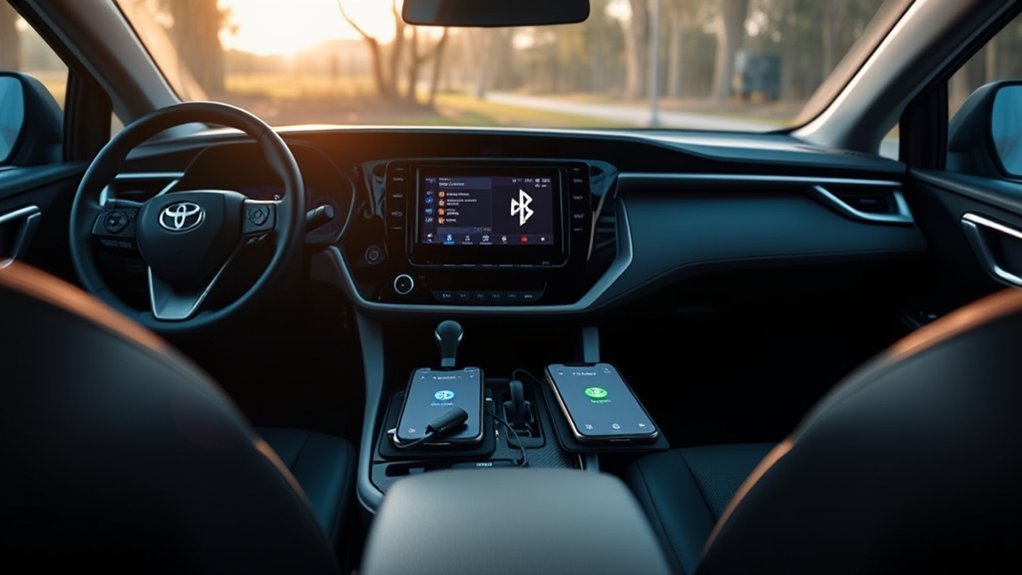
To connect two phones to a Toyota RAV4, pair the first phone in Bluetooth & Devices, then add the second phone from the same menu. Newer Toyota multimedia systems can set a primary and secondary hands-free phone when the driver profile supports it. For music, Apple CarPlay, or Android Auto, you usually need to choose which phone controls the active source.
Key Takeaways
- Pair both phones while your RAV4 stays parked and your phones stay in Bluetooth pairing mode.
- Set one phone as the primary device if your multimedia system offers that option.
- Use the secondary device setting for a second hands-free phone when your model supports it.
- Choose one active media source because Bluetooth audio, Apple CarPlay, and Android Auto may limit other connections.
- Check your model-year manual because Toyota changes menus and connection limits across systems.
Before You Begin
Estimated total time: 5 to 10 minutes while parked.
You’ll need both phones, Bluetooth turned on, and access to your RAV4 multimedia display. Keep each phone unlocked during pairing so you can approve the code and permission requests.
- Park your RAV4 before you start.
- Turn on Bluetooth on both phones.
- Open the Bluetooth screen on the phone you want to pair.
- Know which phone should handle calls first.
- Check that your phone supports hands-free calling through Hands-Free Profile (HFP).
Warning: Set up phones only while parked, because Toyota warns drivers not to operate a smartphone while driving.
Step 1: Pair Your First Phone
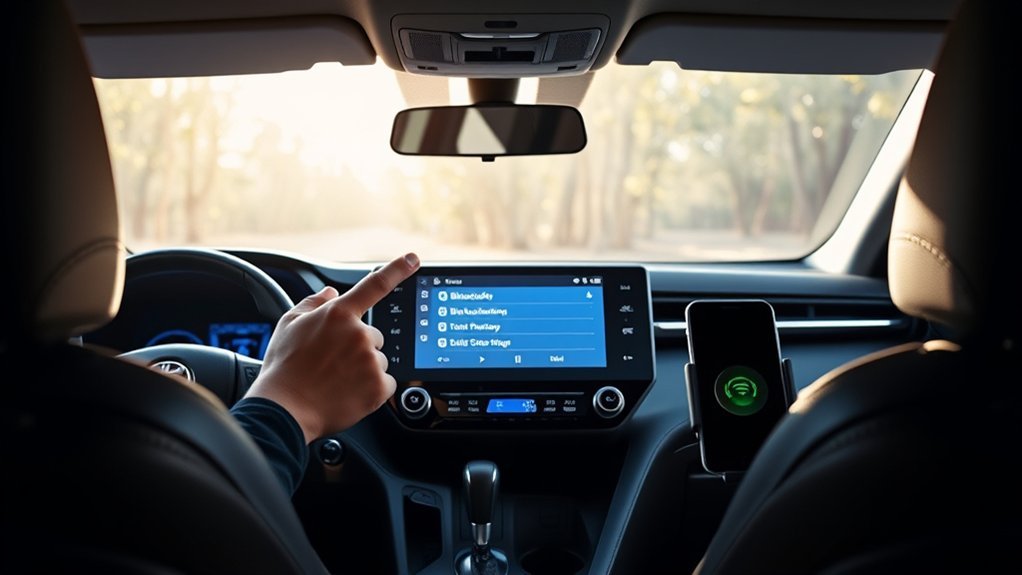
Start with the phone you use most for calls, maps, and music. Pairing it first often makes it easier to set that phone as the primary device later.
- Touch the Settings icon on your RAV4 multimedia display.
- Open Bluetooth & Devices.
- Choose Add another device or Search for devices, depending on your screen.
- Make your first phone discoverable from its Bluetooth settings.
- Select your phone name on the RAV4 screen.
- Check that the PIN code matches on both screens.
- Approve the pairing request on your phone and on the vehicle display.
- Turn on Use for phone and Use for media, or choose similar options in your system.
Some RAV4 systems may show Apple CarPlay or Android Auto settings after pairing. Choose those options only for the phone you want to use for smartphone projection.
How RAV4 Bluetooth Handles Two Phones
Your RAV4 may pair several devices, but paired does not always mean active for every function. Toyota’s multimedia manual says some newer systems can automatically connect up to two hands-free phones and one audio device when the system identifies the driver.
When the system does not identify a driver, it may automatically connect only one hands-free phone and one audio device. That difference explains why two phones may work in one RAV4 but not in another.
Phone, Media, and App Limits
Phone calls, Bluetooth audio, Apple CarPlay, and Android Auto use different connection rules. A newer RAV4 may support two hands-free phones, but it may still let only one phone control Bluetooth media or smartphone projection at a time.
Apple CarPlay and Android Auto can also limit Bluetooth functions for the same phone. Toyota’s manual notes that Apple CarPlay devices cannot use Bluetooth functions, while Android Auto devices may keep hands-free calling but limit other Bluetooth functions.
Priority Settings Impact
Priority settings tell your RAV4 which phone should connect first. The system usually checks the primary device first, then the secondary device, then the most recent connected phone.
Use this setup if two drivers share the same RAV4. Set the driver’s main phone as primary and the passenger or second driver phone as secondary when your system offers that option.
Pro tip: If your RAV4 keeps choosing the wrong phone, remove both phones and pair the preferred primary phone first.
Connecting a Second Phone: Step-by-Step Guide
After the first phone works, add the second phone from the same Bluetooth menu. Your RAV4 may ask you to disconnect the current phone before it adds another device.
That prompt does not always mean your system rejects two phones. It often means the system needs to pause the active connection while it registers the new phone.
Pairing the Second Device
- Park the vehicle and keep the multimedia system on.
- Open Bluetooth & Devices on the RAV4 screen.
- Choose Add another device or Search for devices.
- Accept any prompt that asks to disconnect the current device during setup.
- Open Bluetooth settings on the second phone and make it discoverable.
- Select the second phone on the RAV4 display.
- Confirm the matching PIN code on both screens.
- Approve contact, message, and call permissions only if you want those features.
After pairing, check the device list. The second phone should appear as a registered device even if it does not control media right away.
Managing Device Priorities
Open the second phone inside Bluetooth & Devices and look for Set as secondary device. Toyota systems may show this option only after you register a driver profile and connect an HFP-supported phone.
If you want the second phone to handle calls first, set it as the primary device instead. If your menu does not show primary or secondary options, your model may use recent connection history instead.
Switching Between Devices
To switch phones manually, open Bluetooth & Devices, select the phone you want, and turn on the function you need. Your menu may say Use for phone, Use for media, Connect to Bluetooth phone, or Connect to Bluetooth media.
If Android Auto or Apple CarPlay controls the screen, switch from the smartphone app setting first. Then choose the Bluetooth phone or media option for the other device.
Managing Calls and Media on Your RAV4
Use your RAV4 device menu to choose which phone handles calls and which phone handles audio. For calls, turn on the phone or hands-free option for the device you want to use.
For music, choose the phone you want under the media or Bluetooth audio source. Audio may skip briefly if the system switches between hands-free calling and Bluetooth audio.
If two hands-free phones connect, the call screen may let you switch which phone data you use. Contacts, call history, and messages can change when you switch phones.
Common Issues With Dual-Phone Connections
Two-phone setup can fail for simple reasons. Start with the easy checks before you reset the whole system.
- The wrong phone connects first: Change the primary device or pair the preferred phone first.
- The second phone pairs but does not work for calls: Check HFP support and turn on the phone function.
- Music plays from the wrong phone: Select the preferred Bluetooth media device from the audio source menu.
- Apple CarPlay or Android Auto blocks Bluetooth options: Turn off the app connection for that phone, then reconnect Bluetooth.
- Messages or contacts do not appear: Approve phone permissions and turn on contact syncing if your system supports it.
Troubleshooting Connection Problems
Start with the phone and vehicle settings before you delete any device. Small setting changes often fix failed pairing, missing audio, and call problems.
- Move the phone closer to the multimedia display.
- Turn Bluetooth off and back on from the phone.
- Restart the phone if it still does not appear.
- Open Bluetooth & Devices and confirm the correct phone function stays on.
- Turn off Wi-Fi hotspot if Bluetooth audio or calls keep dropping.
- Forget the RAV4 from the phone and forget the phone from the RAV4 if pairing fails again.
- Pair the primary phone first, then pair the second phone.
- Check your Toyota manual or dealer if your menu lacks primary or secondary device settings.
If Apple CarPlay or Android Auto will not start, use a data-capable cable for wired connections. Toyota also advises drivers not to use a USB hub for smartphone app connections.
Check Your Software and Manual Before Expecting More Connectivity
Do not assume a software update will add dual-phone features to every RAV4. Toyota changes multimedia menus by model year, trim, market, and system version.
Check your exact owner’s manual first, then install any available Toyota multimedia updates through the supported method for your vehicle. If your RAV4 does not show a secondary device option, ask a Toyota dealer to confirm whether your system supports it.
Note: Your owner’s manual gives the final rule for your exact RAV4, because Toyota uses different multimedia systems.
Frequently Asked Questions
How do I add a second phone to my RAV4?
Open Settings, choose Bluetooth & Devices, then select Add another device or Search for devices. Make the second phone discoverable, select it on the RAV4 screen, and confirm the PIN on both devices.
Can two phones connect to Toyota Bluetooth at the same time?
Some newer Toyota multimedia systems can connect up to two hands-free phones when the system identifies the driver. Your RAV4 may still allow only one active Bluetooth media source or one Apple CarPlay or Android Auto session.
How do I add a second person to the Toyota app?
Toyota support says you can log in to your account, choose Manage Vehicles, select the vehicle, and use Add Driver when that option appears. This Toyota app setting does not automatically pair the second phone to Bluetooth, so you still need to add the phone in the vehicle.
Can one phone use Apple CarPlay while the other uses Bluetooth calls?
Some Toyota systems allow a smartphone app connection and a hands-free phone connection, but the exact behavior depends on your multimedia system. If calls or audio do not work, turn off Apple CarPlay or Android Auto for one phone and reconnect the Bluetooth phone function.
Why does my RAV4 keep connecting to the wrong phone?
Your RAV4 may favor the primary device, the secondary device, or the phone that connected most recently. Change the primary device setting if available, or forget both phones and pair the preferred phone first.
Conclusion
The easiest way to connect two phones to your Toyota RAV4 is to pair both devices, then choose which one handles calls, media, and smartphone apps. Start with your main phone, add the second phone, and set primary or secondary priority if your system supports it. Check your exact owner’s manual when a menu looks different from this guide. Once you set the right priority, your RAV4 will feel much easier to share.
References
- 2026 Multimedia Owner’s Manual — Toyota, 2026
- 2026 Owner’s Manual Quick Guide — Toyota, 2026
- How to connect your phone to your Toyota — Toyota UK Magazine
- How do I add a secondary driver to my My Toyota account? — Toyota Support